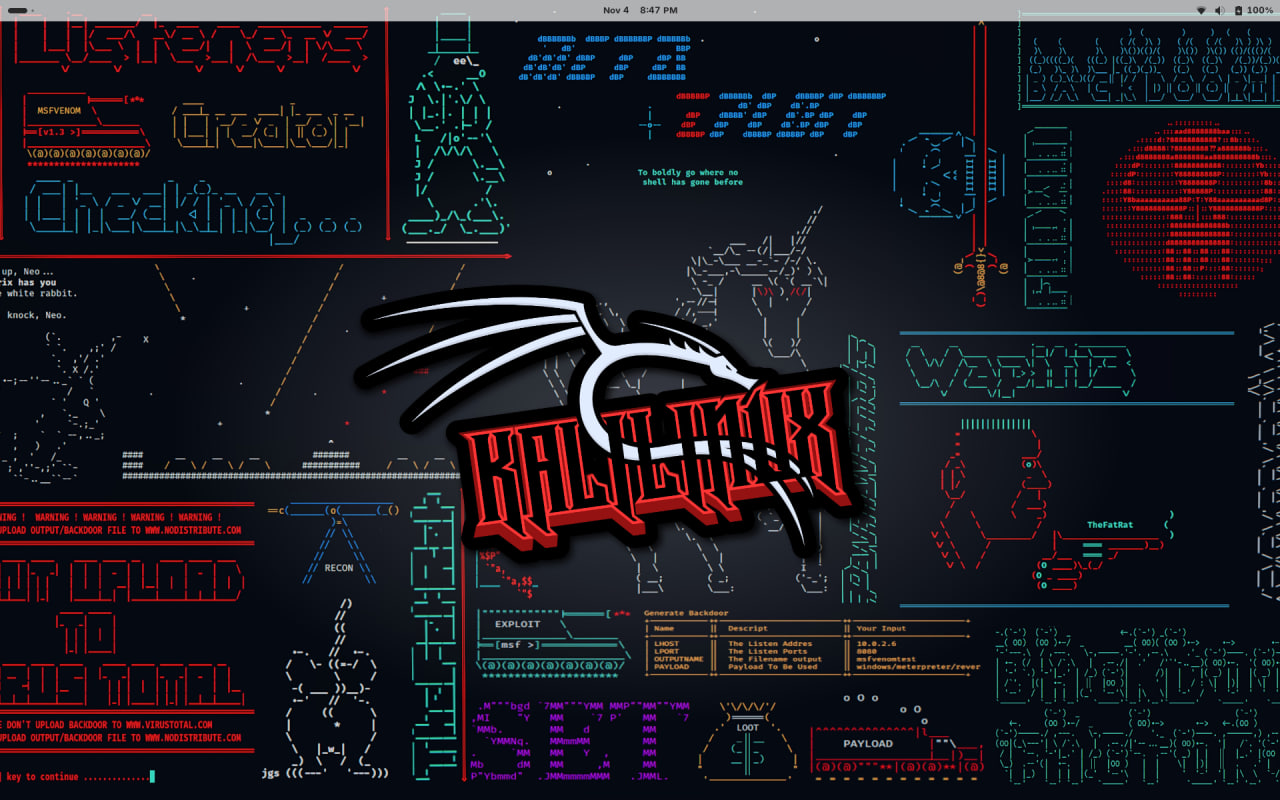
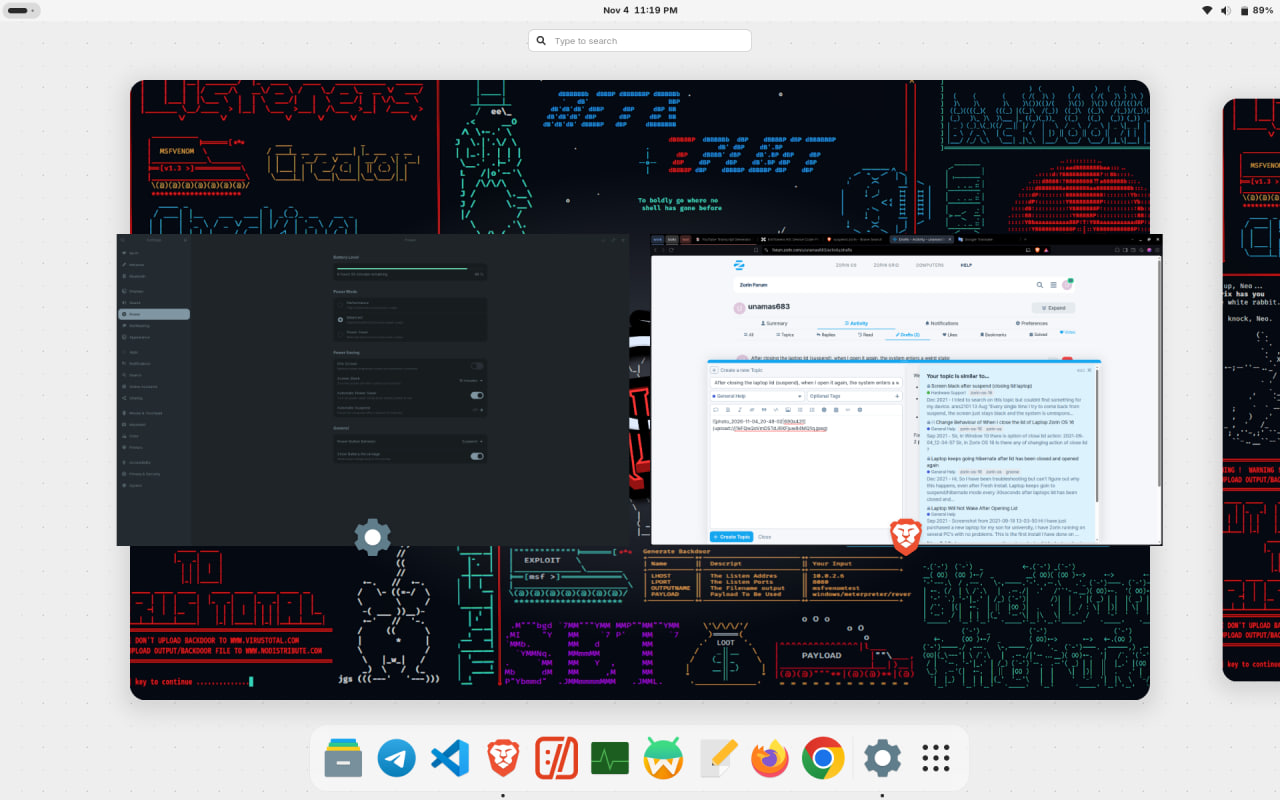
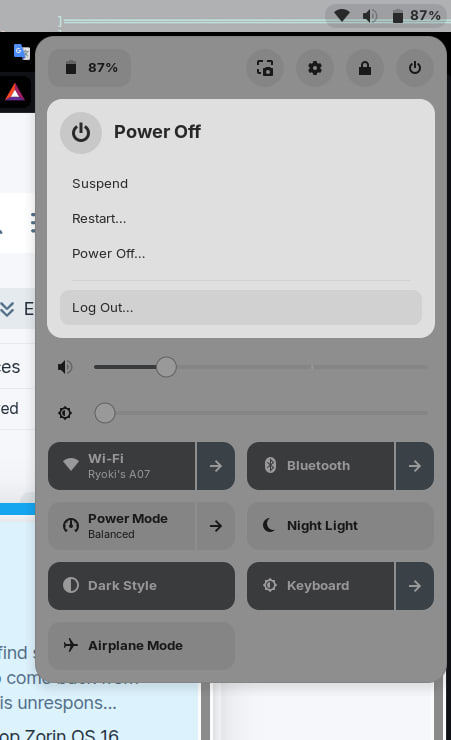
After closing the laptop lid (suspend), when I open it again, the system enters a weird state:


When I close the laptop lid or press the power button, the laptop doesn't return to its normal state after waking up. Instead, the following issues appear:

  • A new gray bar appears in the header, even though I never enabled or configured it.
  • All files and icons on the desktop become invisible.
  • The bottom panel/taskbar also disappears.

The PC only returns to its normal state after I log out and log back in. However, I then have to reopen all my applications and files from scratch.

What I actually want is for the laptop to enter Sleep/Suspend mode whenever I close the lid or press the power button, while keeping all my previously open applications, windows, and files exactly as they were.

When I wake the laptop, I want to resume my previous session normally, with everything still open and in the same state as before.

I do not want this unusual behavior after waking up. I hope the issue is clear, as shown in the screenshots.

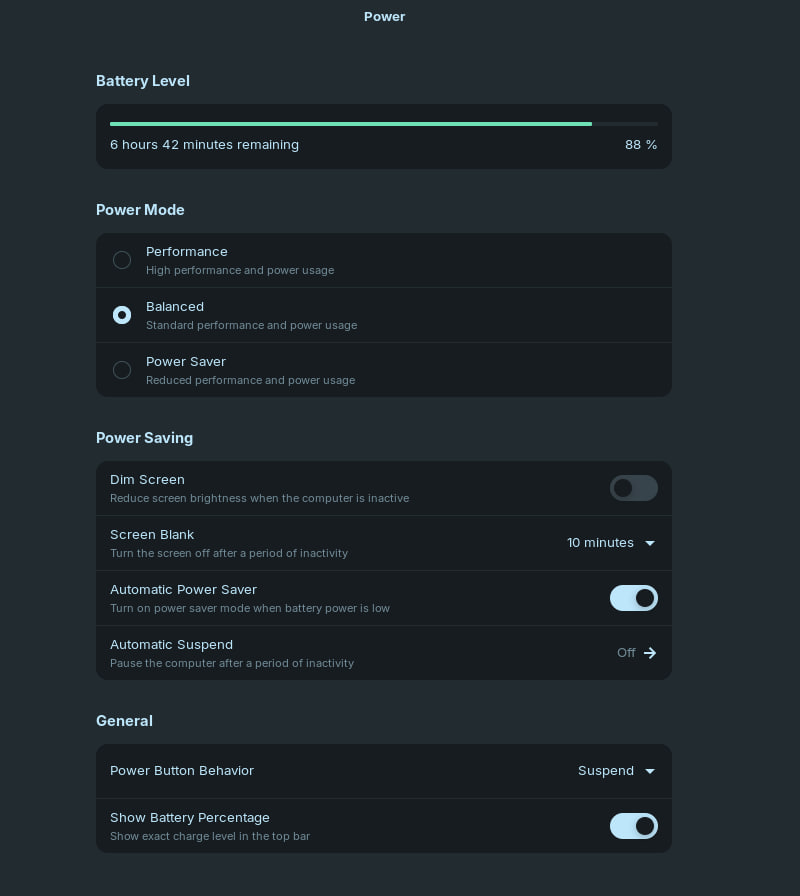
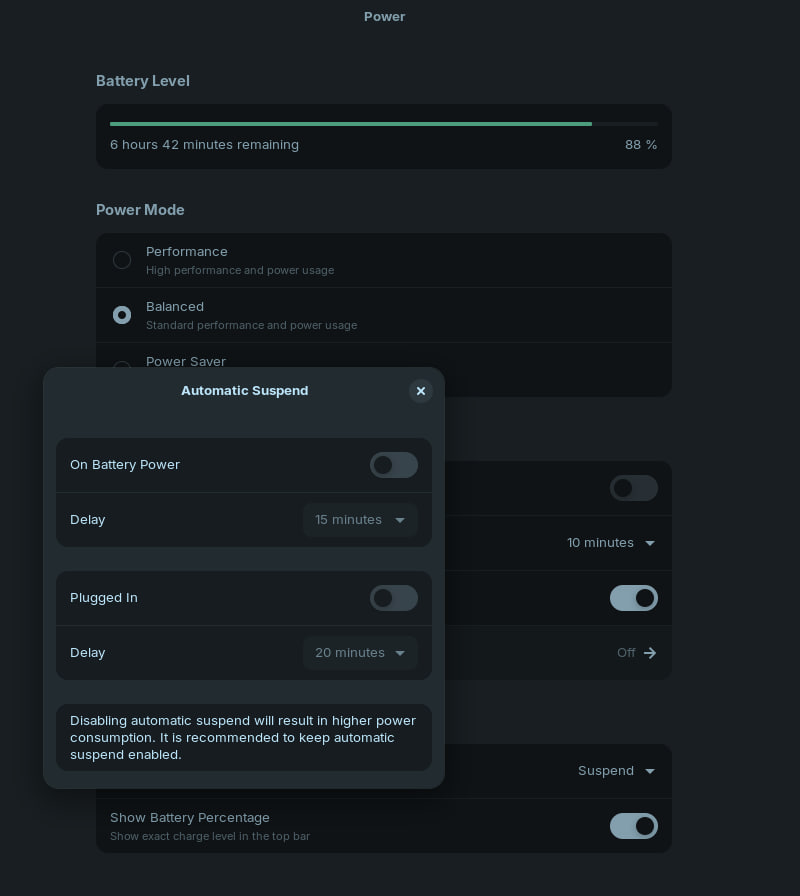
I tried changing the settings to test whether the issue would be resolved, but unfortunately, it didn't make any difference.


The screenshot shows that the desktop has returned to its normal state. However, as I explained earlier, this only happens after logging out and logging back in, and by then all previously open applications and files have been closed.

1 Like

Hi and Welcome.

I have noticed that in a VM I created that the bar at the top appears, even though I have not turned on "show overview at startup" which is basically what is trying to happen, especially with the second image.

Have you tried clicking anywhere on the desktop to bring everything back?

Welcome to the Forum!

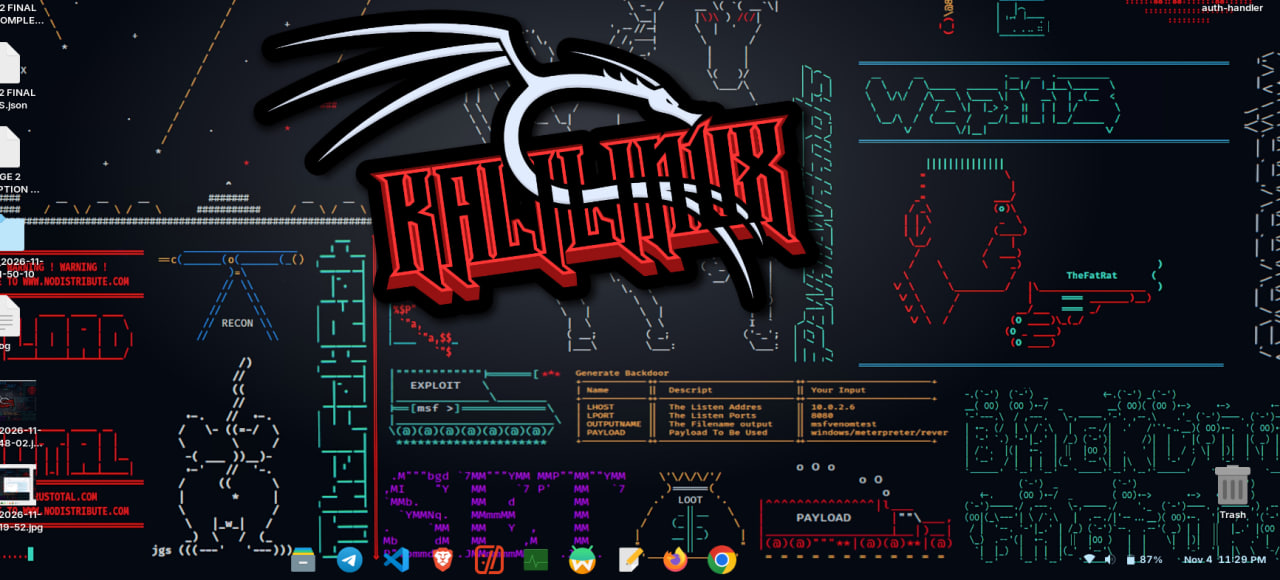
What You see there is the default Gnome Desktop Layout. That looks like this. It seems that afther You suspend the System falls back to it. Do You have the Extension Manager installed? If not look for it in Gnome Software and install it:

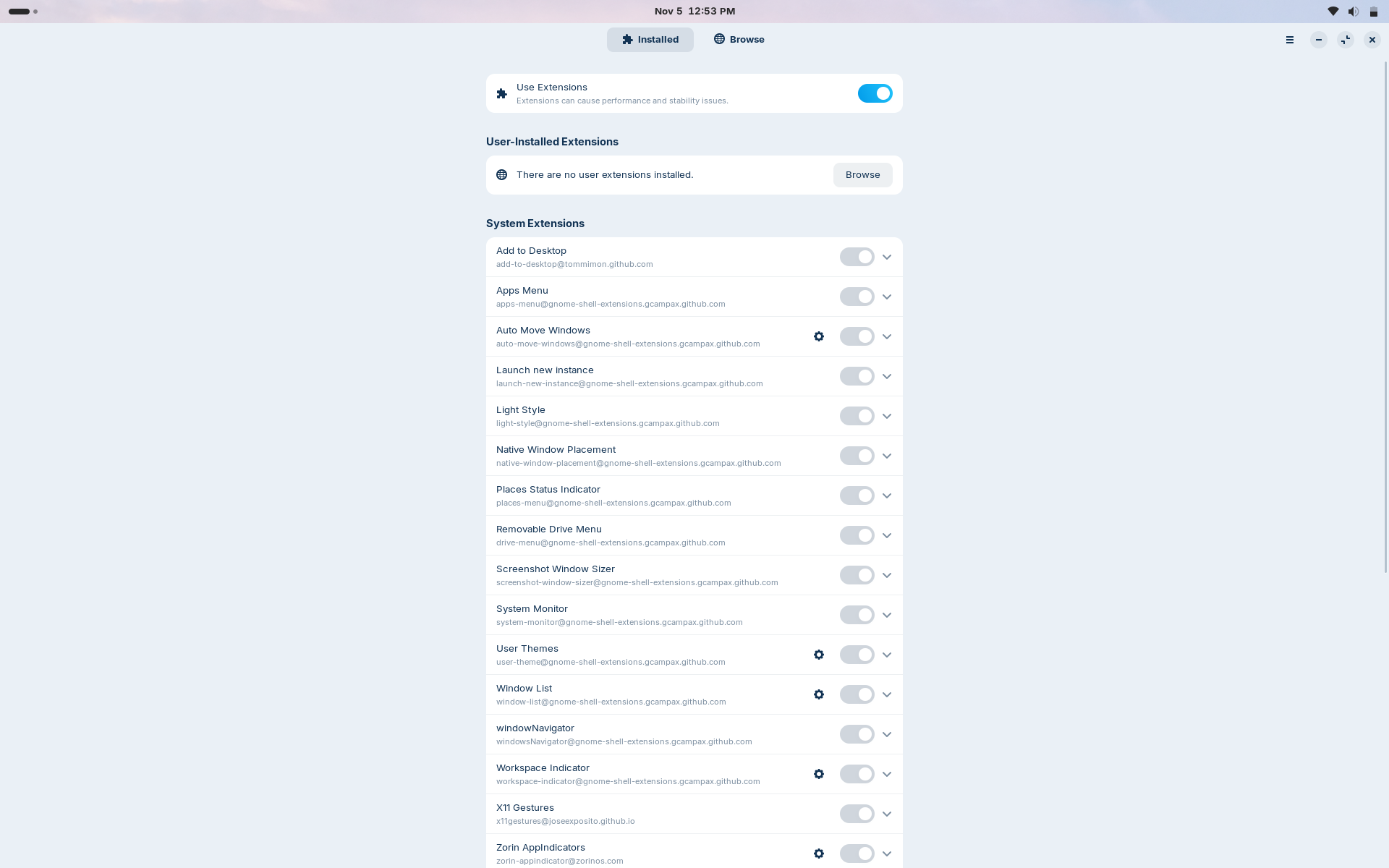
When done and Your Desktop looks again like this, open the Extension Manager and check on the ''Installed Tab if the System Gnome Extensions are all disabled.

2 Likes

extensions were disabled (turned OFF).

What I found:

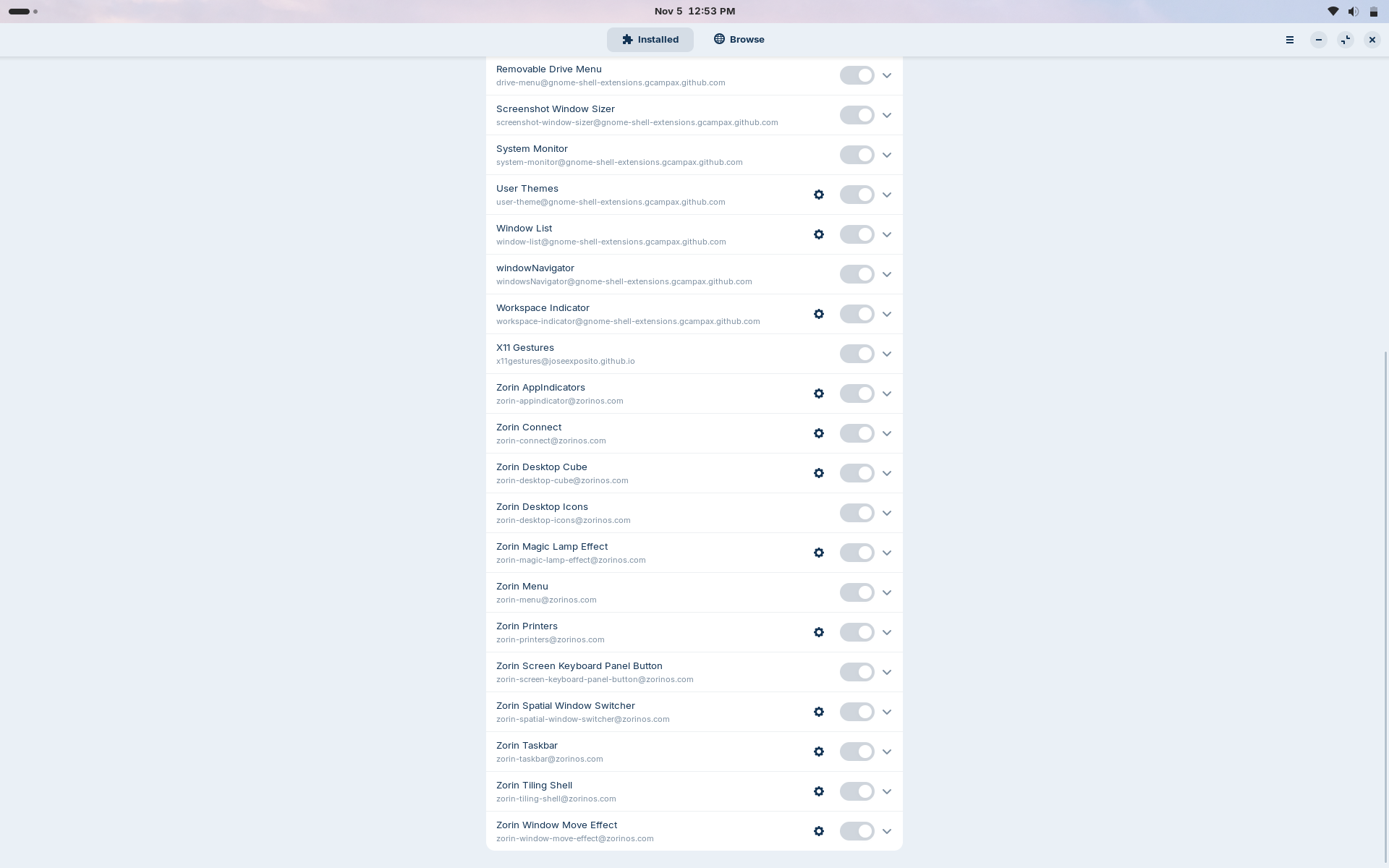
  • After suspend, all Zorin system extensions automatically turn OFF
  • This includes: Zorin Desktop Icons, Zorin Taskbar, Zorin Menu, etc.
  • When I manually turn them back ON in Extension Manager, everything returns to normal immediately (without needing logout)

My questions:

  1. What causes this? Is this a known bug in Zorin OS? Could a recent system update have caused this issue?
  2. Which extensions should be activated? In the "System Extensions" section, I see many extensions - some are ON, some are OFF by default. Could you please share a screenshot of your Extension Manager showing which Zorin extensions should be enabled? Or just list which ones you have activated?
  3. Is there a permanent fix? Instead of manually re-enabling extensions after every suspend, is there a way to prevent them from being disabled in the first place?

My system info:

  • OS: Zorin OS (GNOME Desktop)
  • Device: ThinkPad E16 Gen 2
  • The extensions work perfectly until I suspend - then they all turn OFF

Thank you again for your guidance!


You are not the only one with this Issue it seems. Take a Look at this:

I also informed the Dev's about this.

Title: [SOLVED] Extensions (taskbar, desktop icons, menu…) disabled after suspend/lock — root cause is a user copy of a Zorin extension in ~/.local

Setup: Zorin OS 18.1, GNOME Shell 46.0-0ubuntu6~24.04.16+zorin5, Wayland, ThinkPad E16 Gen 2

Symptoms

After closing the lid (suspend) or locking the screen, all Zorin extensions stop and don't come back on unlock. The taskbar, desktop icons and Zorin Menu disappear, and you get a plain GNOME top bar. Logging out and back in, or re-enabling the extensions by hand, fixes it until the next suspend.

The journal shows:

Unhandled promise rejection ...
_sessionUpdated@resource:///org/gnome/shell/ui/extensionSystem.js:852:26
...
_prepareForSleep@resource:///org/gnome/shell/ui/screenShield.js:294:22

Resetting dconf, reinstalling the extensions and recompiling schemas do not help.

Check if this is your problem

journalctl --user -b | grep "Found user extension"

If you get something like this, this post is for you:

Found user extension zorin-desktop-icons@zorinos.com, but not loading from /home/<you>/.local/share/gnome-shell/extensions/zorin-desktop-icons@zorinos.com directory as part of session mode.

Root cause

At some point a second copy of a Zorin system extension ended up in ~/.local/share/gnome-shell/extensions/. In my case it was zorin-desktop-icons@zorinos.com; it could also have come from Extension Manager or extensions.gnome.org.

Zorin's patched extensionSystem.js is supposed to skip such user copies. The skip branch, however, returns undefined instead of null:

if ((Desktop.is('zorin') || Desktop.is('ubuntu')) && this.isModeExtension(uuid) && type === ExtensionType.PER_USER) {
    log(`Found user extension ${uuid}, but not loading ...`);
    return;            // <-- returns undefined
}
...
}).filter(extension => extension !== null)   // undefined is NOT filtered out

Here is what happens step by step:

  1. The undefined entry stays in the list and is sorted to the end.
  2. All the real extensions load fine at login, so everything looks normal at first.
  3. Then loadExtension(undefined) throws. The extension manager's initialization promise (_initializationPromise) is now permanently rejected.
  4. On lock or suspend, extensions are disabled as usual.
  5. On unlock, _sessionUpdated() → _enableAllExtensions() awaits that rejected promise, fails immediately, and never re-enables anything.

Fix

Move the duplicate user copy out of the extensions folder. The system copy in /usr/share/gnome-shell/extensions/ stays and keeps working.

mkdir -p ~/extension-backups
mv ~/.local/share/gnome-shell/extensions/zorin-*@zorinos.com ~/extension-backups/

Then log out and log back in. Also check that folder for any other extension that Zorin ships as a system extension (x11gestures, add-to-desktop, etc.).

To verify, suspend/resume and then run:

journalctl --user -b | grep -E "Found user extension|extensionSystem.js"

It should print nothing, and the extensions should survive suspend.

If you created systemd services or scripts to re-enable extensions after resume, you can remove them now. They aren't needed.

For the Zorin team

It's a one-word fix in js/ui/extensionSystem.js (inside _loadExtensions, around line 796 in 46.0-0ubuntu6~24.04.16+zorin5): change return; to return null;. Wrapping the body of _sessionUpdated() in try/catch would also stop one bad entry from breaking extension re-enabling for the whole session.