I have the same model, and it's working right out of the box.
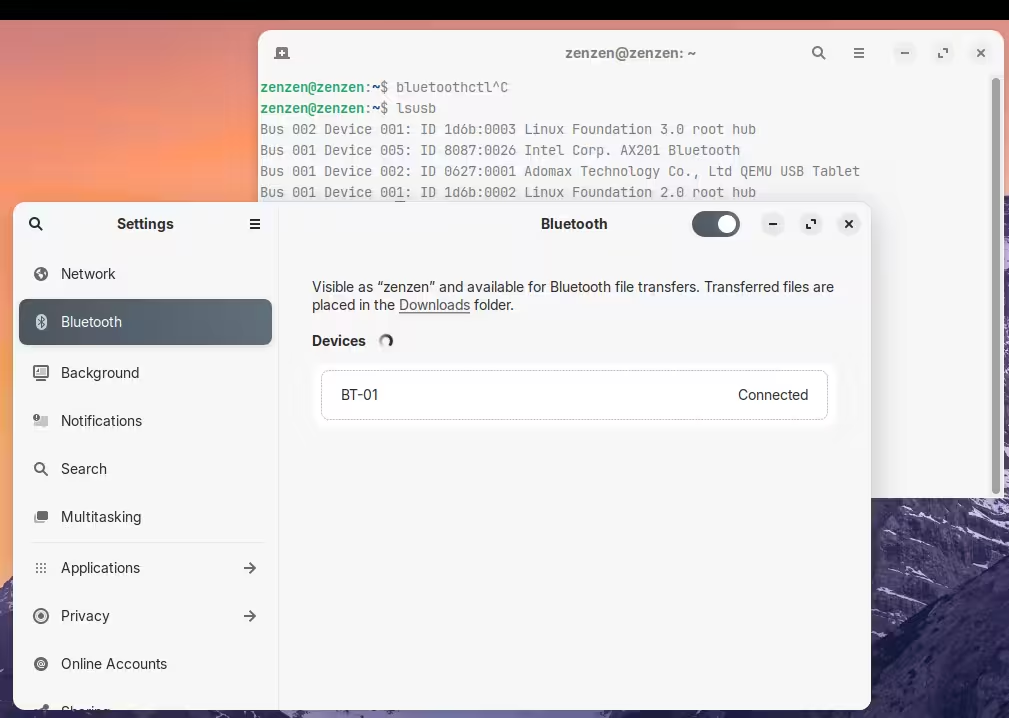
Are you able to use the launcher on the taskbar? You should be able to see come activity on the command line once you start the bluetoothctl command:
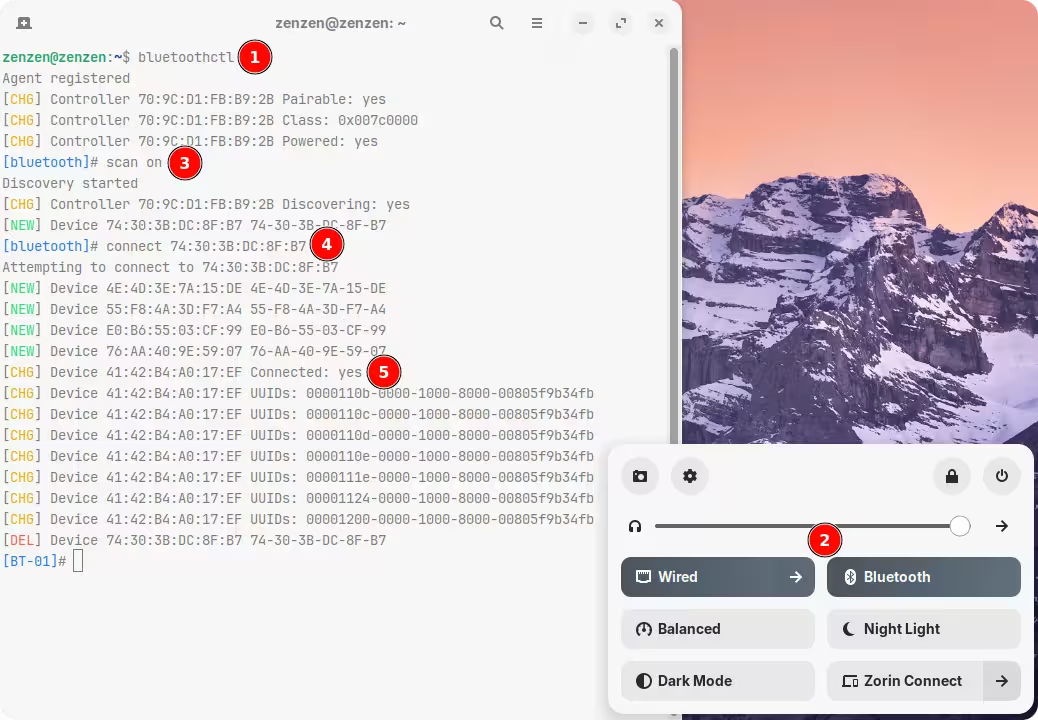
- Launch the terminal and run
bluetoothctl. - Enable bluetooth.
- Scan for devices with
scan on. - Attempt to connect to a new device with
connect <target_device_MAC_address>. - Wait until it connects or perform additional steps as needed by the device.
However, it seems that Gnome is somehow interfering with this as I cannot get it to work through the command line at all. But on the same machine running Debian 12 XFCE (I'm running Zorin OS on a virtual machine), it works without an issues.
To check the status of the bluetooth service:
sudo systemctl status bluetoothctl.service
I'm guessing there's some kind of error showing up there for you. Try to restart it as well, and try again.
sudo systemctl restart bluetoothctl.service
Try also the solution proposed at the end in this Stack Overflow thread:
rmmod btusb
modprobe btusb
systemctl restart bluetooth
It's basically restarting the kernel module and then the service.