When it froozes, did You take a Look in the Logs? Maybe there is an Error what could help. And have You installed a Monitor Tool to take a Look at the Ressource Consumption of the Hardware? Something like psensor or the Gnome Extension Vitals?
I have done nothing like that.
I have no idea which logs to look at and where they're located.
I also have no idea about monitor tools.
As I've stated before, Zorin is a brand new OS to me. Steep leaning curve but I am trying.
I appreciate your patience, time, and assistance.
There is a Program preinstalled called ''Logs'' where You can take a Look at it. You could post the Output of it when that should happen again.
I mean something like this in the Taskbar:
It can show You Temperature, CPU Usage, RAM etc.
And there would be the preinstalled System Monitor (an Aequivalent to the Windows Task Manager). But when Your System is frozen You can't open it. So, that wouldn't be an Option. But the Values in the Taskbar would be visible.
Only some Idea's.
I appreciate the help.
Will look into these when I'm on the laptop again and will post results.
Thanks again!
1 Like
Attached is a capture of the Logs app when opened. I picked the session where Zorin froze. Not sure if this is the one you are talking about.
Still looking for psensor or Gnome Vitals.

Can You click at the left Side at ''All'' please?
psensor, You can install in the Terminal with sudo apt install psensor and when installed, open it and click on Psensor>Sensor Preferences:

And in the upcoming Window, click on the ''Name'' Side (1) on an Entry and then on the right Side on the ''Application Indicator'' Tab (2) and there on the Option ''Display sensor in the label'' (3):

Attaching captured psensor window. I do not have"Tctl" in my list to select.
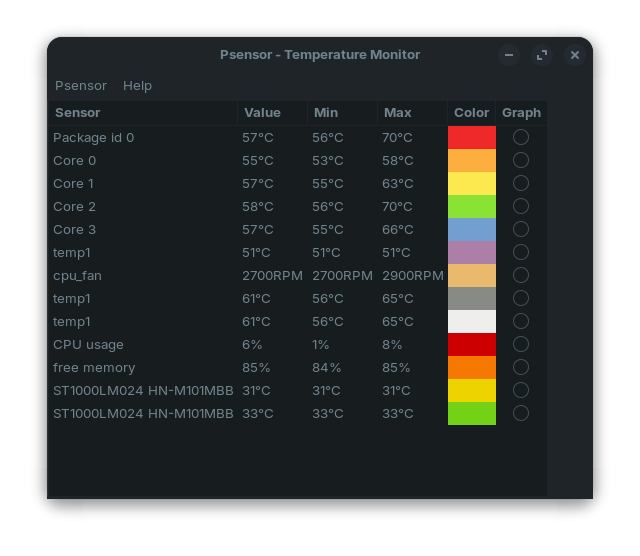
Is there a way to export the log. The file is really long, unless you just want the last items that show in the log.
Here's what I could catch on one page.

That is the normal Overview when open the Program. Click on the upper left Side on ''Psensor''.
You can copy and paste it here, then mark the Text and press this Symbol:

But what I can see there now: You use the Zorin 18 Beta, yes? I saw in the Beta thread some, who reports about Freezes, too. And there came an Answer:
Do You have any Updates that You can install?
Another Thing: Did You tried Zorin 17 and if You have there the same Issue?
Will look at these other things you mentioned. I was running Zorin 17 Core and had the same issue with Zorin freezing up while on WiFi.


Okay. I tried that. The only options I get when I click there are "Preferences," "Sensor Preferences," and "Quit."
I don't have an option to paste anything.
1 Like
Ah, You want paste something. Sorry for the Misunderstanding. This:
was related to this from You:
I will add it on my Post above to avoid further Misunderstandings. I thought, You have Problems with showing Psensor in the Taskbar.
1 Like
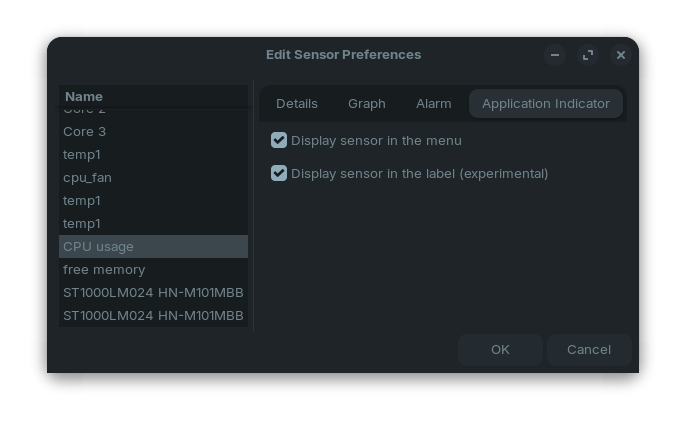
I did have a problem getting psensor in the taskbar but I found the spot to select which sensors are displayed in the taskbar and selected those. That part is working now. Thanks for your help on that!
Found them here:
1 Like
I'm hoping I have my WiFi issue settled with a USB wireless adapter I purchased. Running on that right now to make sure issue is solved.
Only question I have now is, how do I disable or uninstall (not physically) the internal Broadcom wireless card?
You don't have to do that, if you don't want to.
By connecting to a wireless network using the external adapter, the interface that was used will be remembered and used thereafter.
That means that if you unplug the wireless adapter, even though you still have another network card that can be used, it won't automatically take over.
However, you can just head over to Settings → Wi-Fi. When you have more than one wireless interface, each will appear as a tab at the very top of the window. You can toggle the one you're not using off from there.
Oh, never mind. Toggling the Wi-Fi option to off will disable all interfaces 
In that case, the only route that I can think of is by running a few terminal commands:
First list all your networks cards with lshw -C network -short.
The last column will show a description that you can use to locate the adapter, though it may not be immediately obvious if you are not very familiar with the nomenclature.
You can simply run this command once, and then plug the external adapter which will make it obvious which one it is.
The second column will be the device name as it's used by the system. Using that, we can run the second command:
sudo ip link set <interface> down
In my example, to disable the built-in network card I would run sudo ip link set wlp3s0 down. You can run the same command again with "up" instead, to re-enable it.

In this screenshot I'm also running ip link to list the network interfaces, but this doesn't include the actual device name. This can still be useful to contrast the information and make sure you are disabling the correct one.