I figured it out. Thanks everyone for the replies — and especially Forpli for the tip that finally made it work.
Here are the steps I followed:
1) Switch from Wayland to X11
a) On the login screen, at the bottom right, you’ll see two options:
Zorin Desktop
Zorin Desktop on Xorg
Pick Zorin Desktop on Xorg and log in.
b) Confirm you’re actually on X11 with echo $XDG_SESSION_TYPE
If it still shows wayland, go back to step a).
user@pc-main:~$ echo $XDG_SESSION_TYPE
x11
2) Install arandr
sudo apt install arandr
Enter your password if prompted, and confirm the install.
3) Run arandr and configure your displays
a) Start it with:
arandr
b) Adjust your display settings in the GUI. I couldn’t find an explicit “mirror” option, but dragging one display on top of the other (as shown in the screenshot) seems to do it. Honestly, pretty terrible software design since it hides the feature… but hey, it’s Linux, so I guess I shouldn’t be surprised.
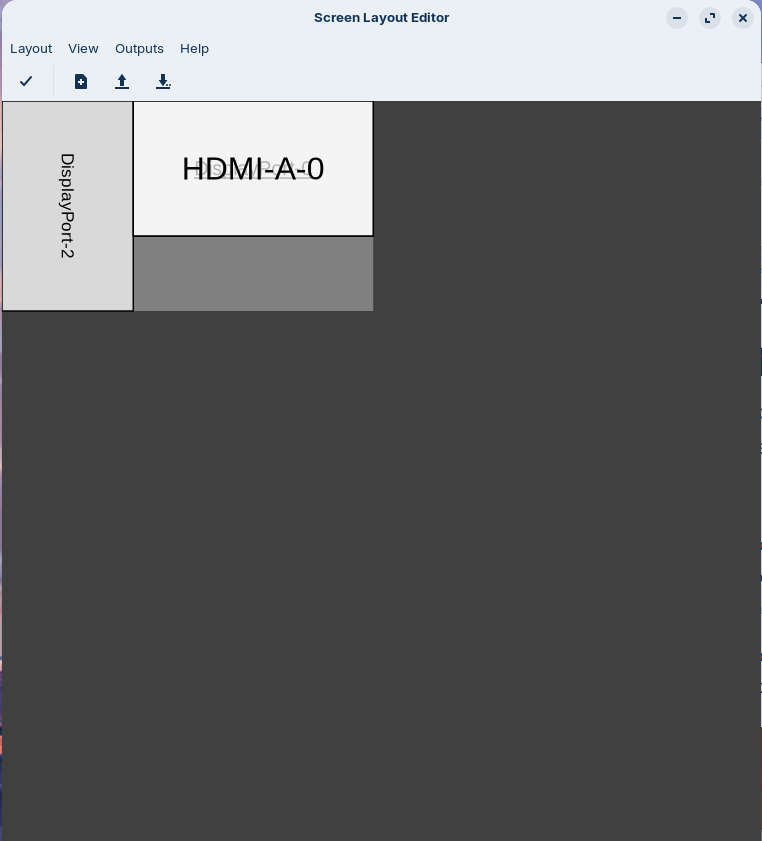
Click the checkmark button to apply and test the layout.
4) Make the change permanent
Click the down arrow to export your configuration. I saved mine as /home/user/display_adjustment.sh. Running this script after a reboot should restore your preferred settings.
Open Startup Applications from the Zorin menu. Click Add. For the name, something like “Display Adjustment” works. For the command, enter the path to your script (in my case /home/user/display_adjustment.sh). Click Add to save it.
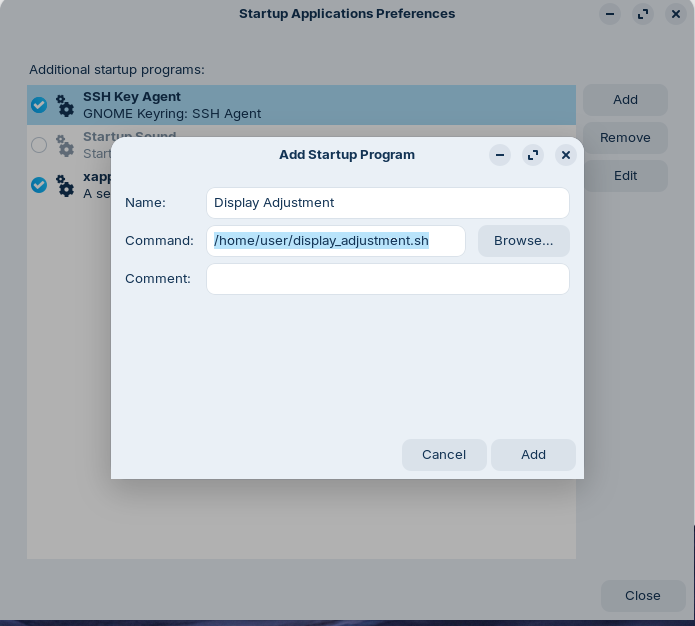
Reboot to confirm the settings now load automatically.