Hello! This isn’t my first time on the forum. I came here a few months ago with a problem related to internet connectivity. Despite following the instructions from other forum users as best I could, the issue persisted. On top of that, it felt as though there was a gulf in communication that I wasn’t able to cross. At the end of that thread, I expressed an interest in switching to a different distribution, but I didn’t do so because my computer was able to connect to Wifi again consistently after that. I’m not sure why it resumed working as I didn’t do anything beyond the suggestions I was given.
Recently, I was in the process of upgrading to Zorin 18 when, as you might be able to guess, the issue cropped up again. The process was halfway through and there was no option to cancel it. I knew from experience that there isn’t a way to fix this in the same session (previously, it was a case of restarting the computer until it decided to connect again), so in the end I had to restart my computer and hope for the best. I wasn’t happy about doing this, and a screen comes up shortly after startup that reads “Oh no! Something has gone wrong. A problem has occured and the system can’t recover. Please contact a system administrator”. I don’t even know who a system administrator would be in this case.
Is there anything I can do to try to remedy this, or is my computer mow rendered inoperable? I presumably still have the USB I used to install Zorin in the first place, if that’s of any use at all.
Hello! I could get as far as pressing Esc on startup. From there, I arrived at a screen that reads:
“GNU GRUB version 2.06
Minimal BASH-like line editing is supported. For the first word, TAB lists possible command completions. Anywhere else TAB lists possible device or file completions.”
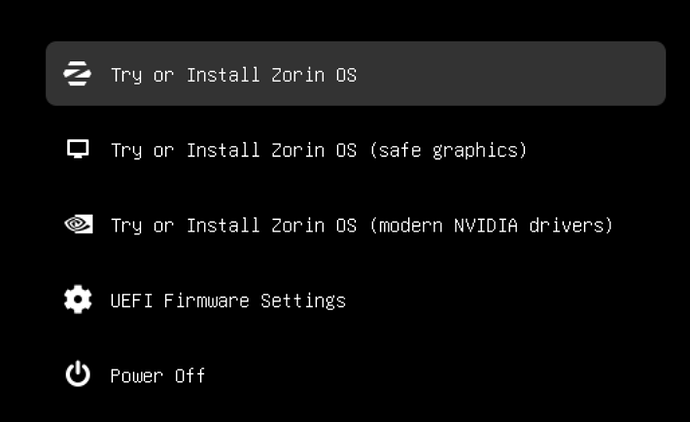
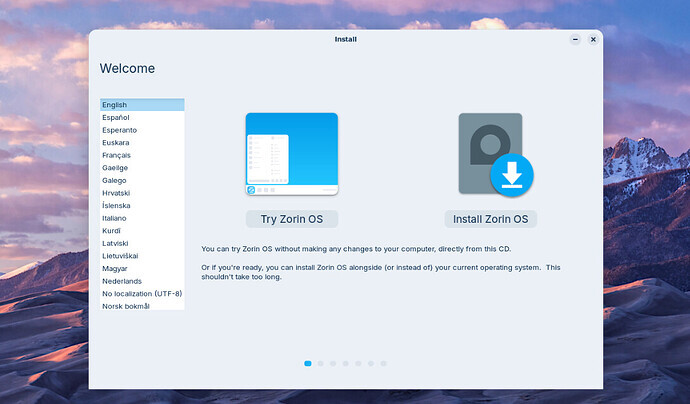
When you boot with the USB you created, when you select 'Try Zorin' that means it will run in Live Mode, the OS runs completely in RAM. Once at the Desktop, click on the menu, then in the search bar at the bottom of the menu type boot repair then press enter then follow the onscreen instructions.
I’ve tried to use both of the USB sticks that I suspect are the right one (I haven’t touched either of them since first installing it). Nothing happens and it’s not at all clear to me if there’s anything I should be doing after starting the computer with them inserted. It’s been a while since I first installed Zorin and I was following a guide word-for-word when I did so.
I wanted to be clear as well in saying that Zorin still seems to be ‘there’ on my computer in the sense that the logo appears on startup. I’m not sure if this means that the usual screens wouldn’t show up if I tried the USB I previously used. This is a genuine question as I really don’t know.
I’m sorry to sound like a broken record, but I wanted to make it clear that I’m not experienced with Linux at all. I’m likely to have trouble following instructions if other users assume that I understand words which I’ve never heard before, or assume that I am able to perform steps that aren’t clearly stated.
Do you have an other running pc to check the content your usb sticks? Stick your USB stick on this working pc and look for a file name like Zorin-OS-18.1-Core-64-bit.iso for the installation file for Zorin OS Core Edition. The name can differ a bit if you had installed an other Zorin OS Edition.
This stick should be the one you can try to repair your defektive Zorin OS, by booting from this USB stick. Then choosing Try or Install Zorin and then Try Zorin OS. Try Zorin OS leads you to Zorin Live.
But if you don't find the usb stick with the Zorin installation ISO file or with it any other problem booting into Zorin Live, you can follow the steps from here: Install Zorin OS - Zorin Help
until point 5, when you see on your screen:
Whilst pressing the power on button, try repeatedly pressing the Left Shift button to see if you can get to a GRUB Menu. If using Left Shift does not work, try repeatedly pressing the Esc key top left of keyboard.
Then choose Advanced options for Zorin and choose recovery mode. Make sure that you have a connection to the internet, you may need an ethernet cable connection to your router and choose activate network then choose the last menu item, drop to a root terminal.
Hello. I followed your instructions and after inputting the first command listed, I allowed it to do what it needed to and answered any additional prompts that came up as best I could. Upon restart, the Zorin logo no longer appears and I’m automatically taken to the BIOS(?) menu regardless of what keys I press. Every time I leave, it takes me back again. I’m not at all sure what this means.
I don’t have access to another computer, unfortunately, and won’t until hopefully tomorrow. I was under the impression that I’d found the right USB stick, but after following the other person’s instructions my computer doesn’t seem to want to read anything from it.
When it bumps you into the BIOS menu, try navigating around until you find the boot options. See if you have either Zorin or Ubuntu and move it into first place. Also, while in BIOS, find secure boot and make sure it is disabled.
Hi! I just gave this a try. Secure boot is disabled, but I wasn’t able to find any such choice under the Boot Priority Options. The options I have are HDD/SSD, ODD, LAN, and USB.
Sounds like your boot manager is missing, probably because the upgrade to 18.1 crashed. Since that part was working before you tried to upgrade, it probably isn't a MBR/UEFI mismatch. I think your best bet will be to reinstall Zorin 18.1 but, if you cannot boot, I'm not sure how you can back up any files you need to keep. Wait and see if others have suggestions.
@Silvergrass . If you can select USB as Boot source in BIOS, then Boot the ZorinOS install USB stick, using "Try Zorin" will give you backup options.
Maybe even running Boot Repair Disk (Grub repair) from that USB will get you somewhere.
Hello again. I haven’t been able to make any progress unfortunately, and moving ‘USB’ to the top of Boot Priority with either stick inserted has made no difference. It won’t be until the day after tomorrow that I’m able to get to another computer and verify what’s on them. Since I was using 17.3 Core at the time I attempted to upgrade, would it help at all to get the 18.1 file onto one of them to try?
When you try it with the usb stick, is secure boot disabled? If not, turn it off.
A few days ago, I also wanted to use my live USB drive, but the laptop just wouldn't boot from it until I realized that I had enabled Secure Boot earlier.