I'm attempting to repurpose some older hardware for use as a headless system, accessible via RDP. I'm testing Zorin OS Core v18, but it seems as if I'm missing something with getting the system to allow unattended RDP access after boot. I'm accustomed to Windows systems which just work with RDP, after the initial configuration for user access and firewall rules are complete.
I've enabled rules for incoming RDP connections, but it seems that I can only connect once. I read somewhere that each subsequent RDP session is a separate session and requires unique configuration. I've also added Xorg. I'd like to duplicate how RDP operates in Windows - a subsequent session will take over a previously open session.
I've been working on getting this going as well. Here's what's finally worked for me, and it's a bit easier than I expected. I am connecting to Zorin OS 18 remotely from one of the few remaining Windows machines I have (can't wait to wipe out the last few finally!)...
Anyway, I hope this helps you, and anyone else who might be facing the same issue.
ENABLE REMOTE LOGIN On ZORIN OS at the console:
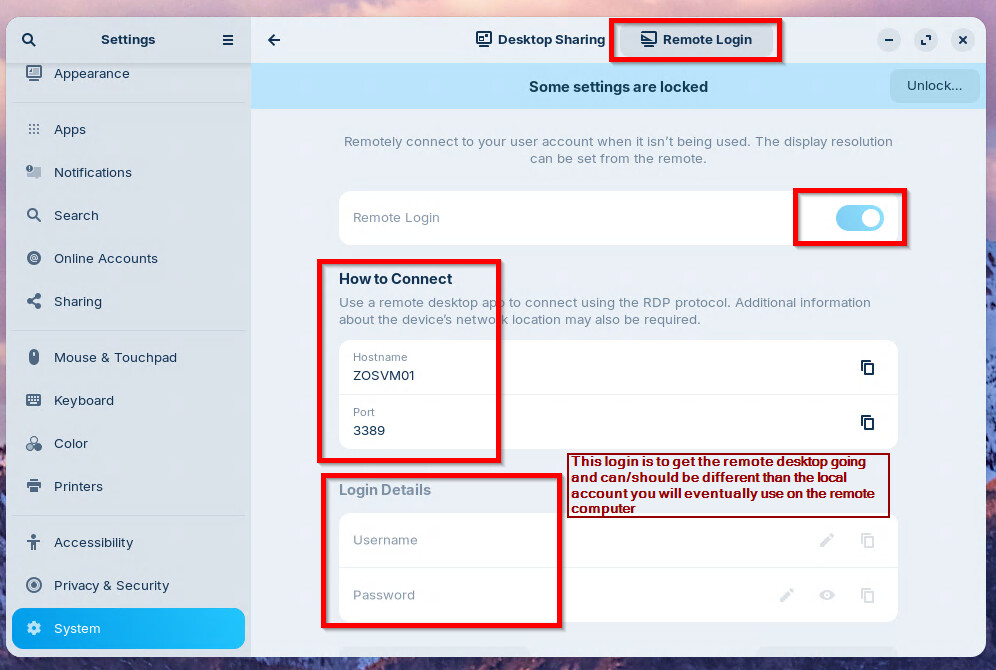
Go to System, then "Remote Desktop"
There will be two tabs at the top: "Desktop Sharing" and "Remote Login"
Only enable "Remote Login" - note the "how to connect settings" - and honestly, you might need the IP address of the machine if your local DNS server doesn't have an entry for the machine name.
Create a user login/pw combo. This will (can and should) be different than the local user accounts of the machine you will be connecting to.
Open a terminal and install GNOME Shell Extension Manager
"sudo apt update"
"sudo apt install gnome-shell-extension-manager"
Launch the "Extension Manager" application, which you can find by searching in your application menu - just three letters "ext" should get it to pop up.
Click on the "Browse" tab at the top, and search for "Allow locked remote desktop". Click the "install" button next to it.
Click on the "Installed" tab at the top, and verify the extension is listed, and enabled.
Reboot the Zorin Workstation
CONNECT TO THE MACHINE
In Windows - Create a mstsc desktop connection - save it on your desktop or wherever it is convenient.
Edit the settings per your requirements for the connection.
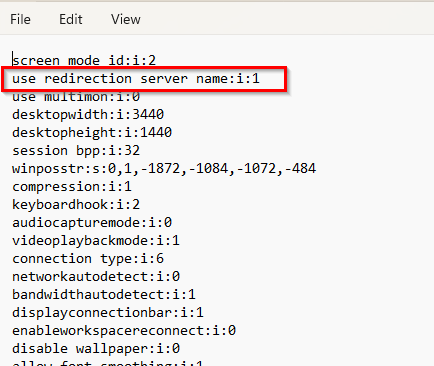
Edit the connection in NOTEPAD, and add the following line:
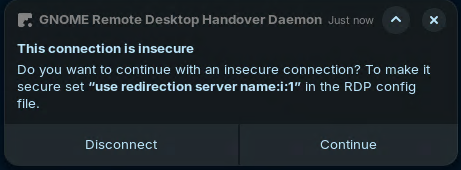
"use redirection server name:i:1"
You should now be able to remotely connect to your machine, even if the session locks on it's own (time-out), or if you lock it and walk away.
CONCLUSION:
As to re-connecting to the SAME RDP session, from what I understand, is being worked out in GNOME version 47 - so, this is still an issue, and you may be asked to "close" the session in order to remote in again. Best policy for now, is to save your work before disconnecting. Sometimes when you leave an app open "text editor for example", and you re-connect, then re-open it, the app will attempt to "resurrect" what you were doing - but I wouldn't rely on that. Just save it.
Perhaps in an update down the road, this bug will be finally resolved, and re-connecting to the same RDP session will be a "thing" we can count on.