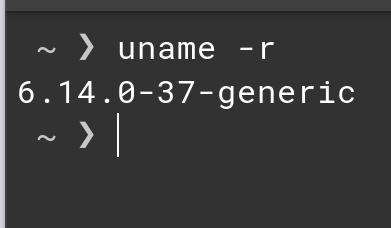
This should be ok, normally you should have mesa drivers (graphics card drivers)
for vulkan or DX12 support you should install vulkan drivers How to:
 1. Update your system
Open a terminal and run:
sudo apt update && sudo apt upgrade -y
2. Install Vulkan runtime and development libraries
sudo apt install vulkan-tools libvulkan1 libvulkan-dev -y
vulkan-tools: Includes vulkaninfo and vkcube for testing.libvulkan1: Vulkan loader and runtime.libvulkan-dev: Development headers (optional, if you’re compiling apps).
 For Intel integrated graphics:
sudo apt install intel-media-va-driver-non-free intel-opencl-icd -y
Intel Vulkan drivers are often included in mesa-vulkan-drivers.
4. Verify installation
Run:
vulkaninfo | grep "GPU"
or
vkcube
→ If you see a rotating cube, Vulkan is working.
perfs tweeks:
 Intermediate Optimizations
5. Use a Lightweight Display Manager (Optional)
Replace GDM3 with LightDM:
sudo apt install lightdm
sudo dpkg-reconfigure lightdm
→ Choose LightDM during reconfiguration.
6. Enable ZRAM (Compressed RAM Swap)
Install and enable:
sudo apt install zram-config
sudo systemctl enable --now systemd-zram-setup@zram0
→ Reduces disk swap usage, speeds up memory-heavy tasks.
7. Clean Up Unused Packages
sudo apt autoremove --purge
sudo apt clean
8. Use Preload (App Launch Accelerator)
sudo apt install preload
→ Learns your usage patterns and preloads frequently used apps.
 Hardware & Kernel Tweaks
9. Upgrade to Linux Kernel 6.8+ (Optional)
Zorin 18 uses 6.5 by default. Newer kernels offer better performance:
sudo apt install linux-image-generic-hwe-22.04
→ Reboot after.
10. Check for GPU Drivers
Ensure you’re using the correct Vulkan/OpenGL drivers (see previous answer). Misconfigured GPU drivers cause lag.
 Monitor Performance
Use these tools to spot bottlenecks:
htop → Real-time CPU/RAM usageiotop → Disk I/Onmon → System-wide monitoring
Install:
sudo apt install htop iotop nmon
 Bonus: Use Zorin’s “Performance Mode” (if available)
Some Zorin editions include a built-in Performance Mode toggle in Settings → Power → “Performance”.
Result: You’ll see faster boot times, snappier UI, and better multitasking — especially on older hardware.