OK. Firstly a few pointers. Usually, the BIOS on computers does not have CPU Virtualization on by default as it sees it as a potential security threat (indeed, a few years ago, even VMs within VMs were subjected to malware attacks, but these have been mitigated with updates to VM software).
In the early days I would have used Virtual Box, which is all that Zorin proffers in Software, and its USB 3.0 support never worked. You also had to install a 'guest additions' package.
Enter virt-machine manager! I discovered this during lockdown working from home, and had migrated from FerenOS to Devuan.
So what is special about virt-manager?
You can redirect USB host devices on-the-fly, VMs have a far better graphical appearance than ones on VirtualBox, with a screen res that makes them appear to be a bare metal install, and if you have two monitors, moving the mouse from the host OS screen to the VM screen is flawless, no need for the host to grab back control.
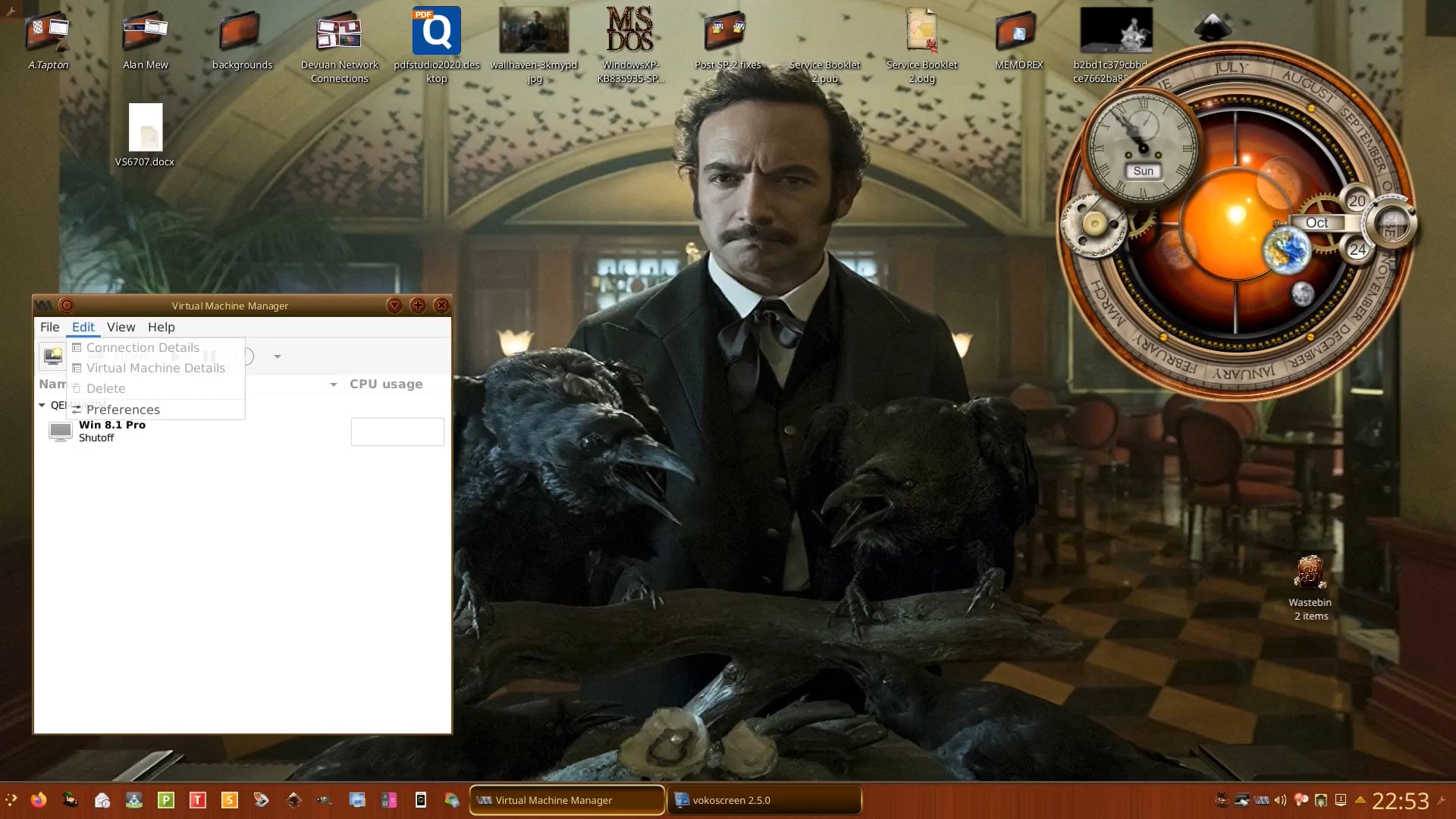
Oh and something I forgot to mention.
You will notice in the video that the VM is named Windows 7. That is because I created a .vhd in VirtualBox and was able to import it into virt-manager on Devuan. Then whilst still working from home Windows 7 reaxhed end-of-life and could not access works private web connection to get to the server to save files. So updated the VM with an educational licence through work a few years earlier. I was surprised that the update worked!
So once you have checked/enabled CPU virtualisation in the BIOS you can install virt-manager either via the terminal or via Synaptic Package Manager if you prefer a GUI method of installation (I cover Synaptic Package Manager in the Unofficial Manuals I have written for Zorin:
If using the Terminal (just enter the word Terminal in the menu search bar and press Enter key) and enter:
sudo apt update
(You will be asked for your login password to elevate you to 'root' (administrator) in order to update the system - always do this before installing new applications).
Then:
sudo apt install virt-manager
Then reboot the machine.
Launch virt-manager after rebooting your machine.
Now you may find when you wish to add/create a new VM it tells you it cannot connect to the server - you have to choose local guest setting (I will need to check this and report back - methinks a Tutorial Video is on its way!  ).
).
Additionally I create a folder in /home to store the VMs and make this the default 'pool' location (virt-manager tends to create the default location of /var/lib/virt-manager which can soon fill up and prevent you from booting the OS if creating multiple VMs.