My computer (GRUB with Zorin 17.3, Mint, and Windows 10) failed to start Zorin with: Failed to start default target: Transaction for graphical.target is destructive (emergency.target has 'start' job queued, but 'stop' is included in transaction).
Booting into the recovery option gave what appeared to be a corrupt curses GUI, with elements in the wrong place, and seeming random reactions to the keyboard.
After a lot of help from AI, I determined that:
The installer created a VFAT EFI partition, even though my PC only has BIOS
The partition is mounted in fstab
My computer had seized up the day before, and required a hard power off, leaving the dirty marker on the partition
Zorin refused to boot because the (unused) partition in fstab was marked dirty, and failed with an unhelpful error
I booted into Mint, cleared the dirty marker with the discs utility, then Zorin worked.
A couple of takeaways:
The installer shouldn't create an EFI partition if there's no UEFI
Zorin should at least offer to attempt automatic repair of bad/dirty partitions on startup, instead of just dropping into a maintenance console with a cryptic message.
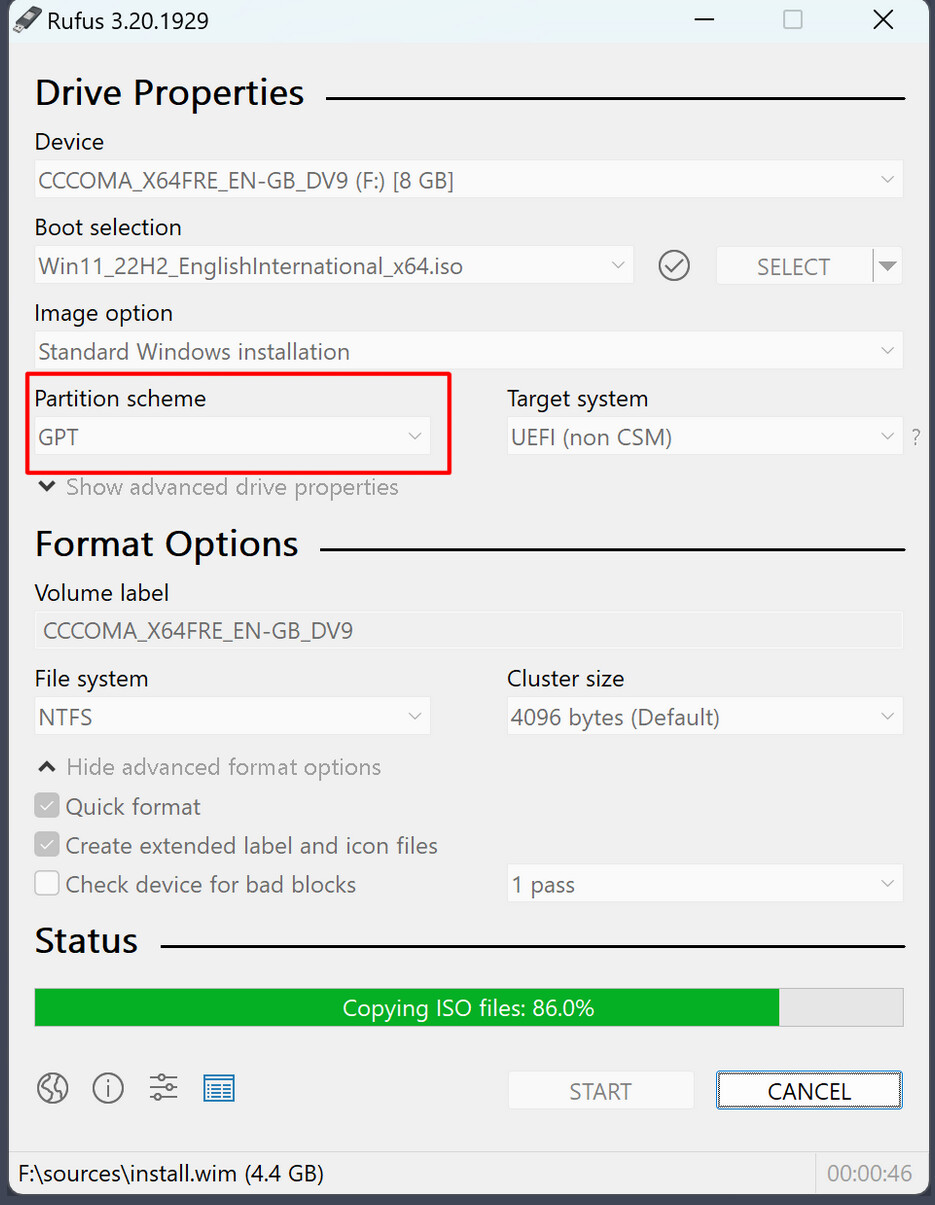
What Program did You use to create the bootable USB Stick? When Your BIOS is in Legacy Mode and not in UEFI, You have to prepare something. when the USB Stick will be created, it should use the MBR Sheme to create the USB Stick because this is better for a Legacy BIOS.
Programs I know that have an Option for this are Rufus and Ventoy. If You are on Windows, I can recommend Rufus; it is in my Opinion a great Tool. In the Interface the Option is here:
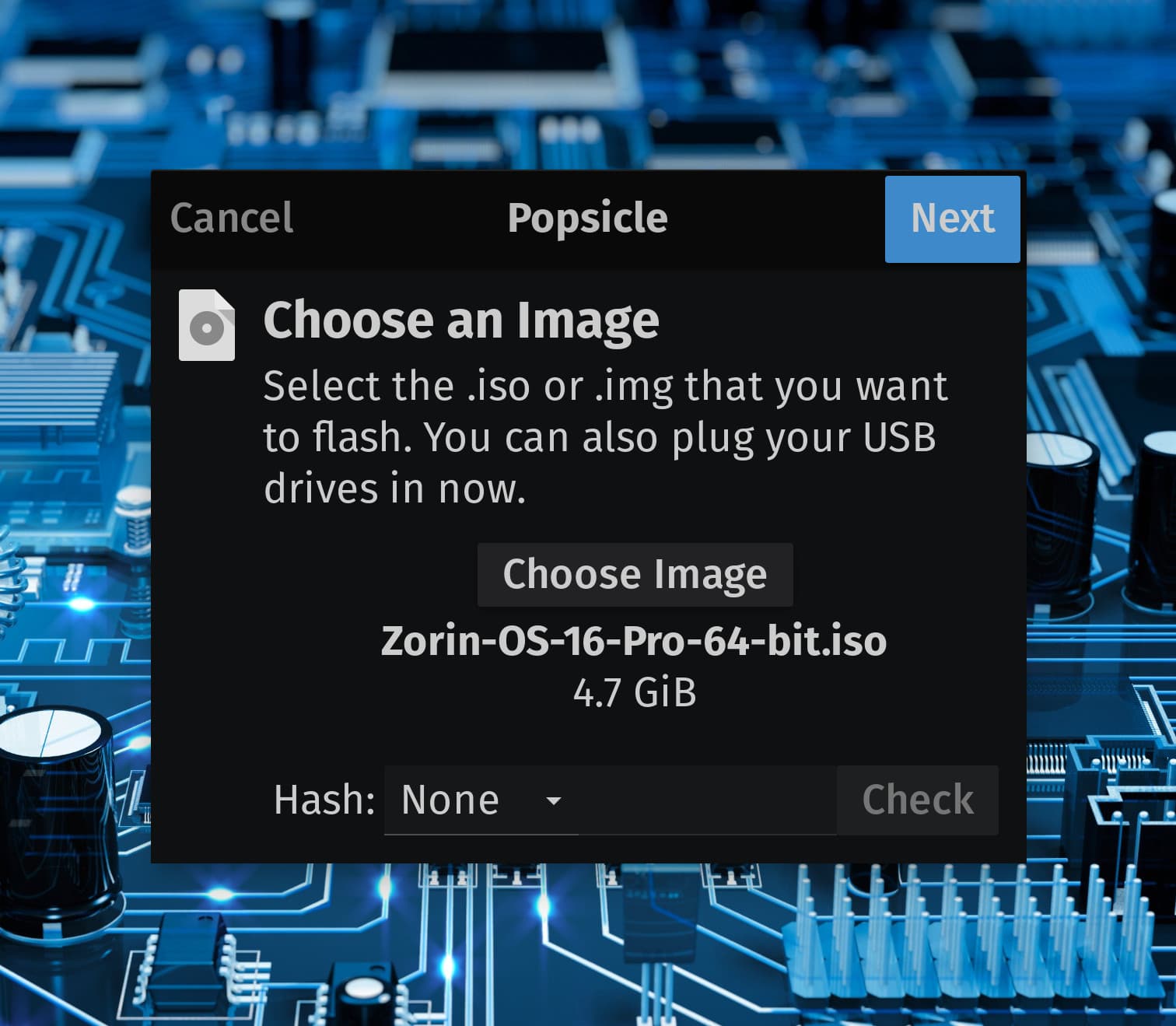
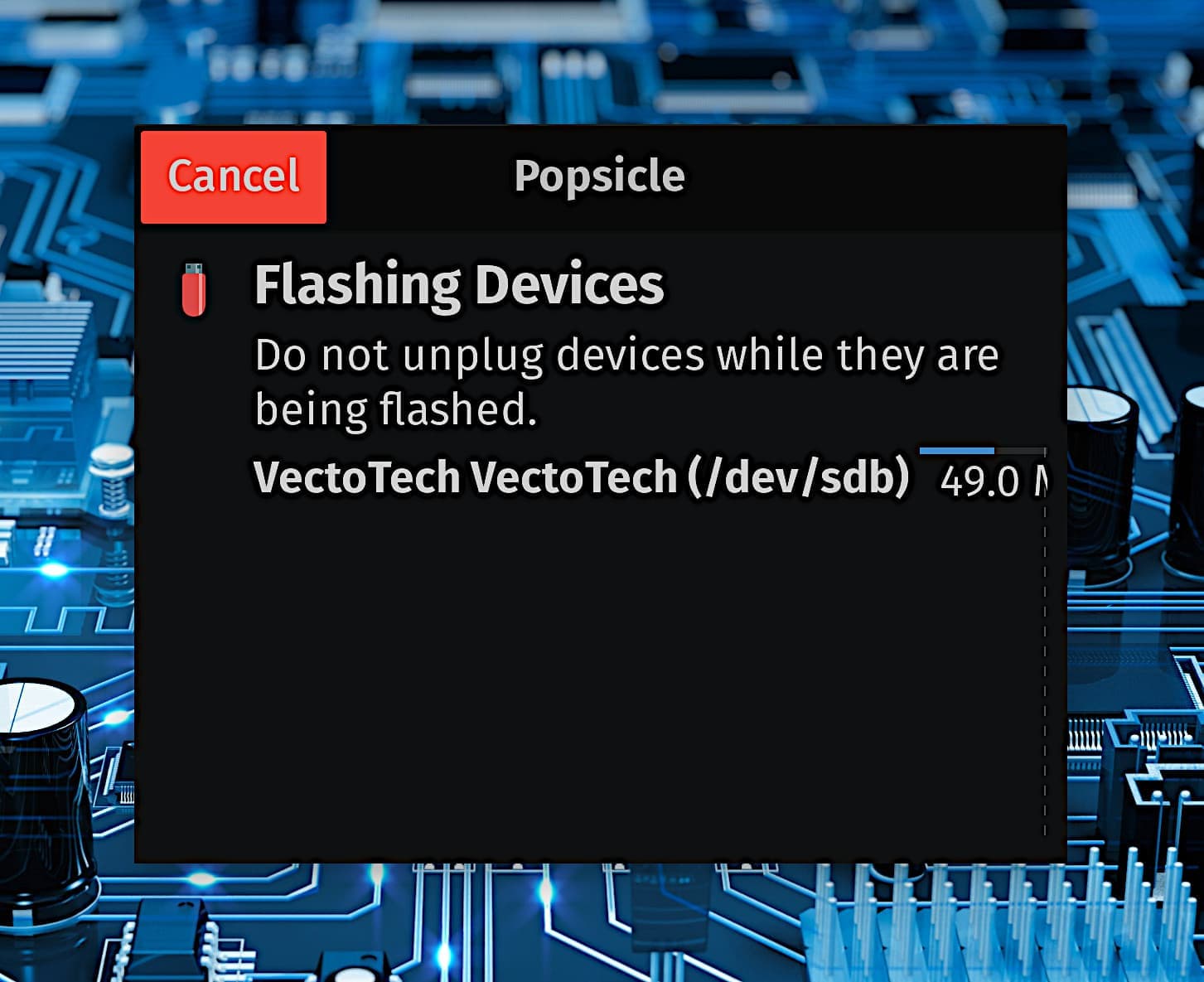
I think I copied the ISO to USB with Etcher. I also think my opening sentence was ambiguous. "My Zorin 17.3 installation" means the Zorin that was installed onto my PC a while ago, not the live installer.
Will update the post to be clearer.
I think we're talking cross-purposes. There was no problem with a USB stick. After a while of using Zorin, installed on an HDD, the problems described above were encountered. This appears to be by design - an unclean shutdown will leave the EFI partition marked dirty, and the system will then refuse to boot.
A better response, particularly given Zorin's target market, would be to offer an automated repair attempt. In any case, the EFI partition shouldn't be created for a BIOS install, and certainly shouldn't break the boot sequence if it can't be cleanly mounted.
But when Your BIOS is in Legacy Mode, it would be good to use a Bootstick with the MBR Format for compatibility Reasons - and that affect the Installation, too.
And if You want try repair, You could start Zorin in Live Mode (start the Zorin USB Stick and choose the Option ''Try Zorin''), search for ''Boot Repair'' and let it run.
Brave A.I. suggestion includes the Boot Repair tool, but there are also others too:
Repair Dirty EFI Partition
If your EFI partition has become "dirty" due to a forced shutdown of Ubuntu 22.04, you can follow several steps to repair it. The EFI partition is crucial for booting your system, and a dirty or corrupted partition can prevent your system from starting properly. Here are the steps you can take to repair the EFI partition:
Use a Live USB to Access the System : Boot from an Ubuntu Live USB. This will allow you to access the system and perform repairs without needing the EFI partition to be functional.
Check the Filesystem : Once you're in the Live environment, you can check the filesystem of the EFI partition for errors. This can be done using the fsck command. However, if the EFI partition is not mounted, you may need to use a tool like dumpe2fs to find backup superblocks and then use fsck with one of these backup superblocks to repair the filesystem.
Reinstall GRUB : If the filesystem is intact but GRUB is not functioning, you may need to reinstall GRUB. This can be done by chrooting into your installed system and running grub-install and update-grub commands. This process will reinstall the GRUB bootloader and update the GRUB configuration file.
Use Boot-Repair : Boot-Repair is a tool that can automatically repair common boot issues, including those related to the EFI partition. You can install Boot-Repair from the Ubuntu repositories and run it to attempt to fix the issue. Boot-Repair can also help in creating a new EFI partition if necessary.
Manual Repair with DiskPart (Windows) : If you have a Windows installation, you can use the DiskPart utility to repair the EFI partition. This involves opening the Command Prompt as an administrator, using DiskPart to select the EFI partition, and then using the bcdboot command to repair the boot configuration.
Use Recovery Software : If the above methods do not work, you may need to use recovery software like Recoverit to recover data from the deleted or corrupted EFI partition. This software can also help in repairing the EFI partition to ensure your system can boot properly.
It's important to note that the exact steps may vary depending on your specific situation, and it's always a good idea to back up your data before attempting any repairs. If you're not comfortable performing these steps yourself, consider seeking assistance from a professional or a more experienced user.