After full installation to hard drive the screen stays at full brightness even if slider is all the way to the left. Installed Zorin Core 18.1 on Lenovo thinkpad E540 with Intel Corporation 3rd Gen Core processor Graphics Controller (rev 09).
Help would be appreciated.
Welcome to the Forum!
So, it worked in Live Mode, yes? Are Secure Boot and Fast Boot in BIOS disabled?
Does Your System run in Wayland or X11? You can check that with the Terminal Command echo $XDG_SESSION_TYPE and when it should show Wayland, You could try it with switching to X11/Xorg.
To do that, go to the Login Screen. Click there on Your Profile so that the Password Field appears. When it is appeared, You should see in the bottom right Corner a Gear Icon. Click on it and choose the Option ''Zorin Desktop on Xorg'' and then log in. Then check if it works again.
Hello Ponce-De _Leon, Thank you for the help.
Yes, it worked in live mode.
I went into bios and Legacy Mode is selected. I changed boot from fast to diagnostic. No change.
Entered the command you provided and it shows Wayland.
Can't find the gear to change to X11/Xorg. It may have to do with the setting to boot into OS. I waited for the timeout and when it came on with the login screen the gear was not there. Is there another way to switch to X11?Xorg?
Thank you.
Hello and welcome,
Try this
sudo nano /etc/default/grub
add to GRUB_CMDLINE_LINUX_DEFAULT
i915.enable_dpcd_backlight=0
You should have now
GRUB_CMDLINE_LINUX_DEFAULT="quiet splash i915.enable_dpcd_backlight=0"
Save (Ctrl+X, then Y, then Enter)
Then:
sudo update-grub
sudo reboot
3 Likes
Ponce-De-Leon Hello again.
I was able to locate the gear icon by logging off and logging back in. I selected "Zorin desktop on Xorg" ..no change in screen brightness when slider is moved. The screen remains at full brightness.
Did you try Nourpon's suggestion? It helped another user with the same problem yesterday
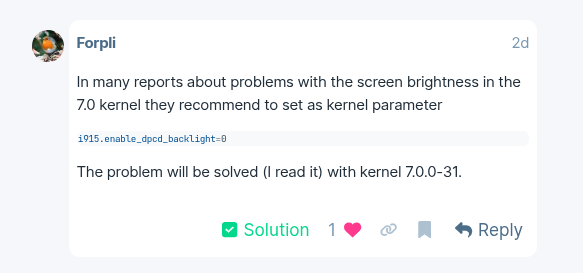
Perhaps it is the current kernel which causes the problems.
If it doesn't help, just repeat all (!) steps, but remove the added kernel parameter instead.
When the kernel update to kernel 7.0.0-31 will have been released, you can test if it works without the kernel parameter.
Another option would be to boot with kernel 6.17 until the next kernel updates are available if kernel 6.17 is still installed on your system and editing the grub file doesn't help or is too difficult for you (you can set an older kernel to boot from at the Advanced Options for Zorin in grub menu).
And is your problem solved?
yes sir
1 Like
Sorry, I thought you were the OP of the thread, Spark. You let me know right away yesterday that it had worked. That's always very helpful for those who are trying to help, as well as for others who read it. So they can see whether something was helpful or not to solve the issue.
1 Like
Holy Smokes that worked!
Thank you Nourpon and thank you Ponce-De-Leon for your help!
1 Like
What exactly did work? You can mark the helping Post as Solution when You click on this Icon:

Hello,
Nourpon's screen brightness solution worked for me on my Lenovo E540.
I don't know if i marked it correctly.
Thank you all for your comments and help.
I marked @Nourpon's Comment because You had marked my Comment.