I tried it with xcape and as far as I could tell, it worked. I installed xcape
sudo apt install xcape
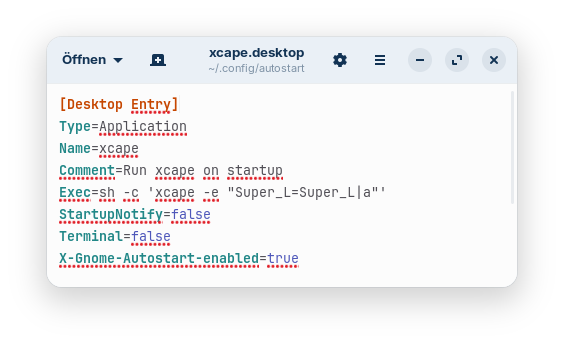
and added this file to the autostart directory at ~/.config/autostart
(press ctrl+h to show the hidden files in your file manager) and then logged out.
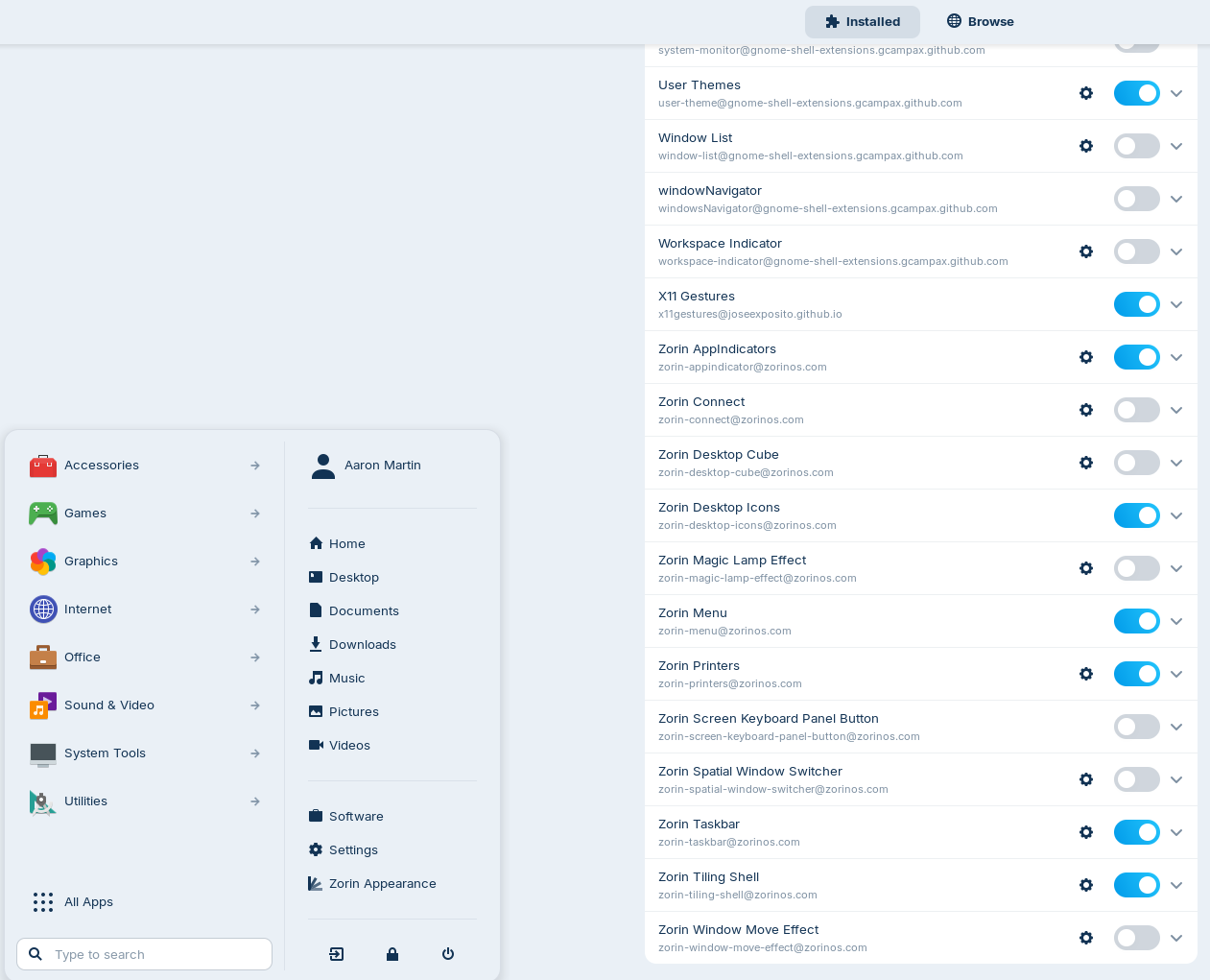
After I logged in, pressing the super key opened the applications overview.
You can test that command before you add it permanently to autostart to see if all keybindings still work by entering the command in terminal
xcape -e "Super_L=Super_L|a"
This command which remaps the left super key to super+a, is reset after you logout.
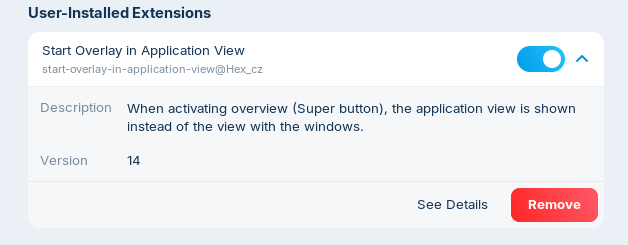
But if I were you and a Linux beginner, I would use the extension or press super key twice.
You can copy the content here:
[Desktop Entry]
Type=Application
Name=xcape
Comment=Run xcape on startup
Exec=sh -c 'xcape -e "Super_L=Super_L|a"'
StartupNotify=false
Terminal=false
X-Gnome-Autostart-enabled=true
I didn´t change anything in dconf editor/gsettings as shown in the link above.
Note: The tool xcape only works in Xorg, not Wayland. If you want to try it, switch to Xorg first. At loginscreen click on your username then a cog wheal appears at the bottom right corner, there you can switch between Xorg and Wayland.
I noticed, that with this method, the workspaces are shown when you fastly press the left super key twice or you press the super key a bit longer.
To go back to the desktop press the super key again. I'm not sure, if it would be better to add a short sleep time at the beginning of the command, but for me all keyboard shortcuts had worked in my test.
To remove the file from autostart, remove the file completely from the autostart directory or go to the app "startup applications" and uncheck the box for xcape to disable it or click on remove to remove it from the system.
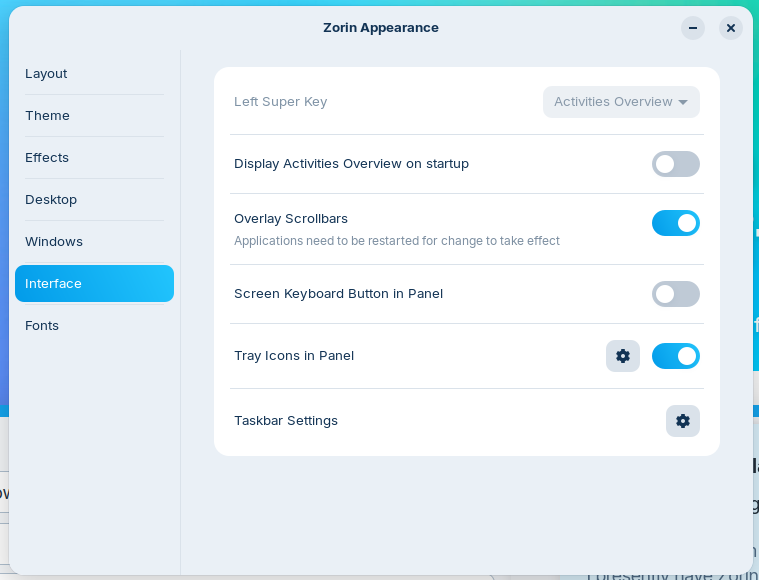
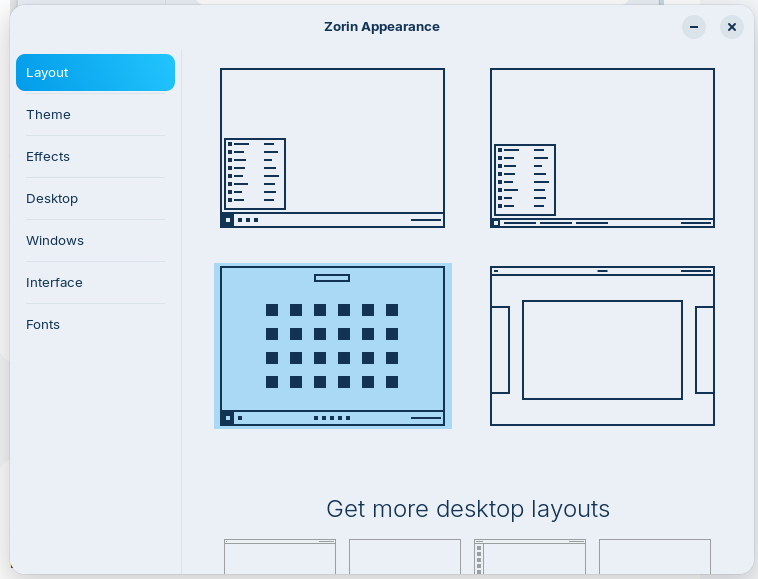

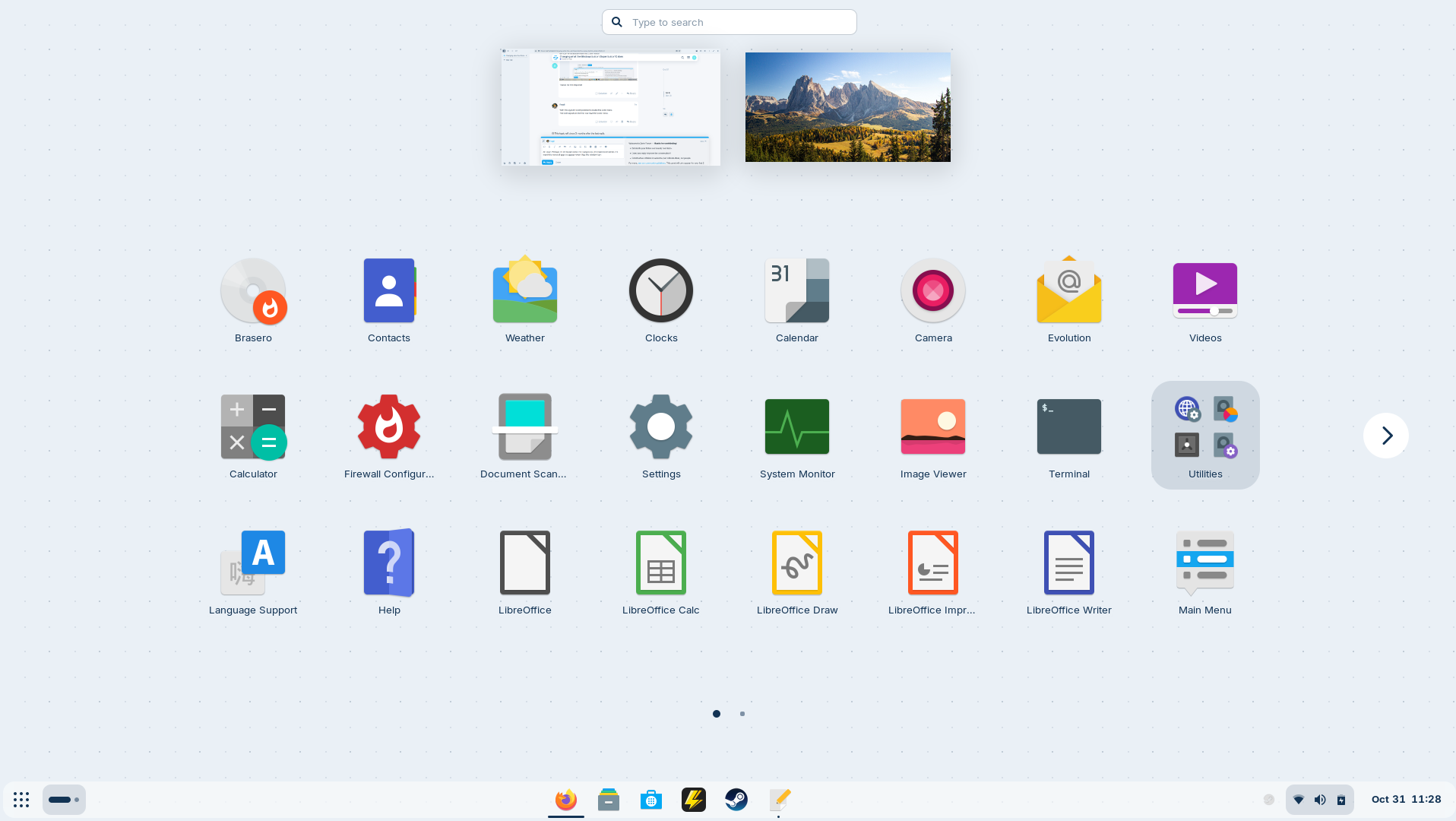
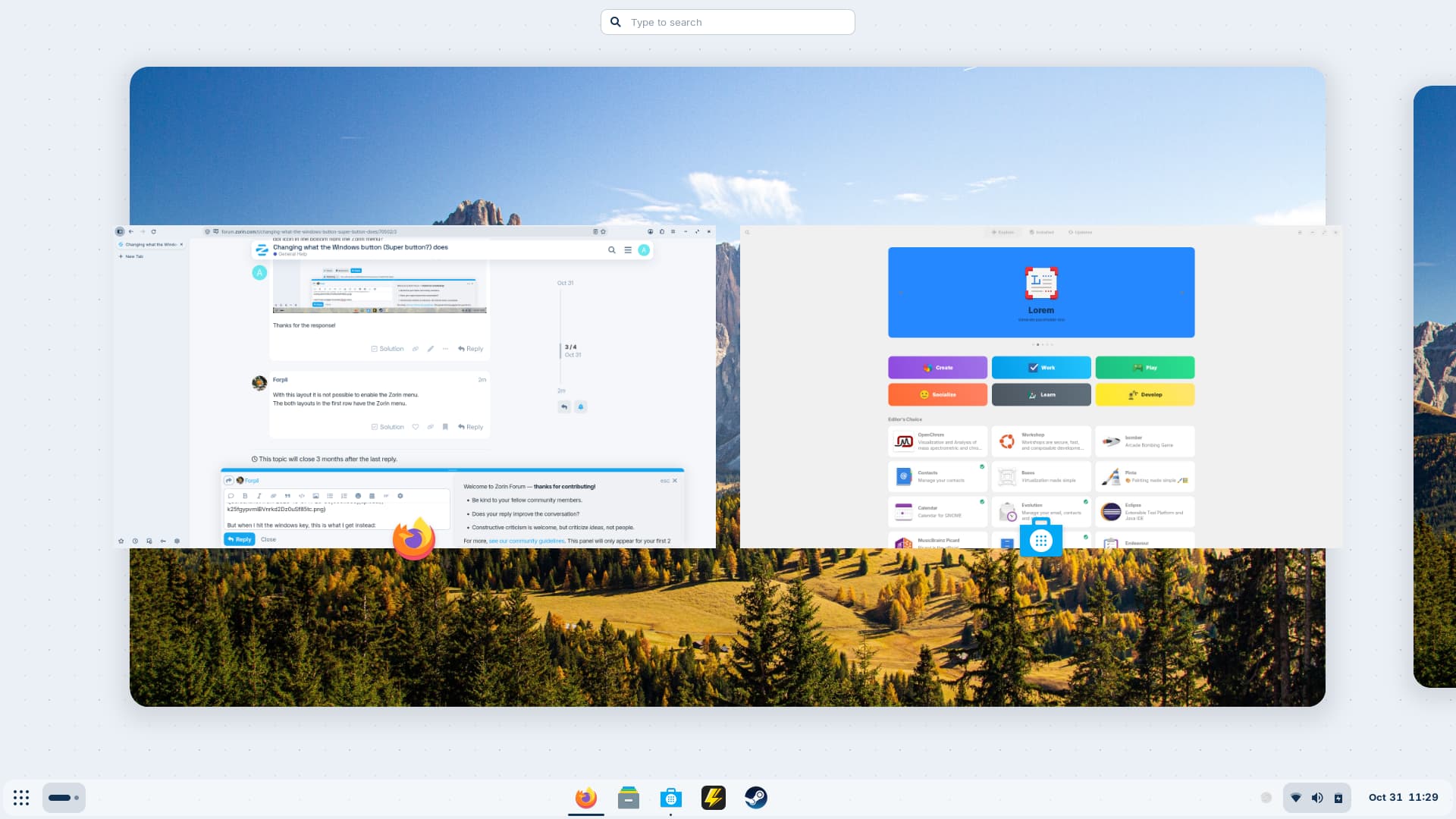
 works just fine it seems.
