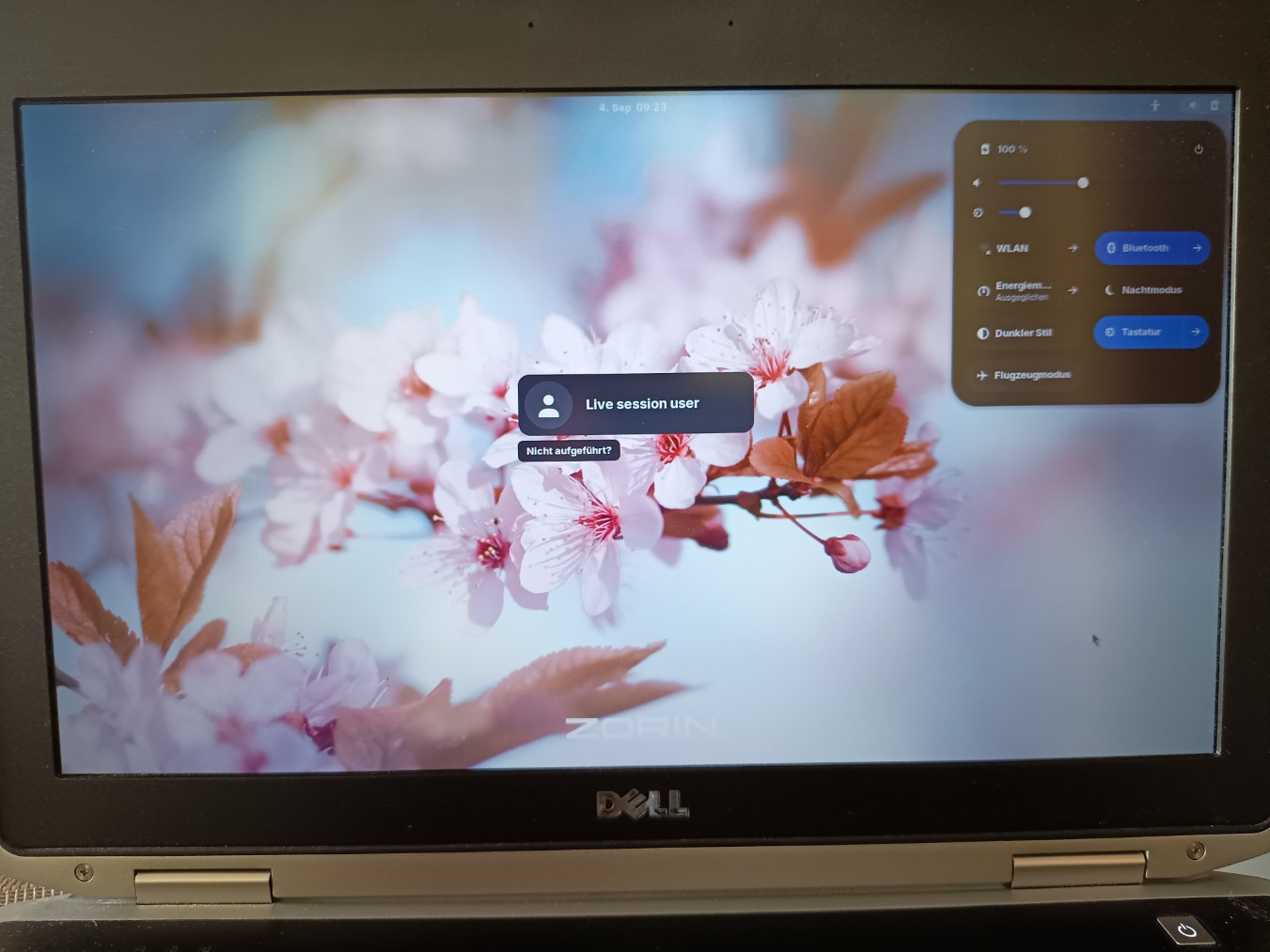
Customize login screen

I just read that the gdm-settings project has been paused. Too bad - hopefully it’ll still work for a while. It’s so great to finally have the app in the Ubuntu repositories in Zorin 18.

While doing some research, I also came across another tool, which I tested right away in the live session. Since you have to configure it via the script in the settings, it’s not as convenient as a GUI. But I managed to set a custom background image with a blur effect. This feature is missing in the gdm-settings.

I'm not sure if everything works well in gnome 46 and need to make further tests to find out if it is a good tool.
I like, that there is a reset script to reset gdm3 to the state as it was before (and it worked).

Until now, with gdm-settings, you had first to edit the desired background image using an image-editing program and add a blur effect there. It was not possible to set a custom blur effect in gdm-settings.

Edit:
Ever since I read on Reddit today that the author created the script using AI, I'm a little skeptical and hope it doesn't cause any damage. I'd be glad if someone could take a look at the code, because I was generally satisfied with how it worked (though so far I've only changed the background image, the blur, brightness, opacity and the accent color, nothing else).

1 Like

Maybe someone fork GDM Settings. Would be sad to don't have it. But at least it will stay in the Repo's for Zorin 18.

1 Like

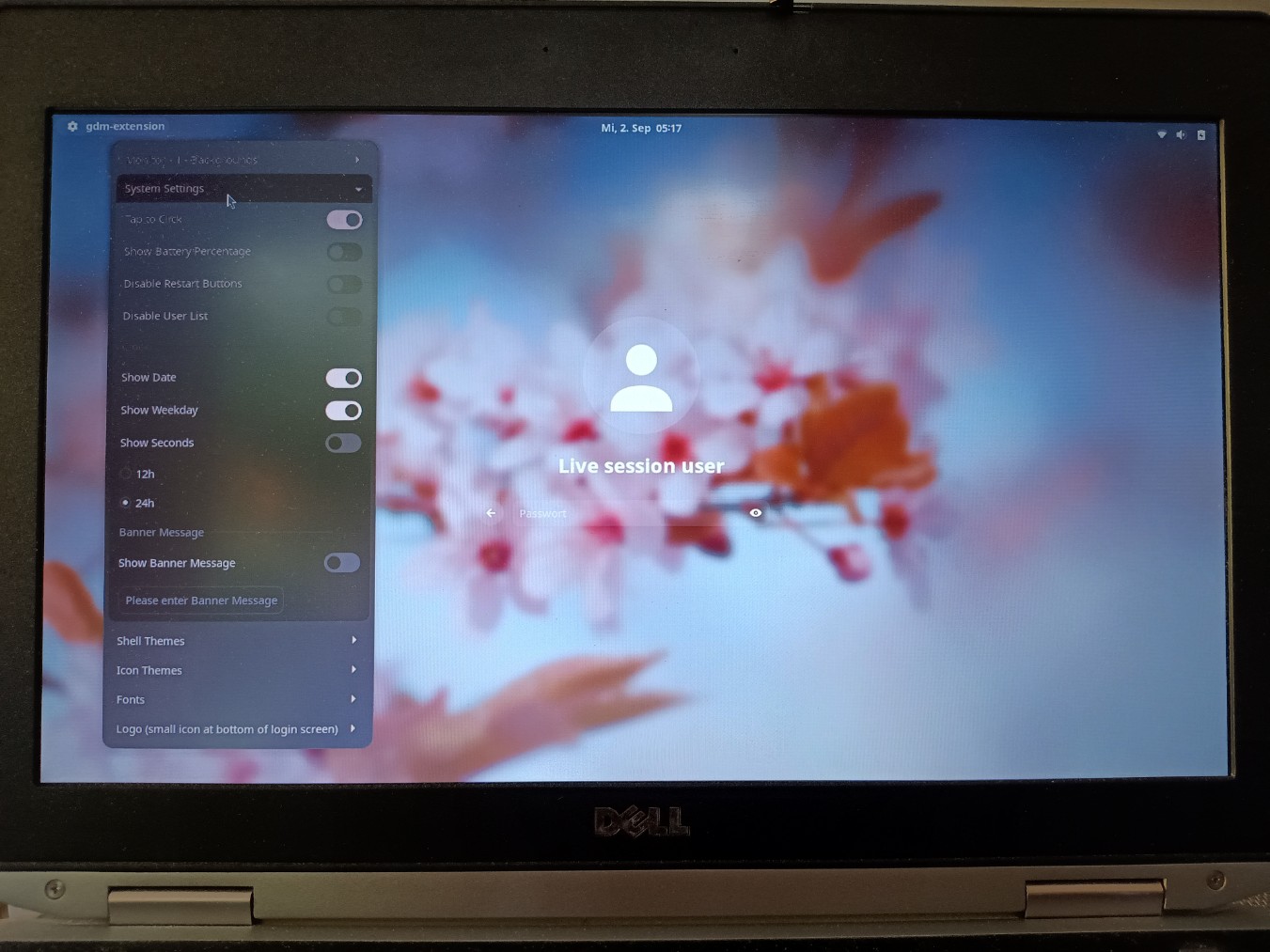
Today I tested this experimental gnome extension in a Zorin 18.1 live session:

You make the settings on the login-screen directly, that's really great for seeing the effect right away.
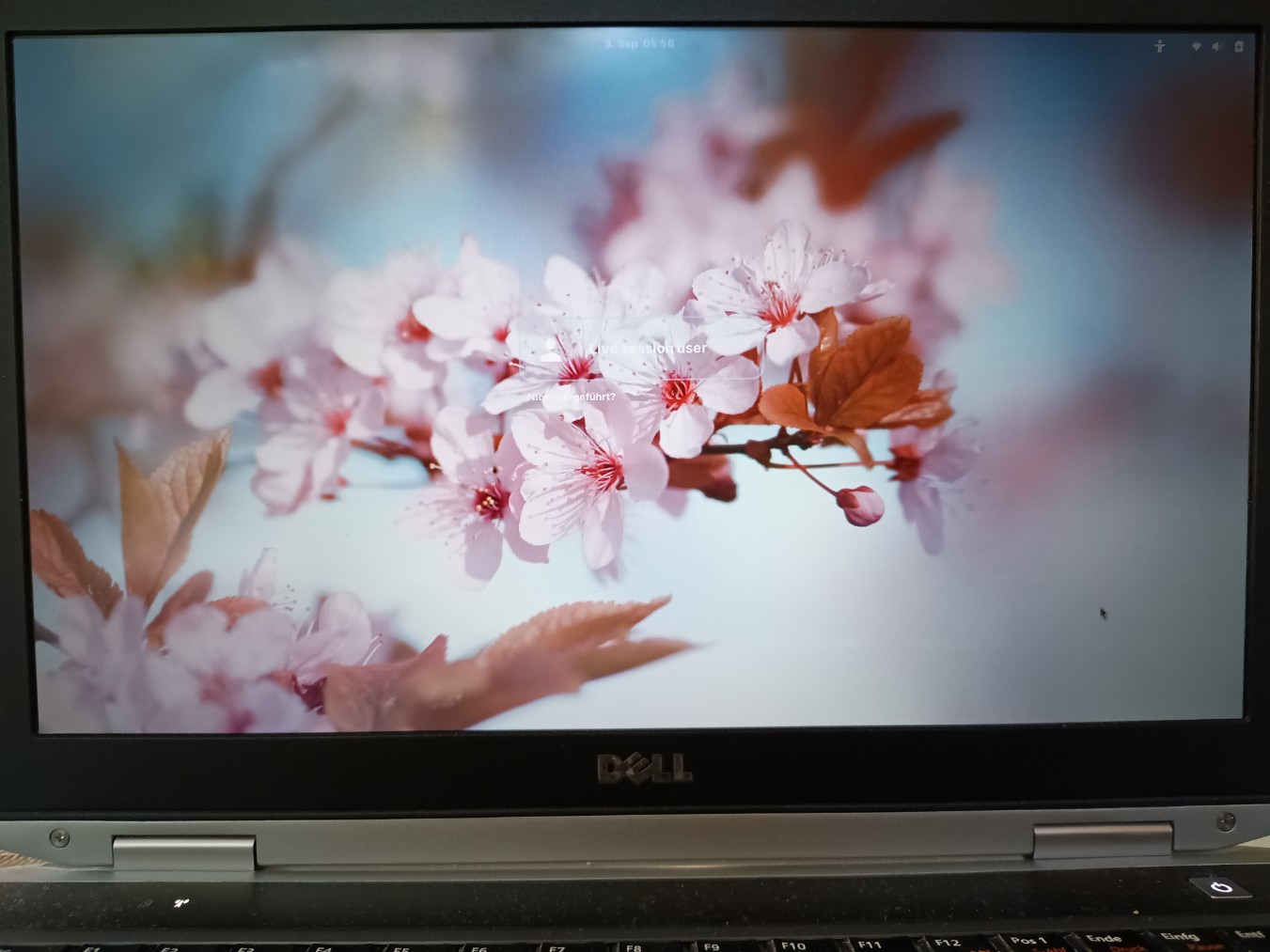
It worked to set a background image with blur effect.
I accidentally removed the default Zorin logo text at the bottom by trying the offered logo options and didn't find a way to get it back in the extension.
Even after I uninstalled the extension with the uninstall script and installed it again and restarted gdm3, the settings I made were still the same. I haven't found out yet how to reset the extension settings for this extension. It isn't listed at the normal place of all other gnome extensions in the dconf editor at org.gnome.shell.extensions.

I miss a feature to change the font color or font size. The message which you can add to the login screen was very small, and the white font is not good readable when you set a light background.

Edit: After many trials, I found a way to reset the extension's settings to default:
I removed the file
/var/lib/gdm3/.config/dconf/user
and then ran

sudo dconf update
sudo systemctl restart gdm3

and then logged out. But I'm not sure if it is the right and best way to do this.

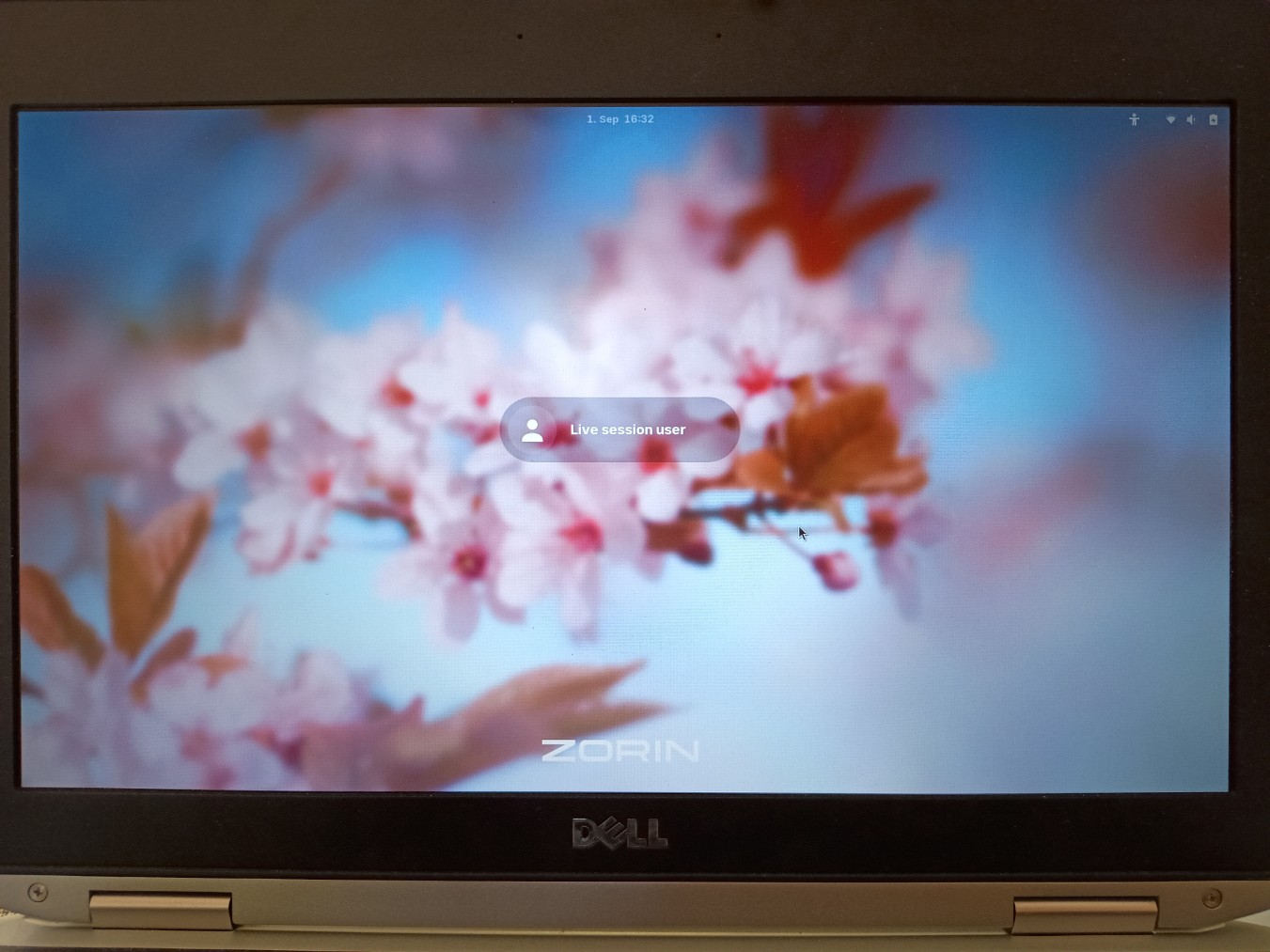
By default, the extension has an orange background with a color gradient and a "ZORIN" text at the bottom of the screen.

The extension offers background images to select from
/usr/local/share/backgrounds
and
/usr/share/backgrounds,
so, if you like to set a custom background image, copy it with root rights to one of these folders.

2 Likes

What I haven't tried yet, is to extract the gresource file and to rebuild it. That would be another way. A user showed here how they did it in Zorin 17:

These articles may help:

But Zorin has its own adaptations and is not as the default gnome or ubuntu, so maybe you need to adapt the guides.

The tools above (the app gdm-settings, the script gdm-custom and the gse-gdm-extension) create a new db profile for gdm and some recompile the gresource file additionally, because you can not change all things with dconf, if I understood it correctly.

It is difficult to customize the login screen and e.g. change the background image in gdm, because it is built in the gresource file.
The app, extension or script try to make it easier for the user.

Here I found a guide how the developer of the gdm-settings app made it:

1 Like

I'm still doing some research how to set a custom background image in GDM.

This is another method. You need to install systemd-container

sudo apt install systemd-container

, then you can use the script with the machinectl command.
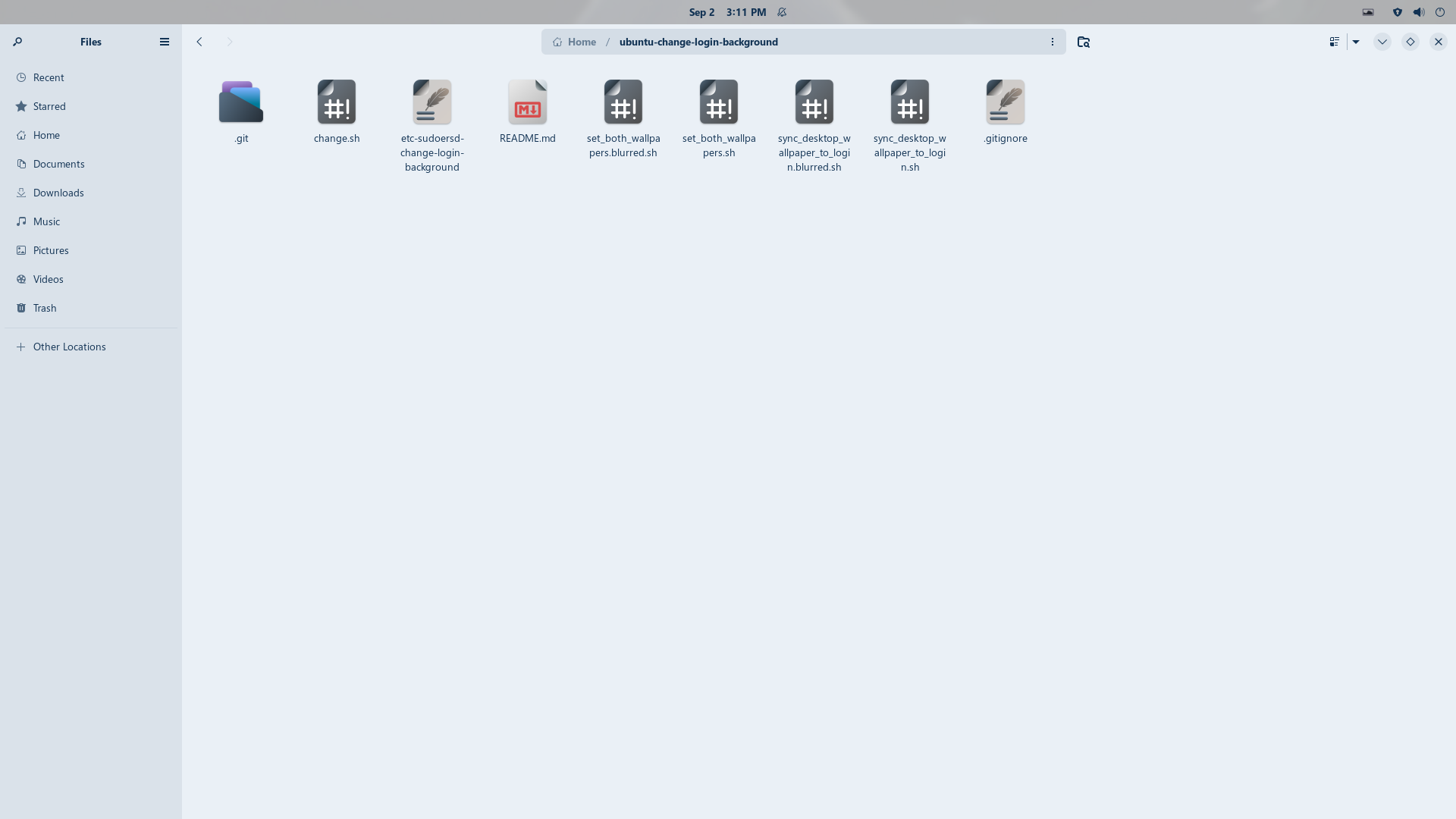
I tested the normal change.sh script to change the background, and it worked, but the terminal output was a bit strange, I didn't understand it.

The script sync_desktop_wallpaper_to_login.blurred.sh didn't work as expected. It showed not the current desktop wallpaper which was set but the default Zorin mountains of the light themes with blur effect.
(I tested the sync script in ubuntu-destop on Zorin 18 now, and there it worked).

In this reddit post an user writes that with machinectl many settings for gdm can be set, whereas the usual methods use a dconf db profile for gdm and extract and recompile the gresource file.

https://www.reddit.com/r/Fedora/comments/vqwype/machinectl_a_simpler_way_to_modify_gdm/?tl=en

ya i didnt get the output from that either but i did get the background in log picture changed i used

sudo ./change.sh ~/Pictures/testwallpaper.jpg

but changed it.... I put a pic into pictures i wanted to use.. then made the command

sudo ./change.sh ~/Pictures/Background.png

That is what i had named the picture there
ran that inside the folder that was created

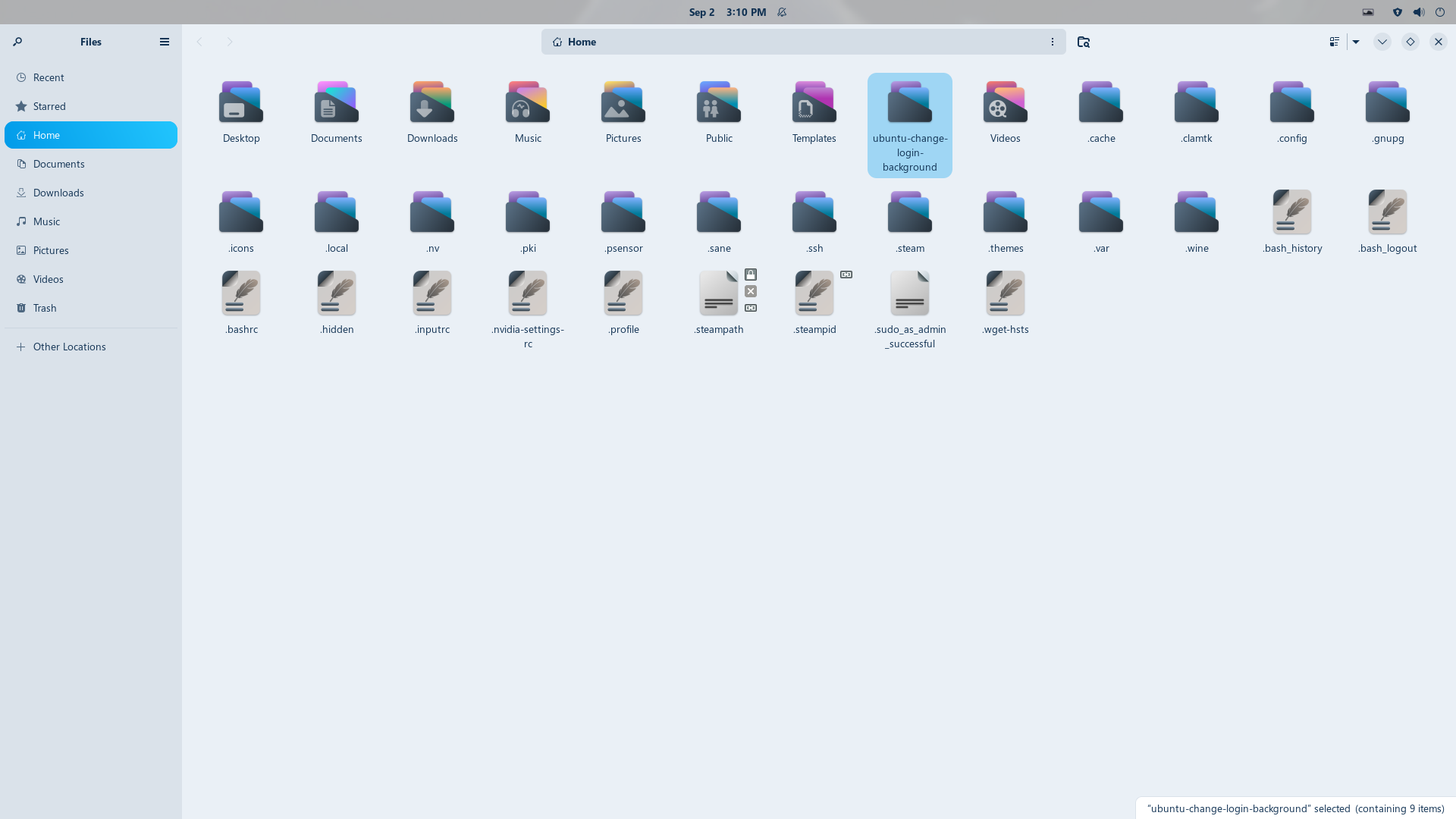
the folder is in home with hidden folders shown

open it to see this


right click on an open spot to open a terminal and run

sudo ./change.sh ~/Pictures/Background.png

modified to what your pic name is

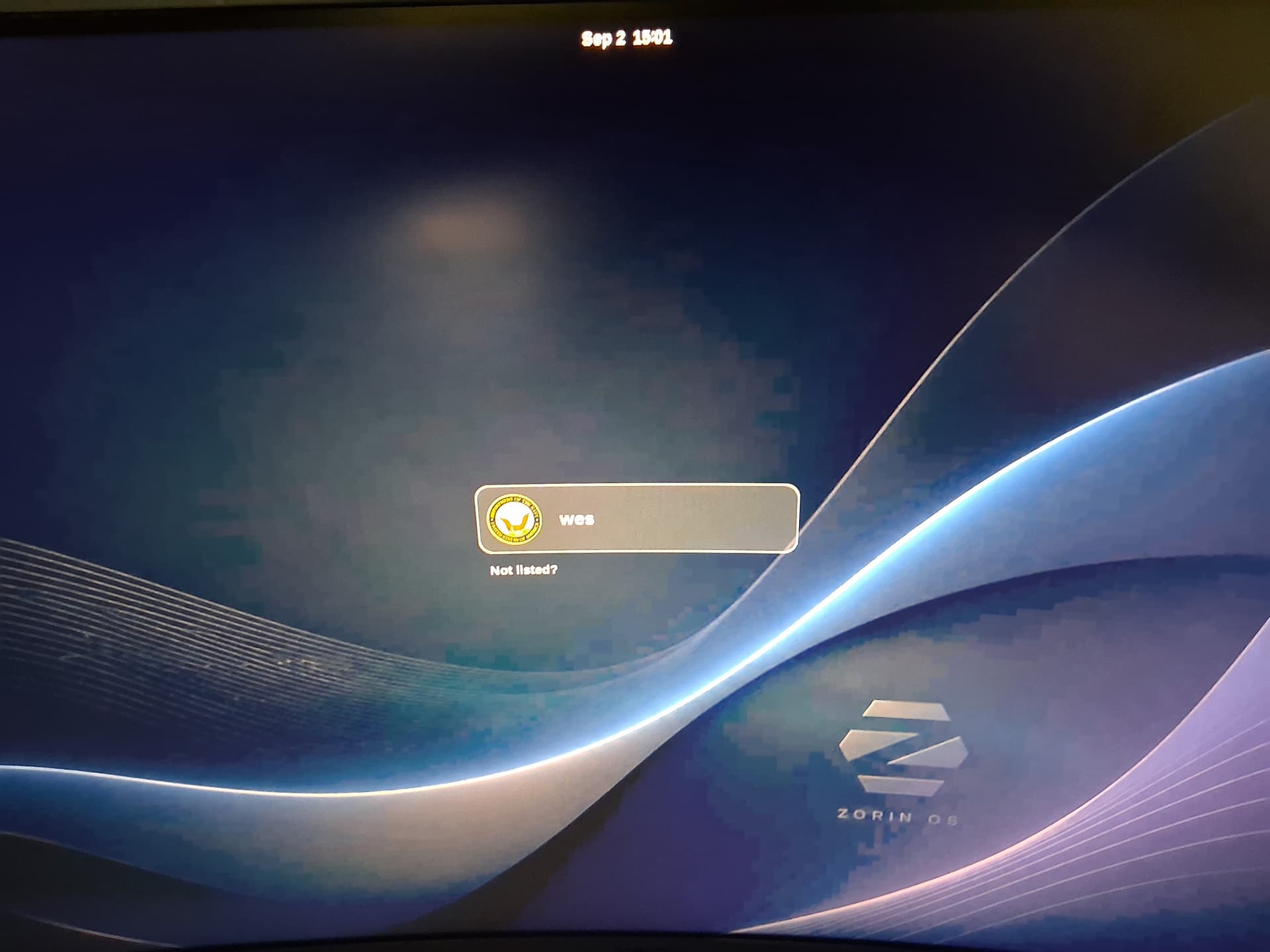
heres my result

In wiki.archlinux.org the method with machinectl is described, so it should not be a bad idea. I tested it, but it did not work to set a gtk theme. Always the ZorinBlue-Dark theme is in use at login-screen. With setting a background picture, logo or font scaling factor, it worked. I`d like to know how I can get a dark font for the gdm login-screen when I have a light background wallpaper because the white text is nearly unreadable then. With dark backgrounds, the white font is okay, but not with light ones.
I used this commands (installed systemd-container before):

machinectl shell gdm@ /bin/bash
dbus-launch gsettings set org.gnome.desktop.interface gtk-theme 'ZorinBlue-Light'
exit

I also tried it with

dbus-launch gsettings set org.gnome.shell.extensions.user-theme name 'ZorinBlue-Light' 

but didn't help.
I didn't get it to work this way to set a background-color for com.ubuntu.login-screen instead of a picture with gsettings.
Perhaps not everything is working as intended because of the gresource file. The notes in the ArchWiki certainly sound that way.

Edit: I found a way which helps with the white font color for light backgrounds (not in the top bar). You can set the default gnome-shell-theme for gdm instead of the ZorinBlue-Dark theme.
Run

sudo update-alternatives --config gdm-theme.gresource

Then enter 1.

sudo systemctl restart gdm3

Then logout.
The default gnome-shell-theme for gdm has a grey background behind the user field in the middle of the screen and the password login, so it is much easier to read. But the better look you get when you set a darker background image and use the normal Zorin gdm theme.

With the gnome-shell-theme I was able to set a background-color as background for gdm.

You can set a background picture for the gdm login-screen this way:

Install systemd-container

sudo apt install systemd-container

and, if you like to add a blur effect to your picture, imagemagick (or another image editing tool as e.g. gimp, but imagemagick is a command line tool which is really small compared to gimp)

sudo apt install imagemagick

To add a blur effect to your picture, e.g. run

convert path/to/input-image.jpg -blur 0x50 path/to/output-image.jpg

You can play with the values for the blur radius and sigma (e.g. 0x20 is less blur) and use different image file formats

convert ~/Downloads/image.jpg -blur 0x50 ~/Downloads/image-blur.jpg

If you like, you can additionally darken your image with imagemagick. Then use this command instead. Play with the values for the brightness and blur. When you set higher negative values for the brightness as e.g. -20, -30, -40, .., the image gets darker.

convert ~/Downloads/image.jpg -blur 0x50 -brightness-contrast -10 ~/Downloads/image-blur.jpg

Then copy the edited image to /usr/share/backgrounds because gdm can't reed the images in your home directory:

sudo cp path/to/output-image.jpg /usr/share/backgrounds

e.g.

sudo cp ~/Downloads/image-blur.jpg /usr/share/backgrounds

If you don't like to add a blur effect, just copy your original image to /usr/share/backgrounds.

Now start the systemd-container to login as gdm user:

machinectl shell gdm@ /bin/bash

You are prompted for your password.
In the terminal you see that you are logged in as gdm user now, when it shows gdm@zorin:~$

Then set your image as background wallpaper for gdm (enter the path of your image at /usr/share/backgrounds here), e.g.:

dbus-launch gsettings set com.ubuntu.login-screen background-picture-uri 'file:///usr/share/backgrounds/image-blur.jpg'
dbus-launch gsettings set com.ubuntu.login-screen background-size 'cover'

Then exit the container

exit

and logout.

To undo it and go back to Zorin's default gdm login background screen, run

machinectl shell gdm@ /bin/bash
dbus-launch dconf reset -f /
exit

You can remove the installed packages with

sudo apt purge systemd-container imagemagick

Then logout.

This method is an alternative to the app gdm-settings or scripts if you just want to set a background image for gdm.

It is possible to make some other settings for gdm this way as shown in Arch wiki, but not all worked in my test. With the dconf reset command above, you can undo all settings you made for gdm in the container.
The app gdm-settings is easier to use, but I tried to show an alternative. So far, there haven't been any instructions on this method in the Zorin forum.
@Aravisian Is using machinectl to make settings for gdm a security risk?

It is safer than some other methods, actually.

Edit: I was too brief and so was unclear. So to clarify:
Using machinectl activates a new fresh user session, which isolates it from any environmental contamination.
It does not elevate permissions like sudo, it isolates a new session.

1 Like

Thanks, that puts my mind at ease. I was unsure because there were neither responses nor likes, and the Arch Wiki to gdm stated "The factual accuracy of this article or section is disputed."
However, I didn't encounter any problems while testing this method in the live session, and it worked well for setting the background image.

I like it. For me, it feels like having more control about what is running in background because I give the commands.

I noticed, that this method to set a background image doesn't work on Zorin 17. In Zorin 17 doesn't exist a com.ubuntu.login-screen dconf schema by default.

I just see your addition:
But when you enter the machinectl command, you're prompted for a password, so you give sudo rights, or not?

Entering the password is what you do to use sudo, but also what you use to administrative authenticate.

When you use that password, you should be authenticating the session.

1 Like

Ah, I didn't know there were differences with password prompts. It is a bit difficult to differ when the password for the normal user and root user is the same. Until now, I'd only seen password prompts in programs such as gparted, synaptic, or nautilus, and in those cases, the password was always used to gain root privileges.
You're right, here logged in as gdm user, you don't have sudo privileges, I tested it now. The password prompt shows:
"Authentication is required to acquire a shell on the local host".

1 Like

Today I finally found the culprit that kept removing the original gnome-shell-theme option from update-alternatives.
It’s the gdm-settings app. As long as this app is installed, there’s no problem- you can select “default” as the shell theme through the app.
However, if you uninstall the app (and it’s best to reset all settings in the hamburger menu first), the option for
gnome shell gdm theme will be missing from update-alternatives afterward.
Sometimes it helps to restore it with the following command:

sudo apt reinstall gdm3 gnome-shell

but at the moment the option is lost in my session and I don't know how to get it back.
That's annoying. An app should restore everything to its original state if it offers a reset feature - it shouldn't delete options that were available before or remove links to other themes. This has happened to me several times now.

Edit: It helped to install gdm-settings again, set as shell theme "default" (don't change other settings) and then remove the app without restoring the app settings. After the removal I ran sudo update-alternatives --config gdm-theme.gresource and the option for gnome-shell theme was shown again and enabled. I selected 0 to go back to the Zorin theme.

Edit2:
I found a better solution to get the option for the gnome-shell-theme in update-alternatives back when it is missing. You don´t need to install the app again. Run the command

sudo update-alternatives --install /usr/share/gnome-shell/gdm-theme.gresource gdm-theme.gresource /usr/share/gnome-shell/gnome-shell-theme.gresource 0

I tested the gdm theme MacTahoe from Vinceliuice today. I was afraid that this would just complicate things and that I probably would need to find out what the scripts had done in the background, but I was curious. I had never installed a gdm theme yet.

The installation worked, but the removal not. Zorin seems to be special because the default gdm theme is not the gnome-shell-theme. The most scripts or apps for gdm are made for a normal Ubuntu/Gnome installation.

I ran

sudo ./tweaks.sh -g -r

but the gdm theme is still there and the script seems to have overwritten the original Zorin gdm theme because in update-alternatives is already set the ZorinBlue-Dark theme. That sucks!

Edit: Now I repaired it. I'm not sure what helped. I removed the ZorinBlue-Dark theme and reinstalled the zorin-desktop-themes, then I used the install command to set the Zorin .gresource file for the gdm update-alternatives ...But I needed many attempts.

Yes, installing a GDM Theme on zorin is a Thing ... I tried it in the Past with the Graphite Dark Theme and it didn't even worked to install it.

That's really too bad. There are some nice themes from Vinceliuice. I couldn't get to work Graphite gdm theme either when I tried it today.
But I really don't like it when tools or scripts mess up the whole system and don't restore it to the way it was before after the removal.

1 Like