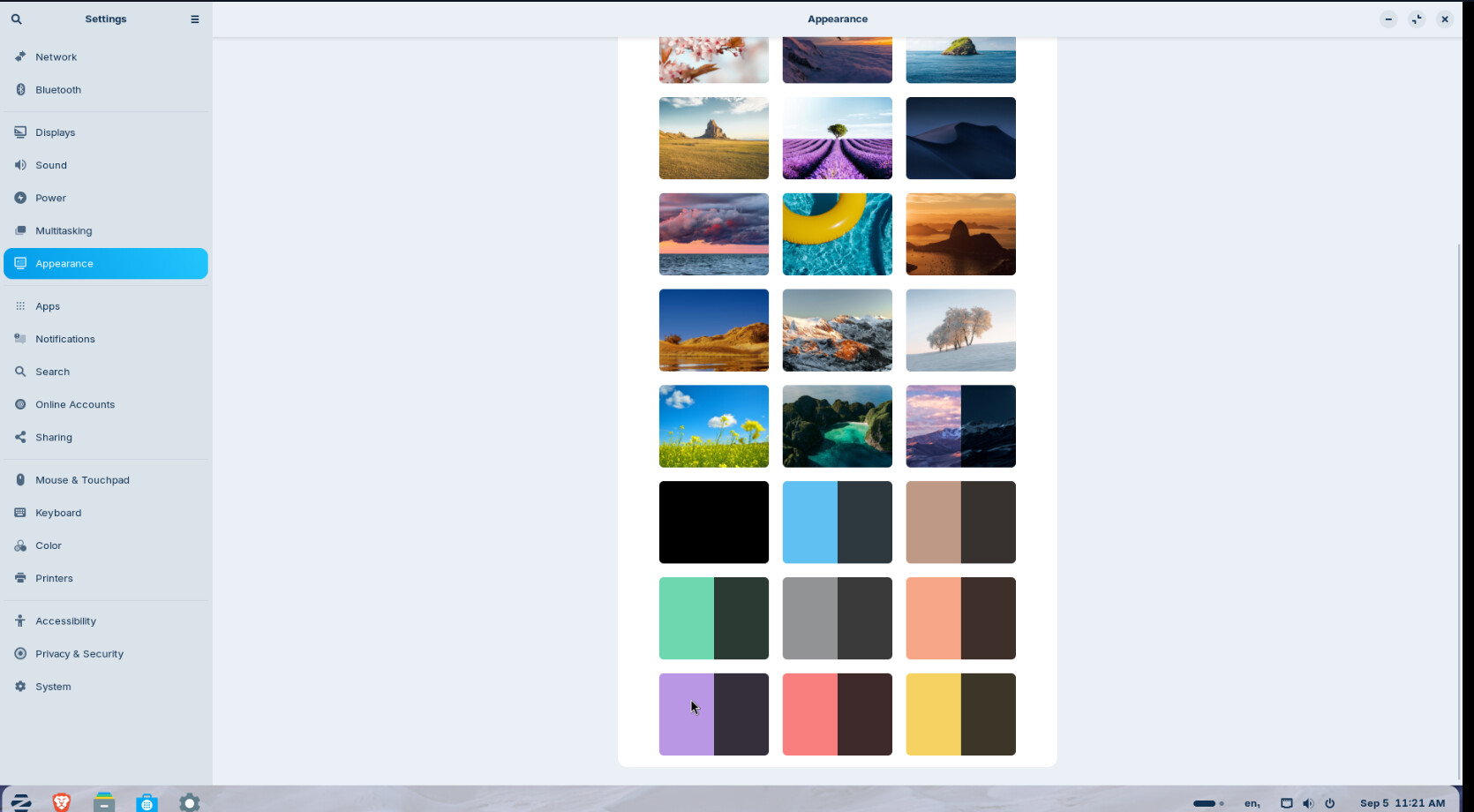
Desktop background with a single color or color gradient

Today I came across this article, which shows how to create a desktop background with a color gradient in GNOME:

For a vertical gradient:

gsettings set org.gnome.desktop.background color-shading-type 'vertical'

For a horizontal gradient:

gsettings set org.gnome.desktop.background color-shading-type 'horizontal'

Remove the wallpaper images for light and dark mode and set the background picture to none:

gsettings set org.gnome.desktop.background picture-uri ''
gsettings set org.gnome.desktop.background picture-uri-dark ''

Then set the two colors (more colors are not possible by default, you would need to create a image in an image editing tool if you like a gradient of more than two colors or other gradients (radial, conic) or to set an angle). You can use HEX codes or color names (I used lightgreen and purple on my screenshot), for example:

gsettings set org.gnome.desktop.background primary-color '#fff000'
gsettings set org.gnome.desktop.background secondary-color '#ff0000'

or

gsettings set org.gnome.desktop.background primary-color 'yellow'
gsettings set org.gnome.desktop.background secondary-color 'red'
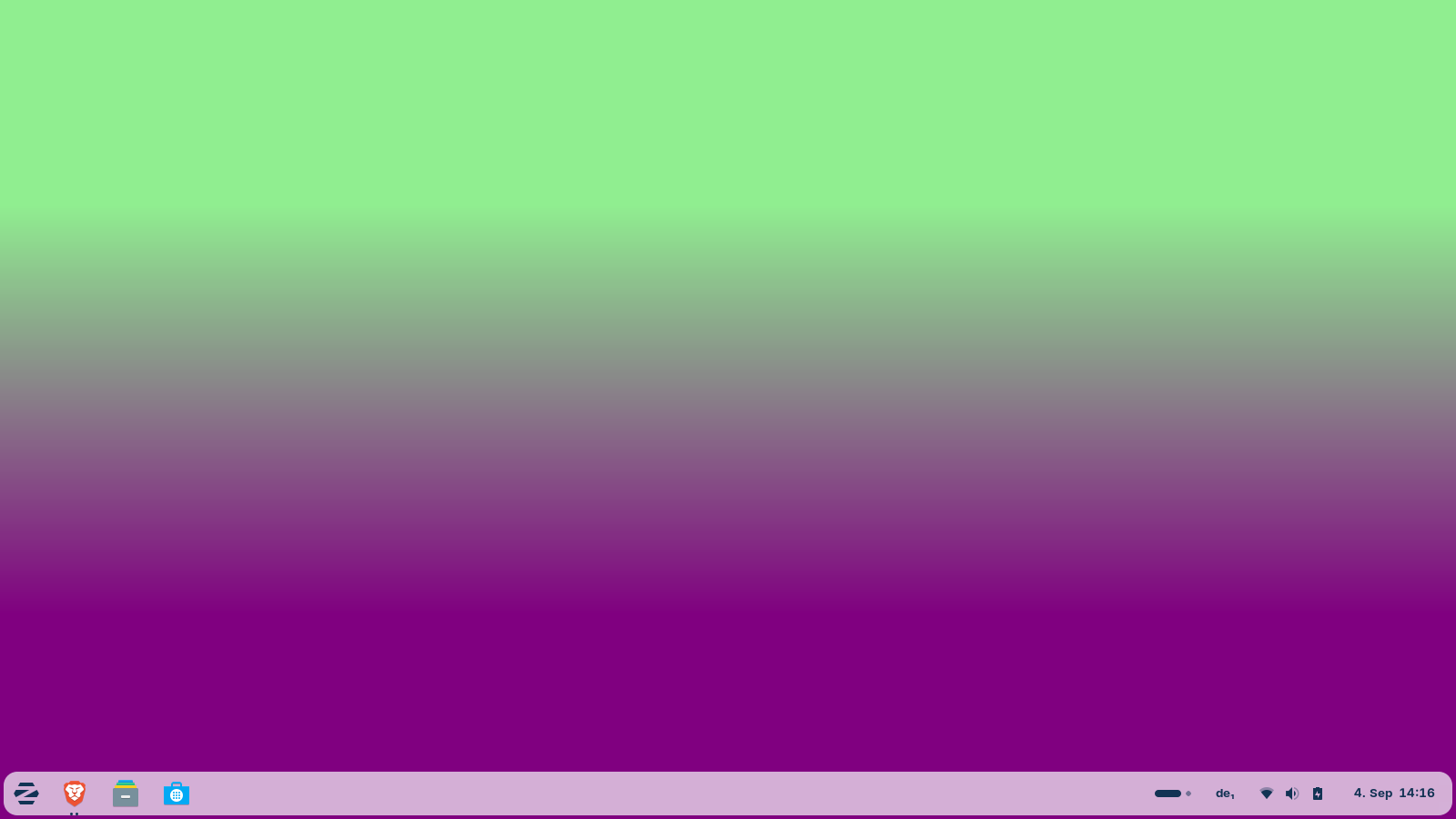
To set a single color instead, use

gsettings set org.gnome.desktop.background color-shading-type 'solid'

Remove the both images for light and dark mode as shown above, and then set only the primary color.

To undo it and go back to a background image, just select a background image in the normal settings app or right-click on the desktop and select "change background".
3 Likes

For a one-color Background would be the Option, too to fill an empty Background for Example in Pinta or Gimp with the prefered Color and save that. I did that for the Login Screen:

1 Like

Pretty good tweak but I'm like @Ponce-De-Leon, I prefer doing it than touching dconf :wink:

3 Likes

Up until now, I’d mostly seen posts saying you should create an image using an image-editing program for a solid background. I had no idea that you could find this in the hidden settings of dconf. I like to use the built-in tools as much as possible whenever I can. But you can certainly make the color gradient look nicer with an image editing program; this one looks a bit clunky and has visible transitions. The blue gradient preset in Zorin doesn’t look too bad, though, you just have to know it’s there, set the color-shading-type from solid to vertical or horizontal, and remove the background images.

I agree, that you are more flexible with an own created picture, e.g. to set different solid colors for the background in dark and light mode.

2 Likes

But don't worry your curiosity is a real pleasure, because you dig and found many things to help us

2 Likes

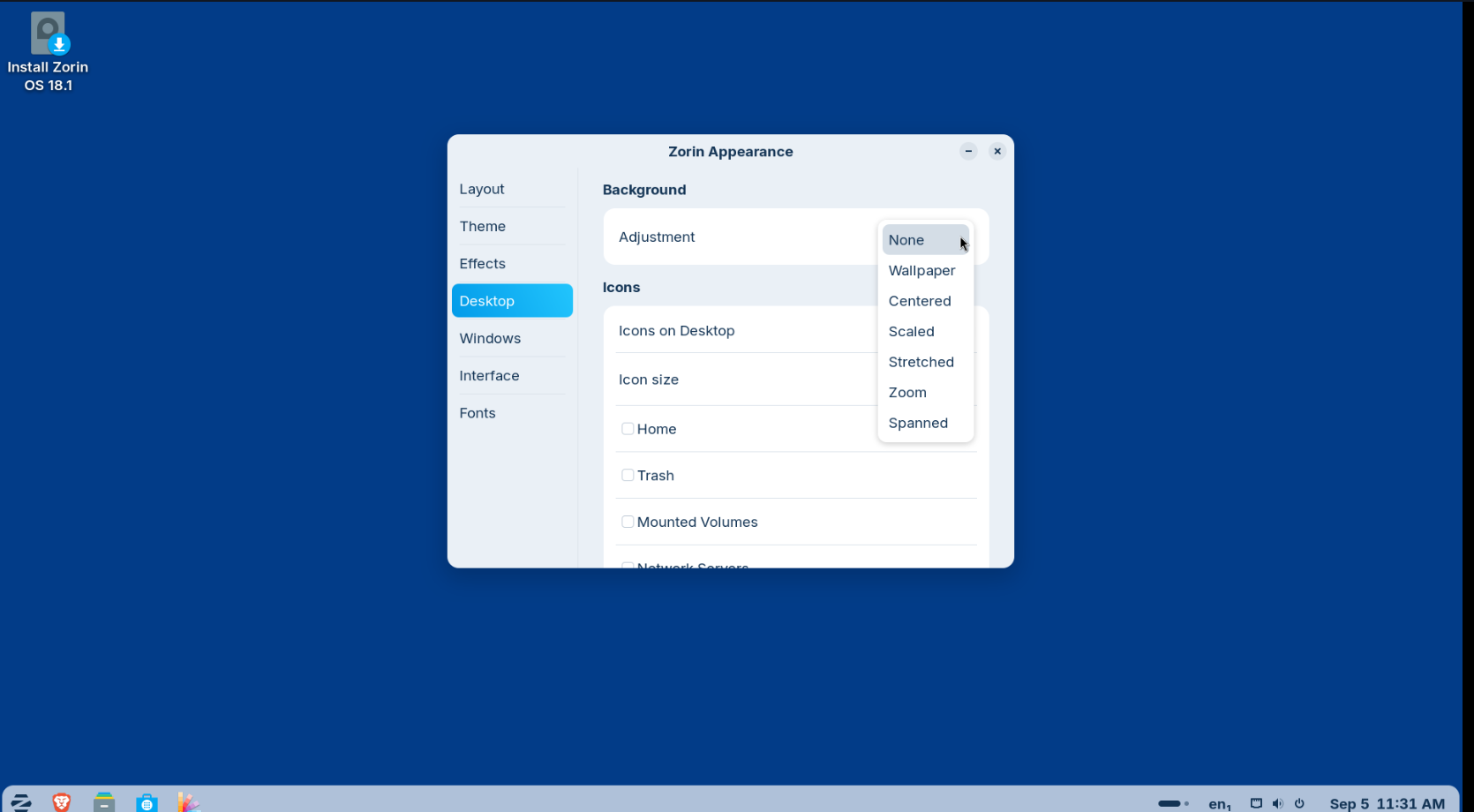
You don't need to create an image for solid background in 18.1 Core - Just go into Zorin Appearance, Background - set to zoomed, change it to 'none' and you get a nice solid blue background, and better still no shadow on the fonts if using desktop icons. Additionally, Zorin have put back solid colours in the 'change background' settings.

Hey,
MAYBE it is easyer to make a Pic of your favorite Color with a Cam/Smartphone, save it at your Pics on the PC and use this as Background. MAYBE.
Adam

Sometimes it is more than just being a favourite. If you have low vision, the advice from a QTVI (Qualified Teacher for the Vision Impaired) is that it should be purple (Violet) on the desktop. Other issues, menu font should be no bigger than 15 pts, and no shadows. Similarly no shadow present on a cursor.