I think there isn't such function in gnome yet only in kde.
You could switch to Xorg if you are using Wayland (logout and at login click on your username then a cog wheal appears at the bottom right corner, there select "Zorin Desktop on Xorg".
Then you can follow this site to find out the id of the touchscreen and the monitor names and assign it.
I'm not sure if the script will work which is shown there because I found no date and haven't tested it. But you could try the first steps without the script.
In Wayland it seems to be even more complicated. Here is another guide which shows it for Xorg. You don't need to disable Wayland completely as shown in step 1. Just switch to Xorg at loginscreen.
Don't follow the steps for Wayland there which installs sway.
For Wayland I found this thread but it is not very clear what to do:
In archwiki is said that there is no way to achieve this in Wayland except with Sway.
and make a screenshot of the output,
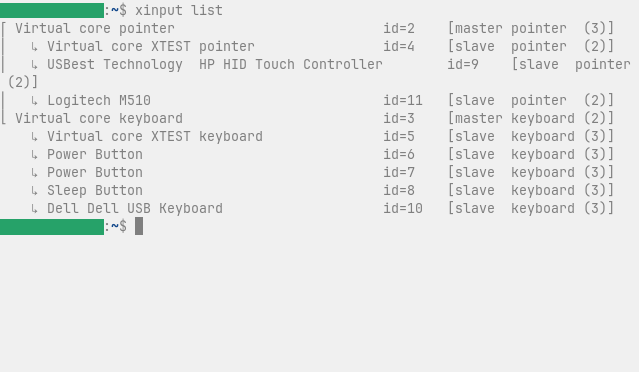
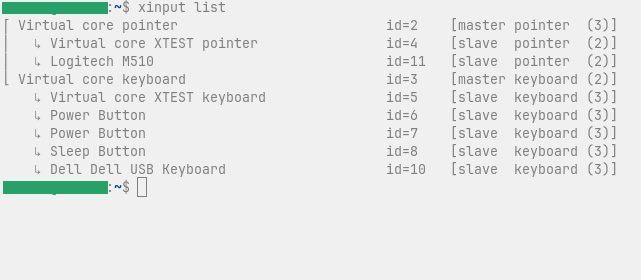
one time connected with your touchscreen monitor and one time disconnected (unplug it or turn it off). Then you can compare the outputs and look what is the device that has changed. It is probably a "pointer" not a "keyboard" in the list. Then note the id.
Then connect the monitors and enter
xrandr
which will show you the names of the names of the connected monitors.
If you have problems to distinguish which one is the touchscreen and which one the other (if they have the same resolution), it may help to change the resolution of one of them for this test or look if one uses HDMI and one DP.
After that use this command to assign the id of the input device (e.g. id=5) to the monitor (e.g. DP-1)
xinput map-to-output 5 DP-1
If you like you can post the two screenshots of "xinput list" here.
You don't need to be afraid of using those commands. If you made something wrong just reboot then the setting is reset.
Yes, I would try it with this command. That looks good to me.
I'm not sure if the ids are always the same after a reboot. At the moment after each reboot you would need to enter this command again because the settings are reset. If I were you I would run the 'xinput list' and 'xrandr' command after the next reboots to see if the name/id for the monitor stays the same.
If yes, you could add the command to autostart programs (create a new entry there, name it as you want and enter the command from above). If it doesn't work try it with a time delay, e.g. 4 seconds
"sh -c 'sleep 4 %% xinput map-to-output 9 DP-2'"
If that doesn't work either, we'll try a script.
For future changes you would have to remove the command from autostart, then after a reboot the settings for the touchpad monitor will be reset.
It worked! I restarted to see if my inputs and outputs changed and they did not so I put the command in autostart without the sleep and it works like that.