Sometimes it happens at the worst possible moment: The computer won’t boot, and for some reason, you can’t bring up the GRUB menu using the Esc, Tab, or Left Shift keys.
However, you need this menu to access the Advanced Options for Zorin or to set kernel parameters for the next boot which can help.
By default, the GRUB menu is only displayed during bootup when dual-booting from a shared hard drive. If you install Zorin as the sole operating system, the GRUB menu will not appear during bootup - unless you’ve configured it yourself in the relevant file. This file is located at /etc/default/grub.
I'll show you how to edit this GRUB file - even if you don't currently have access to your system - so that the GRUB menu appears the next time you boot up.
To do this, you'll need a Zorin USB boot drive. Boot from this USB drive and then select “Try Zorin".
First, you need to identify your partitions. These commands can help you to list your partitions:
lsblk -f
sudo fdisk -l
sudo blkid
If you prefer a graphical interface, you can open gparted instead and search there for your internal drive to find out the names of the partitions. Click on the arrow icon at the top right of the window to select the different drives of your computer. You need the name of the boot (/boot) partition and the root (/) partition. The root partition is the partition, where your Zorin system is installed.
Then mount the root partition. Replace /dev/sda2 with the name of your root partition:
sudo mount /dev/sda2 /mnt
For UEFI systems mount the EFI partition. Replace /dev/sda1 with the name of your EFI partition.
sudo mount /dev/sda1 /mnt/boot/efi
If you have a legacy BIOS with a separate boot partition, mount this boot partition. Replace /dev/sda1 with the name of your boot partition.
If you have no separate boot partition, skip that command.
sudo mount /dev/sda1 /mnt/boot
For UEFI and Legacy BIOS systems then mount the virtual file systems:
sudo mount --bind /dev /mnt/dev
sudo mount --bind /proc /mnt/proc
sudo mount --bind /sys /mnt/sys
Chroot into the system:
sudo chroot /mnt
Edit /etc/default/grub file:
nano /etc/default/grub
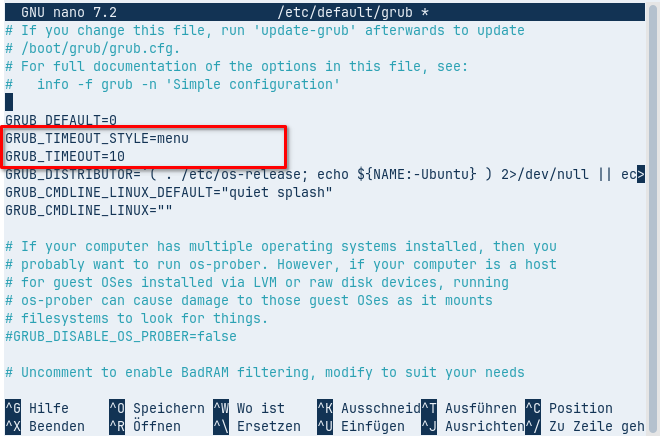
Change the lines you want. Move the cursor down with the arrow keys. To display the grub menu during boot, change that lines to the following and leave all other lines untouched (the timeout is the time in seconds how long the grub menu is displayed at boot, 10 is a good value):
GRUB_TIMEOUT_STYLE=menu
GRUB_TIMEOUT=10
Press ctrl+o to save, enter to confirm and ctrl+x to quit the nano editor.
Now update grub to apply the changes and exit chroot:
update-grub
exit
Unmount the virtual filesystems and reboot
sudo umount -R /mnt
sudo reboot
Once the computer flickers off, pull the USB stick from the port.
Be careful and follow all the steps. You are root while acting in chroot, so please act with caution. Also don´t forget to unmount the virtual file systems
(Note: It is not a typo. The command to unmount is umount, not unmount!).
Screenshots:
This is gparted with the partitions. On my internal drive (it is named /dev/sda), the EFI boot partition is /dev/sda1 and the root system partition with Zorin is /dev/sda5.
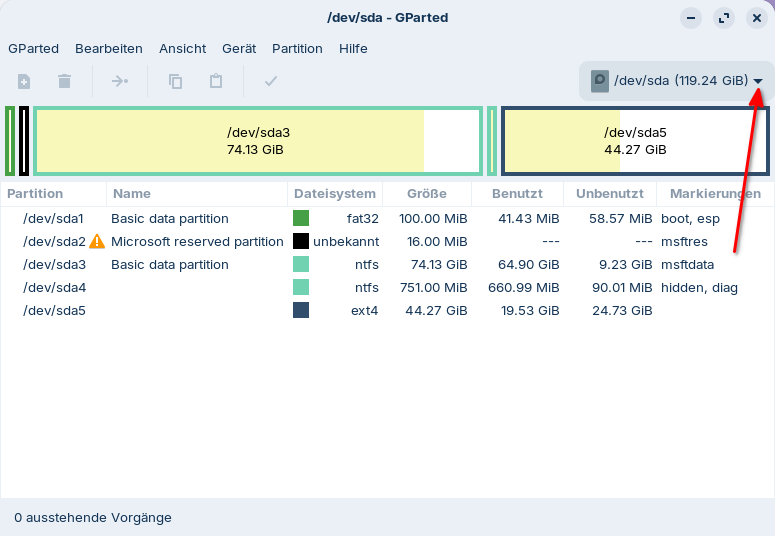
When you have a nvme, the partition names may be /dev/nvme0n1p1 for the boot partition and /dev/nvme0n1p2 for the root partiton.
The /etc/default/grub file after editing:
Source: