One question before I start >
The edit proposed is to change the default to a new temporary keyring, then set/save the RDP password to 'blank', then set the original keyring back to the default status.
Q. Is it important in this case, that the two installs are different when it comes to the keyring entries??
Could it have anything to do with the RDP password resetting itself??
cheers CD
Oki dokie, success, so far after a few restarts/reboots, sssshh!
Following the steps in the below link:
It may take a couple of goes, but it worked for me.
Before you start > be aware that you MUST make a backup of your root partition (or complete system) before you try this. Mistakes can happen and you may leave your computer unable to boot up.
You must accept this possibility before starting the below steps.
note #1 -To get to the 'Passwords and Keys' panel, click the 'Z' start button on the taskbar and start typing "Keys...."
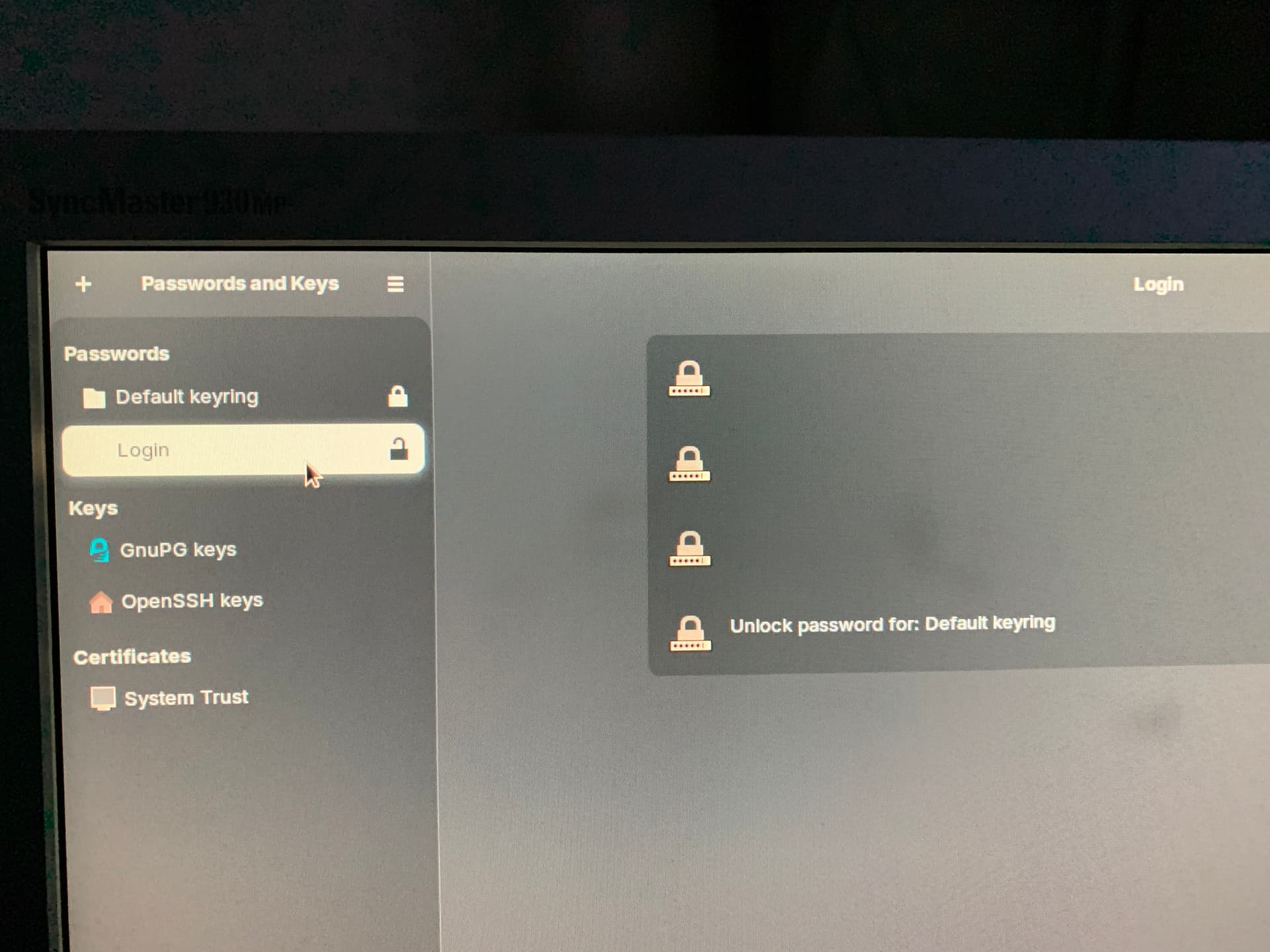
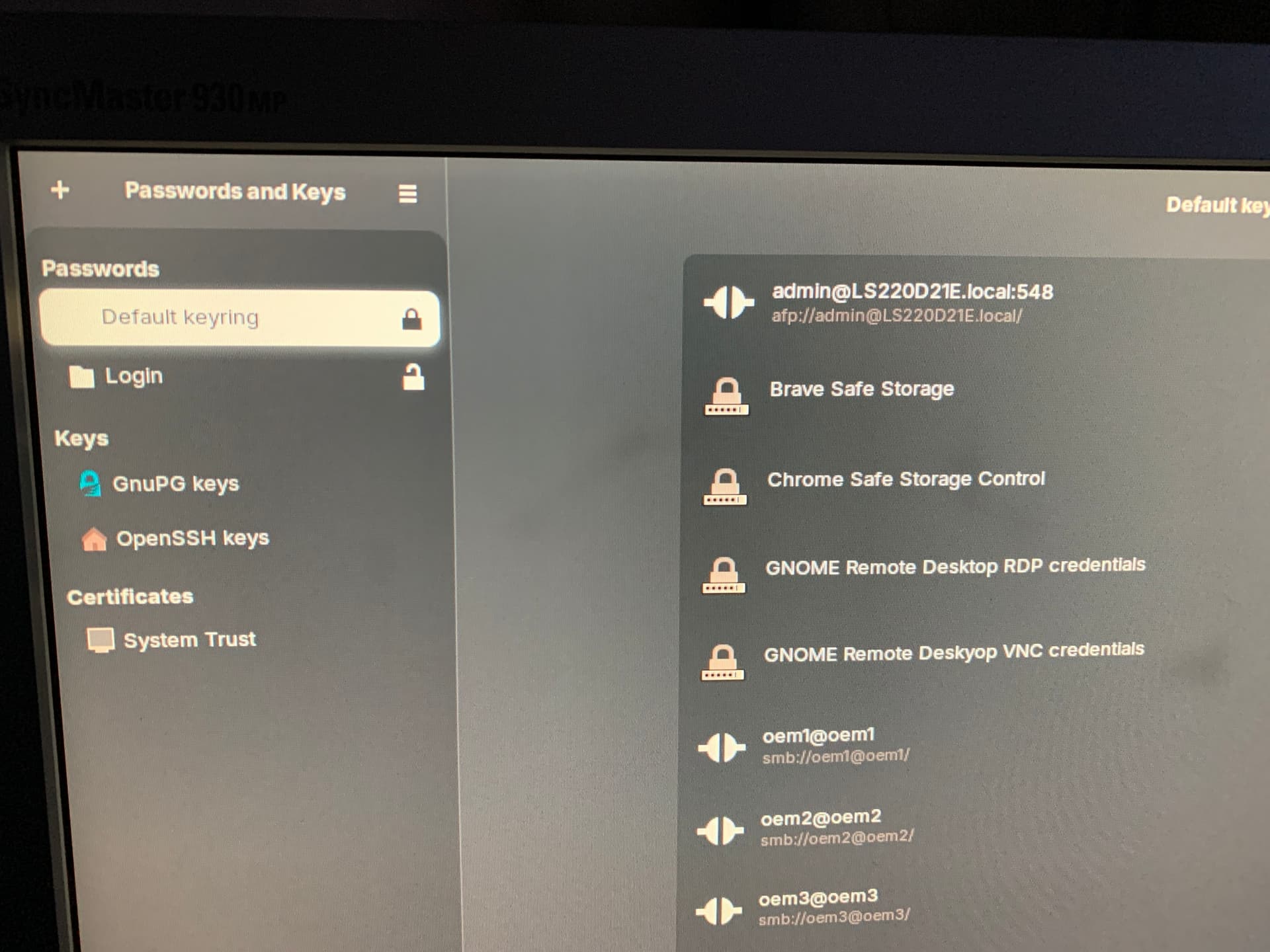
note #2 - when you create a 'new' keyring it may not immediately appear in the list along with the "Default Keyring" and "Login" keyrings.
May need to close and open the "Passwords and Keys" app again to see them, or perhaps logout or restart as mentioned in the above link.
But the new key will appear in the list eventually.
It took me a couple of goes, once I realised this.
Ok,
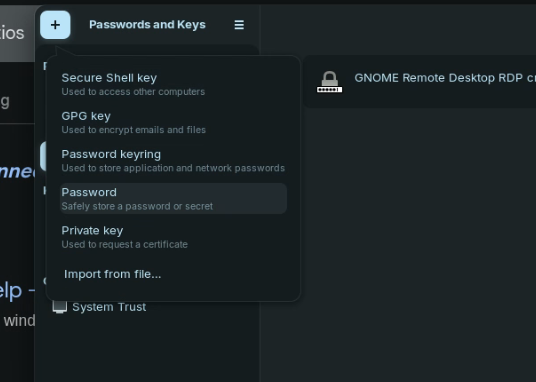
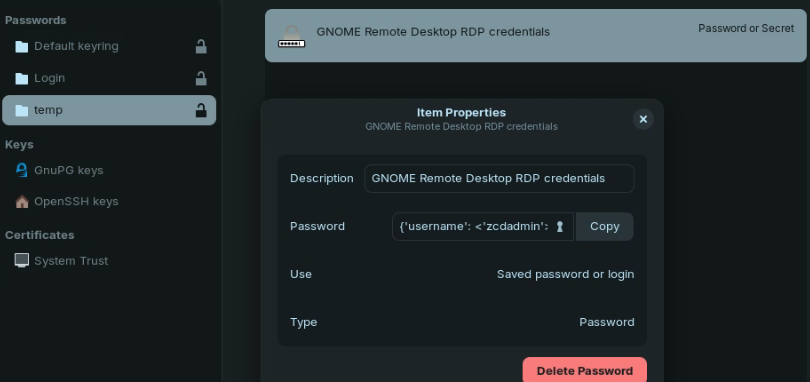
I created a new key called "temp' and clicked the '+' and added a new "Password" key item, to the 'temp' keyring. I called it the same as the existing one that will be deleted. "GNOME Remote Desktop RDP credentials".
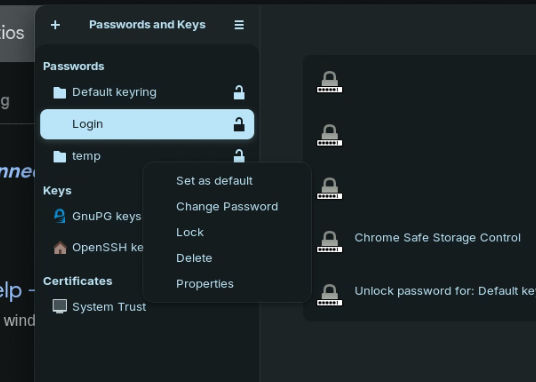
To set a keyring in the list as the 'Default', right click it and select the top item in the list of options.
note #3 - this dropdown list has a weird way of working, it seems to have a delay in displaying the dropdown list for the specific key item which you have selected.
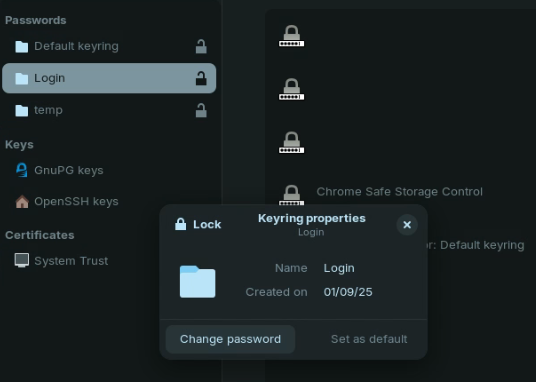
That will bring up a box, with the option to "Set as default". Select that.
[If that option is greyed out, it means that, that particular keyring is already "Marked As Default".]
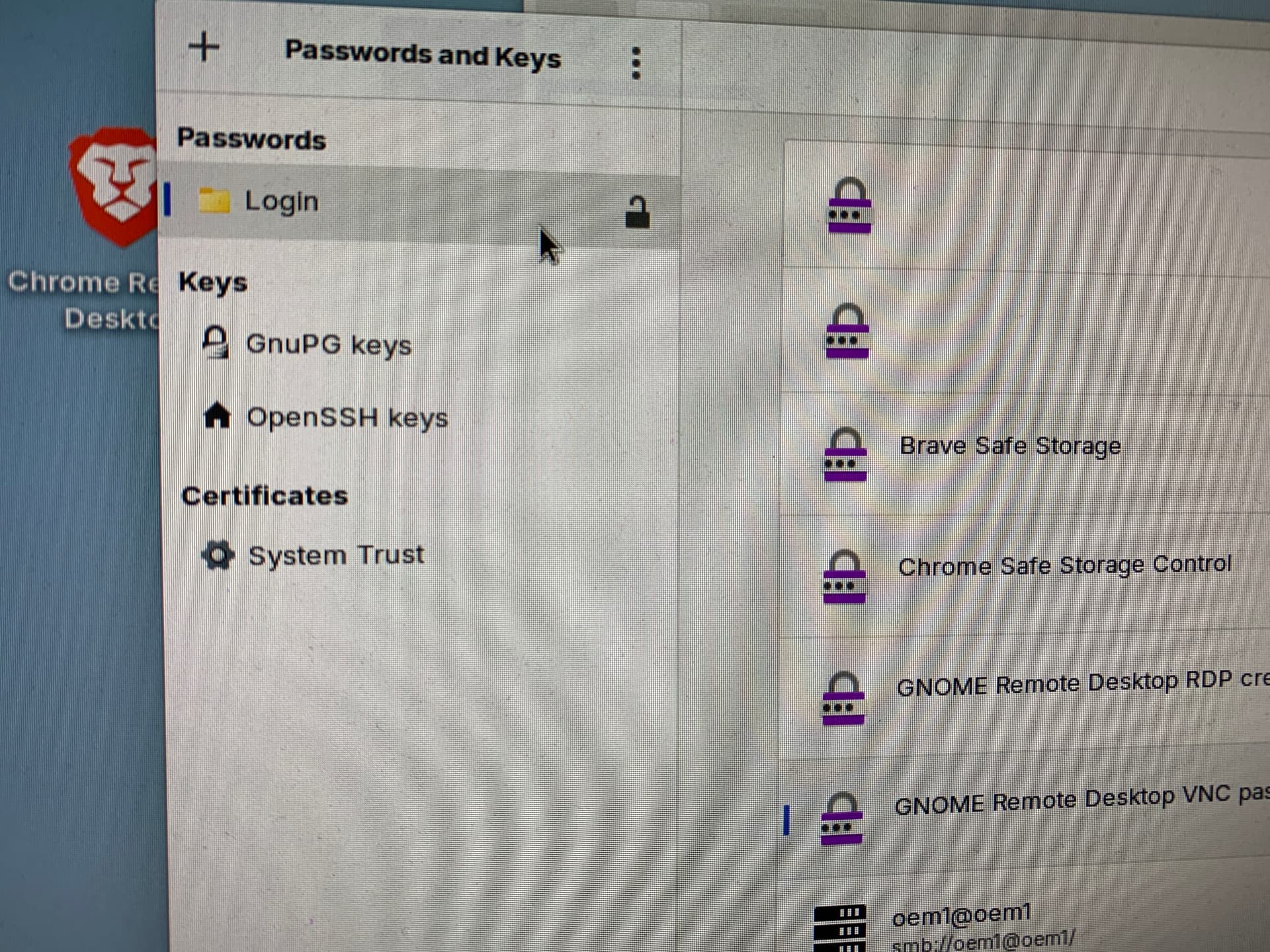
Next be 'very careful' and delete the existing keys called "GNOME Remote Desktop RDP credentials" and "GNOME Remote Desktop RDP password" in the 'Login' and 'Default keyring' lists on their right side panel. [I've done mine already, so no screenshot available for that.]
If there is only one key with only one of those names, delete only that one.
DO NOT touch anything else.
Close the 'Passwords and Keys' panel.
Next, open the Zorin Settings > Sharing > Remote desktop > panel and enter the password you require for the RDP to stay permanently.
Close that panel.
Return to the 'Passwords and Keys' panel and set "As Default" the "Login" keyring. Back to how it was before starting this.
Close the panels and logout > log back in and check in the "Passwords and Keys" app to see if the password you want as permanent is showing. Click the 'Keyhole" icon to show it.
Something like {'username': <'yourusername'>, 'password': <'yourpassword'>}.
Try another logout > login and check again. If it stays for a logout > login. next try a reboot. They are not the same thing from what I observed.
If after a reboot the PW stays the same, your done. Congrats! Check the RDP connection works from the other computer.
If like me, you are using the remote pc as a headless/monitorless unit, set the user to auto-login and restart the computer. Let it restart without touching the remote computer at all, try the RDP now.
To avoid the remote computer going into 'Blank Screen' timeout mode set it to "never" in the power options. And replace the monitor with a "dummy" HDMI monitor plug, to fool the computer into thinking there is a monitor connected.
IF after a reboot the required password doesn't stick, recheck the key ring settings, to make sure that the {'username': <'yourusername'>, 'password': <'yourpassword'>} has not been changed to a random one like {'username': <'yourusername'>, 'password': <'@Egy&9jZS'>}.
If so, replace just the @Egy&9jZS with your password and save the key again, also check the password in the Zorin Settings > Sharing > Remote desktop > panel and enter the password you require for the RDP to stay permanently.
It may take a couple of checks and entries but eventually the PW will 'stick'.
Be careful > good luck > and do that backup now.