External USB HDD

I am wondering if the issue is down to the fact that the drive is using the old method of mbr (master boot record) instead of GPT.

I also took a look at the fact that instead of just NTFS the drive type is given as NTFS/exfat/HPFS.

So I did some searching using Brave search engine via Mojeek which brought back this A.I. answer:

" The label HPFS/NTFS/exFAT typically indicates that a storage partition is formatted with one of these three file systems, which share similar partition type identifiers in the Master Boot Record (MBR). HPFS (High Performance File System) is an older system originally developed by IBM for OS/2. NTFS (New Technology File System) is Microsoft’s proprietary standard for Windows internal drives, supporting large files, permissions, and encryption. exFAT (Extended File Allocation Table) is a modern, lightweight format designed for flash drives that supports large files without the overhead of NTFS.

Because these file systems often use the same partition type code (Type 7), operating systems like Linux may display them collectively as HPFS/NTFS/exFAT . This label is a general indicator of the partition's type, not a definitive identification of the specific file system contained within; to determine the exact format, one should use tools like blkid or check the file system signature directly.

🌐

🌐

🌐

🌐

+15

How to fix HPFS/NTFS/exFAT errors in Linux?

To fix HPFS/NTFS/exFAT errors in Linux, you must identify the specific file system and use the corresponding repair tool. The label "HPFS/NTFS/exFAT" is a generic partition type indicator; the repair process differs for each.

:hammer_and_wrench: Fixing NTFS Errors

For partitions formatted with NTFS , the primary tool is ntfsfix, part of the ntfs-3g package. It clears the "dirty" flag (often caused by Windows Fast Startup or improper shutdowns) and fixes basic inconsistencies.

1. Install Dependencies

Ensure the ntfs-3g package is installed:

  • Debian/Ubuntu: sudo apt install ntfs-3g

[It should already be present and if it is it will say ntfs-3g is currently up-to-date]

2. Unmount the Partition

Never run repair tools on a mounted partition.

sudo umount /dev/sdXN

(Replace /dev/sdXN with your actual partition, e.g., /dev/sda1 )

3. Run ntfsfix

Execute the repair command:

sudo ntfsfix -d -b /dev/sdXN
  • -d : Clears the dirty flag.
  • -b : Clears the bad sector list (useful if cloning disks).

If ntfsfix reports severe corruption it cannot handle, you must boot into Windows and run chkdsk /f , as Linux tools are limited to basic repairs.

A.I. generated answers."

If you don't have Windows installed you could use Hiren's Boot CD on a USB as it comes with a cut-down version of Windows 11 with traditional menu.
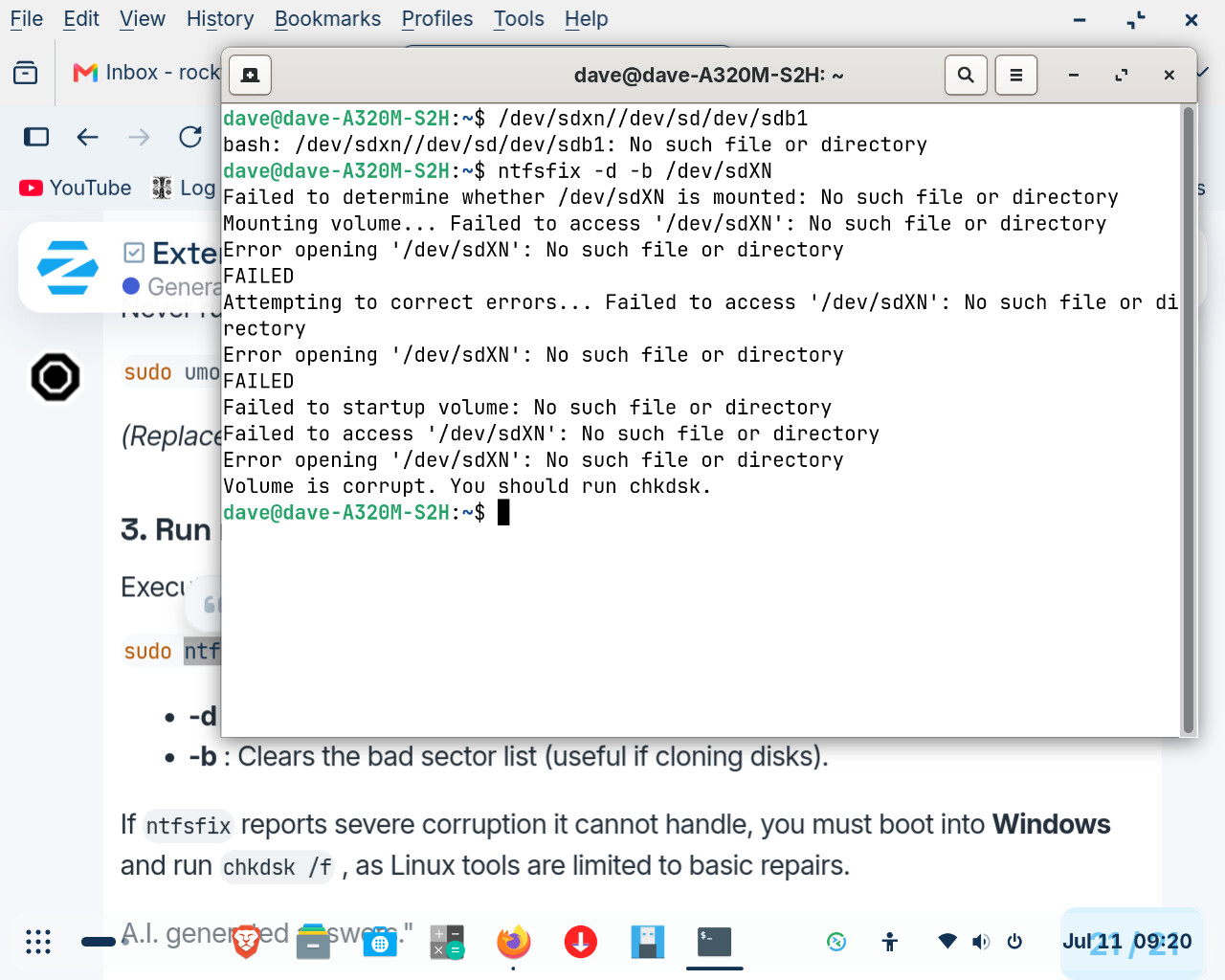
Okay I went down the list and did everything listed but the disk is so corrupted that Linux cannot fix it. I still have a form of Windows (a shell) on my laptop sp I will try running ckdisk from that.

I ran into the old Catch 22 when I got to Windows. Windows cannot run check disk unless the device is formatted but to format the disk I would need to install Win 11 because Windows has associated unrelated apps to check disk making a complete install needed. My laptop is not up to their arbitrary requirements for Win 11 so I cannot download it,

Unfortunately, I don't know anything about external hard drives.
I'm cautious about following AI-generated commands that control something as sensitive as partitions.

In the commands you would need to replace the x and n in sdxn with the real values of your drive, e.g. sdb1.

Have you tried using gparted from running Zorin? You can install gparted with

sudo. apt install gparted

With gparted you can format drives. For linux it is the best to format the drive to ext4.
If the external drive is mounted, unmount it before with gparted. Make sure that you select the external drive and not your drive with Zorin.
The internal drive usually is named /dev/sda or /dev/nvme0n1.

Here is a guide which shows how to use gparted to format an USB drive:

Don't set a flag for the drive. Just format it.

2 Likes

Actually, I would unmount it, then delete the existing partition, then create a new one and format to Ext4 in GParted.

1 Like

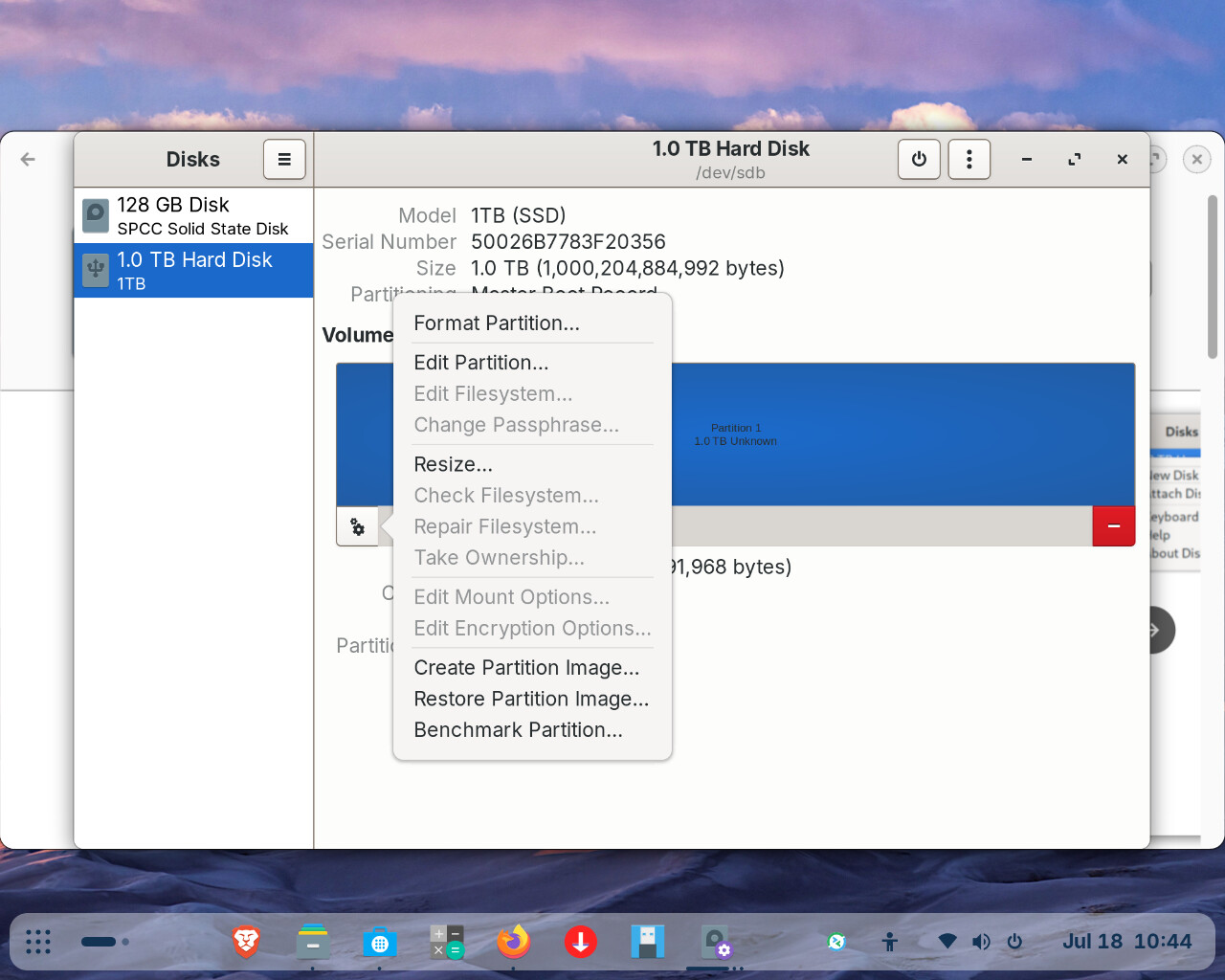
I downloaded gparted, unmounted the device and then formatted the partition. I went into disks to do this because I thought gparted would automatically do the function. Was I wrong? Anyway I cannot get the device to mount. It may still; be busy but since Zorin does not show the function. I do not know.

Hi, Gparted does not do this automatically. Please give me some time and I will upload some screenshots in a bit. Got to do my daily ablutions and get dressed. :wink:

1 Like

If you want to format a drive with gparted, you need to open gparted and not disks. Both are programs to format partitions/drives - but that doesn't happen automatically.

1 Like

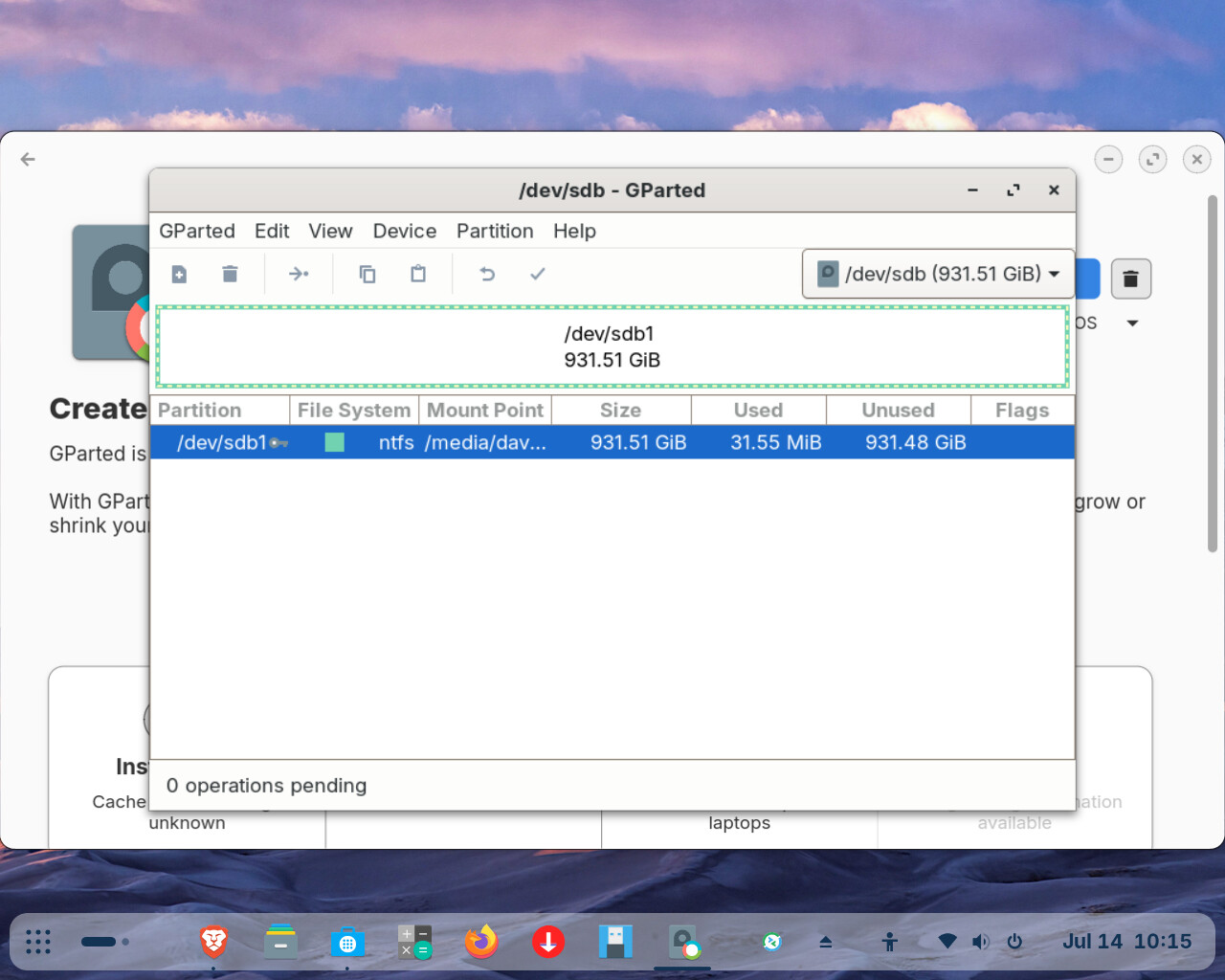
Okay, but when I open gparted my 1 terabyte does not appear in gparteds list. So I went back into Disks and tried to mount it. I tried it both ways mount and unmount but still gparted will not pick it up. Thanks

Hi, sorry I never got back to you, been busy sorting youngest's PC out.

First, with everything switched off, unplug the external SSD, boot your computer, then attach your external drive. As I wrote that last sentence I seem to remember someone posting about Gnome having stopped notifications on disconnecting drives so wonder if they have done something with connections too.

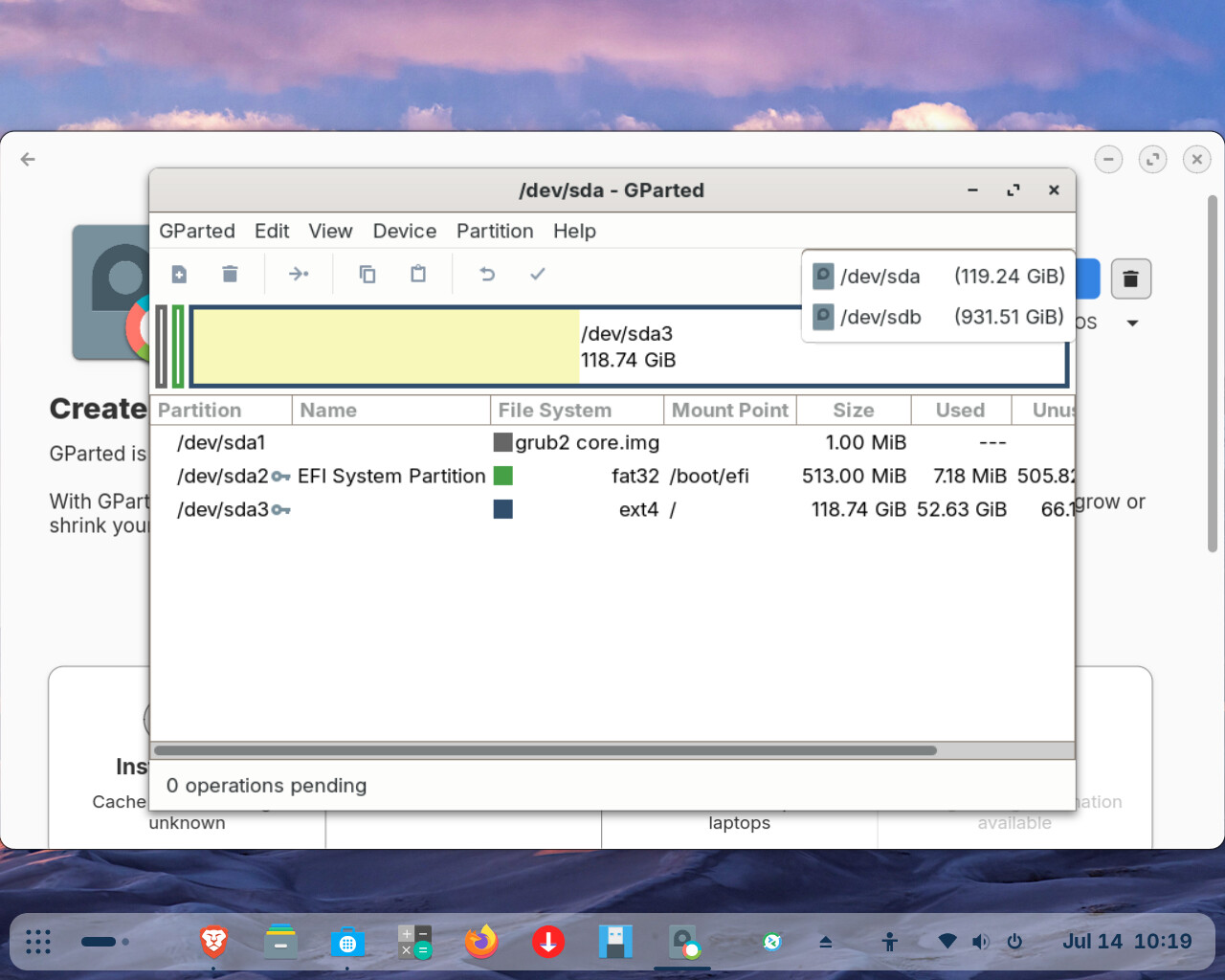
When you connect any USB device there should be something like an arrow symbol appear in the system tray to indicate it is present and has been connected. If this happens, then launching GParted should then see the external drive, but please be aware that what GParted does is it picks up your Zorin drive first as if you look towards top right, it will indicate the drive you are looking at is your internal drive labelled as "sdaX" (where X is a number). You should see a drop-down arrow next to "sdaX" - click on the drop-down arrow and any other drive connected will be shown alphabetically, so your external drive should be something like "sdbX". Select that and you should then be able to see it.

1 Like

This is what I came up with but I sure do not see the 1 TB device so I do not know. See the attachments I sent. Thanks.


/dev/sdb is the 1 TB drive, the first screenshot. It is mounted at the moment.
Try to format /dev/sdb1 to ext4. Note: This will delete all datas on that drive.
Probably you need to unmount it before.

1 Like

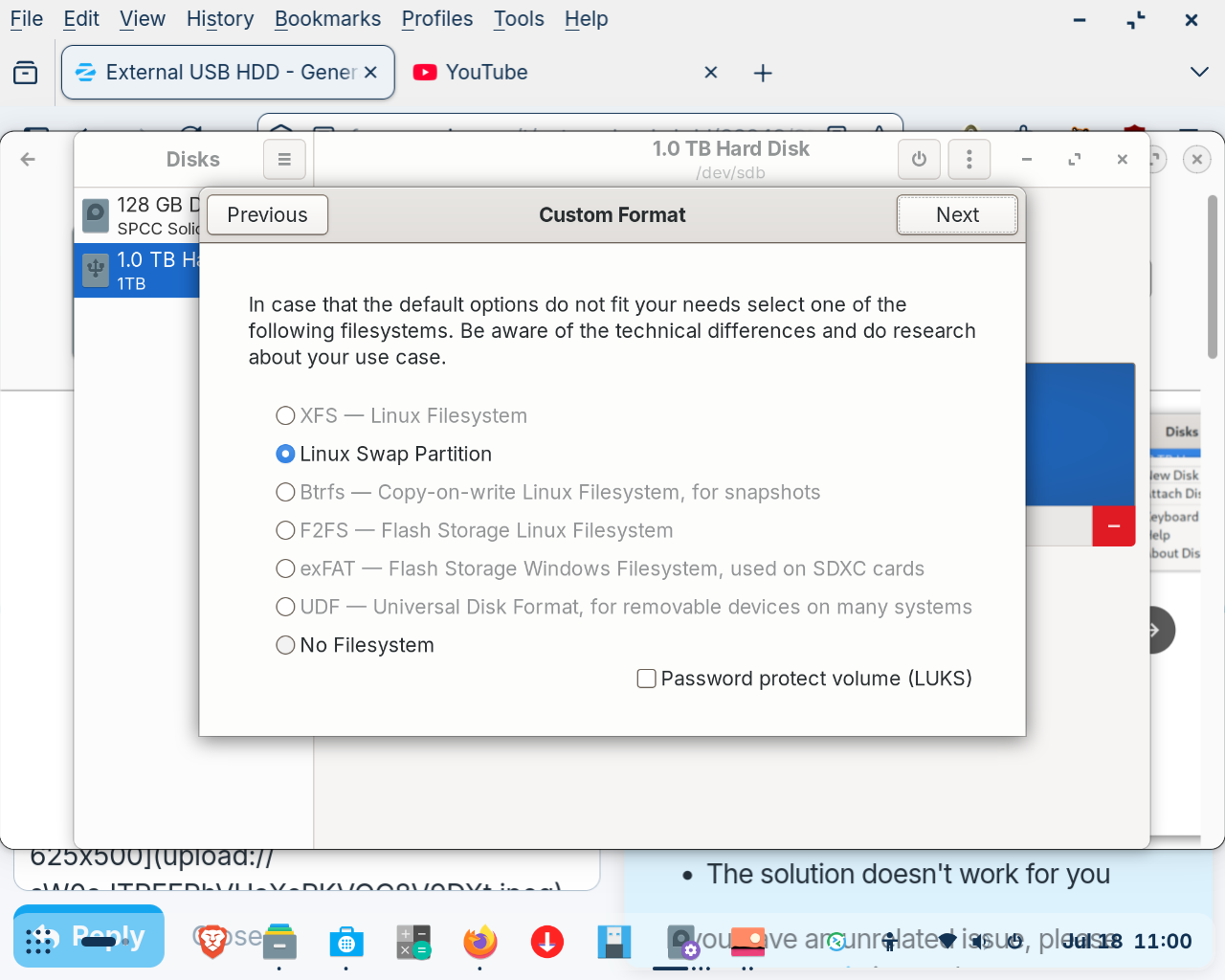
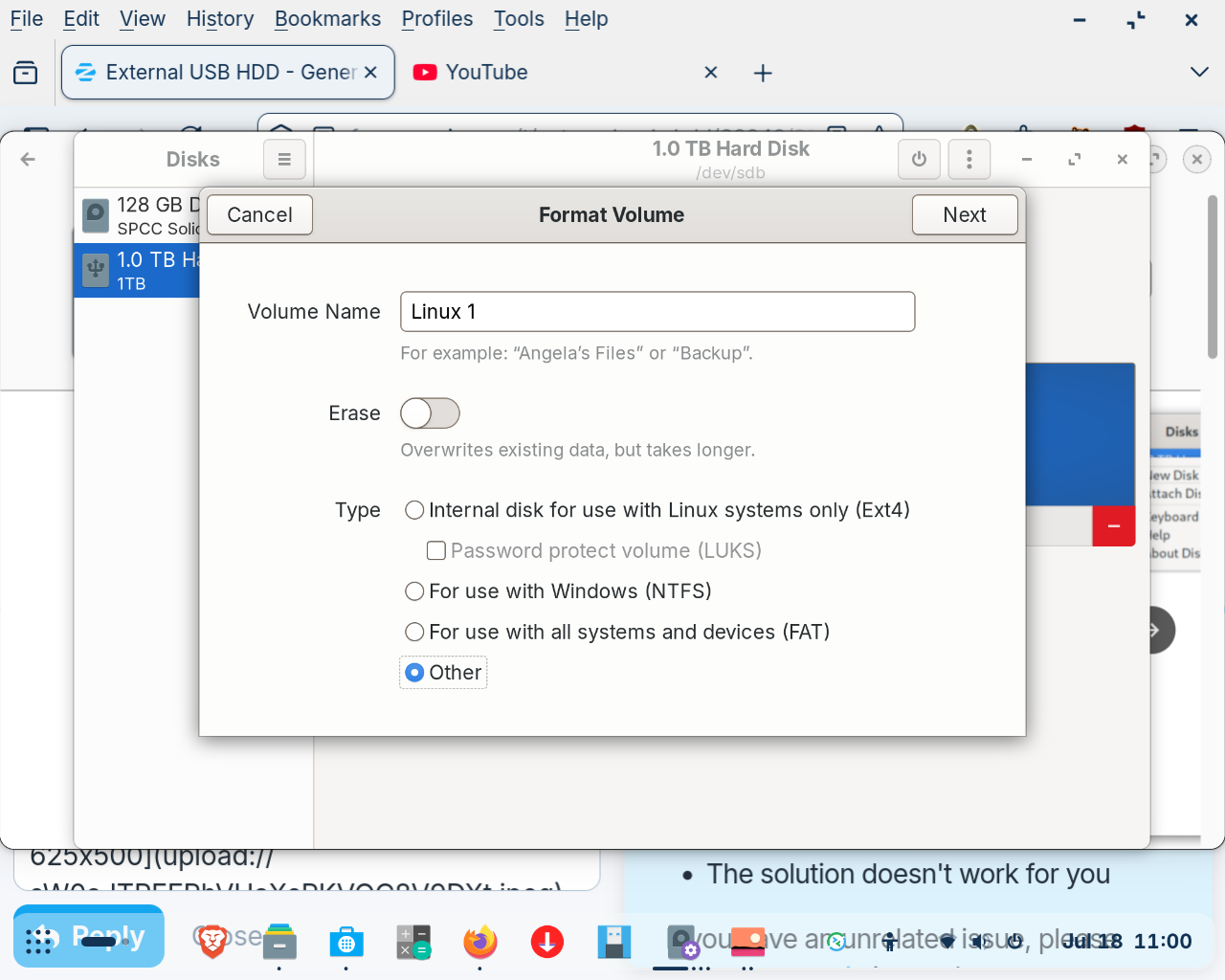
Okay but just a couple of things I am not clear on. 1. I have two options when starting the format: Linux swap and no system. No idea what to select.
2. How do I know when the format is done? Linux gives no scale info to follow the progress. It just sits there like its waiting for me to do something, but without a prompt.

I will try to unmount and try again. In any case, when I format under the right conditions I should see something to show me the operation, right?

Can you take a screenshot of the screen to show us what you see?

Swap is wrong, but I don't know why you don't have other options.

On the way.


Had trouble sending.


What is shown when you click on "previous" on the top of the window of your second screenshot? That are not the default options. I'm a bit at a loss because I've never used disks myself to format a partition, but both options here - linux swap and no filesystem - wouldn't help you.

I thought that was the way all Linux users used, so how can I format in Linux?

In this arena of Ubuntu and Debian derivative users, Gparted is usually used over disks, though Gnome Disks can do it.

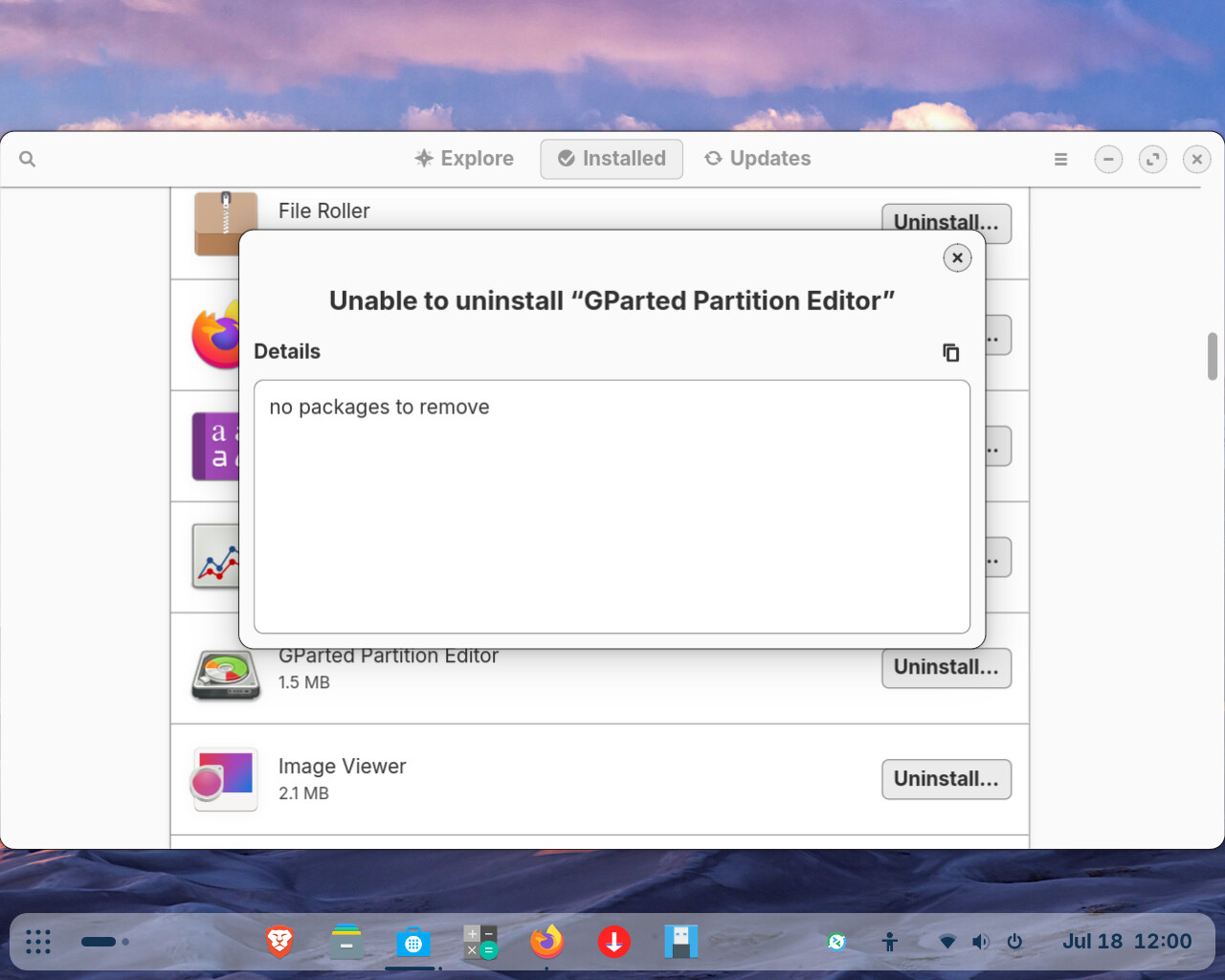
I have always had trouble even loading gparted let alone using it. I tried to uninstall it and reinstall but that did not work.


![Screenshot from 2026-07-18 12-01-34|625x500](upload://fY21jrz7U0uWAKCuiph9zTs8oMb.jpe

So at this point I do not know how to proceed.