I've been using Zorin Core for a couple of weeks now, and I've become completely fed up with the file system. I've used Ubuntu before, but never had all of these problems. I did a clean install (wiped Windows 11 off before installing).
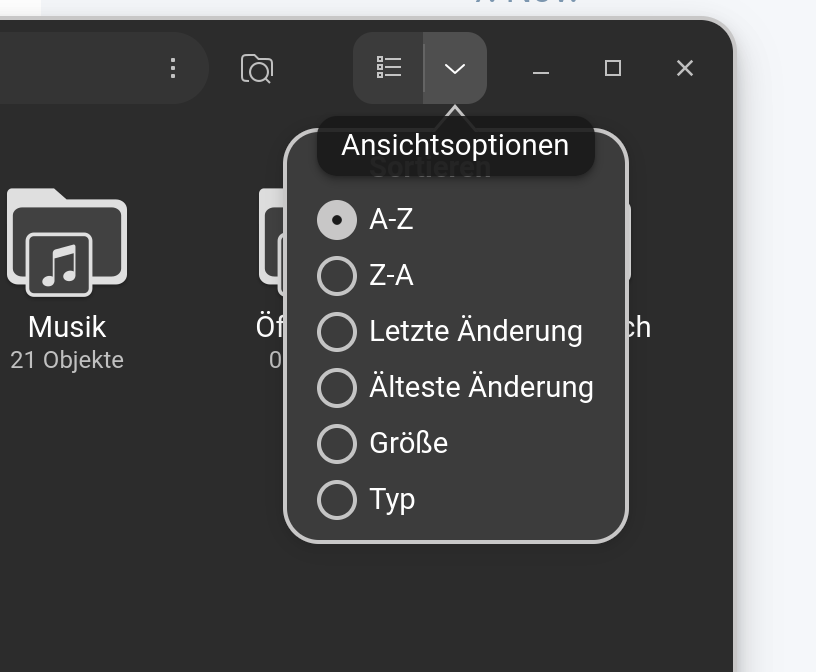
First of all, it scrambles my files in folders into random order and I can't find anything. I'm used to alphabetical order by file name and that option doesn't seem available in its crude childish three choice settings. Nor are the options to sort by date or anything else that would be useful.
Also, it refuses to show thumbnails of graphic files, but only in some random folders. Even two folders on the same drive, one shows the thumbnails and one doesn't. Which makes locating graphic files extremely frustrating. I am unable to find any way to force all of the folders with graphics to show thumbnails.
But the worst part is not being able to download and save files to the largest of my physical hard drives, which links to my Sync cloud folders that contain all of my most important files! And the worst part is that I download files to that Sync folder from the internet, and get NO error message or indication from the browser that the file didn't download because "your disk is write-protected".
I just discovered that a week's worth of downloads are GONE because I don't have permission to download files to my own "write protected" hard drive? I now have to go back to each link and download about 50 files all over again. I want to choose where I download things to. The only workaround is to download to the Downloads folder on the drive where Zorin is installed, then manually move the files to my other drive and folder, but this is too much work and I'm not prepared to do this forever. I've got too much work to do to have to deal with this.
I've tried going through the Files app and the Disks app to change the permissions and take the "write protect" off of my Sync/storage hard drive. I've given all possible permissions for the drive, files and folders to myself and every other entity that's available. My drive is still "write protected" with no option that I can find to remove this nonsense.
I've searched the Zorin help files and online and there's NOTHING about removing write protection from a disk. Is there any way to fix this?
Sorry if I seem frustrated, but I've lost hours of work, hours trying to find graphic files without thumbnails, and more hours trying to find a solution on my own.
You sound frustrated for very valid reasons, but still in control of your calm. Given what you have been through, it is impressive.
Gnome's new Nautilus GTK4/libadwaita version removed the detailed sorting controls. The file order is per-folder, not global, now. Nautilus stores sort metadata in hidden metadata files under ~/.local/share/gvfs-metadata/. If those are corrupted, folders appear to shuffle unpredictably.
Please try:
rm -r ~/.local/share/gvfs-metadata/*
to clear that out, then reload the desktop and shell Or Log out and back in Or reboot - to test if files list in Alphabetical order.
In the GTK3 Nautilus File Manager, you could set Thumbnail showing by size.
In GTK4, it defaults to 10 megs, with no clear setting to change it.
The Graphical Settings to change it were removed.
Gnome removed these settings in an attempt to "lighten" the desktop, in order to claim that it can compete with light desktop environments (Though all benchmarking still shows little improvement).
See if this gsetting for 100 megs will work:
gsettings set org.gnome.nautilus.preferences thumbnail-limit 104857600
For your storage drive being labeled as Write Protected: What File System is it formatted to? NTFS? ExFAT? EXT4?
You can sort it. When You open Nautilus (the File Manager) and go beneath the min/max/close Button, click on the Arrow and there You have the Sort Options:
I tried running the commands to clear metadata and change the gsetting but they made no apparent difference.
My drives are formatted as follows:
First physical drive is 256 GB and has two partitions. First is the boot partition, FAT format. Second is Ext4 and appears empty.
The second physical drive is my Data drive, 1 TB. It's a single partition, NTFS format.
I tried installing Nemo. Command line seemed to work except I couldn't find or open the app. I installed it using the "Software" graphical interface but still nothing.
Finally, the options to sort files which are shown in the screenshot do not exist for any files/folder on my Data drive, they only exist for items located in my first "boot" drive. I suspect it may be because the Data drive is formatted in NTFS.
I noticed two "Files" icons in the app menu which were indistinguishable from each other. When I clicked the second one I was able to see the formerly missing graphics thumbnails, and I had the extra options in the Sort menu.
I'm still being refused permission to download files to my Data drive, though. I have no idea how to change that.
I followed your directions to change the settings in the Disks app, then restarted the computer. No change.
I thought it might have something to do with the fact that I'm using a cloud storage service called Sync. It stores the files in the cloud, but creates a copy on the local hard drive. It has an app which syncs the files on the hard drive with those in the cloud. When I switched to Linux I found that their app is not compatible with Linux. I was unable to install it, even using Wine etc.
However, this time I tested by trying to save the downloaded file to a folder on the Data drive which is not in the Sync folder. I still got a permissions error and the download failed. I've been using Brave, but I also tested using Firefox and Vivaldi, same result.
So I think the problem is the configuration of the Data hard drive, rather than the cloud service. My Sync subscription expires early next month anyway, so I'm going to look for a cloud app that's compatible with Linux.
It occurs to me that when I installed Zorin, I expected it would wipe both of my hard drives and install the operating system on one. This is the first time I've installed Linux on a computer with more than one physical drive. I'm guessing it didn't do anything with the contents of the Data drive, and the files on that drive are the original Windows files (including the files which were previously associated with the Sync cloud service). Which would explain why the Data drive and files would be "read only". The operating system is treating the drive like write protected external storage.
I can still access my cloud files on the web, so I guess the next step would be to figure out how to integrate my Data drive with the Zorin installation (it's been years since I played around with drive partitions) so that in future I can download files directly to that drive.