So im using BalenaEtcher and i tried flashing zorinOS 18 to a usb drive, but each time it failed and i tried different ports and different usbs. but each and every time, the usb i tried to use completely stops working. Like doesnt even show up in windows file explorer.
Welcome to the forum!
Unfortunately this happens all too often when it comes to using Etcher. So much so that generally on the forum we recommend using another tool entirely (such as Rufus, Ventoy, almost any other frankly) because of this exact problem.
Now sometimes the issue you're running into is fixable, and some steps you can try can be found here:
Etcher broke my USB stick … or did it?
By the same company that most likely may have broken your drives most likely lol. A little ironic. But there have been some cases where Etcher completely kills some drives. Sometimes using Diskpart can help (as is being used in the article), other times some people use EaseUS software on Windows to try to get the drive back working.
I would say try using Diskpart in the article and see if you can get the drive back working that way, that would be the first step. Please note, when they claim this:
First and foremost, Etcher is completely incapable of “bricking” or killing a drive
This has been proven, from personal experience and others on the forum, to be completely false. I can't believe they actually wrote this article, frankly.
2 Likes
Welcome to the Forum!
When You are on Windows, I would recommend Rufus instead of Etcher.
That the Sticks are no longer detected can be related to Etcher, too. I had that in the Past, too. The thing is: When You write an ISO with Ecther on a USB Stick, Etcher makes it write-protected. There is a Way that You could try in Windows but You need the Terminal.
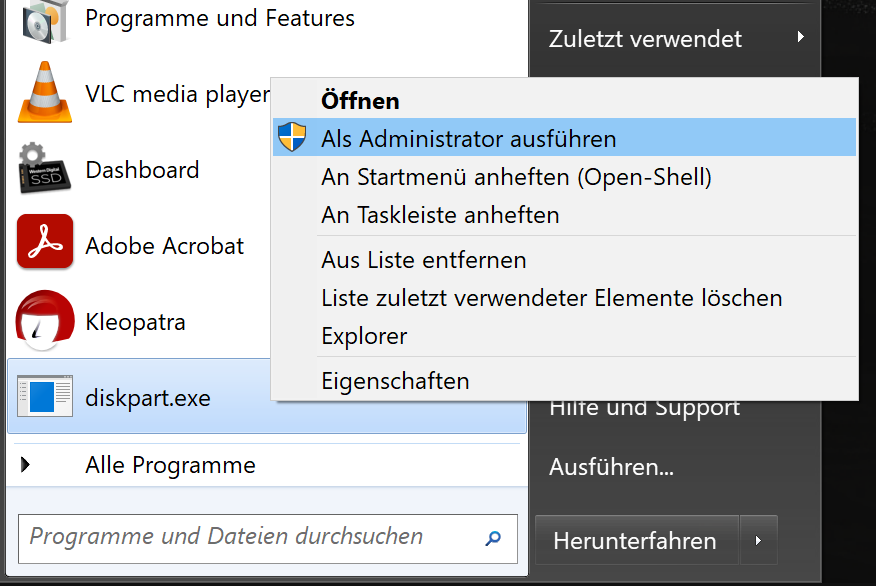
Plug in the USB Stick. Then look for diskpart.exe and make a Right-Click on it and choose ''Run as Administrator'':
In the opening Terminal type list disk and You get a List with the available Drives. That includes all Drives from Your System. So, HDD, SSD, m.2, external Drives like USB Stick's and HDD's/SSD's:
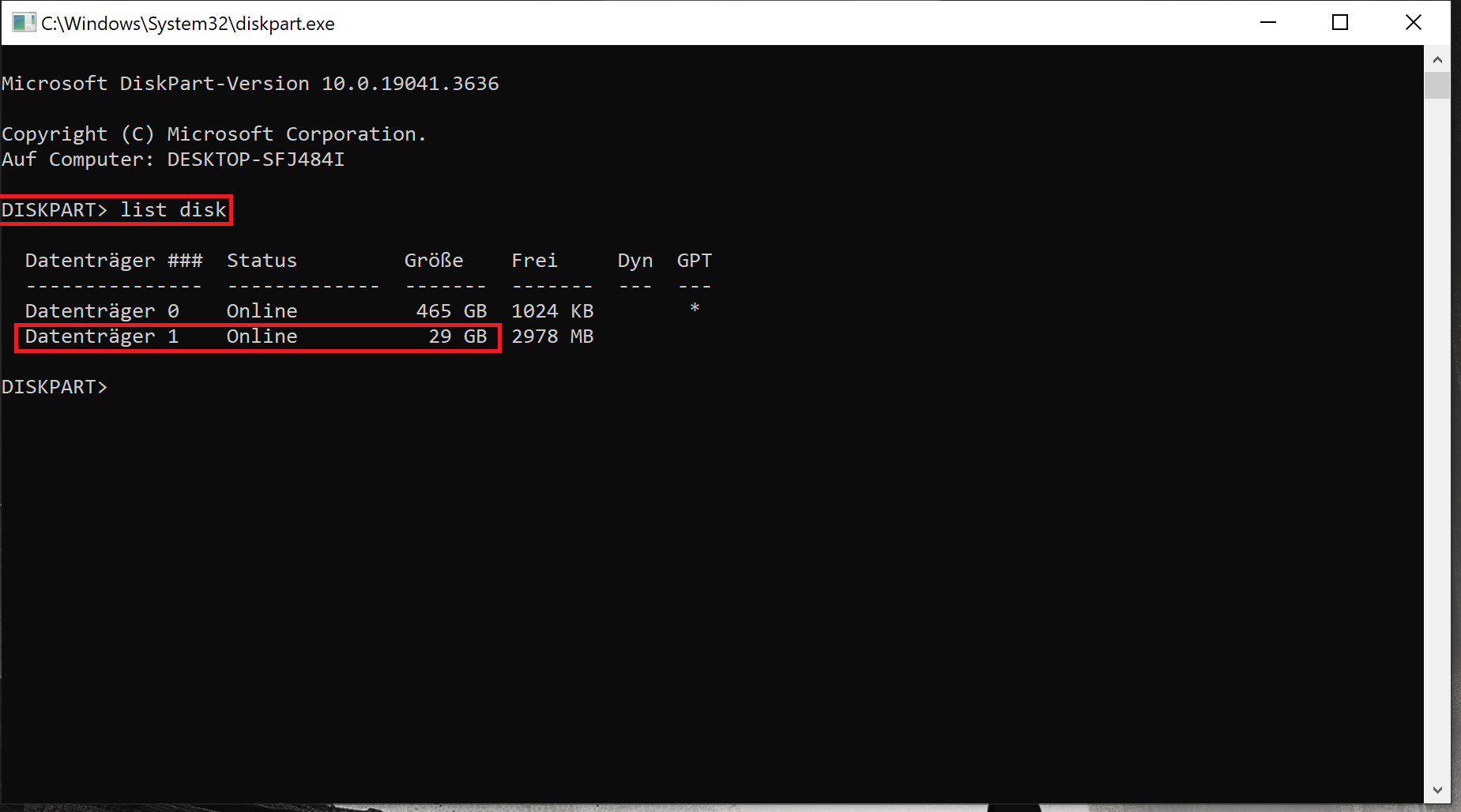
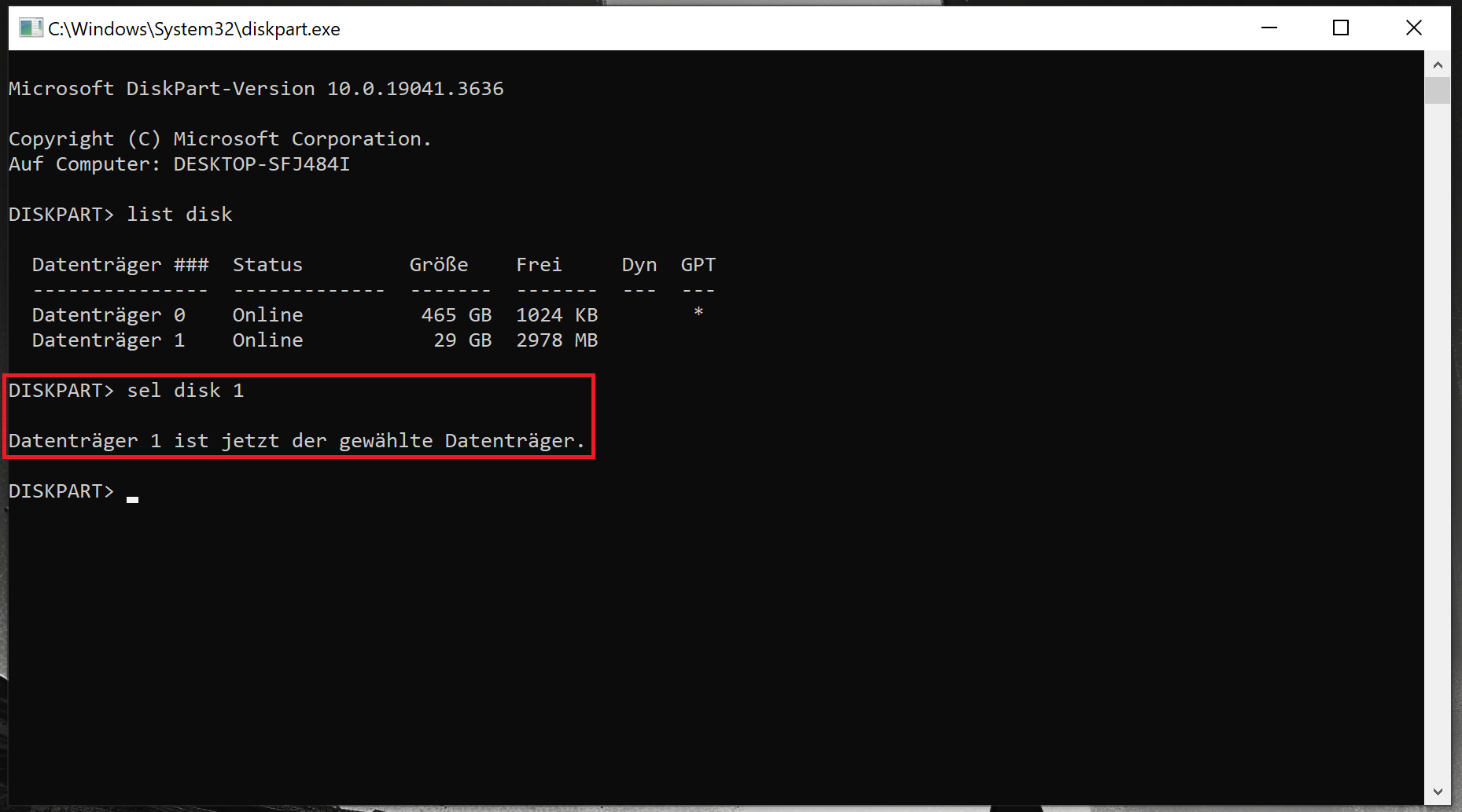
You see in my Example that there isn't a specific Name for the Drive. so, you have to identify it through the Site. In my Case it is simple becaus there are only 2.
Then type sel disk [Number] to select the Disk. In my Case it is the 1. So: sel disk 1
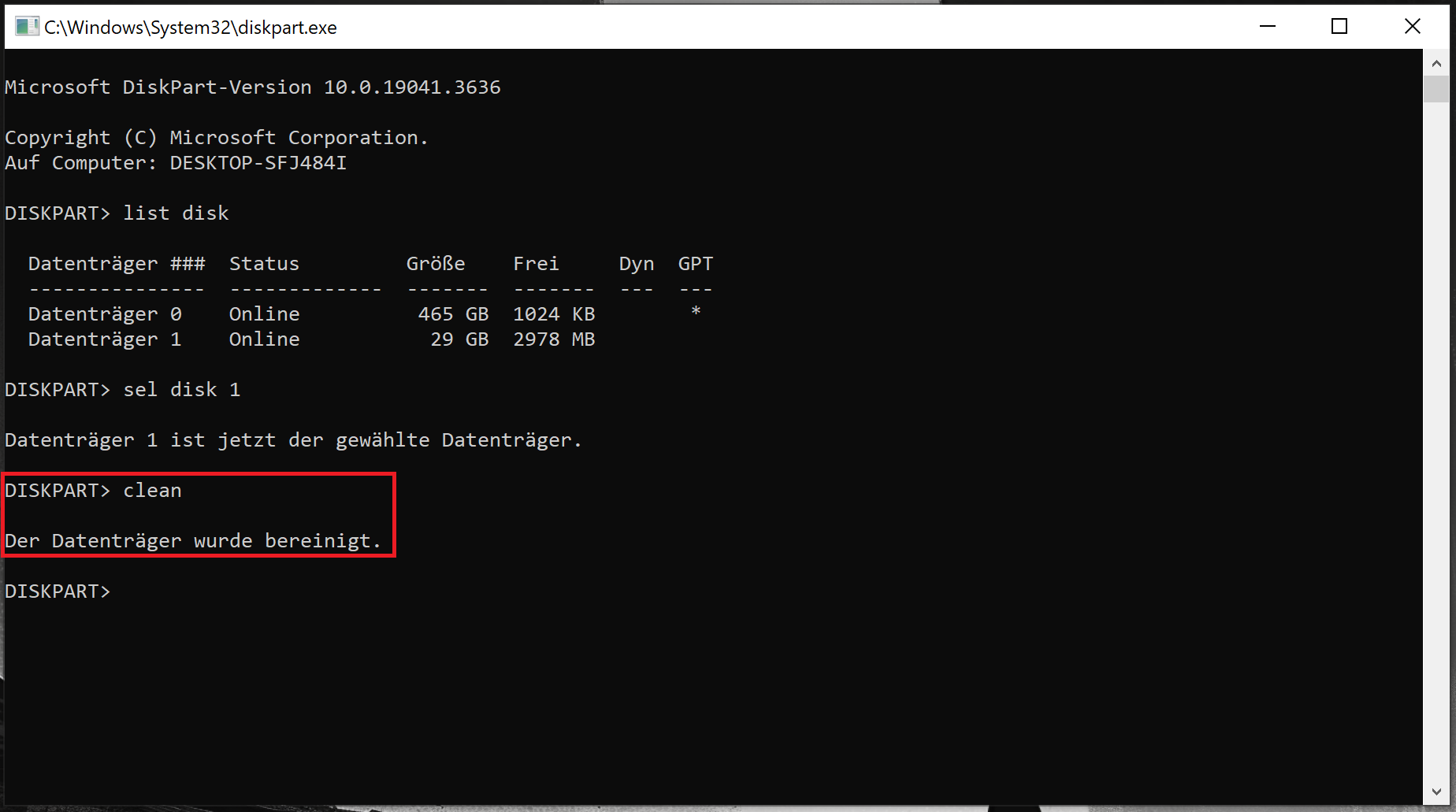
Then type clean to wipe the Drive:
Then type create partition primary
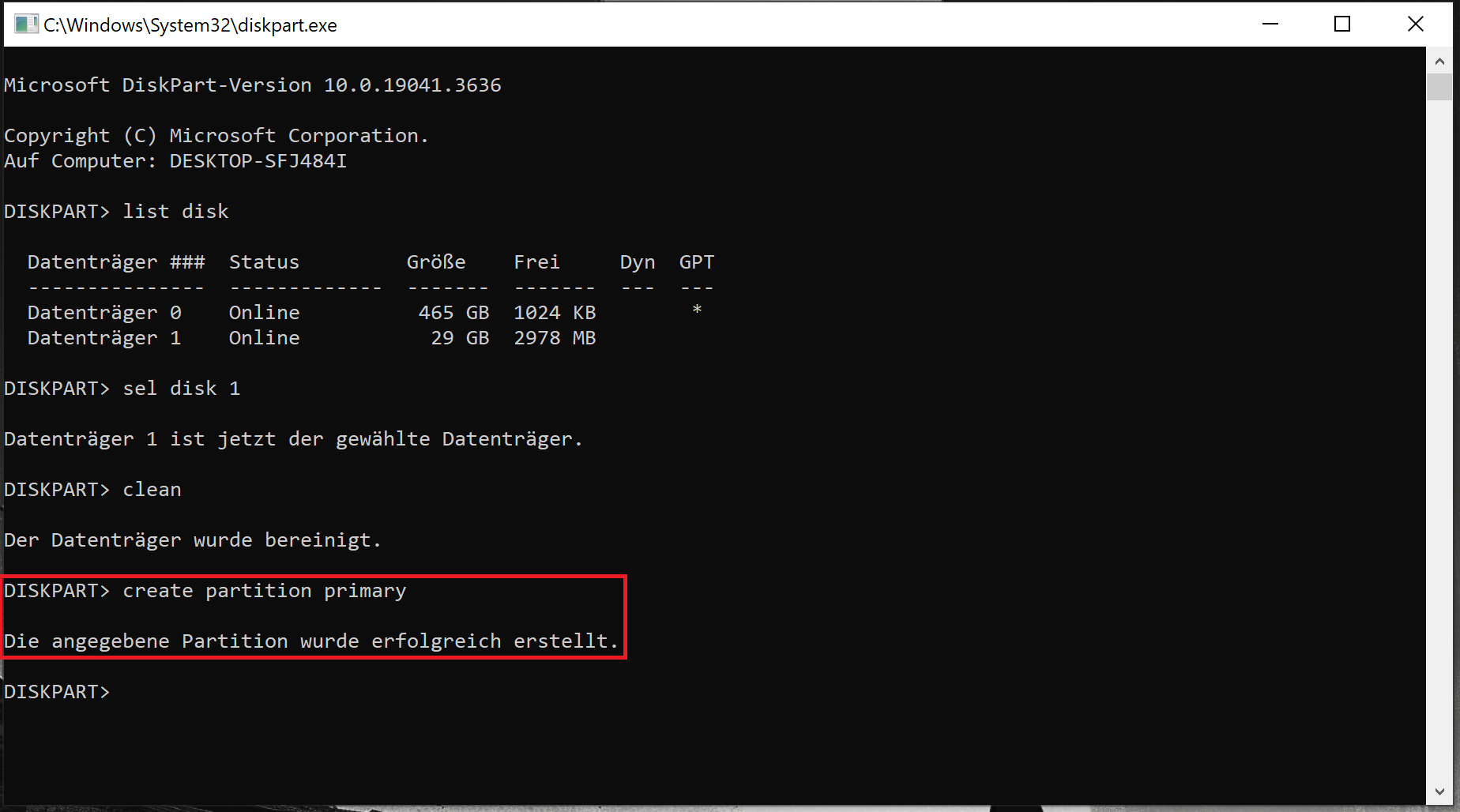
and then format fs=ntfs quick to format the Drive in ntfs for now:
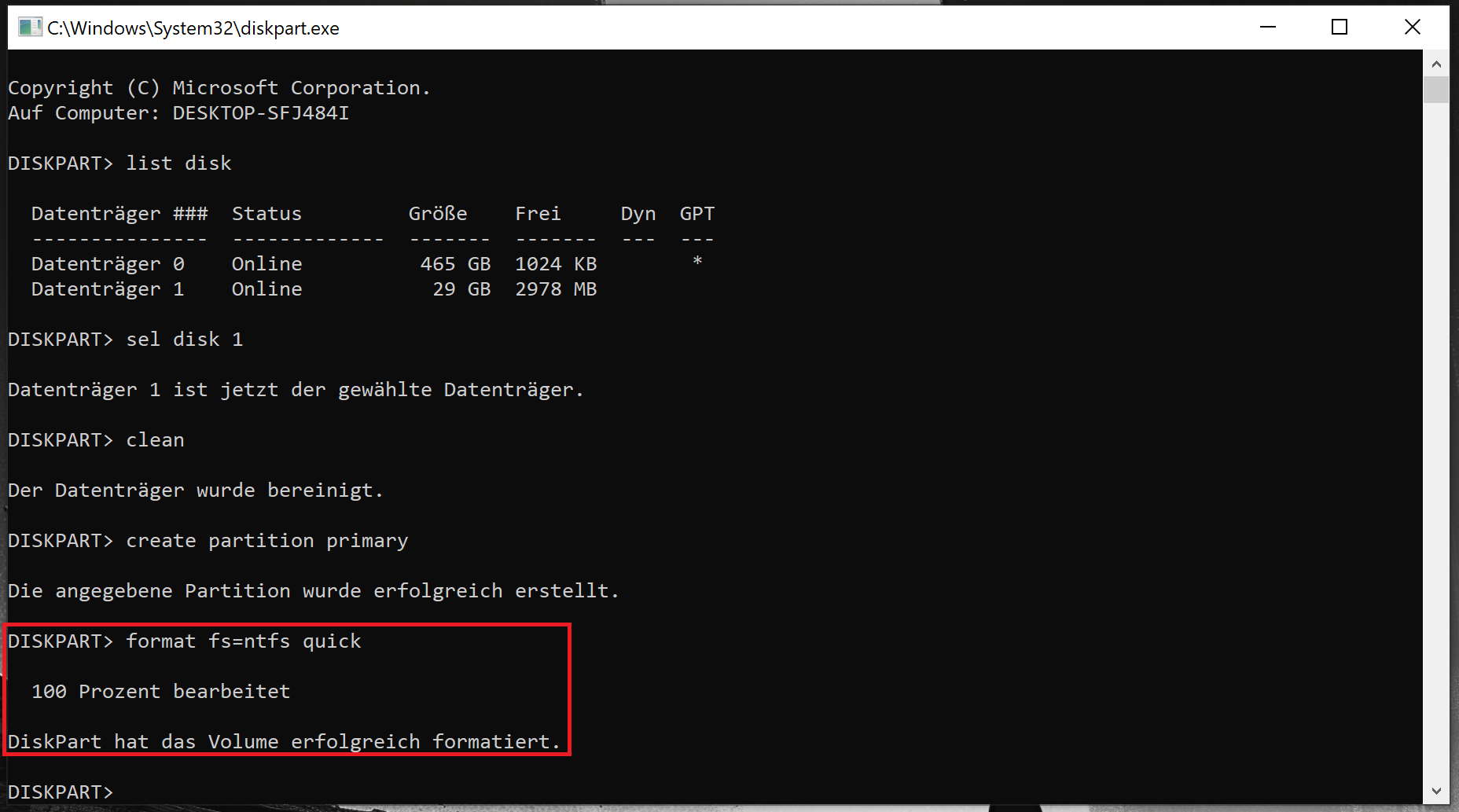
When ready, You can close the Terminal. Then open Windows Explorer, make a Right-Click on Your USB Stick and choose format and then format it to FAT32 if available.
1 Like
Can any Linux drive be seen by Windows?
When You mean with ext4 Format, no.
Yes, I assumed the would be formatted that way.
It would see the MBR first?
It can see the bootloader file, yes. But it cannot read/write ext4 formatted partitions.
1 Like
This topic was automatically closed 90 days after the last reply. New replies are no longer allowed.