Hello again,
I am new to Linux/Zorin 18 so please be aware that my Linux skill level is pretty low for now. I am trying to get my 3 network printers operational. I was hopeful it might have all happened automatically in the background as when I opened Settings > Printers, I see all 3 listed and "ready". They are 2 HPs (OfficeJet Pro 8100, Smart Tank 7900) and a Canon iP7220.
However when I tried to print test pages, the jobs were added to the print queue but that's as far as it got.
I am guessing this is a driver issue.
Could anyone please walk me through step by step how to get these operational?
TIA for any help
In terminal, you can easily and quickly install teh hplip package:
sudo apt install hplip
Then run the next command:
hp-setup
Alternatively, you can install
sudo apt install hplip hplip-gui
and run the hplip-gui package for the GUI setup window.
For the Canon, open a Terminal and enter:
sudo apt-get update
then
sudo apt install system-config-printer
and then
sudo apt install printer-drivers-all
Now enter:
sudo system-config-printer
The Printer settings open for you to add your printer. Click on 'Add'.
Now select whether local or network. If network note the IP address of the Canon. Select HPAppsocket/Jet Direct and enter the IP Address in the blank field at top of window that opens to the right. Then click on Continue to Select Printer. Scroll down to Canon, then Continue. Scroll down to search for your model. It may only show IP-7200 series. If nothing shows download this archive from my Cloud:
Canon no longer supports this printer and no longer stores the drivers for it. It has been 'retired'! (Canon USA).
Use File Roller to extract the archive. Once extracted go to packages and choose the 7220.deb package and use the Zorin app installer which should display when you click on it. Then Apply. Be sure to check the Properties of the Canon. If anywhere states 'driverless' change it by selecting the down arrow to the right to see if the Canon Printer driver is available.
@Aravisian Thanks for the help to get started. I am using the Gui and get the following screens:
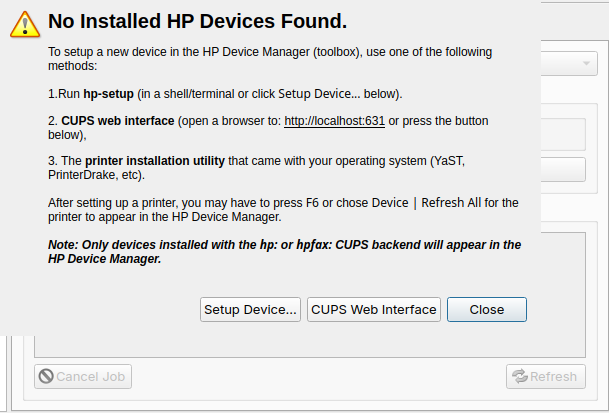
I select the "Setup Device" button which takes me to this where I select as shown followed by "Next":
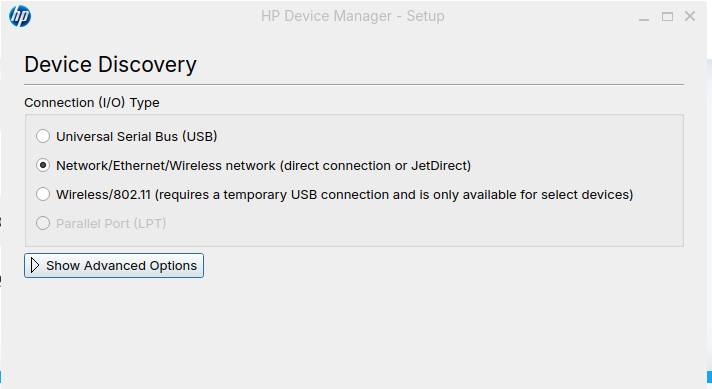
and then I get this:

I have VPN on but am unaware of any firewall.
Can you please advise me on how best to proceed?
How should I continue, please?
Let's see if you need Bonjour discovery package:
sudo apt install avahi-daemon cups
sudo systemctl enable --now cups avahi-daemon
If auto discovery still fails after the above, you can get your Printers I.P. address and direct to it. (replace xxx.xxx.xxx.xxx with the Printer I.P.):
hp-setup xxx.xxx.xxx.xxx
For your Cannon printer, the command should be:
sudo apt install printer-driver-all
It is driver not drivers
1 Like
The HP Printers are both printing. I turned off the VPN to complete the setup and that did the trick. VPN is back on and it prints just fine. RESULT 
With the Canon, I am now at the stage where I can do the config and start with this screen where I select the 7200 printer and choose "Add":
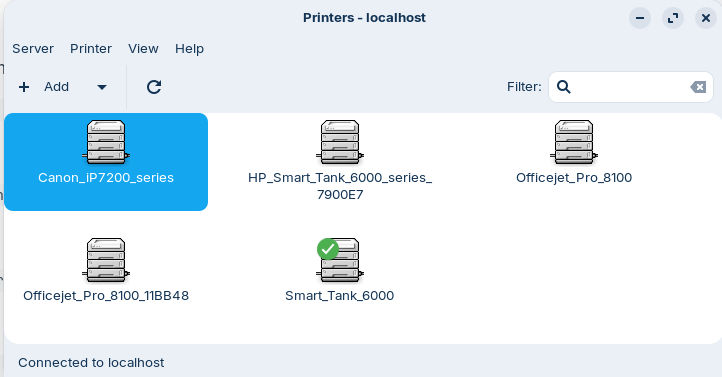
From this next screen, even though there are two Canon printers shown, I am selecting the one highlighted which seems correct:
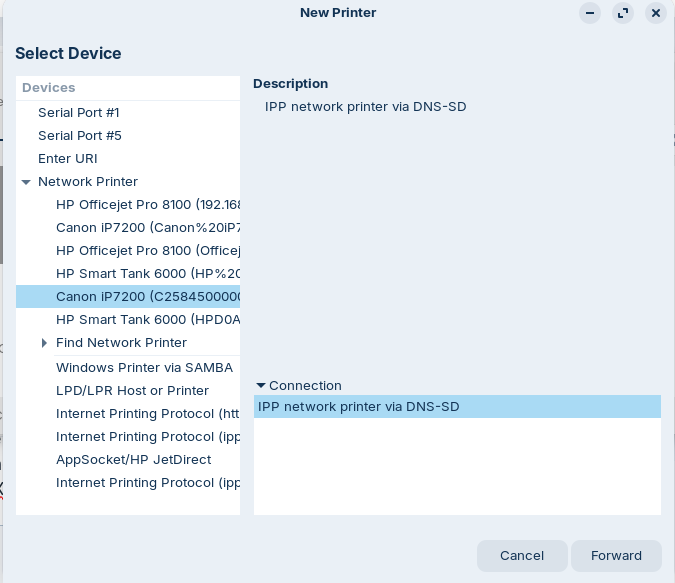
I then select "Forward" which gets me to this screen and I then select "Apply":
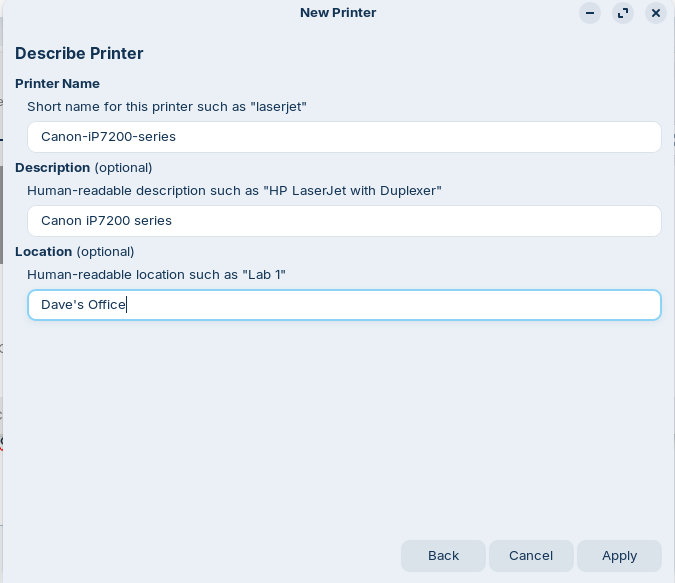
I then get this error message:
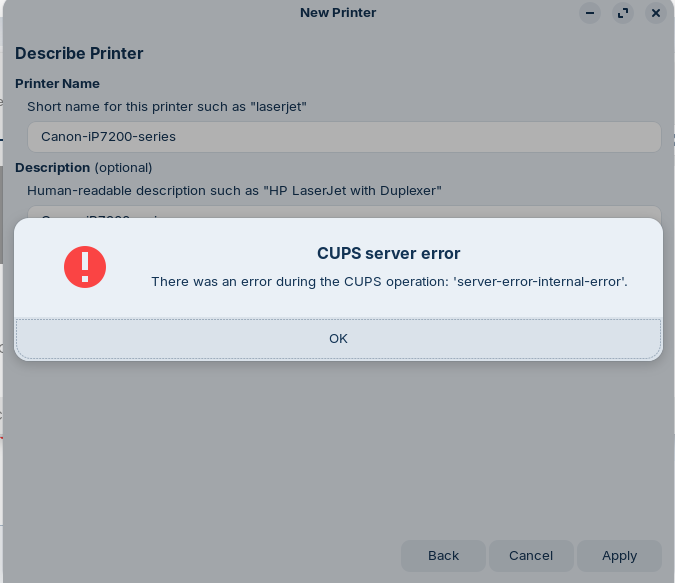
What have I done wrong or waht do I need to fix, please?
1 Like
What is your terminal output of
lpinfo -v | grep canon
And
lpstat -t
There may be a driver mismatch.
the log output is:
dave@dave-ThinkPad-T470-W10DG:~$ lpinfo -v | grep canon
dave@dave-ThinkPad-T470-W10DG:~$ lpstat -t
scheduler is running
system default destination: Smart_Tank_6000
device for Canon_iP7200_series: implicitclass://Canon_iP7200_series/
device for HP_Smart_Tank_6000_series_7900E7: implicitclass://HP_Smart_Tank_6000_series_7900E7/
device for Officejet_Pro_8100: hp:/net/Officejet_Pro_8100?ip=192.168.193.155
device for Officejet_Pro_8100_11BB48: implicitclass://Officejet_Pro_8100_11BB48/
device for Smart_Tank_6000: hp:/net/Smart_Tank_6000_series?ip=192.168.193.179
Canon_iP7200_series accepting requests since Wed 22 Oct 2025 05:23:06 PM PDT
HP_Smart_Tank_6000_series_7900E7 accepting requests since Wed 22 Oct 2025 01:35:29 PM PDT
Officejet_Pro_8100 accepting requests since Wed 22 Oct 2025 04:46:13 PM PDT
Officejet_Pro_8100_11BB48 accepting requests since Wed 22 Oct 2025 10:22:16 AM PDT
Smart_Tank_6000 accepting requests since Wed 22 Oct 2025 04:49:15 PM PDT
printer Canon_iP7200_series now printing Canon_iP7200_series-10. enabled since Wed 22 Oct 2025 05:23:06 PM PDT
cfFilterChain: bannertopdf (PID 31728) exited with no errors.
printer HP_Smart_Tank_6000_series_7900E7 is idle. enabled since Wed 22 Oct 2025 01:35:29 PM PDT
cfFilterPDFToPDF: Exception: qpdf output: Pl_StdioFile::write: Broken pipe
printer Officejet_Pro_8100 is idle. enabled since Wed 22 Oct 2025 04:46:13 PM PDT
printer Officejet_Pro_8100_11BB48 is idle. enabled since Wed 22 Oct 2025 10:22:16 AM PDT
printer Smart_Tank_6000 is idle. enabled since Wed 22 Oct 2025 04:49:15 PM PDT
Canon_iP7200_series-10 root 1024 Wed 22 Oct 2025 05:20:04 PM PDT
dave@dave-ThinkPad-T470-W10DG:~$
However, once again, I found that turning off VPN allowed me to get past the CUPS error and to this screen:
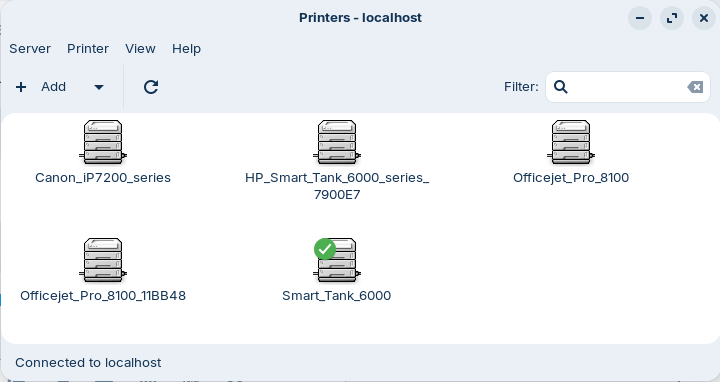
When I right click on the Canon_IP7200_series printer logo, select properties, I get this:
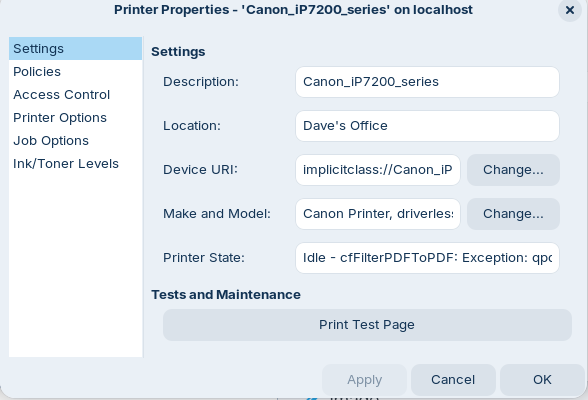
The printer state reads "Idle - cfFilterPDFToPDF: Exception: qpdf output: Pl_StdioFile::write: Broken pipe".
I select "Print Test Page" and get a message that the job is submitted. The screen changes to:
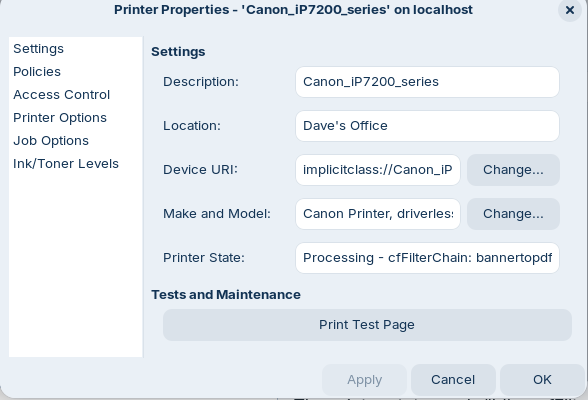
after a short while, the printer status changes to:
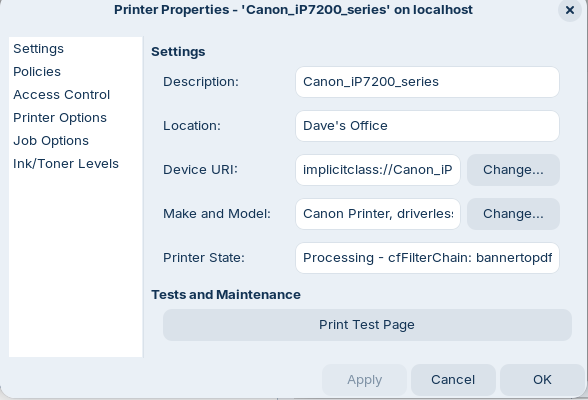
The test page is in the print queue but nothing is happening.
Printer State has changed to "Processing - No suitable destination host found by cups-browsed, retrying later"
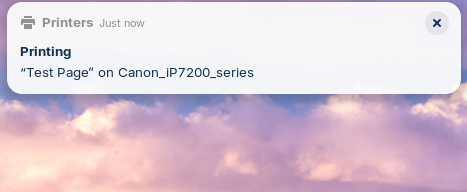
Finally, this message pops up intermittently at top of screen
1 Like
You have 'driverless' in the driver details which while it will show printing it may not print at all or do a test print then nothing further. I will do a video on Vimeo and post the link back here.
@Aravisian thanks for correcting my error.
1 Like
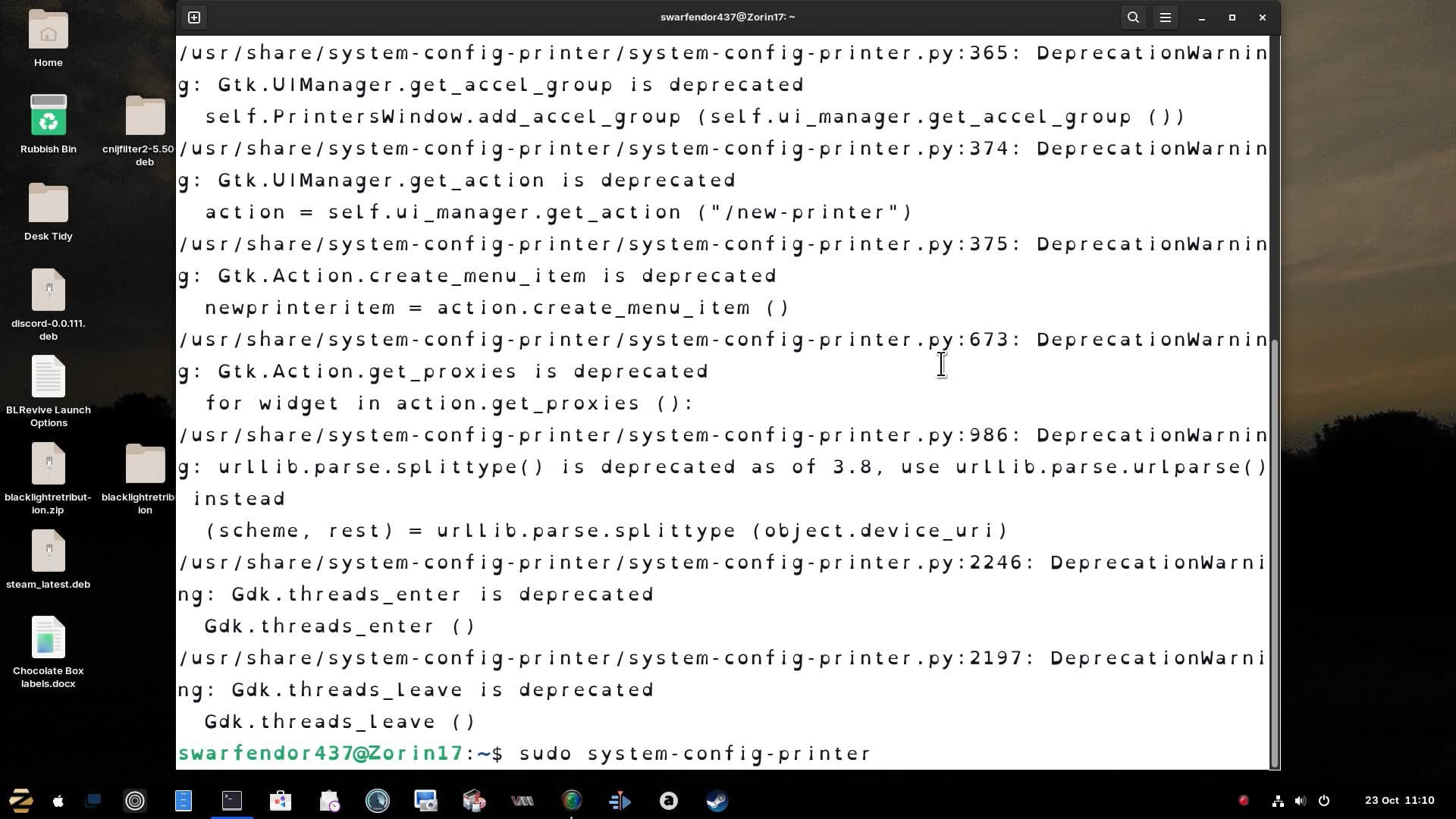
OK, tried to install the drivers I found online and was missing a dependency. If you have installed printer-driver-all then IP7200 show up. Note in my video you will not see 'driverless' anywhere. Once you have sent a test print, the Ink level section will accurately give your current ink-levels. I am aware you are running Zorin 18 but was having issues with simplescreenrecorder on my PCLOS Debian install (now fixed), but the same result should happen with Zorin 18.
Here is the video:
1 Like
Thank you for taking the time to do this. It seems pretty clear and I will try as soon as I can get one immediate question answered. No assumptions - the Host IP address you enter. I am assuming that this should be the non-VPN operational IP address i.e. the address I get returned with VPN inoperative and running a utility like What Is My IP Address & Location? (IPv4/IPv6 Lookup)
Am I correct? TIA for your help
The IP Address is what gets assigned to your printer from the router at setup. Never use Easy setup (WPS) as this is a security hole. You login to your router from the printer control panel to make a connection, it then assigns an IP address to the Printer. Go to the Settings page in the LCD Panel and look for WAN settings to find the IP address that has been assigned. If this has already been done previously you shouldn't have to repeat this. Make a note of what it is and enter that in the AppSocket/HPJetDirect page - field at the top. I used the IP range that my Router uses. Yours might be 198.168.0.1, or 198.68.1.1 (router address).
I'm trying to get the IP address via this route. However it looks like the recommended port cannot be interrogated via Configure port to see the IP address. It looks like my Smart Tank is allocated to the TCP/IP port (2nd screenshot)
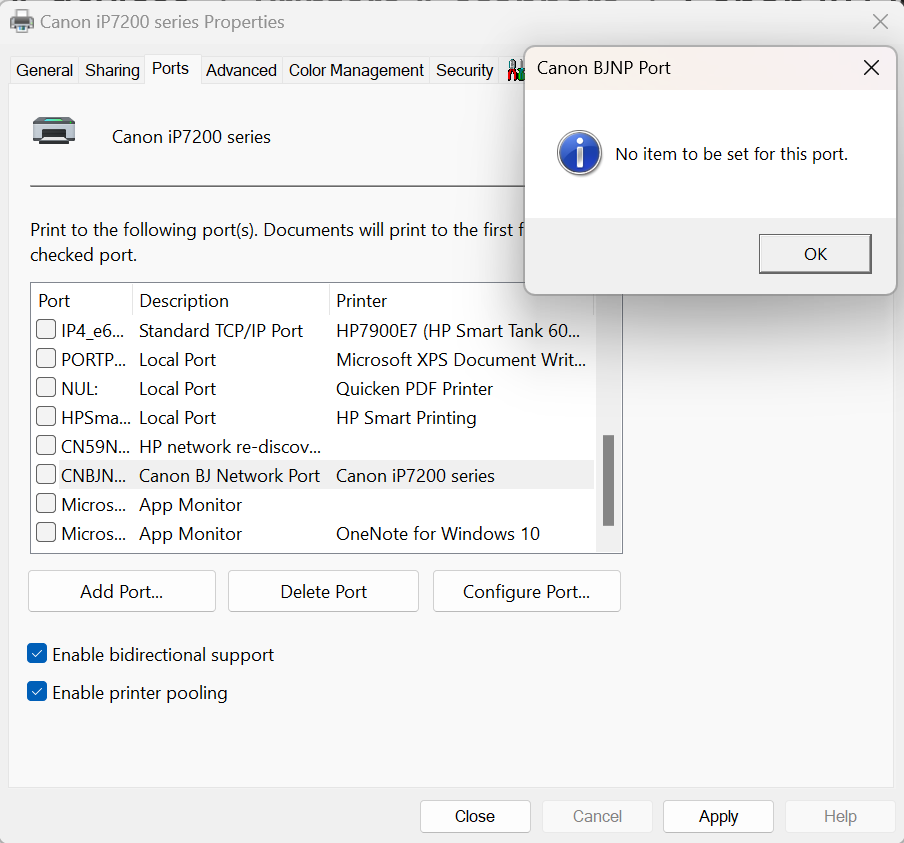
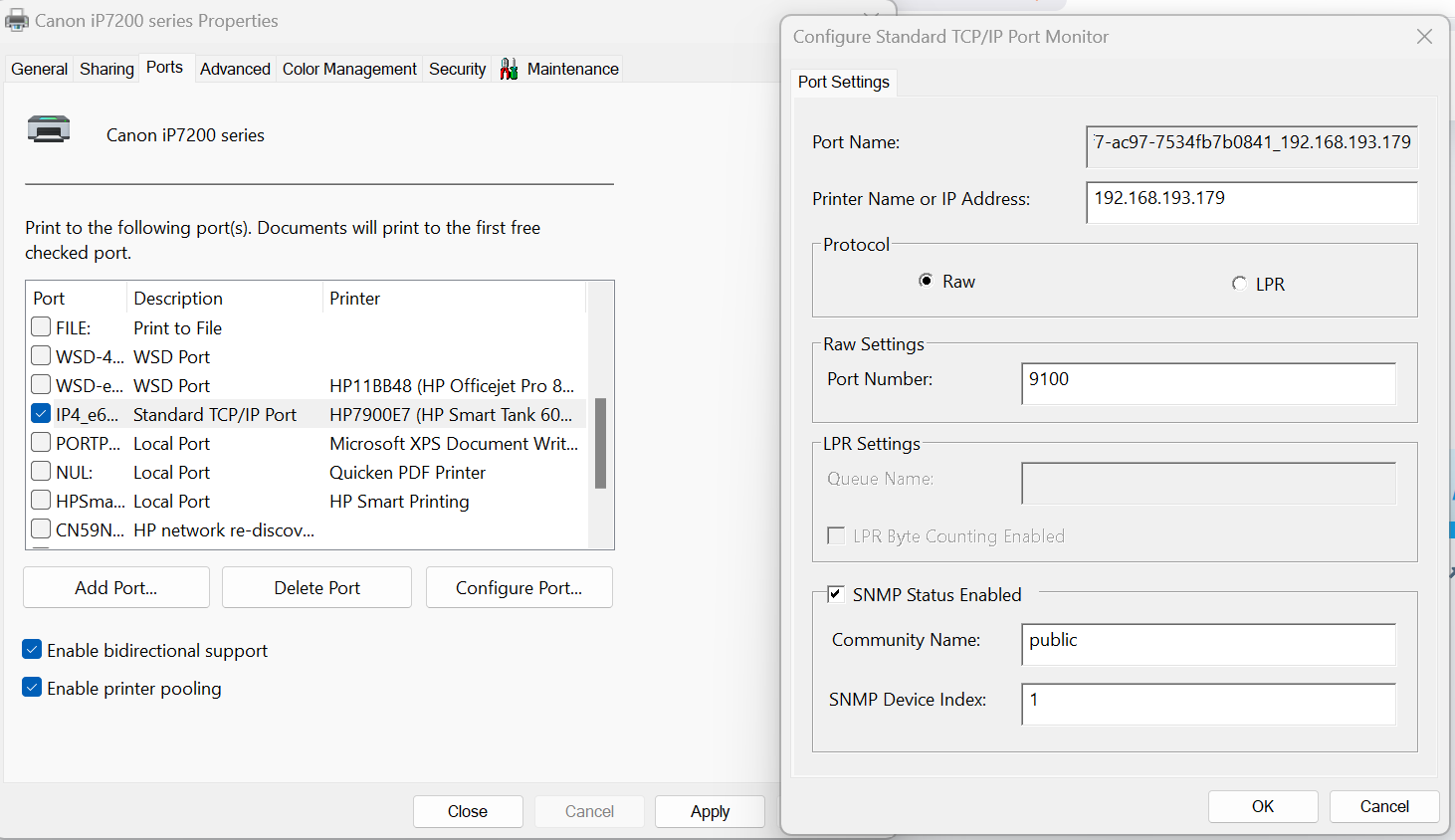
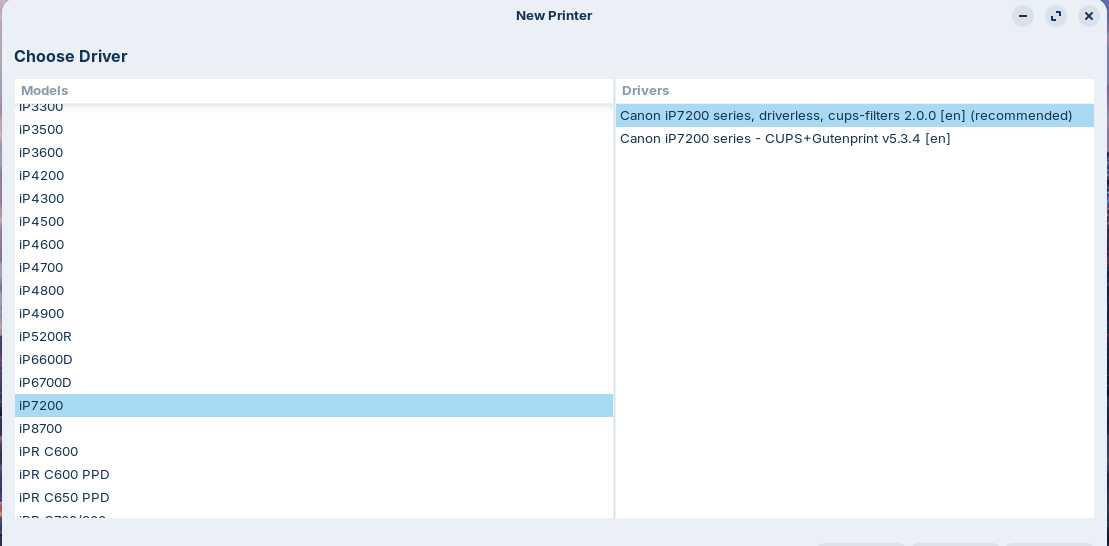
I found the IP address which is 192.168.193.246. I followed your directions but at the Choose Driver screen (around 01.16 in your video) I have 2 choices as shown below. I tried the Canon IP7200 series -CUPS+Gutenprint v5.3.4...... option but when it came to doing a Test Print, nothing happened.
I then deleted everything and tried again using the other option. In both cases the Printer Status came back as shown below:
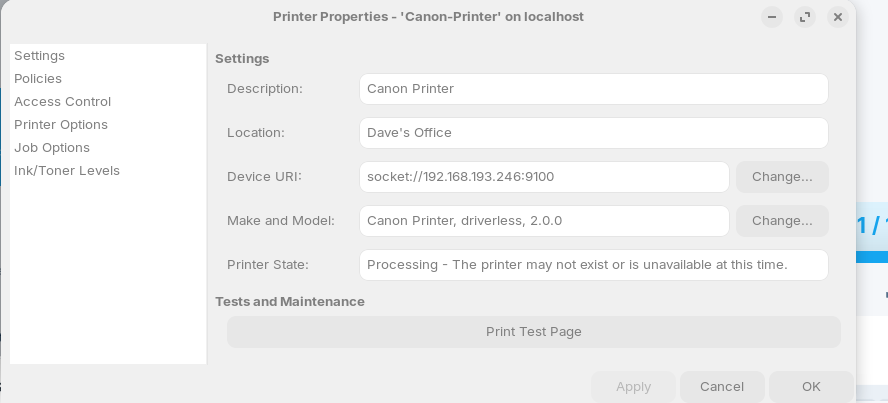
That is weird. I am wondering if it's because Canon retired this printer as the package for Linux was 3.80. This does not work on Zorin as it requires a higher dependency, needing a pango library <= 1.12 when only 1.00 is available. Am I right in thinking that you can actually print with the driverless printer?
My only other thought is to use CUPS in the browser and use IPPS everywhere.
" To set up IPPS (Internet Printing Protocol Secure) printing with IPP Everywhere support in CUPS, follow these steps:
- Ensure the CUPS service is installed and running on your system.
- Install the necessary packages for driverless printing, such as
cups-filters,cups-browsed, andipp-usb(if using USB), as they provide thedriverlessutility and support for discovery. - Use the
lpadmincommand to create a new printer queue. The command requires the printer name (-p), the device URI (-v), and the PPD model (-m). For IPPS, the device URI uses theipps://scheme and includes the printer's hostname or IP address and the queue name. The PPD model should beeverywhereordriverless:followed by the device URI.
- Example command:
lpadmin -p MyIPPSPrinter -E -v ipps://192.168.1.100/queue/MarketingQueue -m everywhere - The
-Eflag enables the printer and accepts jobs.
- The
driverlessutility can be used to discover available IPP driverless printers on the network. Rundriverless listto see the discovered printers and their correct device URIs, which can then be used in thelpadmincommand. - If the
everywheremodel does not work, try using thedriverless:model with the full device URI as the argument. - After setup, verify the printer is configured correctly using
lpstat -porlpstat -t.
This method allows for driverless printing, where CUPS automatically generates the necessary PPD file based on the printer's capabilities reported via the IPP protocol.
AI-generated answer. Please verify critical facts."
Note there is an IPP field when adding Network printers, so you could try that. CUPS was the only way I could get my TS-8151 running in GhostBSD.
No, I cannot print a test page using either of the 2 options available.
Just found this (Zorin 18 is a fork of Ubuntu 24.04):
To set up a Canon iP7200 series printer (including the iP7250) on Ubuntu 24.04 for network printing, the recommended approach involves using a PPA repository that provides updated drivers. The ppa:thierry-f/fork-michael-gruz repository contains the necessary printer-driver-cnijfilter package, which resolves common issues with the iP7200 series on Ubuntu 24.04.
The steps are as follows:
- Add the PPA repository:
sudo add-apt-repository ppa:thierry-f/fork-michael-gruz
- Install the printer driver:
sudo apt-get install printer-driver-cnijfilter
- Remove the existing printer configuration via the system settings, then use the "Add Printer" function. The system should automatically detect the printer as "Canon iP7200 series Ver.3.90" and configure it correctly.
This method has been confirmed to work on Ubuntu 24.04, where the printer is recognized and functional after following these steps. The driver supports both printing and scanning for the iP7200 series, including the iP7250 model.
AI-generated answer. Please verify critical facts.
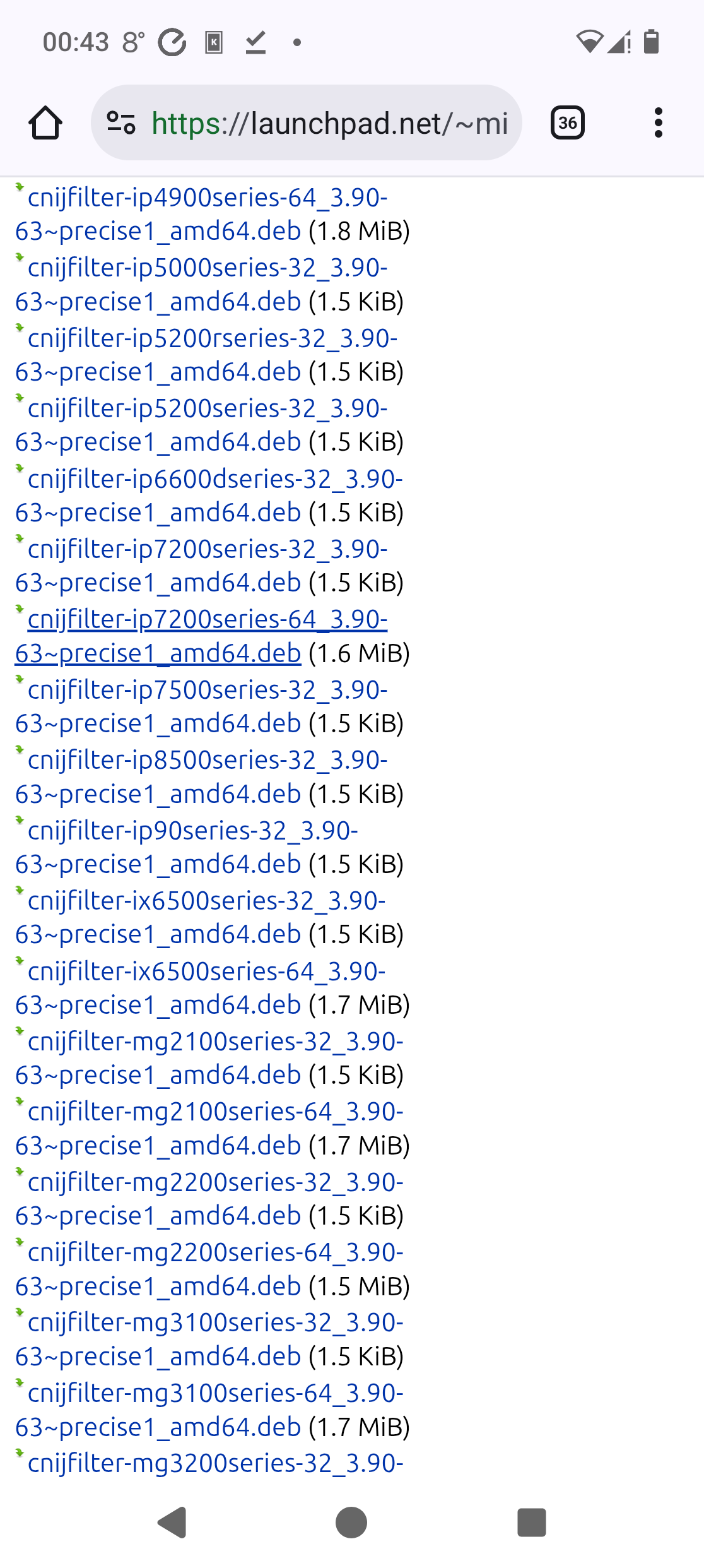
Alternatively you could download the 3.90 .deb package from Launchpad here:
Scroll down to ip7200 to download it.
1 Like
Thanks you so much for working with me on this one. We have a result
1 Like
Thanks for your help on the HP printers set up