Help with scanner and post processing software

I am in my mid 80's and transitioning from Windows7 to Zorin and I cannot find any information on what "Document Scanner" does or how it operates. Clicking on it does nothing so I am guessing that you open it and then use the scanner control panel which is not a viable option for me as you will see below.

I have also searched all the forums and the nearest thing to an answer was from a person who "can not understand why anyone would use a scanner in this day and age".

Obviously I need to answer that in order to get any sort of intelligent answers. I scan rare historic ww2 and earlier documents and, after processing, post them to various websites where they can be enjoyed by persons researching those topics. Under windoze using Epson Scan2 software I can simultaneously scan each page in a batch in both grayscale and colour. Grayscale produces far better black and white pages, especially B&W pages with photos on them, than colour does but many of these documents also contain colour pages. Scanning both modes simultaneously with the same scan number but a different prefix allows seamless integration of the colour scans.

Can "Document Scanner" do all this because the printer control panel can not?

If not - can I install the Epson software on Zorin, what extras must I install, and if so will it retain all its features? Remember to keep the instructions very simple because I am ANCIENT.

I post process using Scantailer which I have installed and tested and it works better than on Win.

In the past I have post processed with Adobe Acrobat Pro - the old win7 version.

What PDF printing, editing and OCR software do users recommend. So far I have found none that do everything Acrobat does but I am sure one exists.

Alternatively, given Zorin claims to be able to run a wide range of Win7 apps, would it be worth trying to install Acrobat 9, again what extras should I install, and if so should it retain all its features? Remember again to keep the instructions very simple because I am ANCIENT.

Hi and welcome.

In respect of a decent scanner application I highly recommend VueScan.
You can download a demo which leaves a watermark. I purchased the Pro version. One payment gives you access to updates for life.

For OCR, native GNU/Linux has L.I.O.S. (Linux Intelligent OCR Solution). You also need to install speech-dispatcher for it to work.

Other packages include OCR Feeder (not sure if this means you need a scanner with document feeder) but I have never had success using it; perhaps some additional packages may be needed.

There are Command Line applications such as 'ocrmypdf'. How this works is, say you have downloaded a pdf, the cover page might be an image of text.
So you open a terminal (just enter the word terminal in the menu search box and press enter), then navigate to the folder where the downloaded pdf is and enter:

sudo ocrmypdf [name of pdf] output.pdf

Note that if your pdf file is named with three separate words, e.g., my personal best.pdf you would need to enter:

sudo ocrmypdf my\ personal\ best.pdf

To save such headaches it is better to name multi-worded pdfs with underscores:

my_personal_best.pdf

If you have problems OCRing, then you can use the --force command:

sudo ocrmypdf --force my_personal_best.pdf output pdf

If you have a corrupted pdf you can use another command line tool, pdftk

sudo pdftk [name of pdf]

As for pdf editors you have two commercial solutions available to GNU/Linux:

  1. pdf Studio Pro by Apryse (formerly Qoppa Software)

  2. Master PDF Editor (available to install via Software, but you need to purchase a licence to use it).

Other useful pdf software native to GNU/Linux are:

  1. pdf Arranger - graphical application to rearrange pages/delete pages/merge with other pdfs.

  2. Okular (Document viewer and not just pdf's). This has some great annotation tools. If you want I can PM you with a private video I created for training purposes during lockdown for colleagues modifying documents for low-vision students. It can also be used to view Presentations and can also display pdf's as Presentations either by using mouse clicks or using a timer for page transitions. With 'flite' speech pack installed it can even speak pdfs.

All the packages available in GNU/Linux are easily installed using Synaptic Package Manager (available in Software). Once installed, launch Synaptic Package Manager, you will be asked for your login password to elevate you to 'root' (administrator). Then click on search, enter the package name you want to install and when it comes back, right-click on the small square to the left of the package name and select 'Mark for Installation', then on the main interface, left-click on the 'Apply' button.

VueScan is indeed the probably best alternative to Epson Scan 2. But it seems you are in luck - there is indeed a Linux version of Epson Scan 2!

You can install this alongside the built in "Document Scanner" you referred to, with no conflict.

The Linux version will feel familiar overall. It retains the same basic graphical interface for selecting scanners, setting resolution, image types (color, grayscale, black & white), and output formats like PDF or TIFF, much like Windows.​ Preview scanning, device selection for USB/network, and core scanning workflow mirror the Windows experience closely.

Linux's interface may appear a bit more basic compared to Windows, with fewer preview options or optional settings in some cases. But overall it sounds like what you are after.

Directions for suggested installation follow below: (I just now installed it myself for my Epson scanner.) In this case, flatpak is the way to go imho.


The Zorin Menu button - the "Z" icon in the bottom left corner of your Zorin OS 18 desktop is the (superior) equivalent to the Windows Start button. Click on that, and then in the left of the menu that opens, click on Utilities. Scroll down to and click on Terminal.

At the terminal command prompt (which looks something like Mi.Tasol@Mi.Tasol-Computername~$), copy and paste the following command (or type it in):
flatpak install flathub net.epson.epsonscan2
(note: use the right click menu to copy and paste, not the keyboard shortcuts)

Hit Enter to run the command. You will see the below:


Looking for matches…
Required runtime for net.epson.epsonscan2/x86_64/stable (runtime/org.kde.Platform/x86_64/5.15-25.08) found in remote flathub
Do you want to install it? [Y/n]:

Hit the letter "y" and then Enter.

Next you'll see something like the below:


net.epson.epsonscan2 permissions:
ipc network fallback-x11 wayland
x11 devices file access [1] dbus access [2]
system dbus access [3]

[1] xdg-config/kdeglobals:ro, xdg-desktop, xdg-documents, xdg-pictures
[2] com.canonical.AppMenu.Registrar, org.kde.KGlobalSettings,
    org.kde.kconfig.notify
[3] org.freedesktop.Avahi


    ID                                            Branch     Op Remote  Download
  1. net.epson.epsonscan2.Locale                   stable     i  flathub < 387.7 kB (partial)
    
  2. org.kde.Platform.Locale                       5.15-25.08 i  flathub < 400.3 MB (partial)
    
  3. org.kde.WaylandDecoration.QAdwaitaDecorations 5.15-25.08 i  flathub < 984.1 kB
    
  4. org.kde.Platform                              5.15-25.08 i  flathub < 367.4 MB
    
  5. net.epson.epsonscan2                          stable     i  flathub  < 26.6 MB
    

Proceed with these changes to the system installation? [Y/n]:

Once again, hit "y" and Enter.

The 5 step installation process goes reasonably quickly, after which it will say "installation complete."

Type the word "exit" into the terminal and hit Enter to close it.

To find and run Epson Scan 2, click again on the Zorin Menu icon, and then on "All Apps" at the bottom of the left column.

Scroll down the resulting list until you get to the E's. Click on the Epson Scan 2 to start the utility.

After a quick search for updates, it will show a dialog saying "Select a device", with your printer/scanner preselected. But check the drop-down for other choices.

If shows more than one for your printer/scanner, choose the one with "usb" in the description. (Better more reliable connection.)

Click next and you should see the scanning dialog appear, and hear the scanner grunt.

Before closing the dialog, find its icon in the menu bar, right-click on it and choose "pin to dash" for future convenience.

Welcome to the Zorin Forum!

1 Like

In terms of 'pdf printing' I use SoftMaker Office 2024 in terms of exporting to pdf. LibreOffice also has the option to save as pdf.

I take it your device is an all-in-one (Printer/Scanner/Copier). What model is it?

Did you have a look at Master PDF editor? It's in the software center.

@Storm I covered that in my first response. I use pdfStudio Pro.

1 Like

Welcome to the Forum!

Document Scanner is indeed the preinstalled Scan Tool. To use it, turn on Your Scanner and then open the Program. It might not be the best Program but You can scan. And if You don't like it at all, You can use a different Program.

Do You mean Scan to PDF or opening a PDF File? I use Papers. It offers some minor Editing Options. You would have to look if it is enough for Your Needs.

Forgot about another application, whilst redoing the Unofficial Manual for Zorin 18 - pdfMod available in Software.

Remove, extract, and rotate pages in PDF documents.

Thank you Storm.

I will load Master PDF today and see how it goes.

EDIT
Installed and going by the very comprehensive menus this should do everything I need. I like the way it has many keyboard shortcuts too.

It opened Unofficial Manual for Zorin 18 so obviously I got the install right.

As a pensioner I do not like the price but it looks like I the best option.

Many many thanks

1 Like

Thank you Ponce de leon.

I was doing something wrong as when I turn on the scanner then open Document scanner it recognises the unit but nothing else happened - I missed the scan menu and hamburger at the top. :frowning:

I seldom scan direct to pdf. 99% of my scans are post processed using scantailor then pdf'd.

1 Like

Thank you @wsmather

EDIT I tried again and it worked. Thank you sir.

When I did the cut and paste I got "no response" for the result. Fortunately I will be seeing my son for a few hours later in the week and he has been using Unix/Linux for some 30 years. Hopefully he will have time to troubleshoot this.

Having the Epson software will obviously make life easy for me even if it is lacking some features.

As you can see I am still learning the forum software as well.

2 Likes

I have just found on another forum (https://www.reddit.com/r/linux/comments/v8rbya/adobe_reader_9_for_linux/) that my Windows Acrobat 9 Pro should work in Wine so I will try that as soon as I work out how to add the dependencies.
There will be a few issues but the listed one where it will not work with files created in DC is not actually and issue. I just print the DC file with 9 and hey presto it works.

Due to unexpected medical bills as a pensioner I just cannot afford to use Master PDF. That is a pity as I liked it when I tried it.

I took a quick look at the reddit link you posted, and saw a few red flags I'm afraid - the information is 3 to 4 years old. Apparently Acrobat 9 won't open some pdf's anymore. These folks are enthusiasts, meaning they delight in making all the arcane searches and many adjustments and patches needed to "get it to work," and the patience to fix it when it breaks down. All to say this may be more headache than solution for you.

I went back and re-read this section from your original forum post:

<<I post process using Scantailer which I have installed and tested and it works better than on Win...
What PDF printing, editing and OCR software do users recommend?. So far I have found none that do everything Acrobat does but I am sure one exists.>>>>

Well, yes it does, but as you found out, Master PDF costs $70 or thereabouts.
Ah but this is Linux, and there are quality programs that are intuitive and a pleasure to use at no cost - just not as part of a single omnibus package.

So! As I understand it, Scantailer cleans things up in preparation for OCR scanning. For that there's Tesseract, paired with gImageReader, its GUI frontend. Details below:

Tesseract is an open-source optical character recognition (OCR) engine that extracts printed or handwritten text from images, scanned documents, or PDFs to make them searchable and editable. It free software, released under the Apache License 2.0 and actively maintained by Google since 2006. Cross-platform: works on Windows, macOS, Linux.

Core Functionality
Tesseract processes images in formats like PNG, JPEG, and TIFF, outputting plain text, searchable PDFs, hOCR (HTML with layout info), or other structured formats.
It excels at clean, printed text from books or documents but benefits from preprocessing (like deskewing or noise reduction via tools such as ScanTailor).
Users run it via command line, with wrappers (Graphic User Interfaces) like gImageReader for easier integration.

Key Features
Supports over 100 languages out-of-the-box, plus custom training for more.
Handles page segmentation for columns, tables, or complex layouts with configurable modes.

Common Uses
Digitizing books or archives for searchability.
Automating data extraction from invoices, receipts, or forms.
Pairs well with ScanTailor for scan cleanup before OCR, as in book projects.


As for PDF printing and editing, Okular is an excellent choice. Okular has an intuitive interface—similar to modern document viewers—makes everyday tasks like viewing, annotating, highlighting, form filling, and signing feel comfortable.

Clean, familiar layout with toolbar icons for quick annotations (highlights, notes, drawings, stamps) that save directly to the PDF. Handles multi-page docs smoothly, supports thumbnails for navigation, and includes electronic signatures. Lightweight and available on any distro; users consistently praise its speed and "just works" feel.


You can get all these programs as APT repository apps, native to Ubuntu which Zorin is based on. This is good news when it comes to stability and updates.

Hope this helps in your quest. :slight_smile:

Thank you Scott @wsmather

I will try using Tesseract, and possibly CuneiForm. The former is very well documented and one of the issues with it is the ability to read low quality text which unfortunately I see too much of in documents which are sent to me as phone photos or so called professional scans that grade 10 student could surpass. After converting to B&W 600 dpi images in Scantailor these images are what is best described as "lacking".
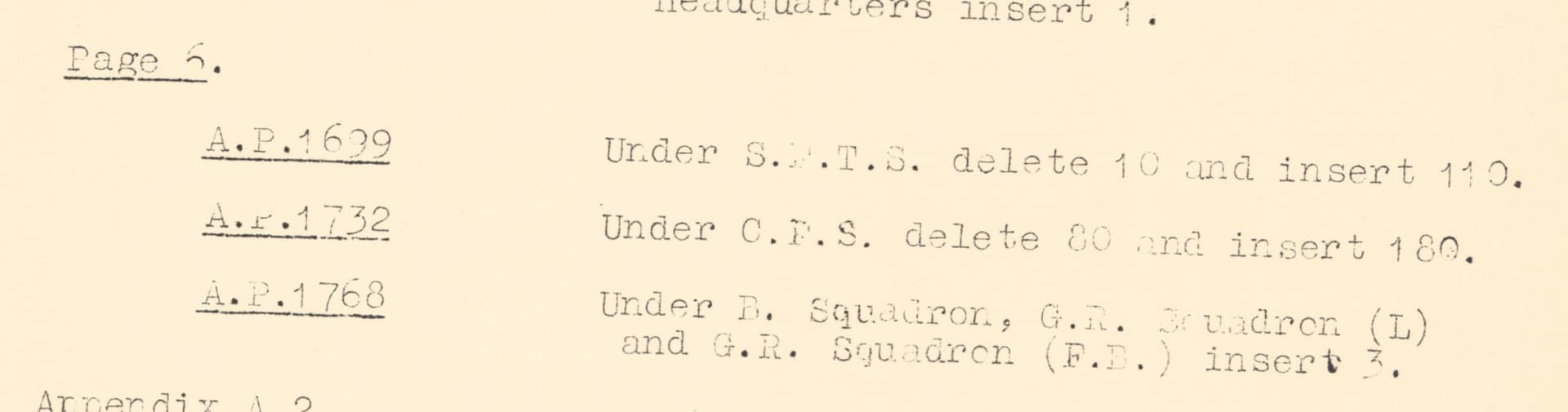
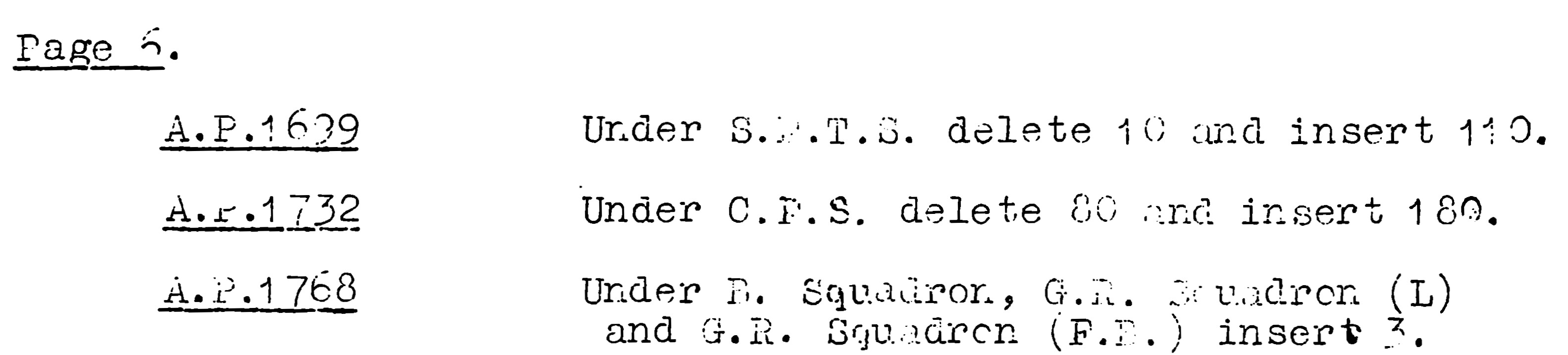
I will attach examples of a "professional" scan and the Scantailor output below. I will have to go to Windows to do this step as I am unable to get my preferred graphics editor to work in Linux. It is obviously a me problem as there is a site that shows many others use it on Zorin 18. I am getting close to throwing another question up on the forum but want to exhaust other attempts first.


Surprisingly Acrobat 9 translates that with about 70-80% accuracy.
The other issue, again maybe a me problem, is that I am used to OCRing after pdfing but as I read it you are saying OCR first. Am I right or is that another case of my old age confusing me?

Cheers

Mi

if its OCR software you are looking for
please open the software store and search for
OCRfeeder

here is a link explaining OCRfeeder

i hope that that will work for you.
best of luck Steve ..

Thanks Steve @XxXxX

I will check that one out as well

Cheers

Mi