This would be part of the Source Files, so making changes to that would require recompiling, then installing your modified Thunar File manager.
That is not a file that is saved on your computer as a Configuration File.
1 Like
Ah, now I found it. It is here in the list:
I had searched for that file on my computer and didn't find it.
I misunderstood your question. 
I thought you were asking where to find it in your system files.
No, you were right. I thought the file is saved on my computer and I can adapt the value.
1 Like
I'm trying to compile thunar and follow this guide:
I have downloaded thunar from the xfce site and changed the translucent value in the file. Now I want to compile it, but I´m not familiar with this procedure and get many errors because of missing packages. Do I need to use a source for thunar which is for gnome when I make that in Zorin 18 core or it is right to use this source?
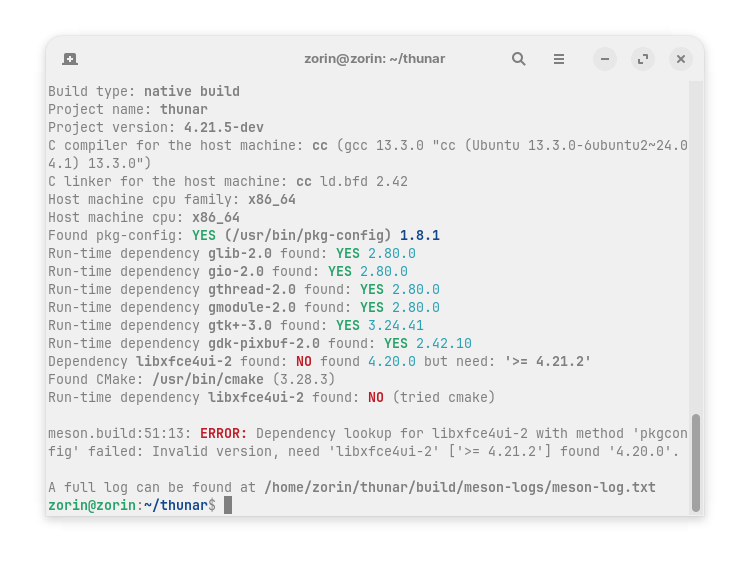
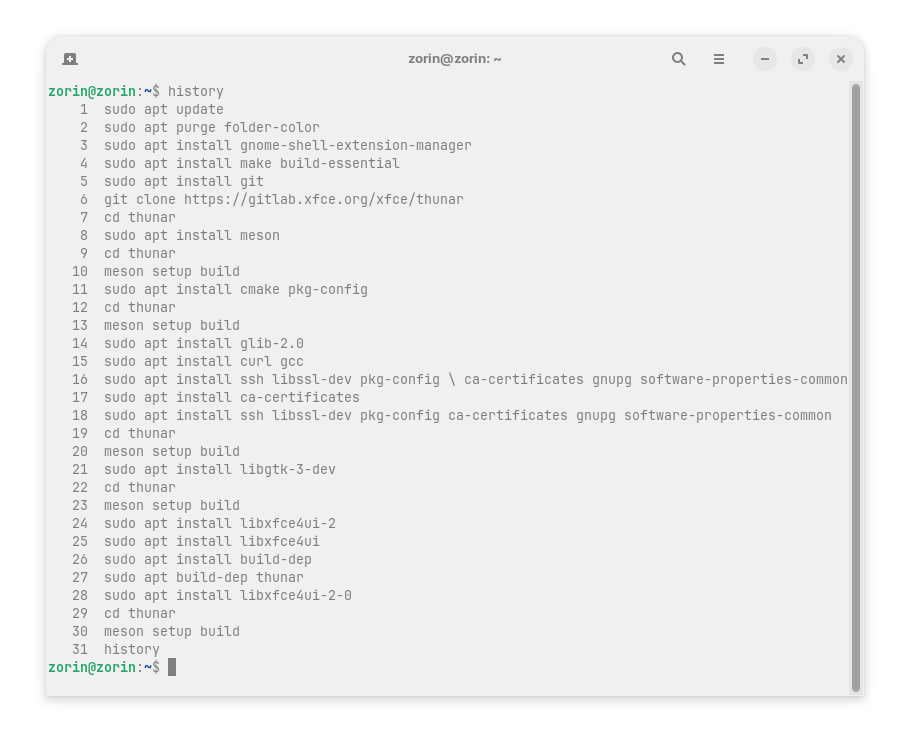
Which packages do I need to install? I try just for interest if it can be done.
It looks like you grabbed the latest Thunar File Manager source (4.21), but are compiling it against XFCE 4.20.
So, you want to compile against the same installed XFCE4 version that you have.
When it comes to dependencies - that will resolve a lot.
But, you may need *-dev packages - which it should alert you to what is missing.
1 Like
How did you prettify the home places bookmark icons? Is it by default? My dolphin shows bookmark icons really ugly.
That is because of themes available in Plasma. I will post details later.
1 Like
OK. Q4OS 5.8 "Aquarius" 64-bit KDE Plasma:
Global Theme: Ayopalli
Application Style: Oxygen
Plasma Style: Frosted
Colours: From current colour scheme
Window Decorations: Plastik
Icons: Windows-Beuty
Cursors: Apple-cursors
1 Like
I searched for solutions to get the "open terminal here" to work with the default exo-open --working-directory %f --launch TerminalEmulator command.
When you install xfce4-settings you get no error message and the terminal opens.
sudo apt install xfce4-settings
1 Like
The actual terminal emulator must be specified for the Admin addon to work.
So if the user is using Gnome Terminal, but installs Thunar, then Thunar will try to open xfce4-terminal and miss, since it should be first changed to gnome-terminal to match what the user has.
What do you mean? What add-on are you talking about?
With the xfce4-settings the contextmenu "open terminal here" also works without specifying the gnome-terminal. I haven't installed xfce4-terminal on my system.
Maybe these packages (with xfce4-settings also xfce4-helpers is installed) read the default terminal editor of the system?
And when I add a custom action for thunar "open as admin" with the command pkexec thunar %f it also works.
You replied to @sglbl
Member sglbl is on Zorin OS 18 Pro, and installed Thunar onto that Gnome Desktop.
Gnome Desktop uses Gnome Terminal, not XFCE4 terminal.
If using Thunar, it will call on XFCE4 terminal by default.
IF you installed XFCE4, then it will include XFCE4-Terminal and Thunar - both in that install, so you would not need to change the callback on which terminal is utilized by the system.
I'm in the live session of Zorin 18 core and have neither installed xfce4 nor xfce4-terminal, only thunar. I wanted to show that you also have the option to install xfce4-settings to get the gnome- terminal to work instead of changing the custom action command for "open terminal here" in thunar.
You're right: if XFCE is installed on the system, these problems with Thunar don't occur when using Thunar in the Gnome desktop.
1 Like
Ah, ok.
1 Like
Tested just for interest....it is not important. I'd prefer changing the command because you need no other software, but maybe the changes can be overwritten by thunar updates.
Thanks @Forpli @Aravisian, after a long long trial; I managed to put a modern + zorin-like dark theme and added some features for Dolphin:
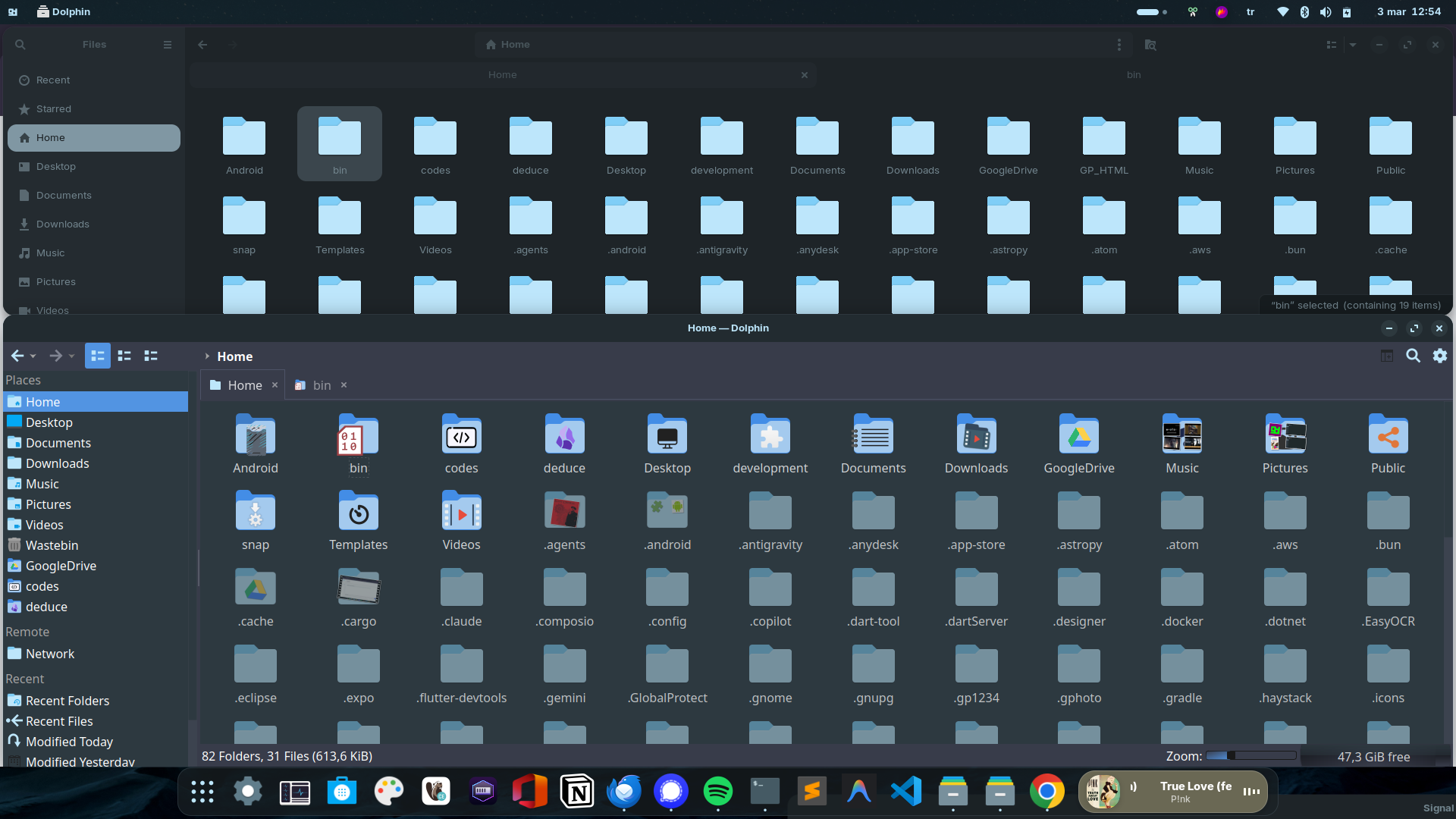
Compared to Nautilus, this Dolphin has these features:
- Show hidden items with a different color
- Select predefined icons for folders (similar to Windows)
- Show recently accesed folders (not just files, none of the file managers had this feature)
- Show folder content thumbnails + previews (similar to Windows)
- Run desktop files
- Start file manager from the latest state (windows,folders,tabs) on startup
- Support typeahead search instead of searching recursively on all subfolders when you press a key
- The window content doesn't dim when focus is lost (unlike nautilus on zorin theme)
- It doesn't lag randomly unlike nautilus (Look: nautilus-is-not-responding issue)
3 Likes
Which theme do you use now?
1 Like
I use my customized theme with kvantum manager & arcdark theme.
If you want to try my solution:
1. Install Required Packages
sudo apt update
sudo apt install -y breeze-icon-theme qt5ct qt5-style-kvantum qt5-style-kvantum-themes
2. Set the Environment Variables Globally
To ensure apps launched from your application menu (not just the terminal) respect the custom theme, add QT_QPA_PLATFORMTHEME to /etc/environment.
echo "export QT_QPA_PLATFORMTHEME=qt5ct" | sudo tee -a /etc/environment
(You must log out and log back in for this variable to take effect).
3. Create a Custom Kvantum Theme based on ArcDark
Duplicate the ArcDark theme and inject Zorin's background color (#2D3940).
# Create custom Kvantum directory
mkdir -p ~/.config/Kvantum/KvArcDark#

# Copy the default KvArcDark theme to our custom folder
cp /usr/share/Kvantum/KvArcDark/KvArcDark.kvconfig ~/.config/Kvantum/KvArcDark#/KvArcDark#.kvconfig
cp /usr/share/Kvantum/KvArcDark/KvArcDark.svg ~/.config/Kvantum/KvArcDark#/KvArcDark#.svg

# Modify the base color to match Zorin Dark
sed -i 's/^base.color=.*/base.color=#2D3940/' ~/.config/Kvantum/KvArcDark#/KvArcDark#.kvconfig
4. Apply the Changes in the UI
-
Open Kvantum Manager from your App Menu.
-
Under "Change/Delete Theme", select KvArcDark# from the dropdown menu and click Use this theme
-
Now, open Qt5 Settings (
qt5ct) from your App Menu. -
In the Appearance tab, set these:
- Style to
kvantum. - Standard Dialogs to
default. - Palette to
custom - Color Scheme to
darker
- Style to
-
In the Style Sheets tab, activate all css files.
-
For icons, I used this script: gnulinux-config/home_icons/set_icons.sh at main · sglbl/gnulinux-config · GitHub
-
Click Apply and OK.
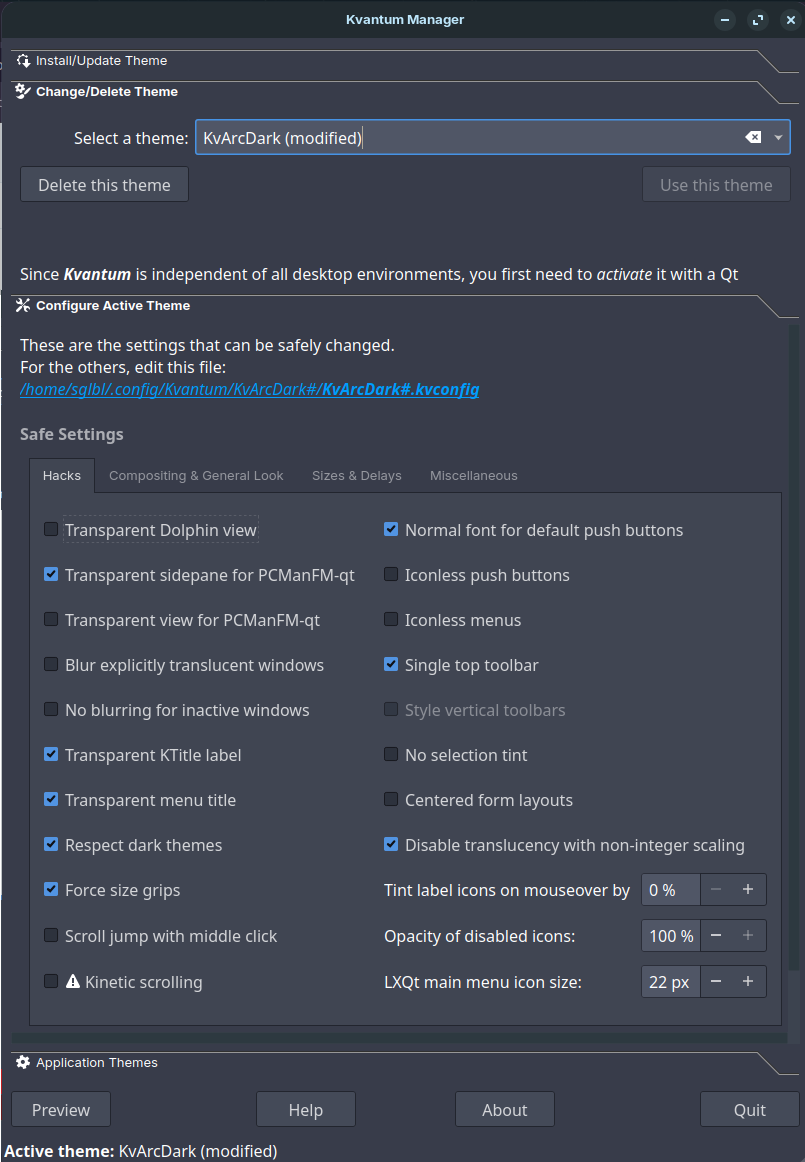
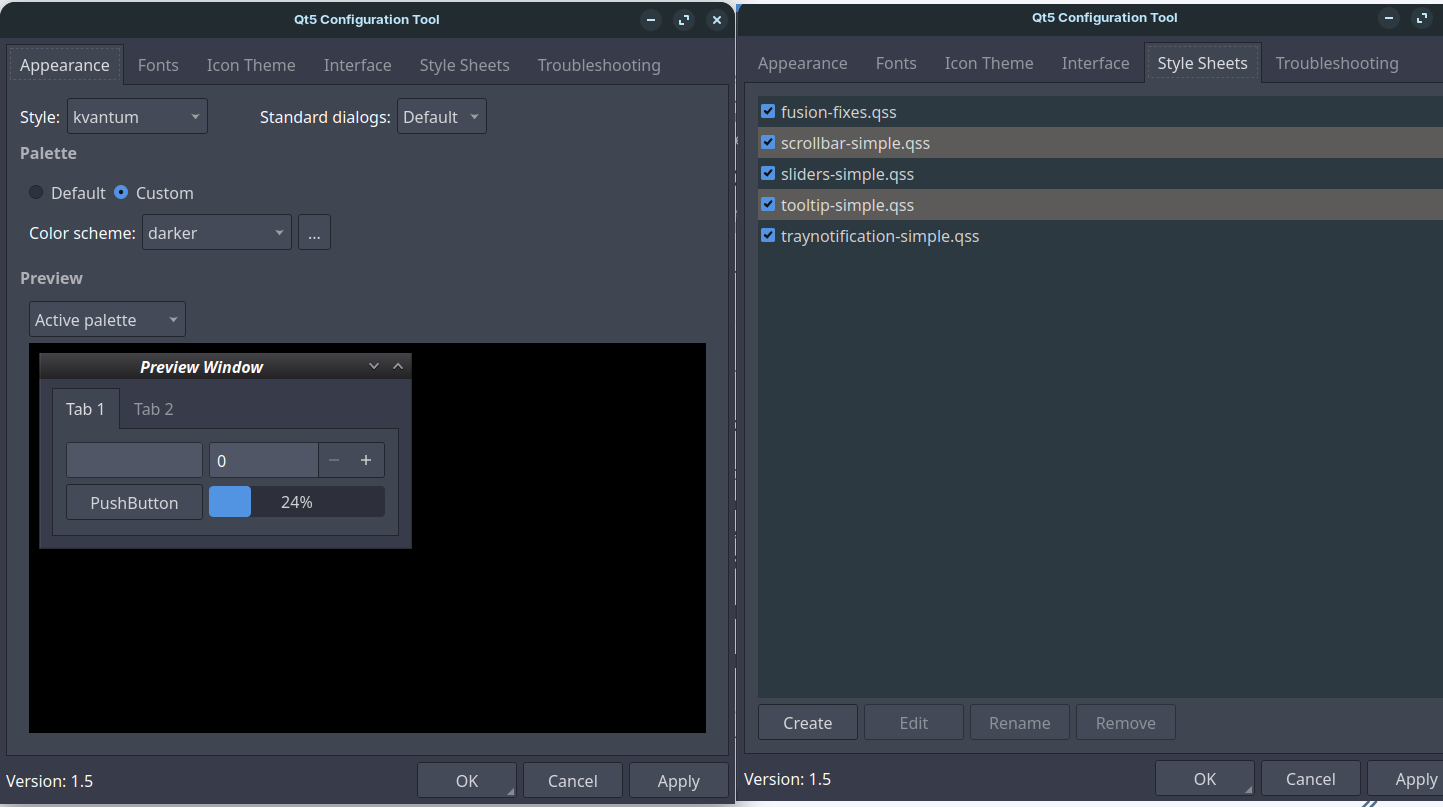
When you log out and log back in, Dolphin (and any other Qt application like copyq clipboard manager, kolourpaint) will have the same dark theme as Zorin OS.
4 Likes
