How can i change my taskbar whit code?

Im starting whit Linux and Zorin after a few post i learn a lot about how to custom mi desk and im making a scrip to reply all in others computers in my work, right now im stack whit this:

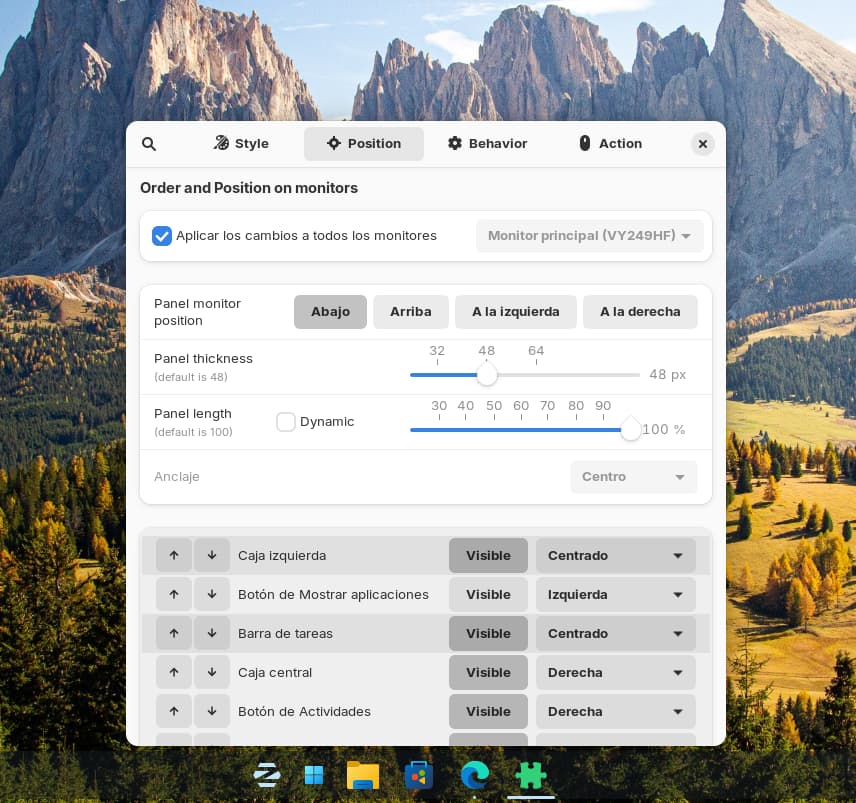
i want to change my configuration and make look like the image.
Can some one help me.

I'm not sure. You could try to make all settings in the taskbar on a prototype and copy the extension folder at
/usr/share/gnome-shell/extensions/zorin-taskbar@zorinos.com
and replace the original folder on the other computers with that folder.

The settings of the taskbar are saved in .js files in the zorin taskbar extension folder.

Edit: What I wrote was wrong. The user configurations are not saved in that folder so that doesn't work.

They are saved at ~/.config/dconf

So you can use terminal commands to make the changes. I need a bit time to find out them. I use dconf editor to get ideas for the commands.

You can make all settings you like and then in dconf editor (you can install it with "sudo apt install dconf-editor") go to org.gnome.shell.extensions.zorin-taskbar and take a look there. On your screenshot were not all points shown for the panel position. I tried to make it as you but I'm not sure if it is right because it was in spain.

You can try then to set those positions with a terminal command on other computers

gsettings set org.gnome.shell.extensions.zorin-taskbar panel-element-positions '{"AUO-0x00000000":[{"element":"leftBox","visible":true,"position":"centered"},{"element":"showAppsButton","visible":false,"position":"stackedTL"},{"element":"taskbar","visible":true,"position":"centered"},{"element":"centerBox","visible":true,"position":"stackedBR"},{"element":"activitiesButton","visible":true,"position":"stackedBR"},{"element":"rightBox","visible":true,"position":"stackedBR"},{"element":"systemMenu","visible":true,"position":"stackedBR"},{"element":"dateMenu","visible":true,"position":"stackedBR"},{"element":"desktopButton","visible":false,"position":"stackedBR"}]}'

To read the current value for the panel position settings after you made the settings in a prototype you can also use the terminal instead of dconf editor and run

dconf read org/gnome/shell/extensions/zorin-taskbar/panel-element-positions
1 Like

It was a really interesting topic to find out how gnome extensions save the user configurations. I noticed that dconf editor often shows the error message "keys not defined in a schema" and "no schema found" for user installed gnome extensions (not for the preinstalled system wide extensions on Zorin). That is bad because you can´t change the settings then with a terminal command. I searched for a solution today and tested it with the gnome extensions "ArcMenu" and "Dash to dock".

Here is the procedure for ArcMenu. It is the same for other extensions, but you need to replace the filename. The gschema.xml file is always in the schemas folder of the extension.

  1. Create the folder
    ~/.local/share/glib-2.0/schemas

  2. Copy the file
    ~/.local/share/gnome-shell/extensions/arcmenu@arcmenu.com/schemas/org.gnome.shell.extensions.arcmenu.gschema.xml
    to
    ~/.local/share/glib-2.0/schemas

  3. Enter in terminal

glib-compile-schemas ~/.local/share/glib-2.0/schemas

Now the dconf-editor shows no longer error messages and you can change settings of the extensions with terminal gsettings commands.

1 Like

If You are open for an Alternative, you could use instead of the Zorin Taskbar the Gnome Extension Dash to Panel - GNOME Shell Extensions

There You have on the ''Info'' Tab Export and Import Options to export/import Settings:

So, You set up the Taskbar like You want and then export this. You take the File and import this on another System to get the same Setup.

1 Like

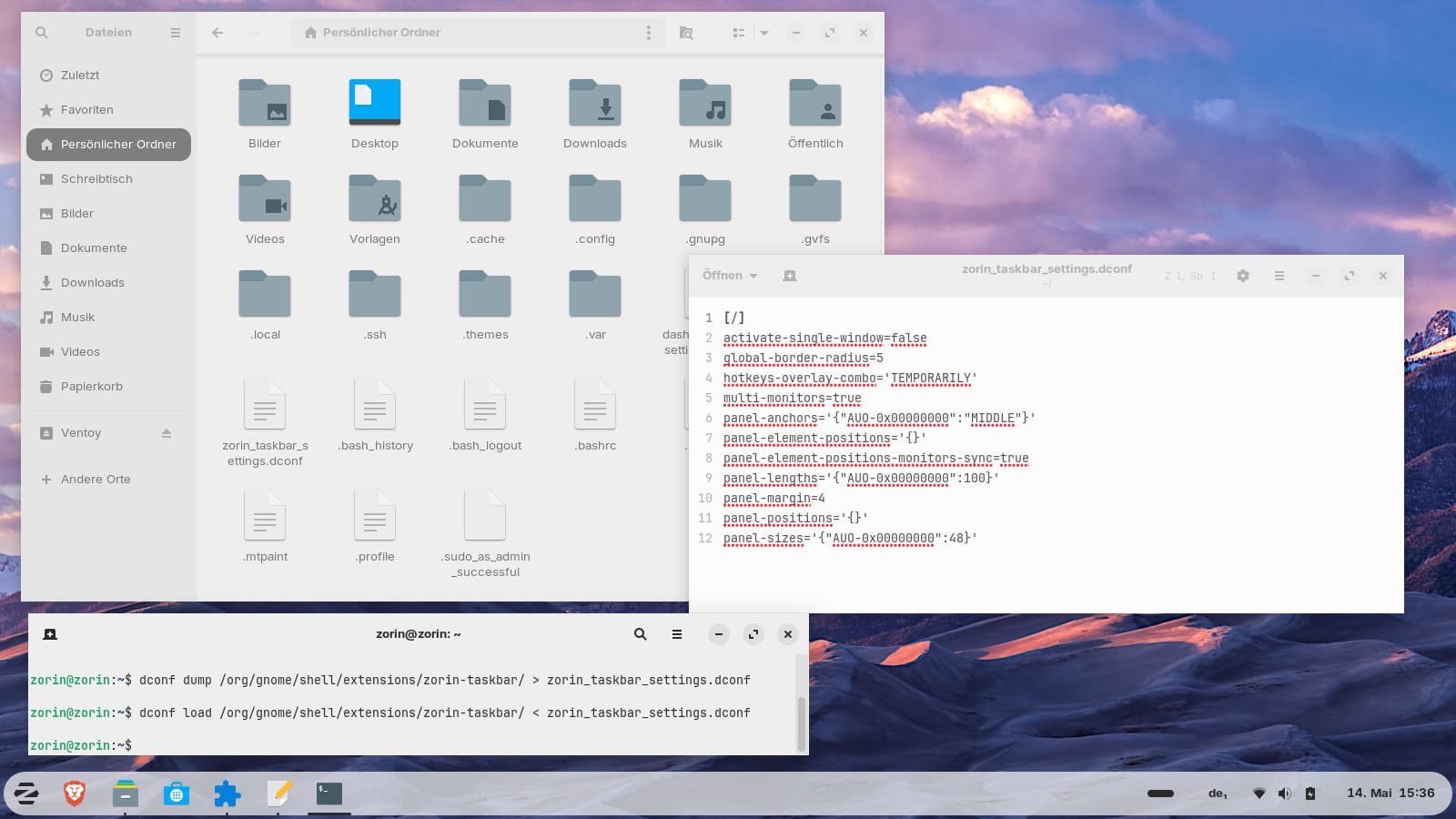
After a bit research I found a way to export the zorin taskbar settings and to import them. It worked well. I made some changes and exported the configuration with the command

dconf dump /org/gnome/shell/extensions/zorin-taskbar/ > zorin_taskbar_settings.dconf

(you can name the .dconf file as you like)
and then I changed the taskbar to normal. Now I imported my previous configuration with the command

dconf load /org/gnome/shell/extensions/zorin-taskbar/ < zorin_taskbar_settings.dconf

and the taskbar changed its look at once.

The file zorin_taskbar_settings.dconf which was created was saved in ~.

I think it should be possible to put that file to another computer and then run the dconf load command. I tested it with a new user account and copied the file from my zorin user home directory in the new users home directory, and it worked.

1 Like

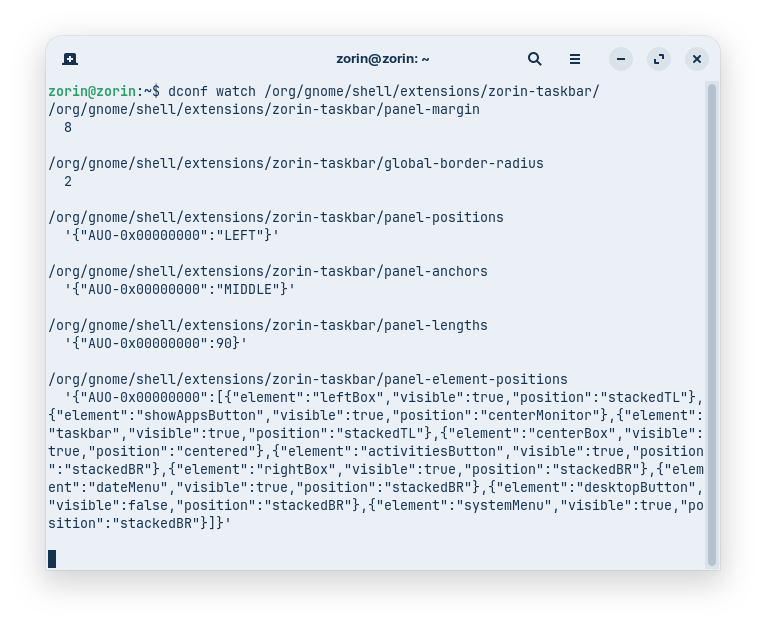
Today I found a faster solution to find out the terminal command for a setting in the taskbar so that you don´t need to search for the line in dconf editor. You can open a terminal and enter

dconf watch /org/gnome/shell/extensions/zorin-taskbar/

and keep the terminal opened while you make the settings in the GUI of the taskbar settings.
Then you see in terminal what is set.

You can then transfer the terminal output into a command by adding gsettings set at the beginning and replacing the path.
E.g.
To change panel margin

gsettings set org.gnome.shell.extensions.zorin-taskbar panel-margin 8

1 Like

thanks por all your help bro, I still haven't been able to do the tests with what you recommended to me. but im sure this going to be my solution.

1 Like