I have a dual monitor setup set to a single workspace and new window placement set to spread. Some apps open on one monitor, others on the other, some maximized, some not. If I move them where I want them, and then close, none seem to remember their previous position. How can I control where and how large an app opens on dual monitors?
As far as I am able to understand, in order to have an application or window launch on the monitor you want, you have to make that monitor primary. Those who are not Nvidia users, can set this in Displays...
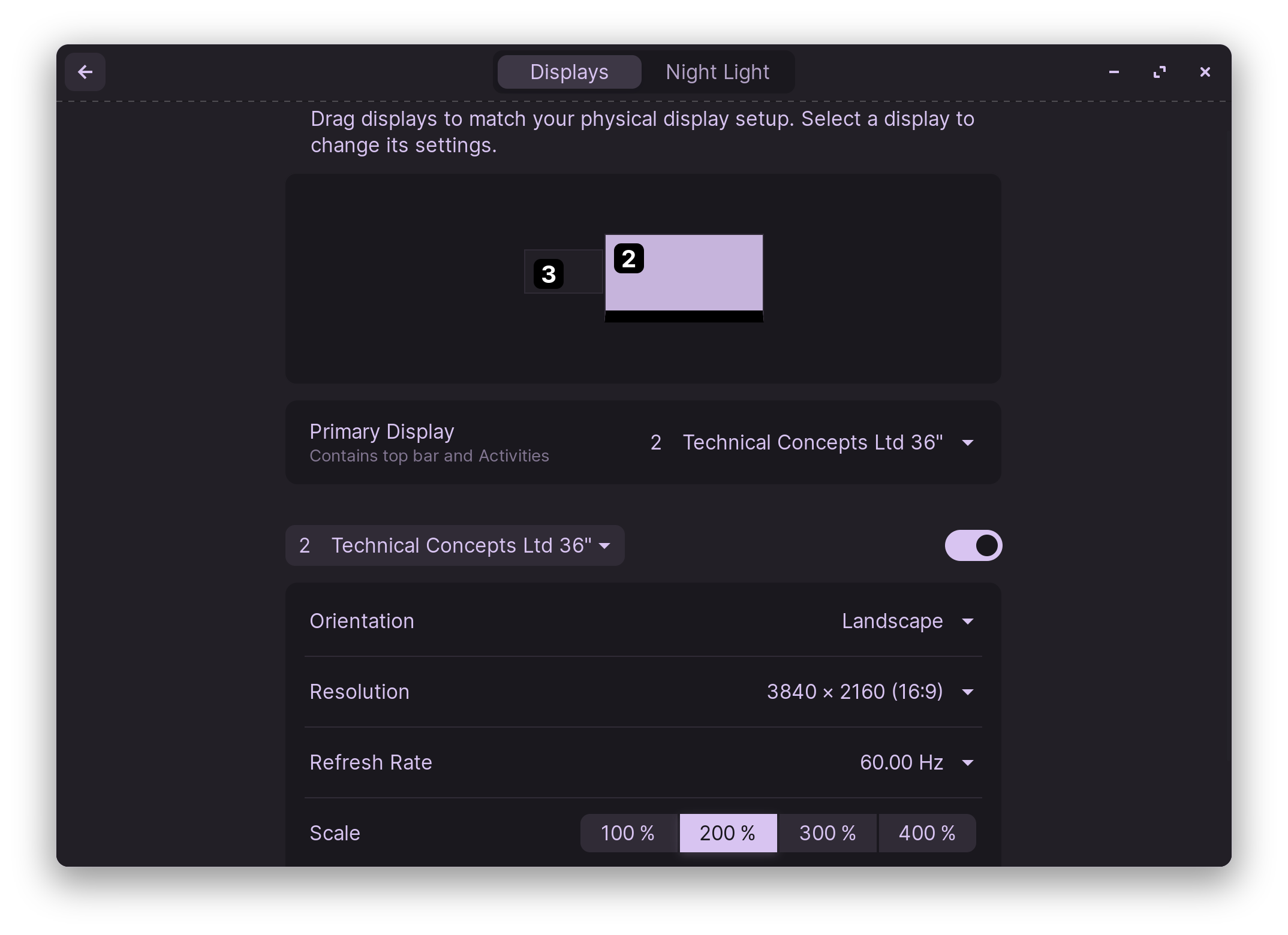
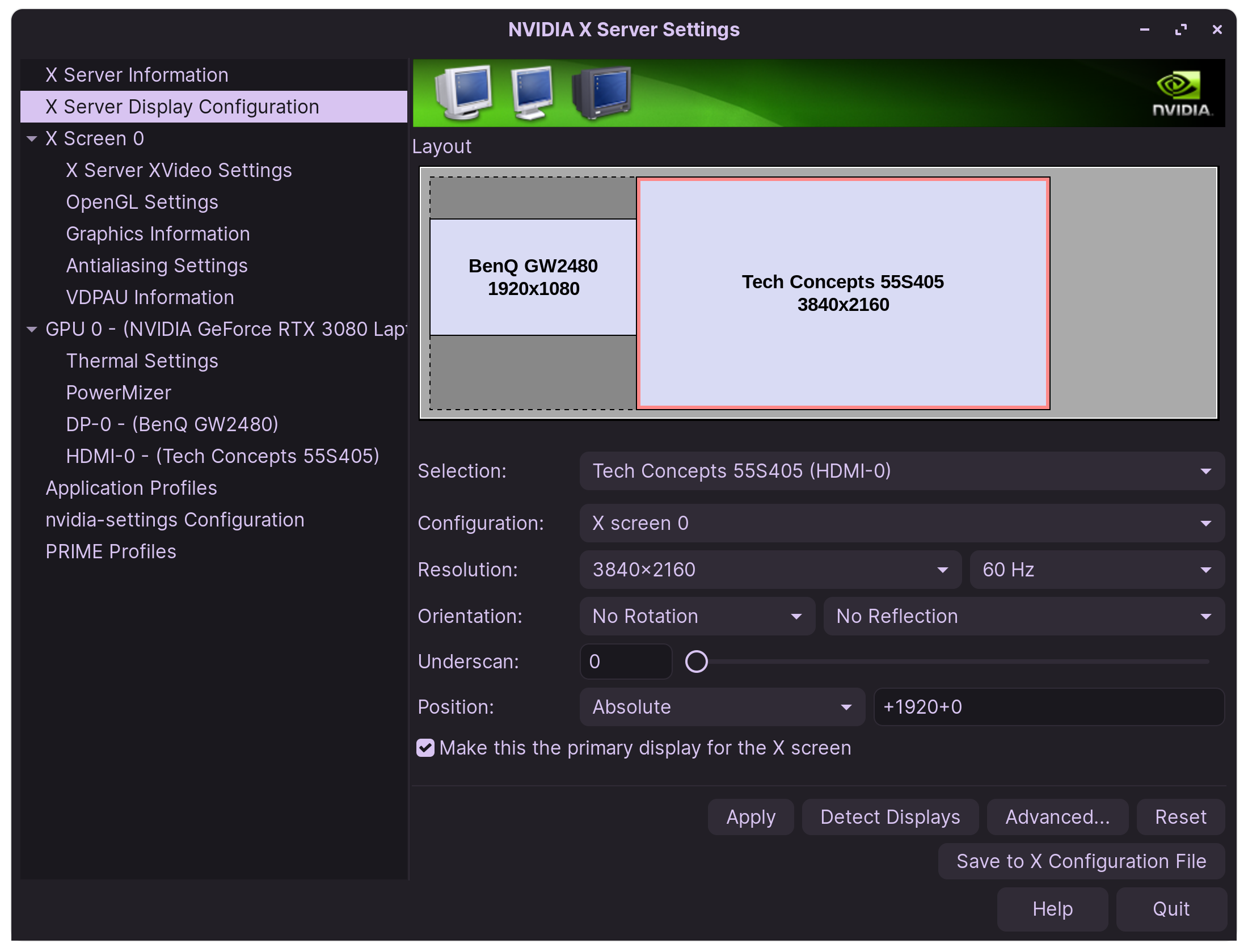
Those who are Nvidia users, can have more options available to them, and can set it in Displays, or set monitor primary in Nvidia X Server Setiings.

Thanks for the info. That's not quite what I'm looking for, however. I'm wanting some apps to open on one monitor and others to open on the other, not all apps opening on either one or the other. Some are already doing that on their own, however I didn't set them in any way to do that, and would like to be able to control that particular action.
You can set it up with tools like xdotool, wmctrl or devilspie2. Some of them only work with XOrg not with Wayland. I tried it yesterday for several hours but I couldn't manage it and didn't get it to work, the setup is complicated. I'm not so experienced with terminal tools and editing files and scripts. But it is possible.
I'm not sure about multiple monitor setup if the following may help.
With the tools mentioned above it should work.
Did you try to enable "Auto Move Windows"? Install gnome extension manager
sudo apt install gnome-shell-extension-manager
and then open it and go to tab installed and put the slider of "Auto Move Windows" to the right. Then click on the cogwheel, click on + to add a workspace rule, select your app and set the workspace you want.
Or to restore the last session at startup you could try this gnome extension, but I'm not sure if it will work with two monitors. You can install it with gnome extension manager. Open it and browse for the extension there. Select shell 43 when you are on Zorin 17 and shell 46 when you are on Zorin 18.
This topic was automatically closed 90 days after the last reply. New replies are no longer allowed.