Hi everyone! I'm new to Zorin OS 18 Core and really liking it as a replacement for Windows. There are some really cool looking desktops in the "Share your desktop" discussion and I would like to customize my lockscreen. But there really isn't any discussions on that. Is it possible to have a different desktop wallpaper than the lockscreen wallpaper and to adjust the blur effect intensity of the lockscreen? I found these two extensiins but they haven't been updated for awhile and recent comments show they are not working anymore. Any suggestions?
2 Likes
I tested the lockscreen extension on Zorin 18 live session and it worked. It is possible to set a custom image and adjust blur effect.
Install the gnome extension and then lock your screen, then click on the top left icon "lockscreen extension" to select the image and set the blur radius and blur brightness.
Edit: It also worked with the gnome extension "Lock Screen Background".
Here you can see two guides about the two gnome extensions:
2 Likes
Thank you for the reply. I will try that and post back.
1 Like
@Forpli I was able to change the lockscreen background with the Lockscreen Extension. However, this does not change the login screen after a restart or shut down. Is there a way to change that?
You can install the app 'gdm-settings'. I haven't tried it yet on Zorin 18, only on Zorin 17.
sudo apt install gdm-settings libglib2.0-dev-bin
Edit: I tested it and it worked on Zorin 18. Open the app after the installation and make your settings, don't forget to click on 'apply'.
Another way is to switch from gdm3 to lightdm
sudo apt install lightdm lightdm-gtk-greeter
When you are asked if you want to choose lightdm or gdm select lightdm
Then install the app
sudo apt install lightdm-gtk-greeter-settings
With this app you can make settings for the login screen and e.g. set up a custom background.
Then reboot or run
sudo systemctl restart lightdm
I'm not sure if you need to do something else, I only tested it on Zorin 18 live session.
The easier way is to use gdm-settings in Zorin 18.
3 Likes

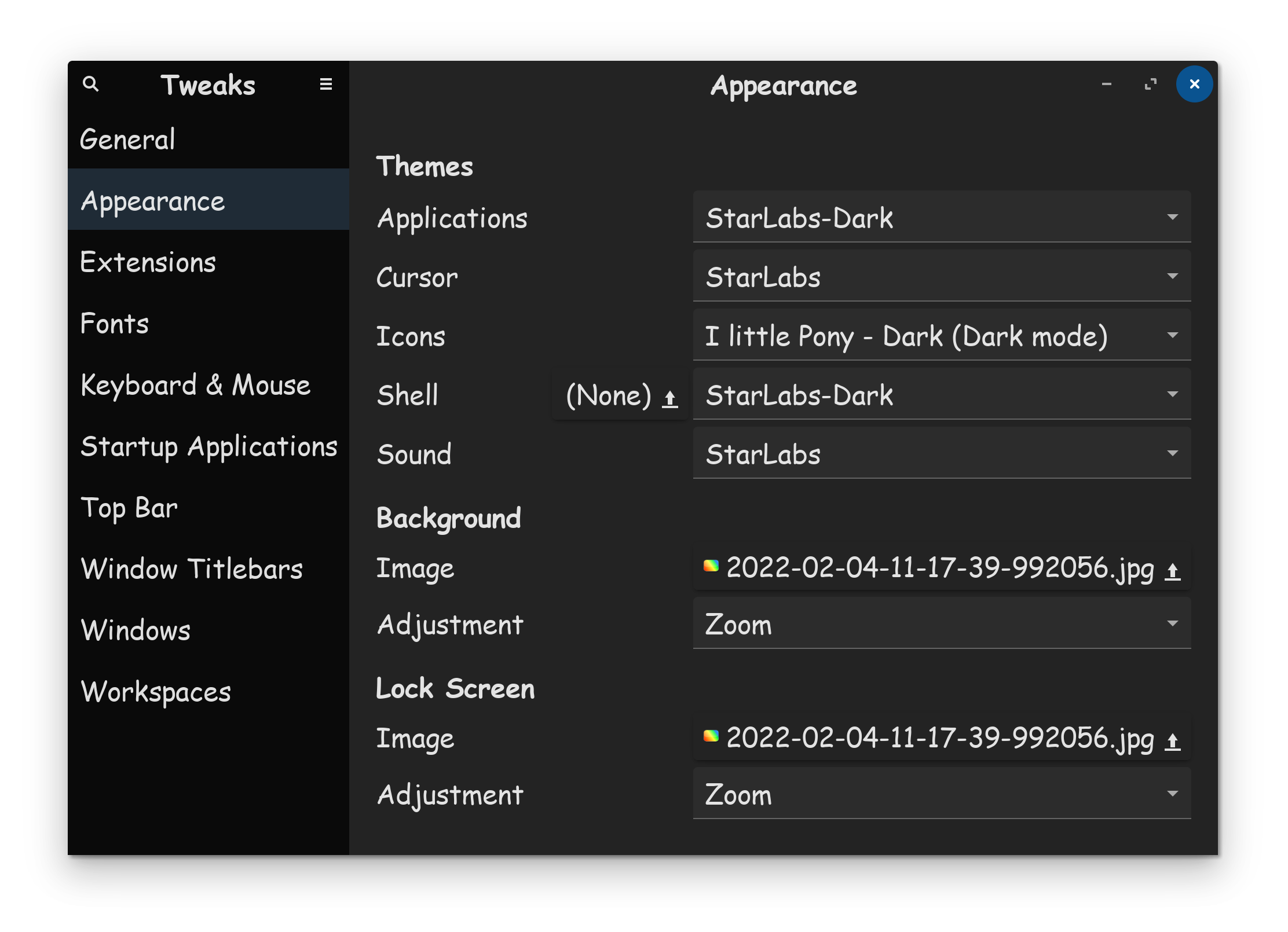

Gnome tweaks in Zorin 18 has no option to set the background for lock screen.
For a blur effect you need one of the linked gnome extensions from post #1.
1 Like

Thank you for the detailed information. If I have further issues I'll post back.
2 Likes
Here you can see a guide how to use the app gdm-settings
I'd recommend to try the installation with the normal Zorin package first with the terminal command I posted you. For me it worked and the version of the ppa of ubuntuhandbook also didn't offer the option to add a blur effect (which I was looking for).
1 Like
Oh, GDM Settings is now in the Ubuntu Repo's? Nice.
1 Like
That is cool a logo can be added as well! You have been a lot of help! Thank you!
1 Like
Hi. If U want change only background of the login screen. U can find image in folder. Use "sudo nautilus" (ignore errors)
/usr/share/backgrounds/gdm
Just replace the image and rename to "gdm-wallpaper"
If U want blure effect use gimp to edit  blure effect lock screen=login screen, I think blure 50 (Filters\Blure\Gauss blure) and brightnes -50
Sometimes resolution in login screen is difrent.
"Log in to your desktop normally and Configure your resolution. Once done, copy your configuration to apply System-Wide:
sudo cp -i .config/monitors.xml /var/lib/gdm/.config/
chown gdm:gdm /var/lib/gdm/.config/monitors.xml
" - source - How to change resolution of the login screen? - #3 by plastronix
This command from Aravisian is old and not working on Zorin 18. For Zorin 18 type:
sudo cp ~/.config/monitors.xml /var/lib/gdm3/.config
If it is not working, also give ownership to gdm:
sudo chown gdm:gdm /var/lib/gdm3/.config/monitors.xml
1 Like
I have tried this:
and it works well. I was able to customize the Login Screen with Fonts, Pictures, Themes an other Stuff.
One Thing might be important with this: For Themes, Icons and Cursors it seems to be neccessary the these are in the usr Path. So:
usr/share/themes
usr/share/icons
This Stuff from the home Path isn't available. Interestingly chosing a Picture wasn't a Problem but okay. So, it is neccessary to move Themes, Icons and Cursors to the usr Path's to be able to choose it.
2 Likes
Sorry I am late to the party. Does that mean an old gdm3 login screen could be made to look nicer so as to get this working?
On Zorin 18, it works. I used it, too like I already wrote.
1 Like
I spent too much time looking at my old instructions with that video and forgot about that package gdm settings. Will take a look later.
Well prior to installing gdm-settings, I tried various packages to get the "Welcome, please identify yourself" to work at the login screen by installing arcitca-greeter and Yaru themes. I opened gdm-settings and it listed zorin. So no matter what theme I tried to apply, it always defaulted to zorin. So I 'chown'd ownership of zorin and deleted the folder - gdm-settings then jumped to arctica-greeter and even after I chose Yaru and applied, on reboot and login, checking which theme was running it was arctica greeter, just as happened when I changed from zorin to Yaru and applied it always went back to zorin - deleted zorin sounds folder and now no login sound even.