My computer has two different disks, one with Windows installed and the other with Zorin OS.
My brother also uses my computer, and he plays games on it from time to time. That's why Windows is installed on the second disk. So far, so good.
When I installed them, I did it in order: first I installed Windows on the first disk, then I removed the first disk and installed Zorin OS on the second disk. After that, I set Windows as the first boot option, and I boot into Zorin OS from the boot menu myself.
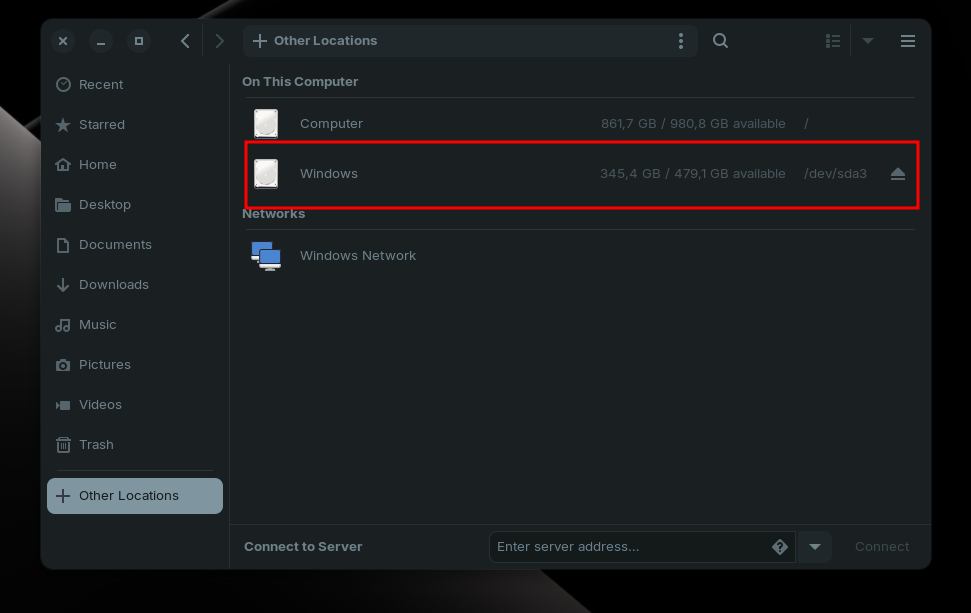
However, what I really want to ask is, why does the Windows disk appear in Linux but not in Windows? How can I make it invisible in Linux so that I don't do anything wrong?
If you never want to touch your Windows partition from Linux, what you want to do is tell Zorin not to mount it. If it's unmounted, the system will know it's there, but it'll be unavailable for normal file operations unless you deliberately mount it yourself.
To do this, go into your applications menu and run Disks, which I believe is under Utilities. Note that you're likely to be prompted for your system password one or more times during this process. That's normal; you're making changes to your system.
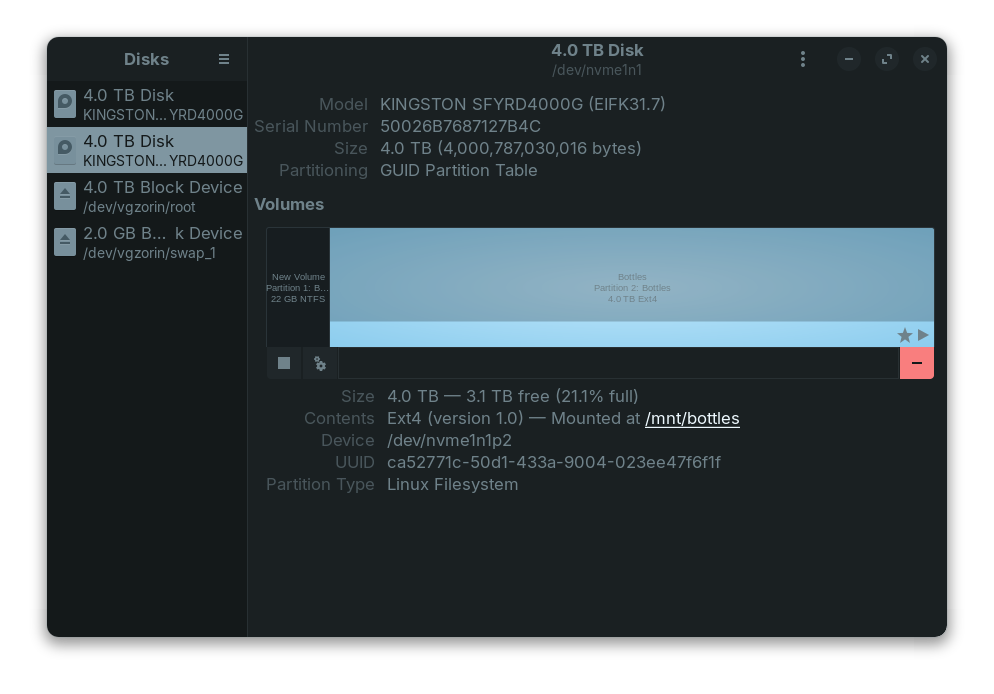
The list on the left are your disks, and when you select one, you see its partitions and other information on the right. (My screenshot is a little more complex on the left because of encryption; you may see only physical disks there.)
So, see the rectangles on the right, under Volumes? Those are my partitions on that drive. You should have one somewhere called Windows. You want to click that partition, and then the gears icon underneath, and click Edit Mount Options.
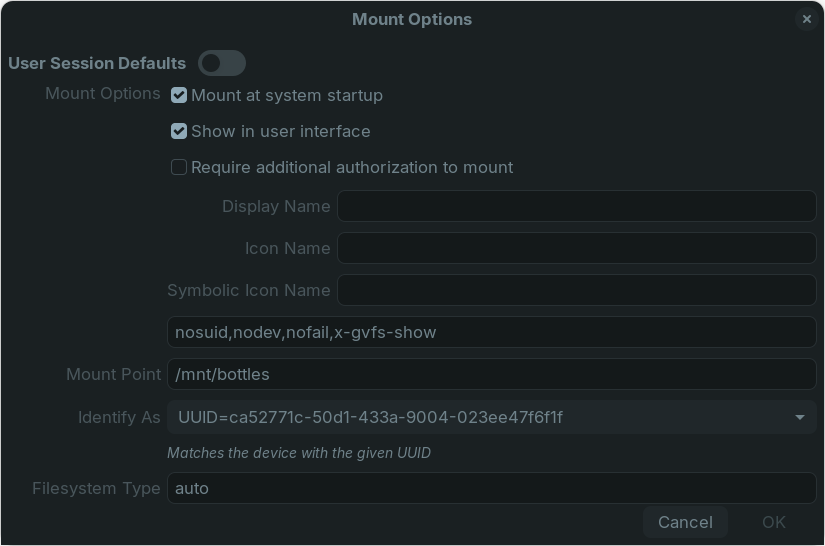
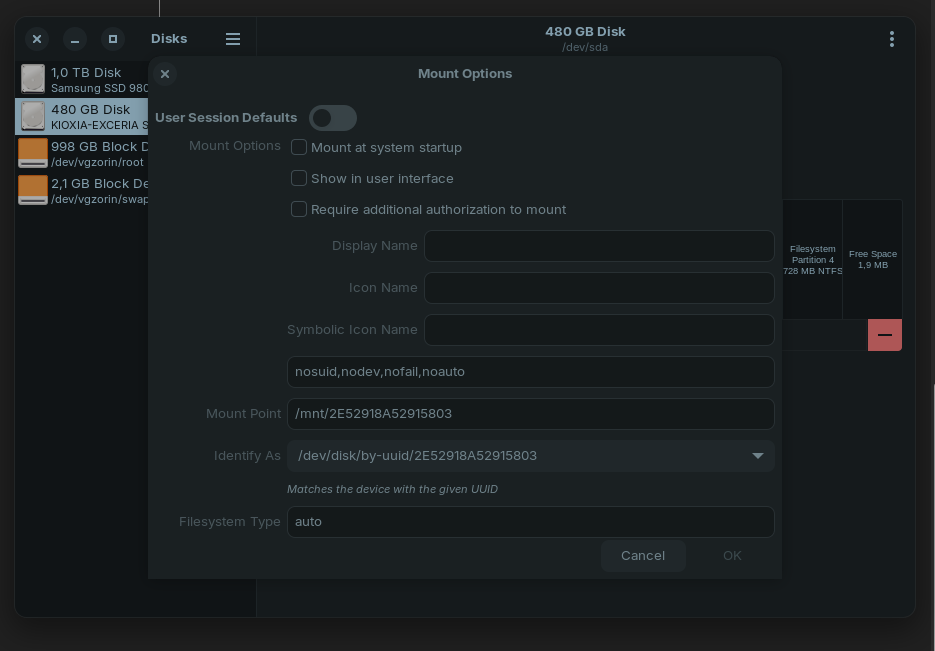
Make sure User Session Defaults is OFF (circle to the left, as in my screenshot), or it may ignore your settings here to use defaults. Then turn off Mount at System Startup and Show in User Interface (uncheck them). Then click OK, and you should be all set next time you reboot.
You don't actually need to reboot right now though. Look back at my first screenshot and you'll see a square icon next to the gears, on the left (looks like an old VHS stop button). Click that to dismount the partition right now, and you should be all done. Alternatively, you can click the eject looking button from your screenshot, which is also a dismount button, but that won't stop the system from mounting it on future boots.