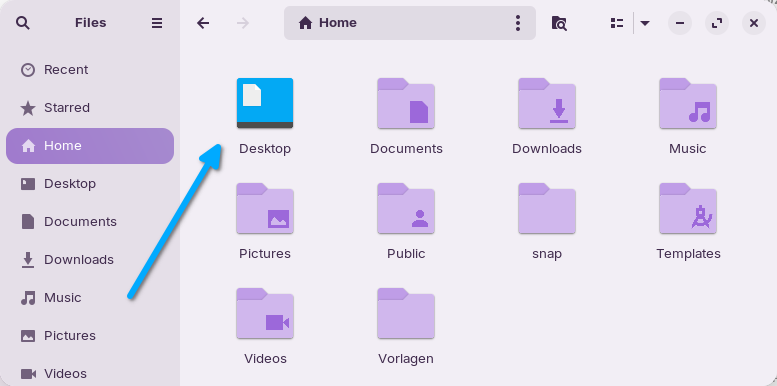
All Zorin themes have the same blue icon for the desktop folder. You can change the color in nautilus with the integrated tool folder-color, but the colors there are limited and aren´t the same colors as those from the Zorin theme (and no similar color tones).
I´d like to replace this icon in
/usr/share/icons/Zorin/..x../places/
Which size do I need to change? Do I need to change it in the folder with ...@2x, too?
Wich icon is it exactly that needs to be changed? desktop.png or cs-desktop.png?
Do I need to create a link to another file after I have removed the original icon?
I have changed e.g. the color of the 48x48 icon with an online tool and downloaded it, but I can also use a neutral folder icon from the Zorin light purple theme.
Unfortunately, I'm stuck.
Can I use a tool to find out the correct size of the icon which is used in nautilus, e.g. gtk-inspector?
Do you need a separate image for each size that is exactly the same size, or can you use the downloaded 48x48 image for all sizes?
I'm fully overwhelmed with that. Before mostly of those desktop icons had small arrows (links), since I replaced all desktop.png and cs-desktop.png with that image they have no arrows. In the 2x folders I didn't change them.
But still blue folder...
I looked if it possible to change the code of folder-color to another color, but I didn't found the colors defined as HEX codes or so, only color names as yellow or purple where set there.
I wonder per chance is it down to the fact that all Zorin themes are flatpak?
When I was playing with Zorin 17 as a VM and removed flatpak it informed me that Zorin theme/icons would be removed. (It did not affect the colours after removal, as they were all still there, unless they were 'protected' from removal.)
You do not need to be overwhelmed, you can batch process it.
There is also user-desktop folder that is blue. Yes, the x2 folder - and the arrows are Symlinks - you do not need to change any of the symlinked - you can even right click on a symlink icon and select to follow path to original file to see what that file is - and just change that one.
Thank you for your help, Aravisian. Do I need to change the icons in the x2 folders, too?
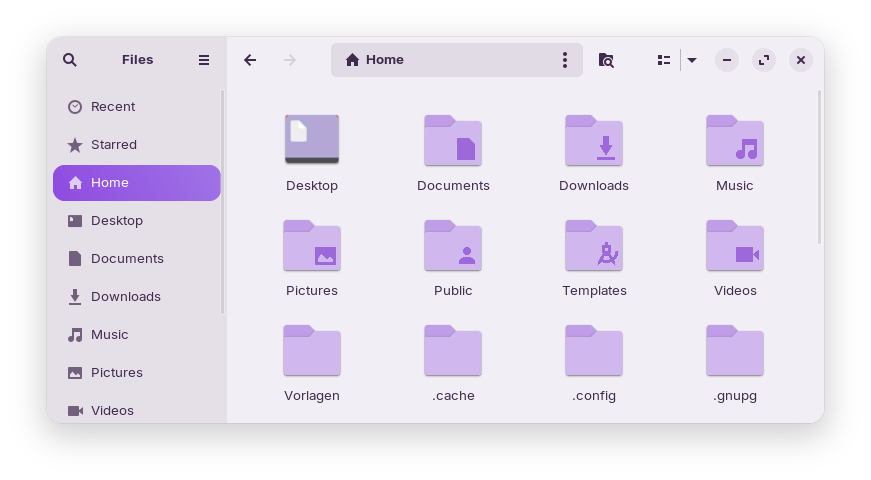
I replaced all user-desktop icons with the new icon, and after doing that, the desktop folder was still blue! I logged out and in again - and now...it is purple! It seems as if the icon is a bit too small. Next time I would take the largest icon 512x512 instead of the 48x48 one to see if it is bigger then and take more care to find a color that fits to the theme (and to use a tool which doesn´t make red spots in the top corners).
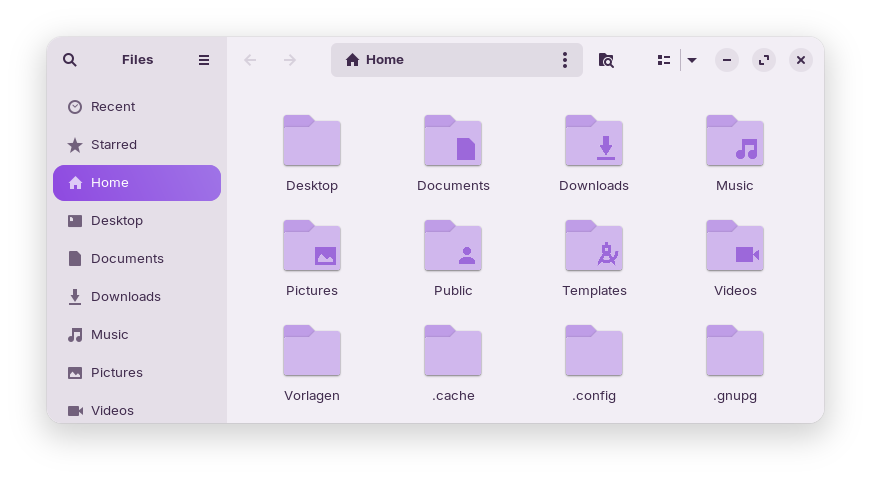
I tested what would happen if I replace the 512 blue folder icons of Zorin theme with a neutral 512 folder icon of Zorin purple theme. That looks better in terms of size.
So this was only a test. Next time I`ll spend more time and make it right. But I'm glad it worked out in the end.
The disadvantage of this method is that you can no longer easily switch between different colors in the Zorin theme, and you end up with this purple icon for the desktop folder.
I am therefore considering whether it would be better to link the
neutral default folder from the Zorin light purple theme to Zorin theme desktop.png and user-desktop.png instead.
Then it could work with any Zorin color theme, but I'm not sure.
Unfortunately, I don't know exactly how to do that. I always get confused about where to create the symlink (in Zorin or Zorin purple).
I still don't understand the symlinks. If you say I have to do this separately for each individual Zorin color theme, then it doesn't save any work and doesn't offer any advantages. I thought there could be a solution which sets the default folder.png icon instead of the user-desktop.png icon and would then produce a desktop icon in the color of your used theme, because folder.png is an icon which looks different in each Zorin theme.
I've now tidied everything up again and realized that yesterday I did some unnecessary things that weren't necessary at all. All blue desktop folder icons in the Zorin icon theme link to one file, user-desktop.png. So it's enough to replace this one icon for all sizes with a neutral icon of the same size from the selected Zorin color theme.
With this method you get for all Zorin color themes the same desktop folder color, but you can choose a color you like.
I used the right-click of the mouse. Then a new file was created in the same directory which was named link to ... I didn't know what to do then.
Now I tried with the terminal ln -s. It is a bit easier then, but I give up, it is too complicated. All terminal commands I tried only worked for one file and I was not able to find out the commands to do so for multiple files. And entering the long paths was laborious.
It makes no sense for the moment to spend more time on it and repeat it for all Zorin themes.
Maybe I'll learn how batch processing works over time, then I'll try again for other Zorin themes.