Overview
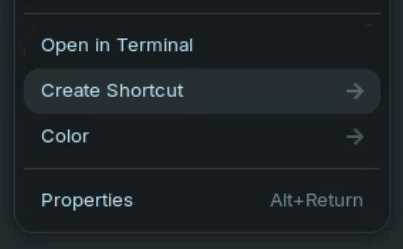
People coming from Windows will be very familiar with the concept of shortcuts. You can right-click any file or folder, select Send To > Desktop (Create Shortcut). To my surprise, there is no equivalent to this in Gnome/Nautilus (v46.4). But we can roughly approximate this feature using Symlinks and Desktop Entries. I've created a Nautilus-Python extension to simplify their creation via a "Create Shortcut" context menu (right-click menu) item. It uses desktop entries for Folder shortcuts, and absolute symlinks for File shortcuts (reasoning is explained below).


Extension Install
- Ensure this folder exists:
mkdir -p ~/.local/share/nautilus-python/extensions - Create the extension file with your favorite editor. Here's one way:
nano ~/.local/share/nautilus-python/extensions/shortcuts-menu.py - Paste in the extension code below
- Save (Ctrl+S in nano)
- Restart Nautilus:
nautilus -q - Enjoy
Extension Code:
import sys
import os
import gi
import urllib

from urllib.parse import unquote
from gi.repository import GObject

if "nemo" in sys.argv[0].lower():
    # Host runtime is nemo-python
    gi.require_version("Nemo", "3.0")
    from gi.repository import Nemo as FileManager
else:
    # Otherwise, just assume it's nautilus-python
    from gi.repository import Nautilus as FileManager

class ShortcutsMenuExtension(GObject.GObject, FileManager.MenuProvider):

    def __init__(self):
        GObject.Object.__init__(self)

    def create_desktop_entry_shortcut(self, menu, fitem, target):
        # Determine name and path of Desktop Entry
        defilename = fitem.get_uri().replace("://",".").replace("/",".").replace("..",".")
        depath = target + defilename + ".desktop"

        # Write the desktop entry. Will overwrite if it already exists.
        with open(depath, "w", encoding="utf-8") as f:
            f.write("[Desktop Entry]\nType=Application\nIcon=folder\nTerminal=false\n")
            f.write("Name=" + fitem.get_name() + "\n")
            f.write("Exec=xdg-open \"" + urllib.parse.unquote(fitem.get_uri()) + "\"\n")

        # Allow execute
        os.system("gio set \"" + depath + "\" metadata::trusted true")
        os.system("chmod a+x \"" + depath + "\"")

    def create_absolute_symlink(self, menu, fitem, target):
        # Determine where to place the symlink
        if target == "desktop":
            slpath = os.environ['HOME'] + "/Desktop/Link to " + fitem.get_name()
        elif target == "here":
            slpath = fitem.get_location().get_parent().get_path() + "/Link to " + fitem.get_name()
        else:
            return ()

        # Create the symlink
        os.system("ln -s \"" + fitem.get_location().get_path() + "\" \"" + slpath + "\"")

    def get_file_items(self, *args):
        # Get all args and choose last for compatibility
            # Nautilus 4.0: (self, List[FileInfo])
            # Nautilus 3.0: (self, Gtk.Widget, List[FileInfo])
        fileitems = args[-1]

        # Ensure only 1 object is selected
        if len(fileitems) != 1:
            return ()
        fitem = fileitems[0]

        # Create main menu and sub menu
        menu = FileManager.MenuItem(name="ShortcutsMenu::Main", label="Create Shortcut")
        submenu = FileManager.Menu()
        menu.set_submenu(submenu)

        # Populate sub menu
        if fitem.is_directory(): # fitem.get_uri_scheme() == "file" for both files and directories
            # Send to Desktop menu item
            mitem = FileManager.MenuItem(name="ShortcutsMenu::DesktopDE", label="Send to Desktop (Shortcut)")
            mitem.connect("activate", self.create_desktop_entry_shortcut, fitem, os.environ['HOME'] + "/Desktop/")
            submenu.append_item(mitem)

            # Send to Main Menu menu item
            mitem = FileManager.MenuItem(name="ShortcutsMenu::MainMenuDE", label="Send to Main Menu (Shortcut)")
            mitem.connect("activate", self.create_desktop_entry_shortcut, fitem, os.environ['HOME'] + "/.local/share/applications/")
            submenu.append_item(mitem)

        else:
            # Send to Desktop menu item
            mitem = FileManager.MenuItem(name="ShortcutsMenu::DesktopLinkAbs", label="Send to Desktop (Absolute Link)")
            mitem.connect("activate", self.create_absolute_symlink, fitem, "desktop")
            submenu.append_item(mitem)

            # Create Here menu item
            mitem = FileManager.MenuItem(name="ShortcutsMenu::HereLinkAbs", label="Create Here (Absolute Link)")
            mitem.connect("activate", self.create_absolute_symlink, fitem, "here")
            submenu.append_item(mitem)

        return (menu,)
Troubleshooting
If you modify the extension, you'll need to restart nautilus twice (nautilus -q) for it to unload and reload the changes. I think this has something to do with it's caching mechanism.
Ensure you have python3-nautilus (legacy: python-nautilus) installed. This was pre-installed on Zorin OS 18 Core for me.
sudo apt install python3-nautilus
Why make this? What's wrong with Create Link?
Zorin OS ships with the "Create Link" context menu item, which will create a symlink in the current directory. While trying to setup Zorin OS for myself and my parents, I ran into a few issues with "Create Link":
- Symlinks are not shortcuts. The linked path appears as a child of the current directory structure. For example, when navigating into a symlink on a network drive, you cannot browse "up" the directory tree (like you can with a shortcut on Windows).
- The "Create Link" action doesn't work well for read-only file systems, because the default action creates the link in the current directory (and fails).
- Using "Create Link" on
smb://shares mounted with GIO fails, and results in a broken link. There are two workarounds for this:- Workaround #1: Symlink the absolute local path of the files (which my extension does for File shortcuts). But the symlink will show broken if the share isn't mounted, and GIO won't auto mount it because it uses the absolute path instead of
smb://. Also, it's not readily apparent how to find the absolute path, at least for a casual user. - Workaround #2: Use fstab or crontab to mount the share to a local directory, instead of relying on GIO. This means navigating all the mount options (like
usersto allow unprivileged mount operations), creating a credentials file, and juggle it's security permissions. There's a lot for a casual user to mess up. Using GIO to auto mount shares on-demand with stored credentials is an awesome user experience, so I don't want to ignore it.
- Workaround #1: Symlink the absolute local path of the files (which my extension does for File shortcuts). But the symlink will show broken if the share isn't mounted, and GIO won't auto mount it because it uses the absolute path instead of
- Not every file system supports symlinks. I briefly used fstab to mount my SMB/CIFS share, and soon discovered that "Create Link" still doesn't work because the server doesn't have support for symlinks enabled. Yes, I could try to modify my server to support it, but I can't modify every SMB server I encounter. A better solution is to add the
mfsymlinksmount option. I'm not sure if GIO mounts use this option, or could be configured to use it, since I never got that far. But addingmfsymlinksis not something I'd expect a casual user (i.e. my parents) to figure out.
If Symlinks are so problematic, why not use Desktop Entries for everything?
Desktop Entries are the closest thing Gnome has to a shortcut. They can be used to spawn an instance of the FileManager (i.e. Nautilus) at a given point in the file system. Network shares will be auto mounted as required if the FileManager supports GIO uri schemes like smb://, which Zorin OS does. But they have some limitations:
- A Desktop Entry file will only function on the Desktop or in the Main Menu (
/applications) - They can be cumbersome to create by hand, and while many tools exist to help with their creation, the number of options can be intimidating and way more than what the casual user needs.
- An icon must be statically assigned. The Desktop Entry will not auto-magically pick the current icon. This isn't a big deal for directories (they all use the same icon), but determining a file's icon could get complicated.
- After creating a Desktop Entry, you must trust it in GIO and grant it execute (right-click Allow Launching). My extension automates this.
- Desktop Entries cannot be renamed by simply right-clicking them. They must be edited in a text editor.
Conclusion
This means Desktop Entries work pretty good to build shortcuts for Directories (on the Desktop or Main Menu), but not for Files. For file shortcuts, I'm sticking with absolute symlinks, as described in Workaround #1 above. This preserves the file's icon, and the inability to "navigate up" the directory tree doesn't matter with a File. However, symlinks to a network share will show broken after a restart, so you may want to force a gio mount to the relevant shares at login (or you could just open a Desktop Entry shortcut to a folder on that share to mount it  ).
).
Extension Shortcomings / Future Improvements
Here's some things I thought about when making this extension, but didn't make it into the first cut:
- make shortcut (desktop entry) menu available when right-clicking a folder's whitespace, so you can shortcut the root of a network drive
- display error when unable to create a symlink "Create Here" due to read-only filesystem or folder permissions
- create context menu item to rename .desktop entries easily
- Add a " - shortcut" suffix to .desktop entry names?
- Get desktop entry folder icons to show the arrow modifier/sub-icon that normally displays on symlinks
- Make the arrow a different color to differentiate .desktop shortcuts from symlinks
- in the Absolute Link submenu, detect gio mount and add option to automount at login
- Check if max directory path would be exceeded for .desktop files, or fallback to a hash of the filepath
- Instead of Main Menu links going to "Other", create a custom "Shortcuts" menu/category for them

