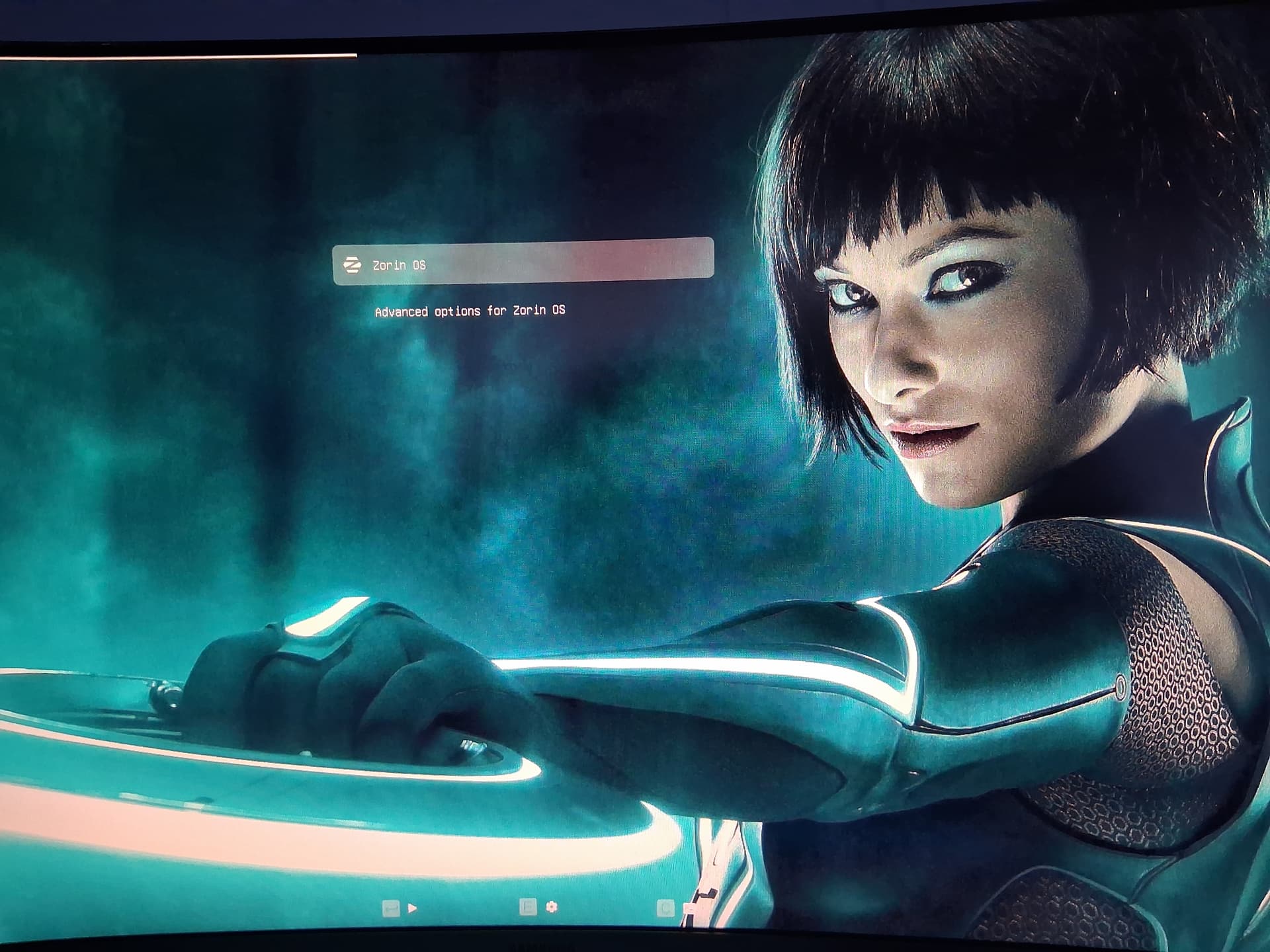
Starting off there is a way to do this using an app called grub-customizer..but this turorial will not cover that, I will be showing you how to do it manually to add in a background picture of your choosing. A speical note here: this will be taking you into the root directories. if you feel you are not comfortable editing things here, stop at this point. now for the brave I will explain the steps needed to add a theme picture to your grub menu. Please follow all the instructions that follow and everything will be ok. Failure to do so can lead to damage to the boot grub.
Ok now that this is out of the way, lets precede. The first thing I do is find the picture you wish you wish to use can be any picture but I tend to find those with the area in middle more open as to be able to read the text that will appear on the screen. example like this one that i will be using for this tutorial;
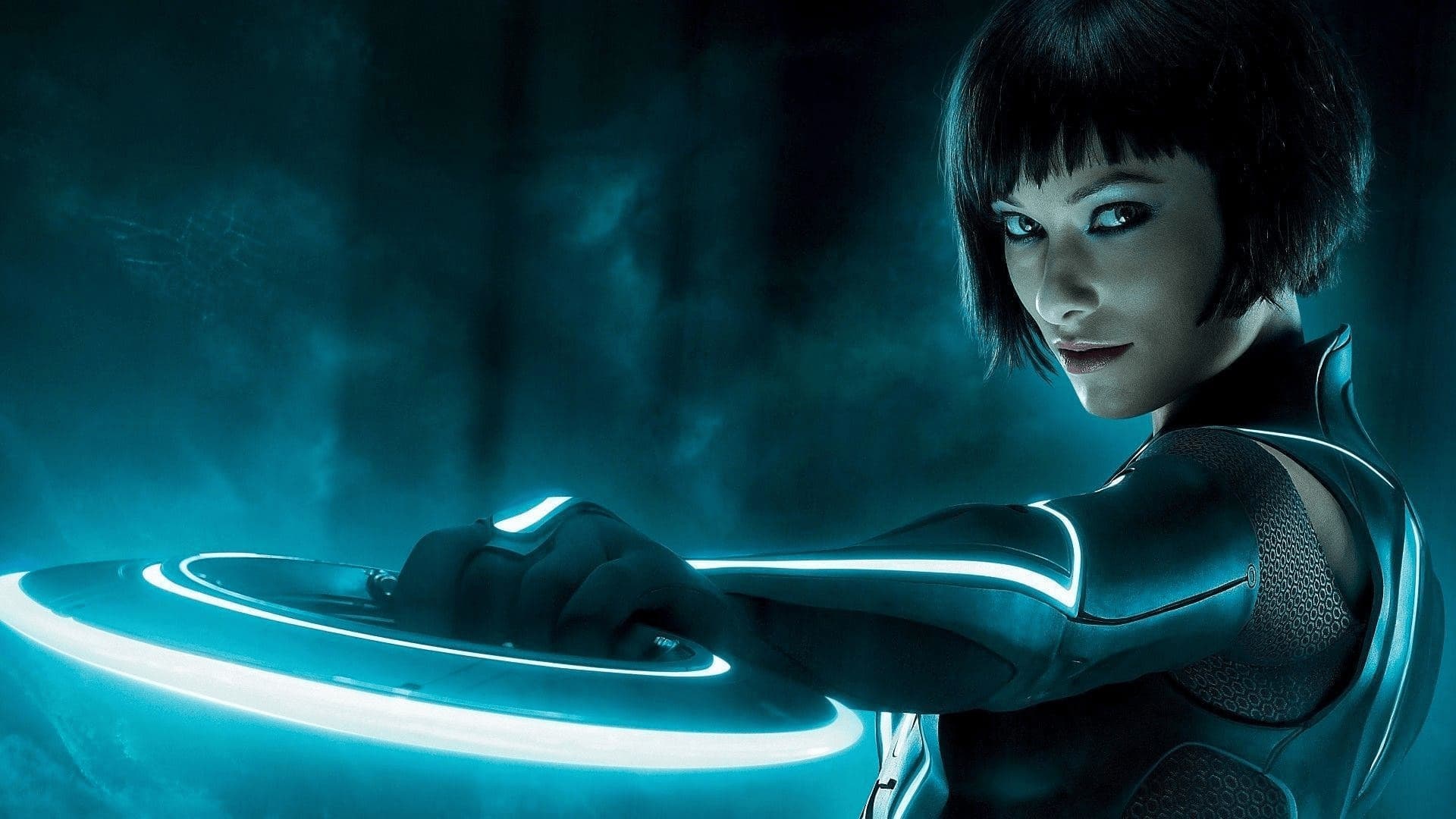
as you will notice there is a very nice area at top middle down to her arm in this picture, then text will appear in this area and be clearly seen, you can however use whatever photo you wish, but the text maybe printed over the area stated and might be hard to see.
Next thing I do after selecting the picture is convert it from .jpg to .png i use this site to do this,
.png work better for me for some reason. once you have it converted go to where the picture is and rename it background.png all small letters. this will be important later on and will make sence. ok place that picture in your pictures area like so

this is where later in the grub editor we will point to here to use this pic.
ok now the fun starts. use the files that came with zorin and open it, should look like this
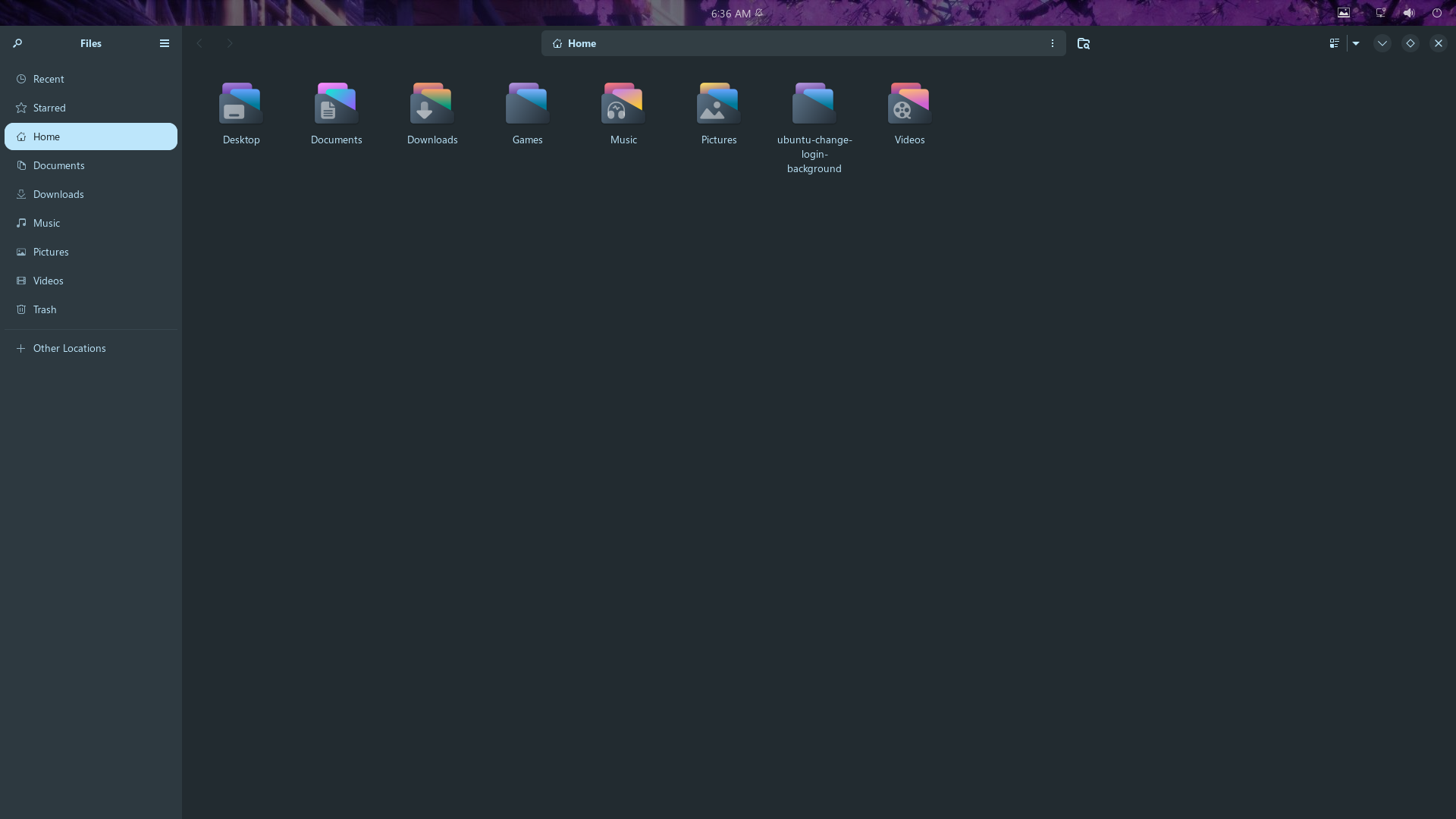
now choose other locations,then zorin os you should now be here
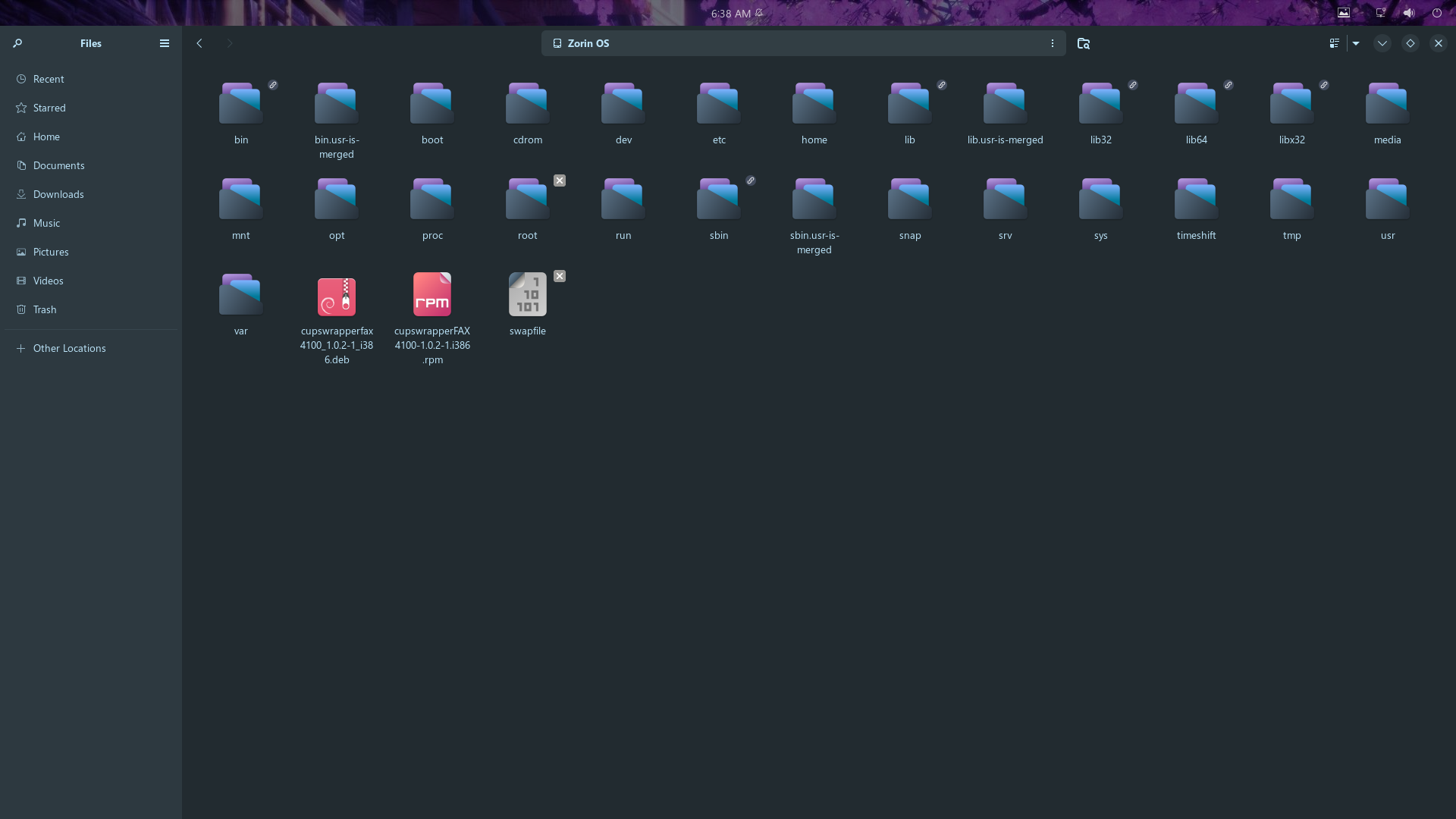
this is the root directory..a speical note if you dont have nautilas installed you will need this open a terminal and type
sudo apt install nautilus-admin
to install it, this will give you the right click open as administrator you WILL need this. OK now to get you where up will place the picture you created earlier we will goto usr/share/grub/themes/zorin dont open the zorin folder yet right click the forder and chose open as admin. like this
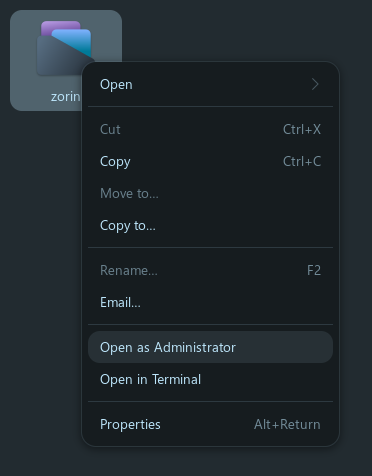
then you may have to open folder again should look like this inside

mine here has the picture i wish to use in here already first things first tho we need to edit a folder in here the one called theme.txt open it and scroll down alittle to the area where I have changed it to background.png like this
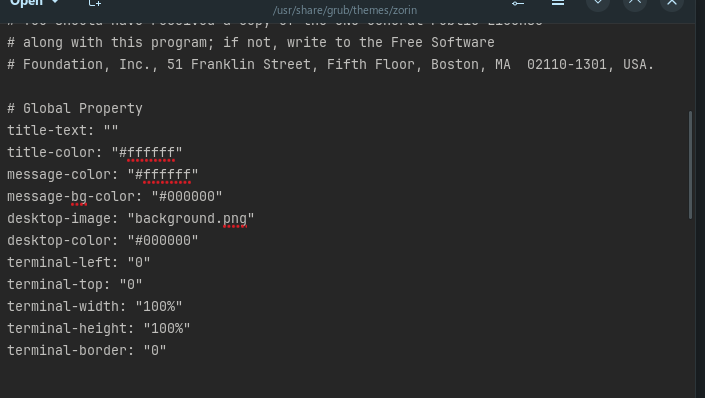
edit it to match the line desktop-image: "background.png"
then at top right are 3 lines click that and hit save
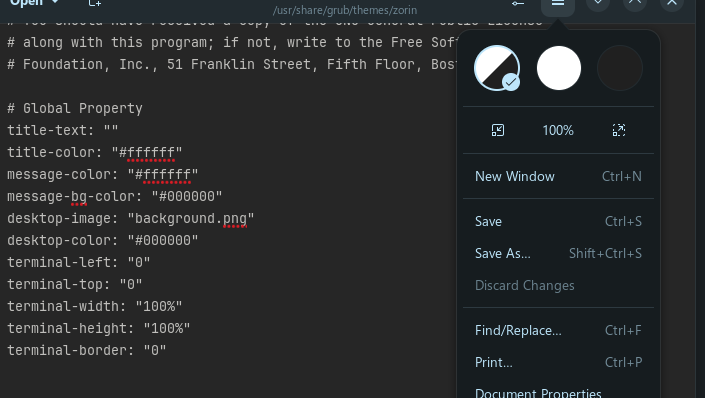
this will save that to use the picture to be used for your background
Ok now on left pane hit pictures right click the picture you wish to use the copy now hit the < at top to go back to the previous folder and the paste it here it should of brought you back to here
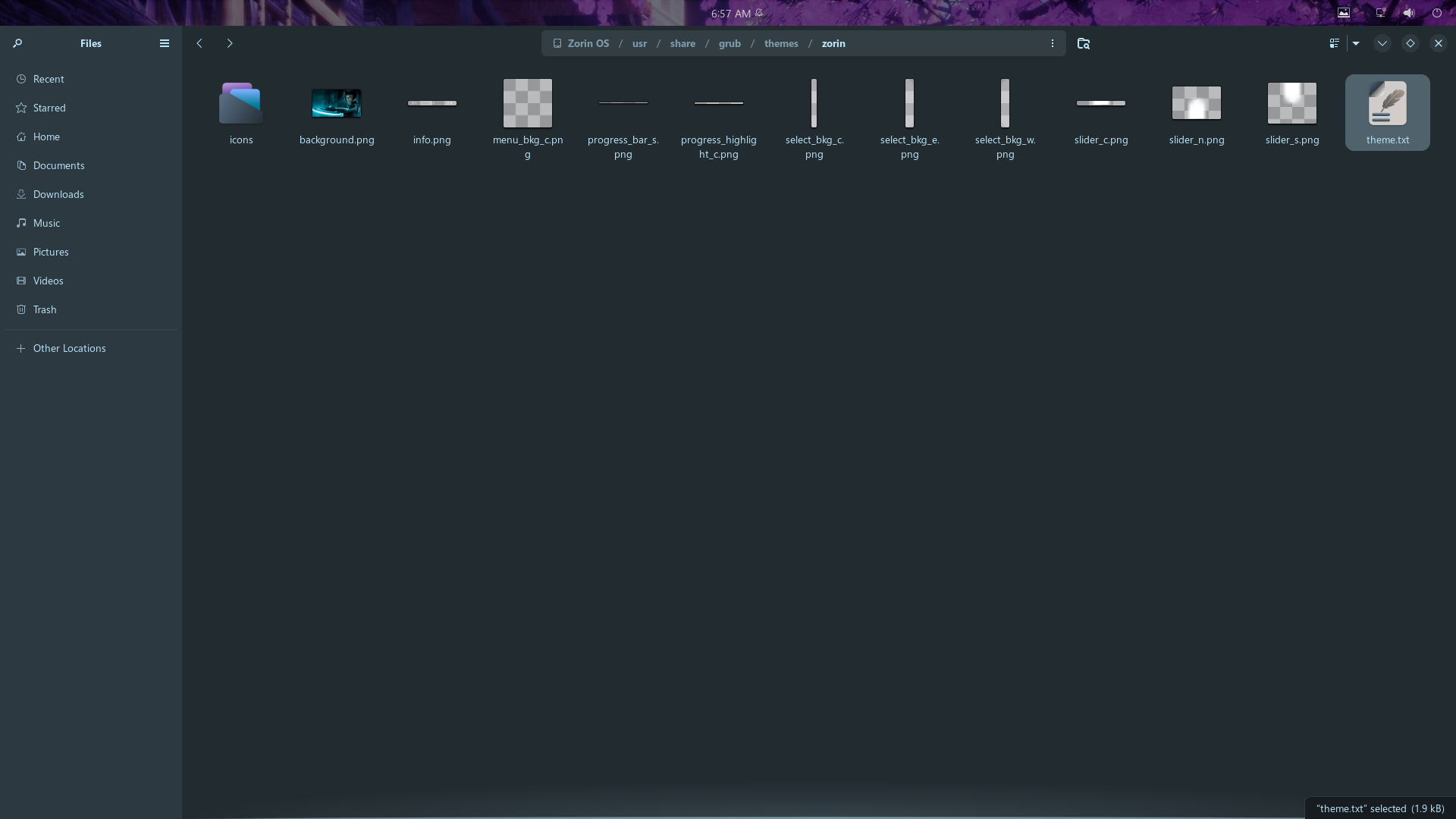
you should see your picture here now it may ask to replace one agree to the change if you cant paste it in here you may have to reopen the zorin folder in admin again then repeat the previous steps to get picture with copy and come back here and paste it in you can see mine here
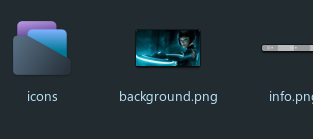
If all went well your pic is now in this folder and the themes.txt is also modified too
now to edit the actuall grub to use this picture open a terminal and type
sudo nano /etc/default/grub
enter password and this should popup
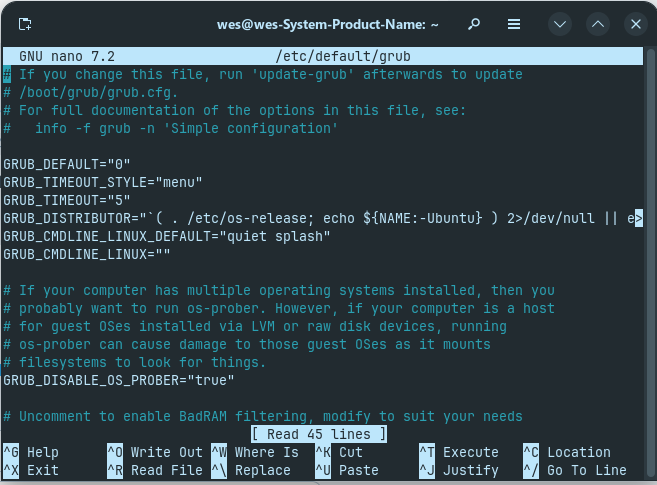
now use the arrow down key and scroll to bottom should like something like this with whats on my screen missing as we are gonna add some stuff in
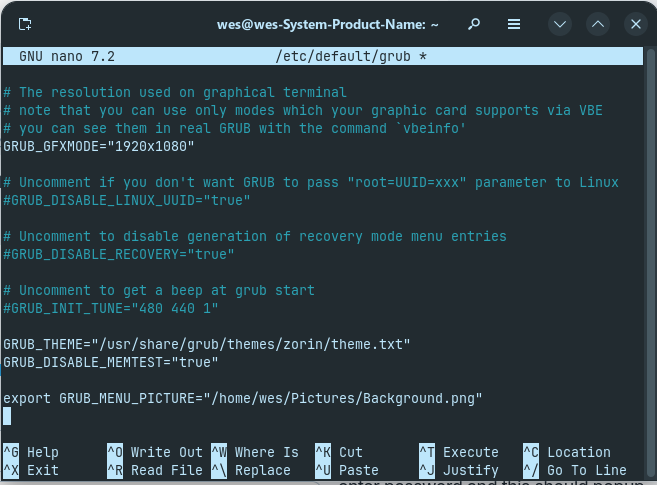
ok use the arrow key up and goto GRUB_GFXMODE and add in "1920x1080"
you may have to remove the # in front of it as well should look like whats in the pic above. Now arrow down to a blank area and add in this line
GRUB_THEME="/usr/share/grub/themes/zorin/theme.txt"
now we need to make sure you grub shows at startup use arrow key up scroll to top and edit the following lines you shold be here now
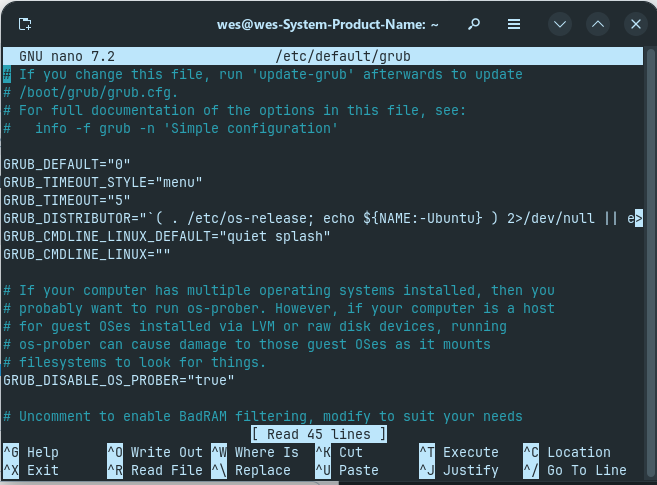
change the line to GRUB_TIMEOUT_STYLE="menu" remove the hidden
then change the line to GRUB_TIMEOUT="5" 5 or 10 either will work
ok now hit and hold control+o then hit enter then hit and hold control+x then type
sudo update-grub
will look something like this
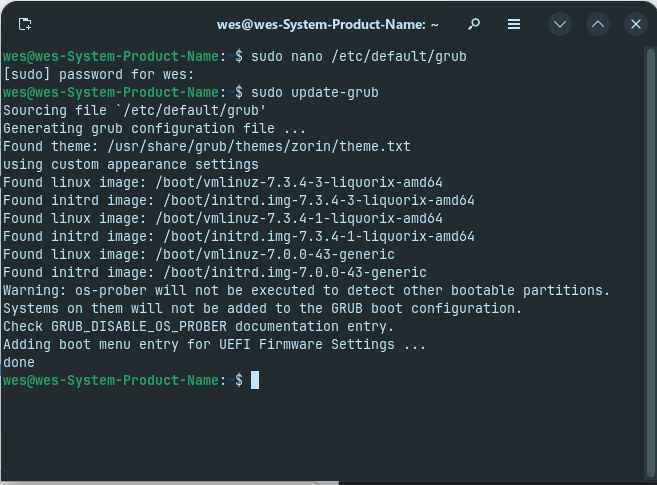
should find the theme.txt file and find the picture to export if this all went well now you can close all then restart computer and the grub will show and your picture in the background. congratulations you have changed your grub background
if nothing changed start back at top and check everything I posted or pm me
this is what is see
Your picture of course will be there.....lol