Hi there.
I'm new to Zorin OS, I'm a Windows refugee. I've been using Zorin for about three weeks now after trying a few other beginner friendly distros. Loving Zorin so far!
I have a question,
I used 42inch screen and have a custom windows tiling setup greatly help my workflow. I want to create my custom windows tiling. This is accessible from:
Zorin Appreance > Windows > Advanced Window Tiling (click the gear icon).
New window will pop-up, find the layout section > Edit Layouts
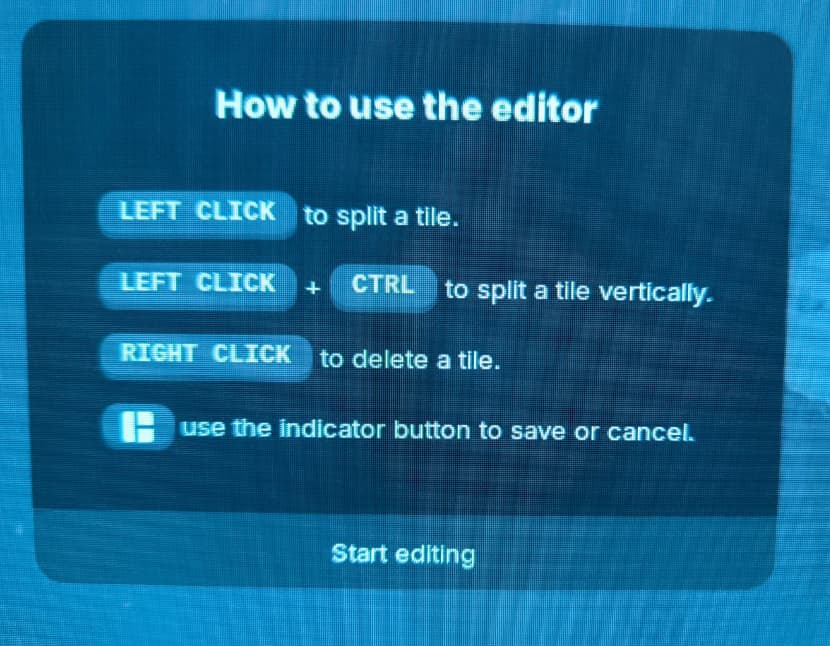
You will enter the edit mode, and have this before you start:
However, the indicator button mentioned on that last line there never shown, so I stuck on the edit mode, no way to exit. I need to hard reset my computer. Is it actually missing or am I missing something?
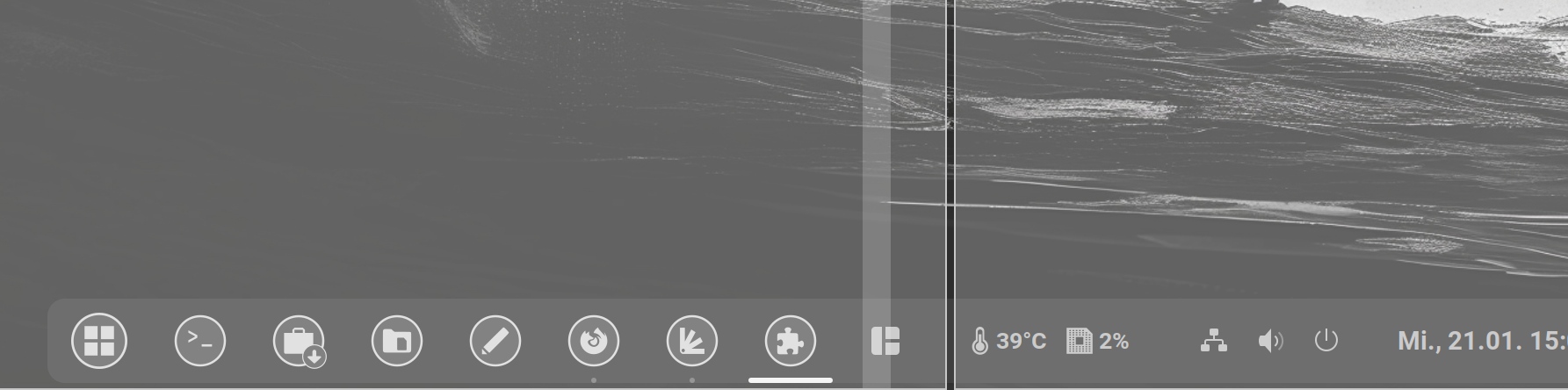
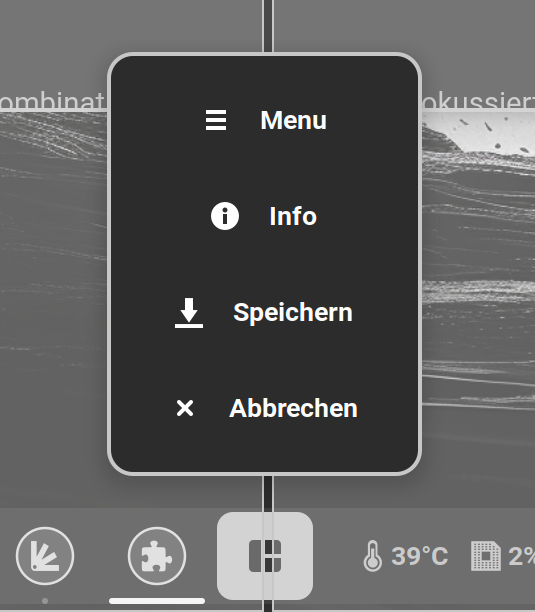
Okay, I tried that now by myself and I can understand it. There is a Problem: The Indicator is on the Taskbar - and the editing Layout lays over it. So, it is a bit difficult to click it. When the Layout is over it, You can't click it:
Thank you. I have my taskbar hidden, that's why I can't see it.
Your solution works to get out of the edit mode, but it will create unwanted additional grid line. So for creating windows tiling that we actually want and then save it, we're still not quite there yet.
Maybe it helps to play with the panel settings at tab "position" to move the indicator button to another place in the panel befor editing the layouts. Use the arrows to move it to another position.
The indicator is not shown when you do this, so you'll have to play a bit until you find a position where you don't want to tile the window later. But you can e.g. move the apps to the right side of the panel.
I was fighting that lookup for that.. Thanks for this Forum ! otherwise, I would never check that... a Key combination list in the Editor menu, would be nice.