I wanted to test WinBOAT, which needs docker and FreeRDP3.
Got docker installed and running.
But I'm stumped with FreeRDP3. All instructions that I found on the web either don't work (error messages) or I can't follow them because they are not complete, i.e. they assume deeper knowledge that I don't have.
Why is this so complicated? Is there no simple way to install it?
I will add support to the second option.
Flatpak is containerized in a way that installing a flatpak for something like WinBoat which needs system and user directory access sounds like intentionally giving yourself a headache.
@hschneider : Vielen Dank für die Anleitung!
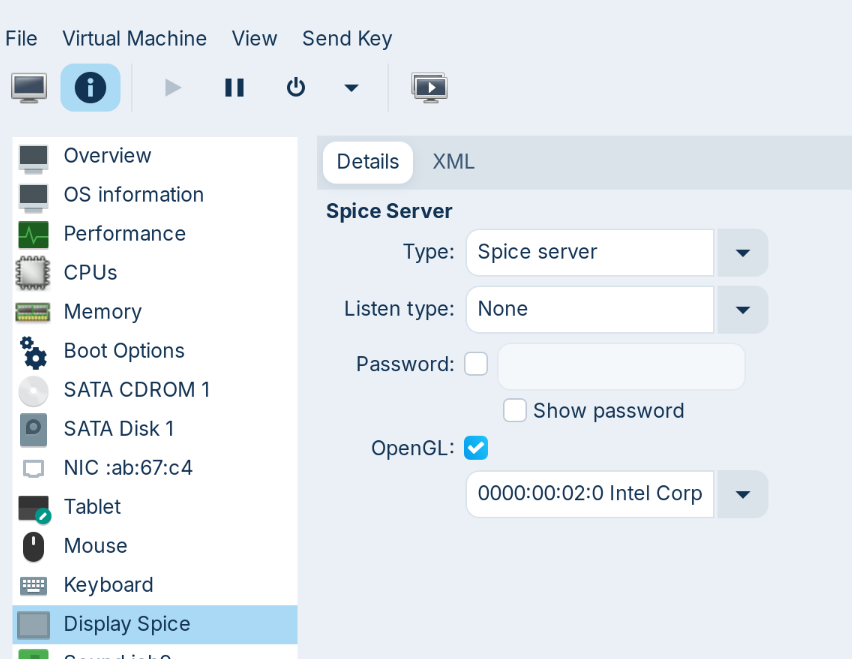
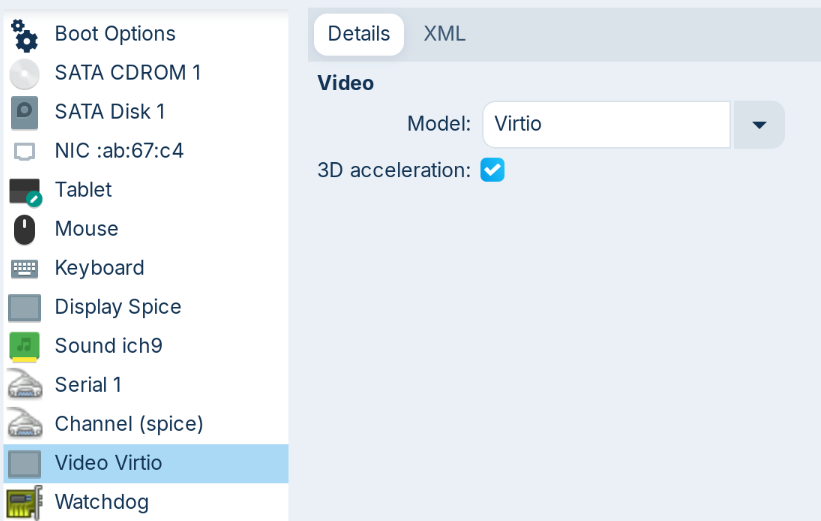
Thanks for the instructions. I managed to install a Tiny Windows in a VM and it runs fine (and fast). But despite the settings being as described in your instructions, I cannot change the screen resolution, which makes it unusable (because unreadable) on my laptop ...
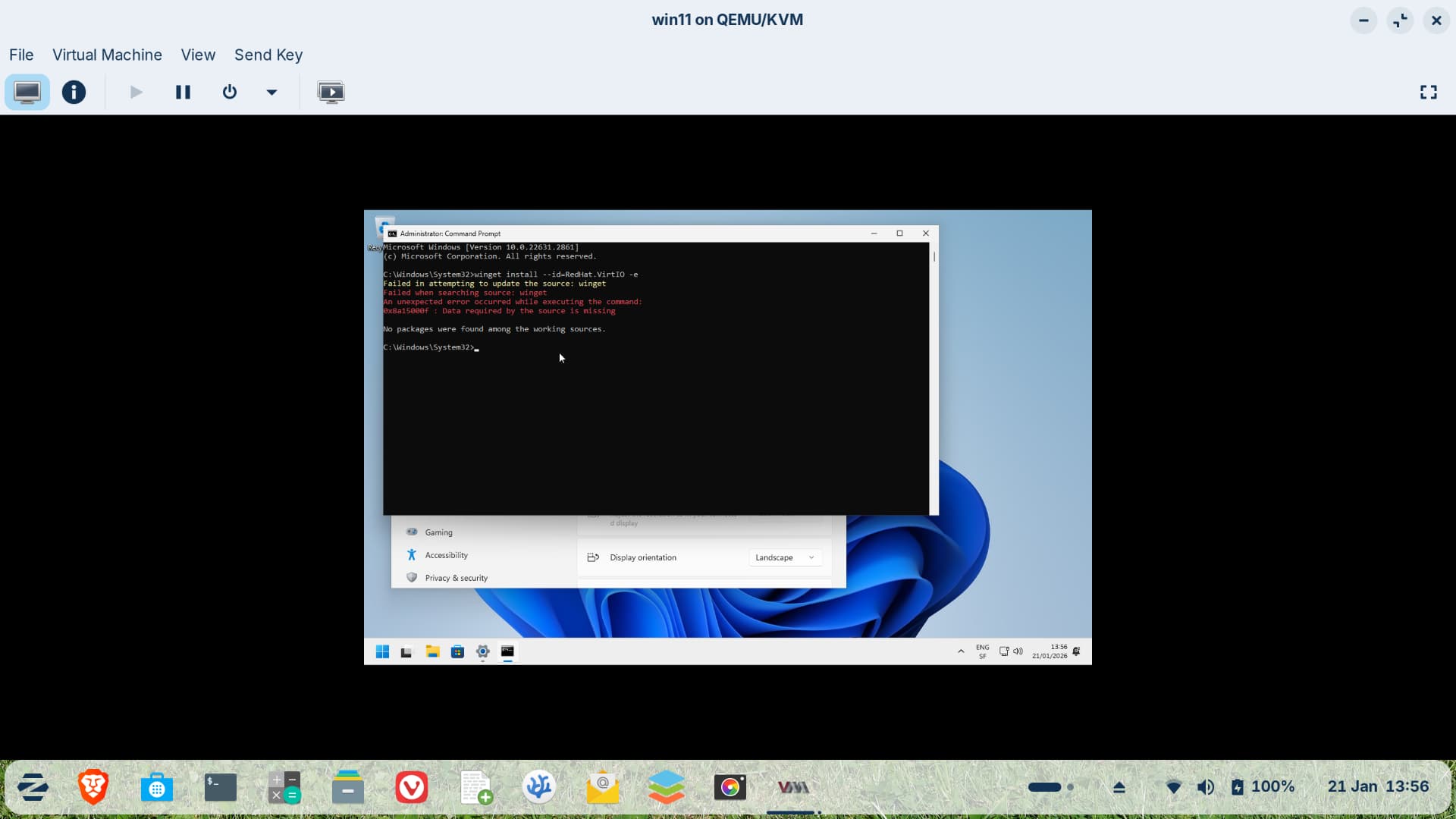
Also, the installation of the guest tools doesn't work (see first screenshot).
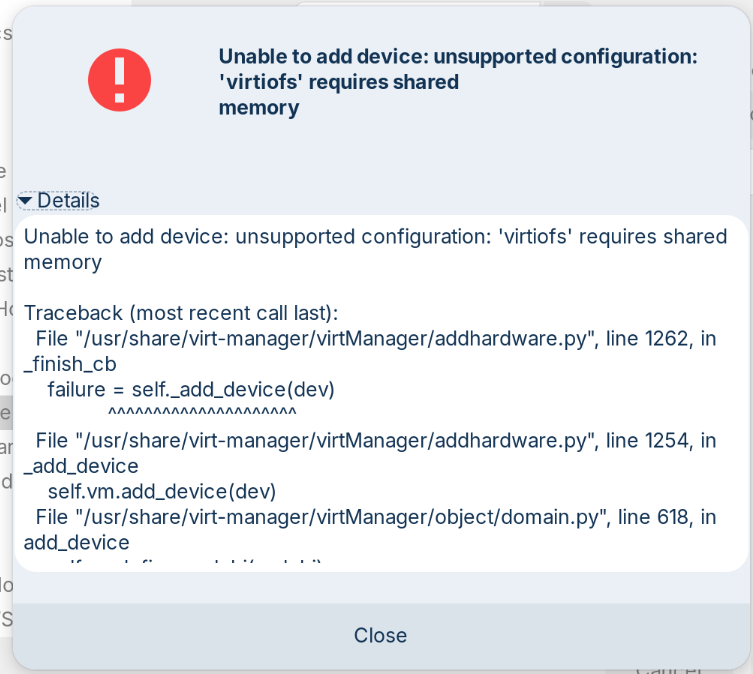
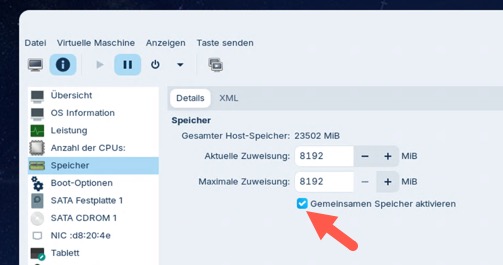
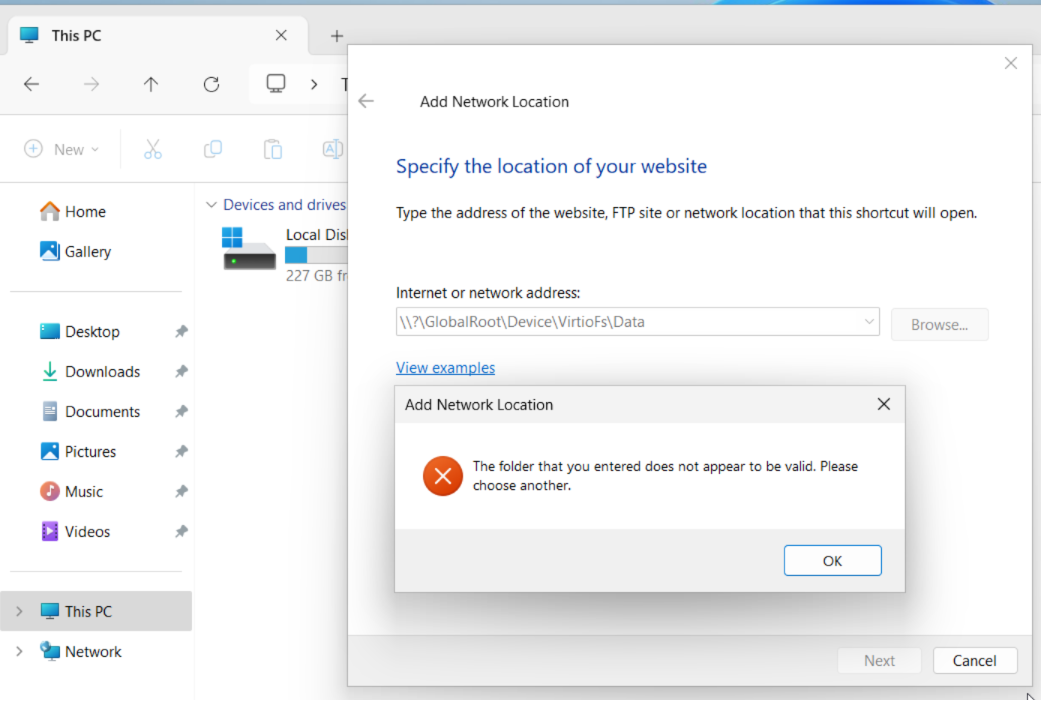
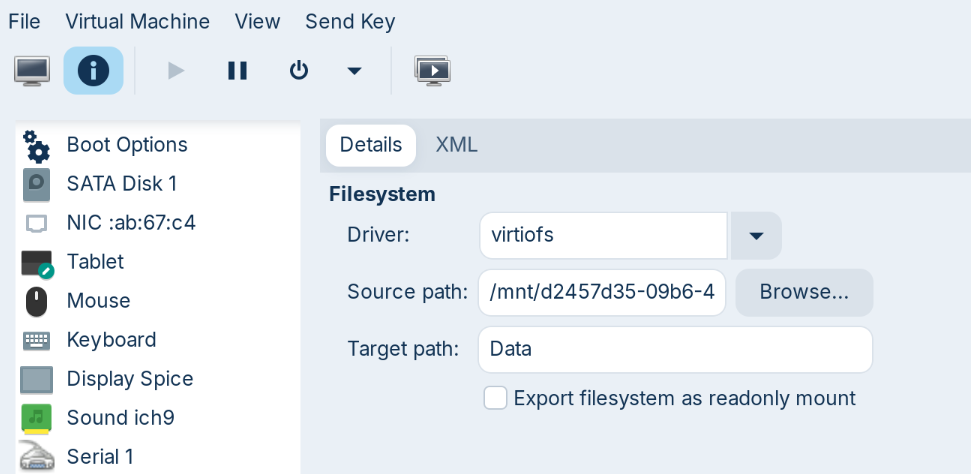
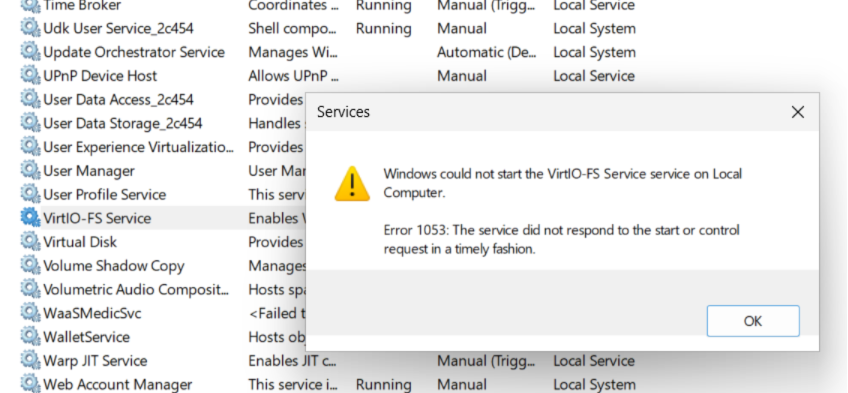
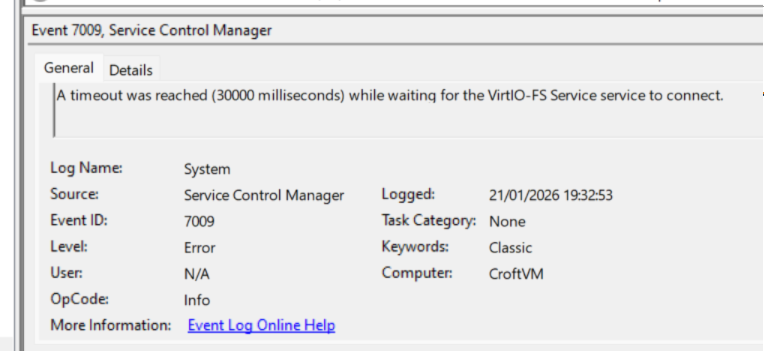
I hope you can read it in the screenshot. I haven't found out yet how to access my Zorin partition from the Windows VM.
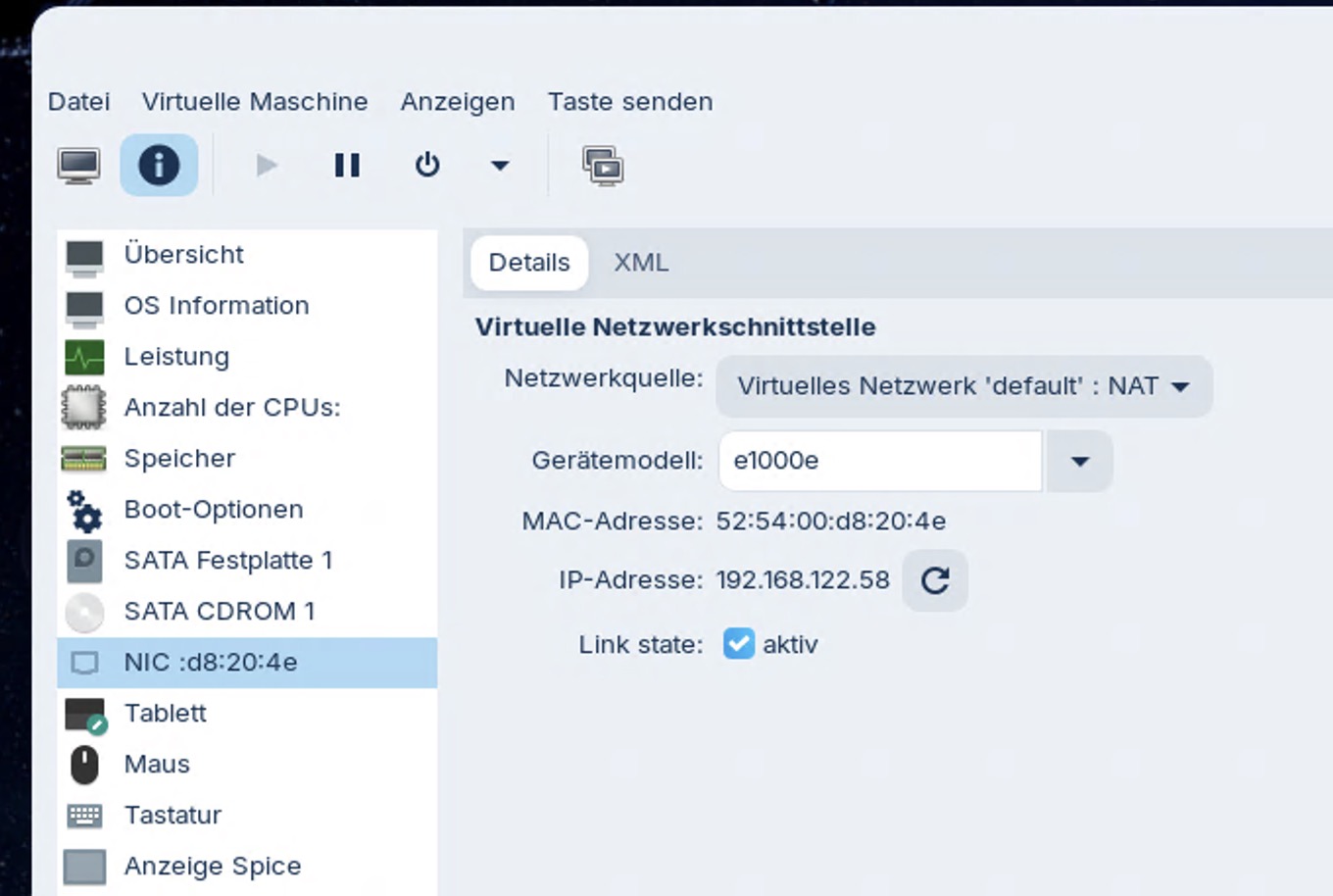
Network settings are ok.
I can ping my router or NAS (IP) and websites (URL, so internet DNS works too), web browsing in Brave works, but I can't otherwise access my local network (like my NAS) even though I can ping the IP, but that's another issue (internal DNS?).
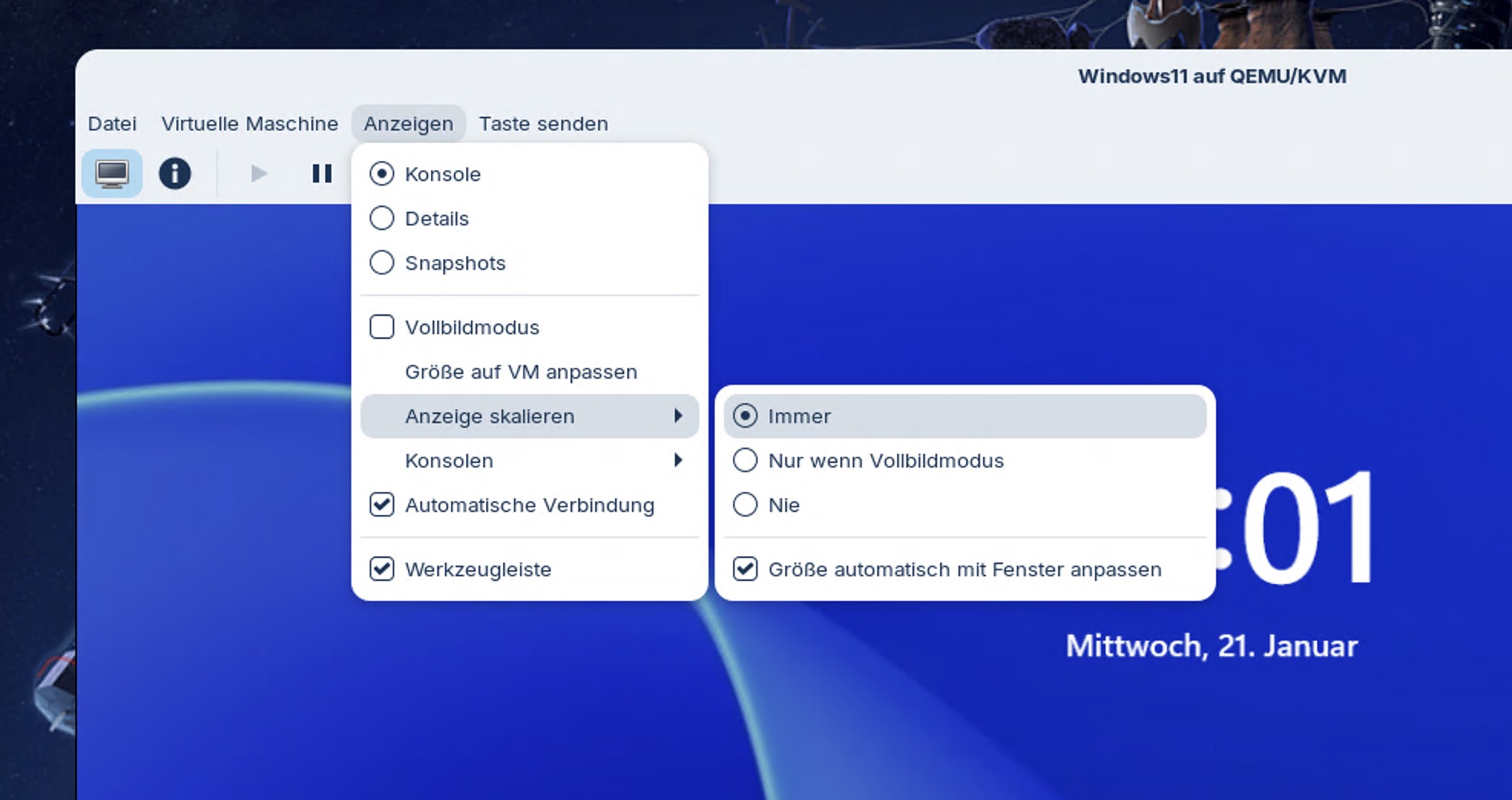
The screen resolution still cannot be changed. Yes, I can scale it up, but it stays at 1280x800 resolution and the setting to change it is greyed out.
Strange. Lets concentrate on the winget error first. Inside the VM navigate to https://aka.ms/getwinget and install the downloaded package. Then reboot and retry winget.
If it still fails, open an Admin Powershell and enter:
The downloaded getwinget did an update of winget.
After that, I was able to install the guest tools and now I can change the display resolution and drag and drop works. GREAT!
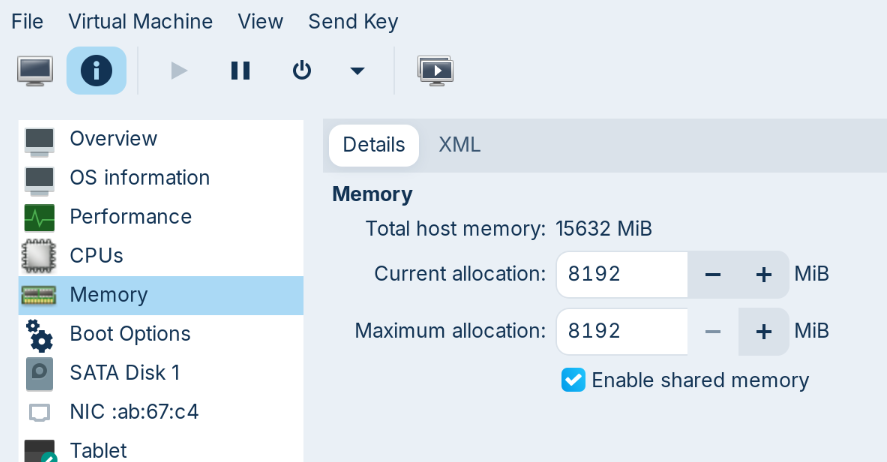
Last thing to configure now is access to my LAN and my second partition on the laptop (which is already mounted in Zorin) without going through a network protocol.
I suspect it might be related to the fact that I installed a debloated Tiny Windows. I'll do a test with a VM with a full Windows 11 to see if that makes a difference.