How to set up drives on new Zorin system

I have just installed Zorin Core 18 on my lapatop with a view to migrating away from Windows 10.

I am having issues with saving files to my previous windows locations.

Previously I had my system set up as follows:

C drive was where windows system files were installed.

All my data was kept on a separate partition on the drive that called A drive (just a label). All my data files, (spreadsheets, documents etc etc) was kept on this partition or drive.

I would keep backup copies of my A drive on several physical USB drives.

I would like to continue to keep this structure as I know where everything is.

The issue is that I can open these files from this location but I cannot save the modified version on the A drive or A folder locations. I can only save the new files under my linux home folder.

how can I set things up to be able to read and write to the same folder structure.

Hope that this has been explained in a clear enough way. Happy to elaborate further if required.

Many thanks in advance.
Hello there,
I suspect this is because your A partition is in a format that Linux can't write to natively.
Could you please post a screenshot of your drive from the Zorin "Disks" application or just tell us what is the format of the A partition ?

2 Likes

If I had to take a quick guess, since OP is a Windows user, their drive is still formatted in NTFS format for Windows, and thats likely the biggest reason for permissions issue. Typically Linux uses the EXT4 filing system, which makes everything in Linux, smoother Sailing.

Having said that, I can think of possibly 1 way around the issue.

CTRL ALT T to enter terminal.

Type sudo nautilus enter your PW when asked.

Now click on "other locations."

Click on the drive your using, most likely the one that says "Computer."

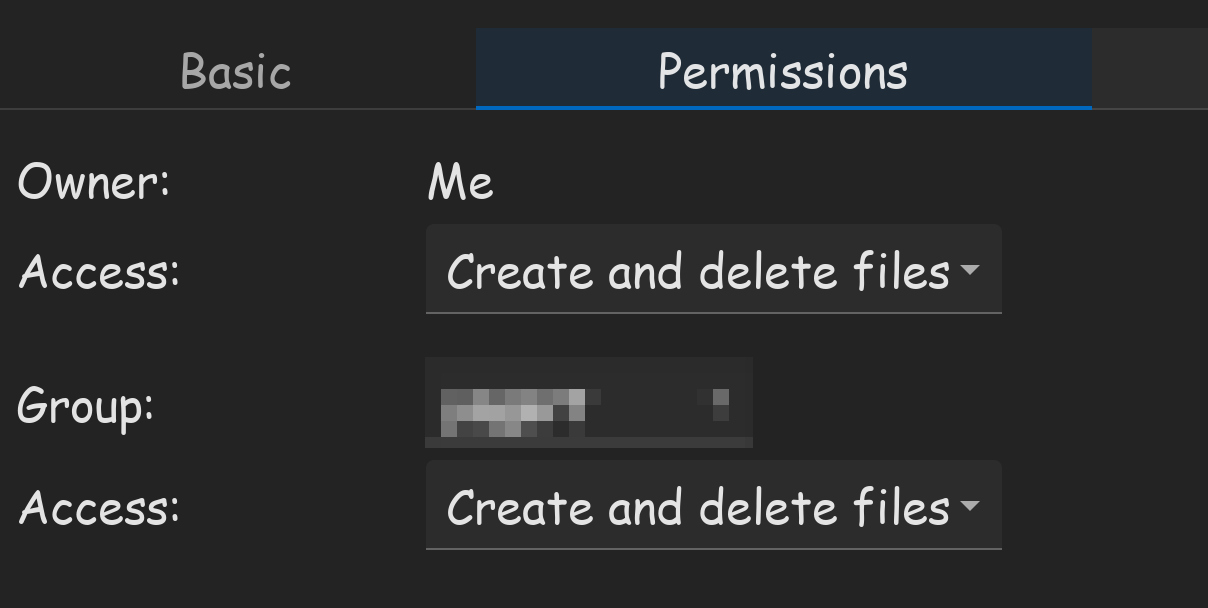
Now that its opened, you can right click on computer up at the top, and click on properties, then permissions tab.


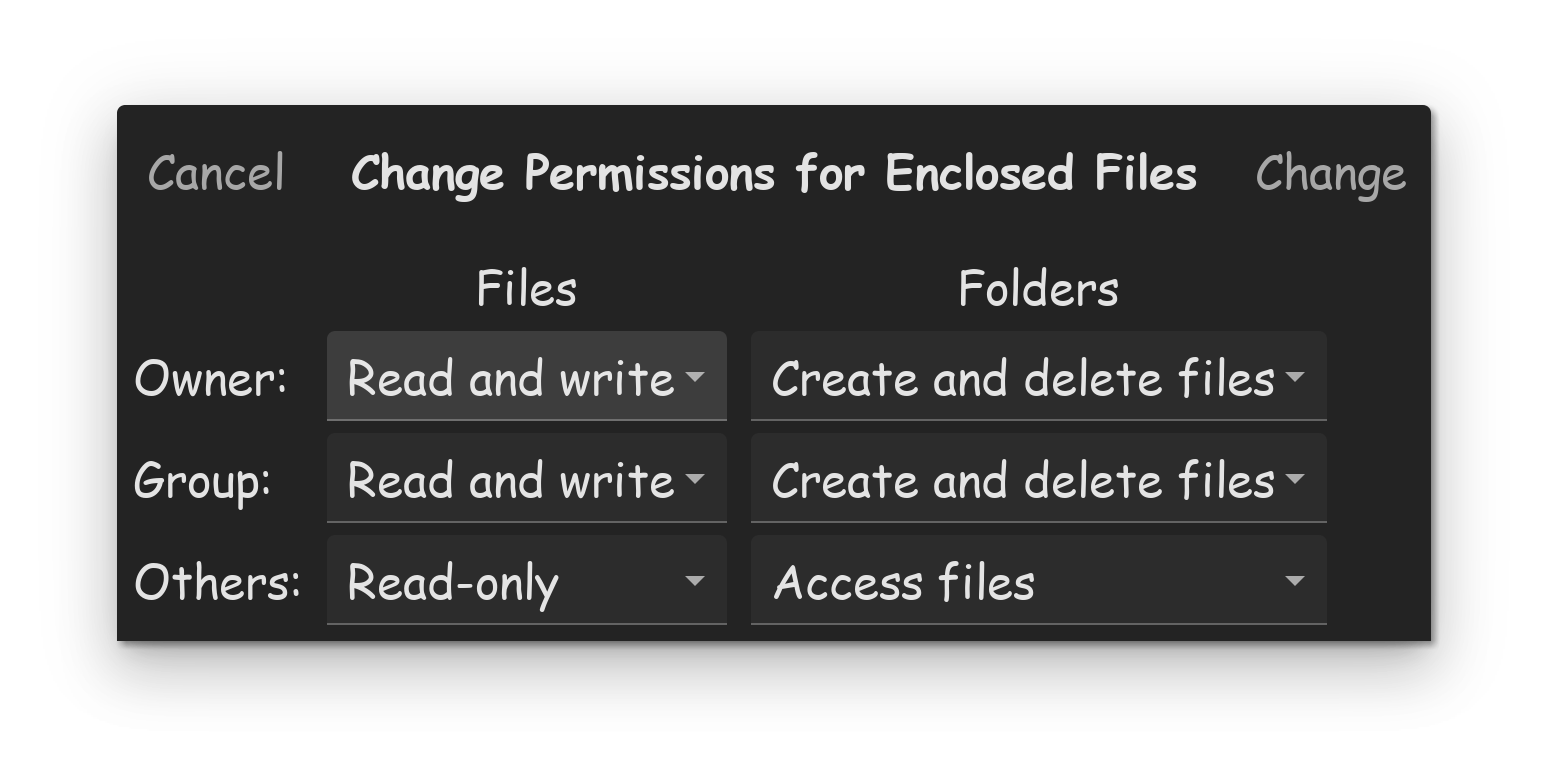
Set these to create and delete files, then click enclosed files...

Set these to read and write and create and delete files.

Once completed, restart the computer, and try again. This is the only method I know, how to give your account admin permission to a drive, in the most non-complicated path possible.

FYI: This is the method I gave to setting up permissions to my external drive, for Steam access and whatnot, I have a whole tutorial on it.


1 Like

Yes the format is NTFS.
I can change the format if that will solve the issue. I need to do that for my other USB drives as well. If I do that, what file format should I use assuming that I want to access the files, read and write, in both Linux and Windows?

When running the above, I get the following error.

his app cannot work correctly if run as root (not even
with sudo). Consider running nautilus admin:/ instead.

I tried to run as admin but that did not work.

I get taken to my home folder but I Can not see the A drive Partition even when I click on +Other Locations.

I can see the folder via file manger and after right clicking and then properties, then permissions it says "Create and Delete Files"

Under others I changed that to REad and Write and Create and Delete Files.

I had lots of problems with trying to access files from both Windows and Zorin. I ended up using two separate drives and having my cloud backup program sync them. However a recent poster suggested that EXFAT format might allow both OS to access a single drive. The poster never said whether he was successful with that format but it might be worth a try.

Did the permission changes actually "take"? Sounds like you did that in windows ("file manager") but my experience a few months back was that the next time I tried to access from Zorin, the permissions has reverted to what they were before. Also trying to change from the Zorin side kept telling me I didn't have permission to change the permissions. I hope it did work for you and you could indicate this was the solution.

This might be a good solution.

I formatted a small usb drive as ExFat and then copied some files over to it and was able to read and write to them. It worked from the Linux side, just need to see if it worked on the windows side too.

If it does I will just copy all the files from the A drive to a temporary USB and reformat it as ExFat and the copy the files back to it under the new format.

1 Like

It says that it took but it does not seem to have solved the problem.

I did this from the Linux world not in Windows.

So I am going to go down the route of reformatting the partition into ExFat .

That seems to have worked on a USB Drive.

1 Like