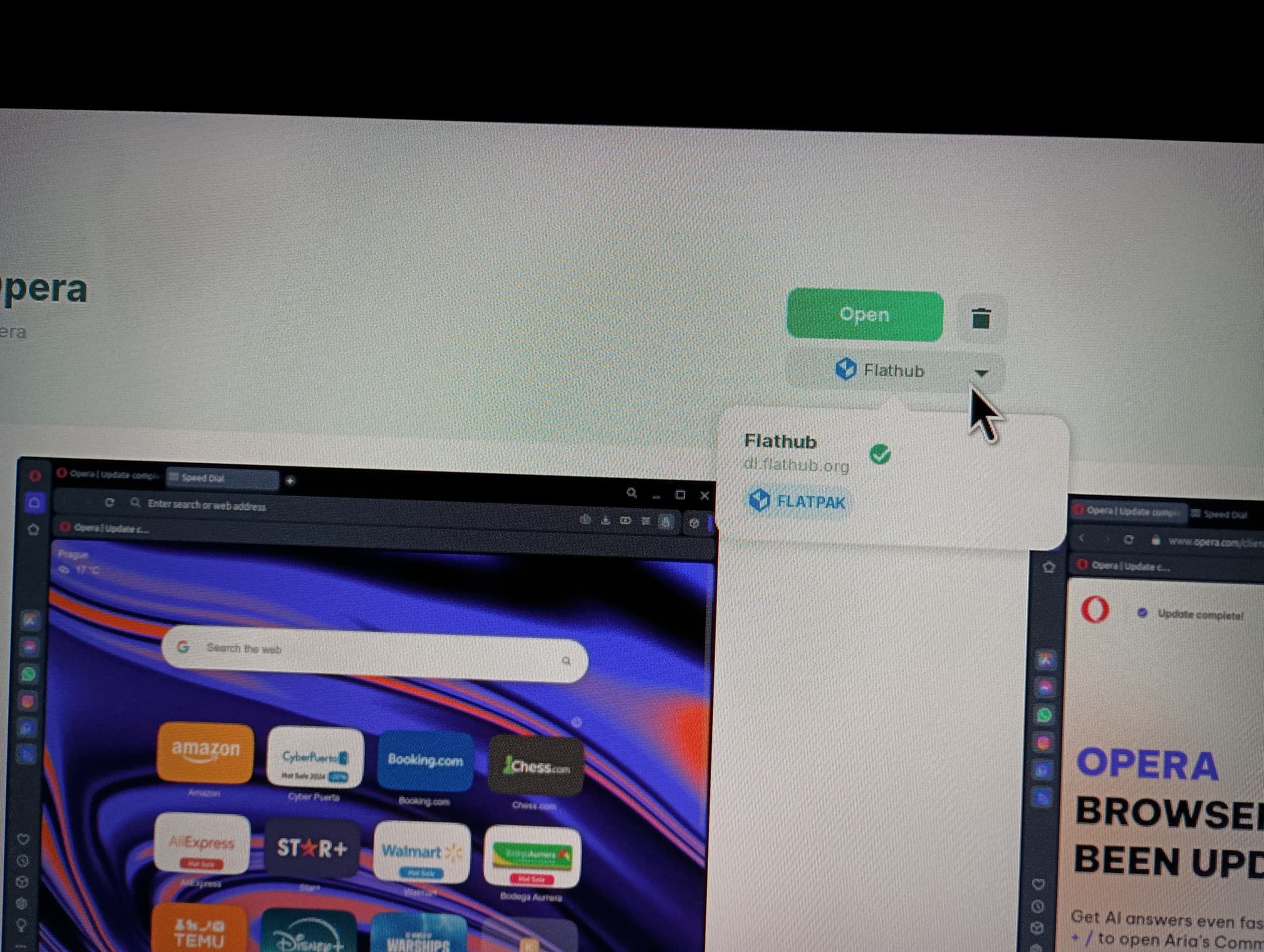
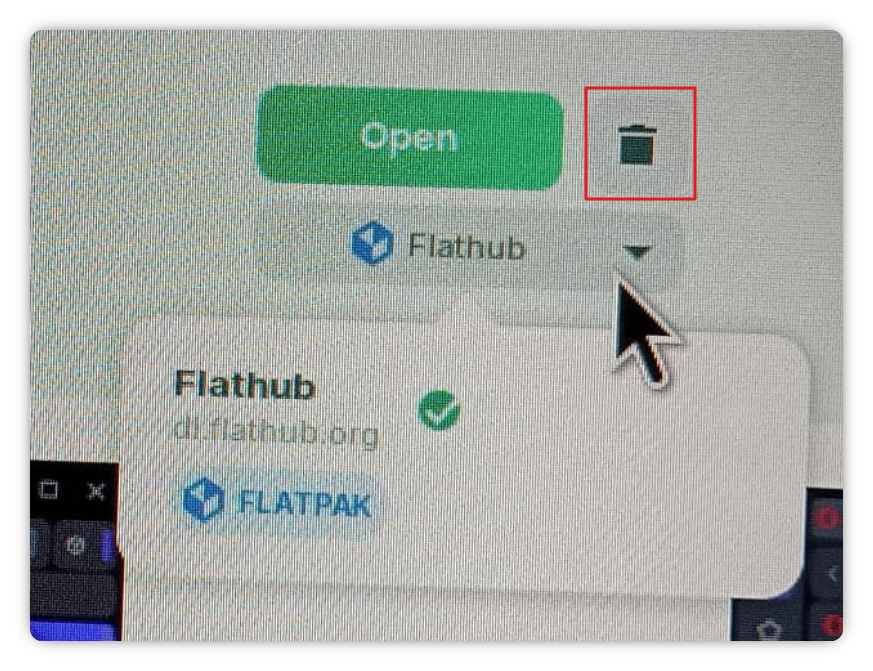
Hi, and welcome.
I am not currently using Zorin, so not sure if you have any APT versions installed. To check this out, install Synaptic Package Manager from Software.
After installing Synaptic, launch it, you will be asked for your login password to elevate to root (administrator).
Close the message box that opens on first launch, then click on the 'Search' button over on the right and a small search bar appears in the middle of the screen.
Type 'opera' (without the single quote marks), and see if anything comes back. If you see an entry for Opera Browser, there should be a little box coloured green to the left of the entry, meaning it is installed. Right click this little green box for a context menu and choose 'Mark for removal', then on the menu bar, click on the 'Apply' button. This will then uninstall any APT installed versions of Opera.
Now to Flatpak. A.I. answer:
" To list installed Flatpak applications, open a terminal and run the flatpak list command. By default, this displays both applications and runtimes for user-level installations.
To refine the output, use the following specific options:
-
List only applications : Run flatpak list --app to exclude runtime libraries from the results.
-
Filter by source : Use flatpak list --columns=application,origin | grep flathub to identify apps installed specifically from the Flathub repository.
-
View system-wide installs : Run flatpak --system list to see applications installed with administrative privileges (stored in /var/lib/flatpak ).
-
View user-specific installs : Run flatpak --user list to see apps installed in the user directory (stored in ~/.local/share/flatpak )."
Make a note of any Opera browser that comes back as listed.
Next to remove a flatpak app:
[Source: How to Install, Remove, Manage Flatpak Apps in Ubuntu Command Line | UbuntuHandbook]
" 5. Uninstall a flatpak package:
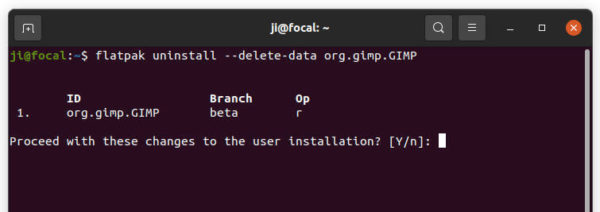
To remove a flatpak, you need to firstly get the App-ID via the previous steps. Then run command:
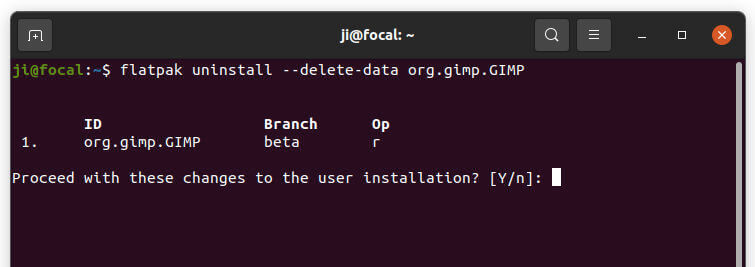
flatpak uninstall --delete-data App-ID
For instance, remove GIMP as the previous picture shows via command:
flatpak uninstall --delete-data org.gimp.GIMP
Removing flatpak apps WILL NOT remove the independent runtime libraries (QT, GNOME platforms, etc). You can run this command to get rid of them to free up disk space:
flatpak uninstall --unused
And to remove everything your installed, run:
flatpak uninstall --all
In addition for managing flatpak app permissions, try Flatseal.