I am not using Zorin OS but a different one and this issue was beginning to bug me.
First some background information to make this clear. I have a Canon PIXMA TS-8151, an all-in-one printer/scanner/copier and it is networked via a powerline adapter from TP-Link so you need the IP address of the printer, or it might show up when looking for Network printer. It needs the current cnijfilter2 driver, which is from 2017, version 5.50 available from any official Canon website.
You download the .deb file (which is for both 32-bit and 64-bit Operating systems), and after extracting it to a separate folder (cnijfilter2-5.50-1-deb), go to the sub-folder named 'packages' and install the 'cnijfilter2_5.50-1_amd64.deb' package as Zorin is a 64-bit operating system.
There is an alternative option. If you download the 'source package':
cnijfilter2-source-5.50-1.tar.gz and extract it, it contains a subfolder, ppd (= proprietary printer driver), and the correct one for my printer is TS8100.ppd.
This option is only available after you select your manufacturer named printer provider and click on next where you get the option to choose a .ppd file.
So in the unofficial manual I explain how to stop printer discovery that keeps popping an icon up in the window after launching
sudo system-config-printer
cups-browsed is the culprit, in that it automatically discovers network printers but in the description, states they are 'driverless' which means the Linux kernel/CUPS has identified the make and model of the printer, and usually names it Canon_xxxx_Series or a long-winded hexcode.local.
There are two ways to disable this. Under systemd method it is a case of first stopping cups-browsed and then disabling it with:
sudo systemctrl stop cups-browsed
followed by:
sudo systemctl disable cups-browsed
[Side Note: anyone wanting to play with an OS that does not use systemd, then the first command is:
sudo service cups-browsed stop
and to 'disable' it:
sudo nano /etc/cups/cups-browsed.conf
In this .conf file, every line is preceded by #, which is the equivalent of adding REM to a command in DOS, which means it will not run. The line you need to look for is:
#BrowseProtocols none
remove the '#' and autodiscovery of printers will cease - reboot to make sure it is working and open up printers again with sudo system-config-printer to check autodiscovery is no longer working.
Should you wish to restart for any reason:
sudo service cups-browsed restart
sudo service cups restart
Curious to know if this is the same in Zorin!]
So when you get to select 'Add Printer', on the subsequent window that opens, give the window time to generate fully everything on the left, then if you see your printer with the correct IP address under Network Printers, select that one and continue.
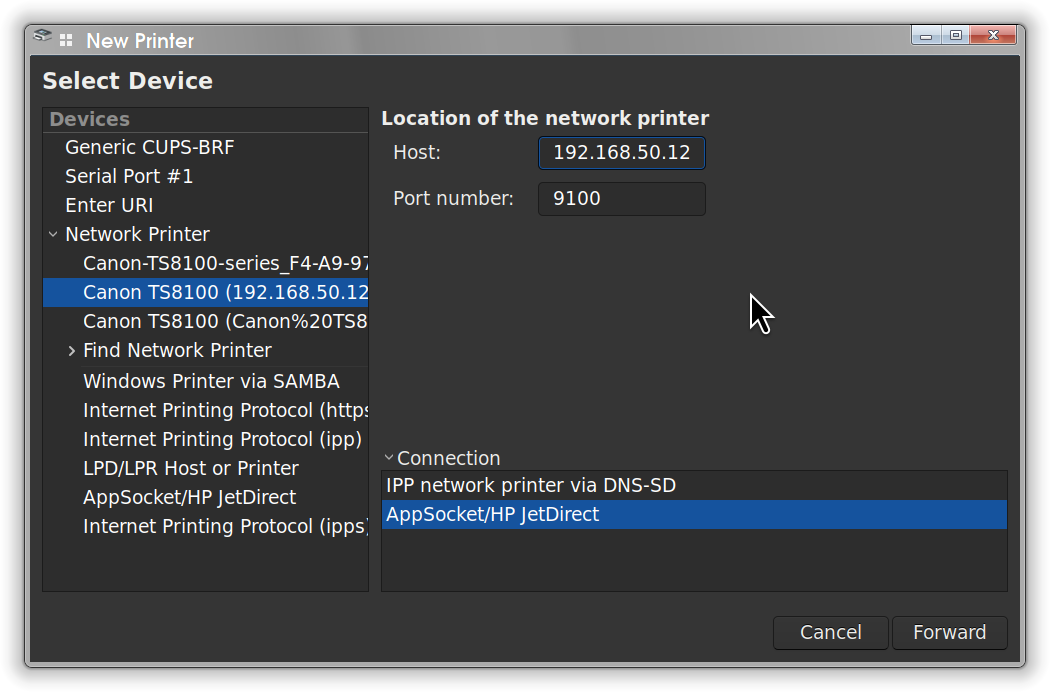
and select 'AppSocket/HP JetDirect option.