Hey I was trying to costumize my desktop by adding the Orchis shell theme. However only certain aspects of it shows up. I followed the download instructions on the Git-Hub site and when the download was complete, I set the desktop both in Tweaks and Zorin appearence but I only get the theme in some apps and my taskbar. For instance the bar at the top of the screen, it shows up for a couple seconds after I turn my pc back on, and then just dissapears. I'm faily new to theming my pc so any help woul be appreciated.
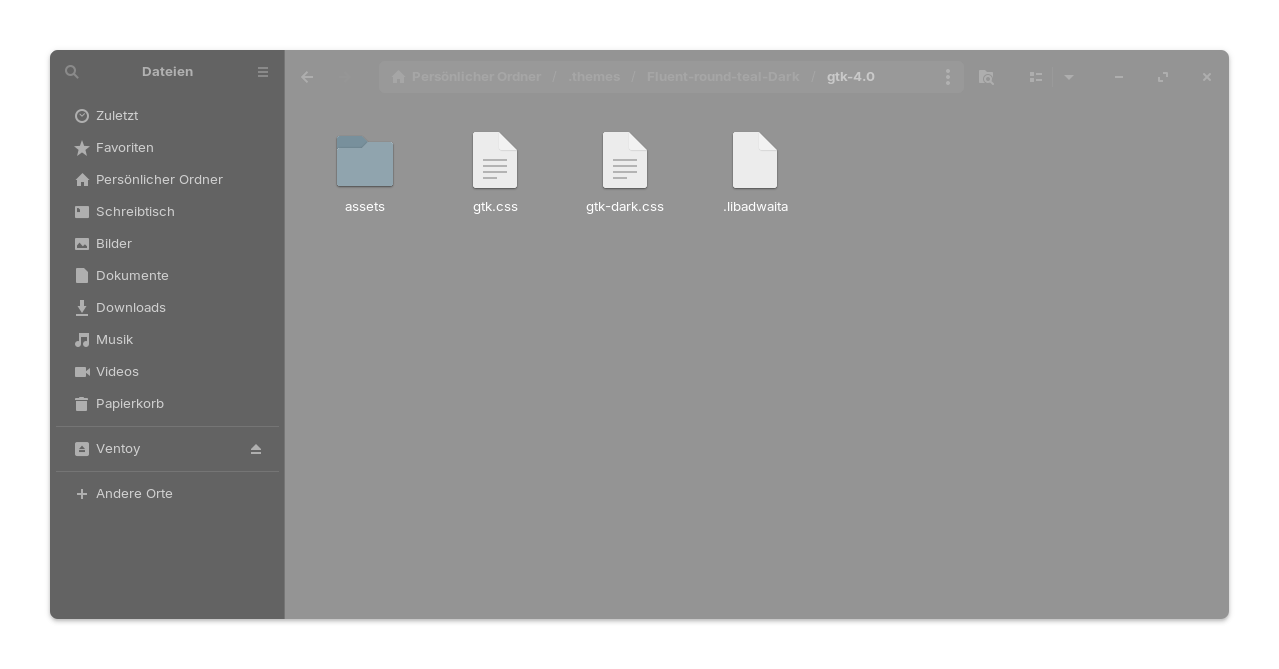
Place a hidden empty text file named “.libadwaita” directly into the “gtk-4.0” folder of your theme, alongside the “gtk.css” file.
This helps for gtk4 apps which are installed as apt packages, but not for flatpaks.
For flatpaks you can follow this guide:
If you like to have a top bar at the top of the screen, you can enable it in the panel settings of Zorin taskbar. Go to tab action, there you find checkboxes for the original gnome top bar. Enable them.
Ok, so just asking to make sure I don't do anything wrong. There is a file named gtk in the theme folder, and inside that there is a file names 4.0. Is that the "gtk-4.0" folder youre referring too? Also how do i create a hidden text file? I haven't done that before. Thanks for helping me out 
Yes, go to the gtk-4.0 folder, open it and then right-click on an empty space and select "new document" > TXT.txt. Rename it .libadwaita (small L at the beginning of the word, not a big i). I've done this here with my current theme fluent round teal dark. The screenshot is a bit blurry because I'm experimenting with blur effects and transparency at the moment.
Welcome to the Forum!
Did You used the install.sh Script from the Github Page to set up the Theme?
I just tried what you suggested and nothing happened. like I said the odd thing is the Orchis display bar briefly shows up for a sec when I turn the pc back on and then dissapears. I do constder reinstalling it using a diffrent method, but I don't know how to delete the current theme in case it would cause an interference.
I followed a tutorial on YouTube that showed a method that involved downloading the zip file and install the theme via the folder, via the terminal. I can send you a link to the video if you want a clearer picture of what I did.
Would be nice when You could do that. Maybe it helps to see what is done there. Depending on that, we could try the install.sh Script. Might sound a bit intimitating. But when You say me what Version of the Theme You want, I can take a Look at it and give You the Command and Instructions.
https://youtu.be/uUg6OEswN9E See if it works, I skipped ahead to the part he is installing it. Did some more looking around, and I did manage to get the display bar on top in the Appearence app, but that removed my taskbar at the bottom on the screen. Maybe it's a conflict cause I didn't pay for pro. Basiclly I am trying to find a way to get that look though a 3rd party way.
Did the .libadwaita file not work? Have you logged out and in again? Put it in the gtk-4.0 folder of the theme which you have set in Zorin appearance (or put it to all orchis themes which you have installed if you want to switch between different themes).
The video shows that you have used the script to install the theme. You can set for the installation the option -l there for libadwaita.
See the notes on the github page "Fix for libadwaita"
The problem is, when you want to switch between various installed themes of orchis, the libadwaita fix often doesn't work, and you first have to uninstall the theme ./install.sh -u and then install it again with the libadwaita option -l for the theme you want to use.
When you add empty .libadwaita files to all orchis themes you want to use, then you are more flexible and can switch between the themes.
If you like a dock and a topbar as in the video, you can install the gnome extension "Dash to dock". First install the gnome extension manager
sudo apt install gnome-shell-extension-manager
and then open it and browse for the extension to install it.
If you have Zorin taskbar enabled, disable it before the installation at tab "installed"
Or you can make the Zorin taskbar look like a dock and enable the gnome top bar in the Zorin taskbar settings at tab action.
With Display Bar, You mean this, right?

This is the default Gnome Top Bar. And when You use the Taskbar, it disappears. that is right. Here, You have 2 Options:
-
When You want the Top Bar in Combination with the default zorin Taskbar, go in the Taskbar Settions and there to the first Tab on the right. There, You can enable it:
-
The 2nd Option is that you use instead of the Zorin Taskbar the Gnome Extension Dash To Dock that @Forpli already has mentioned.
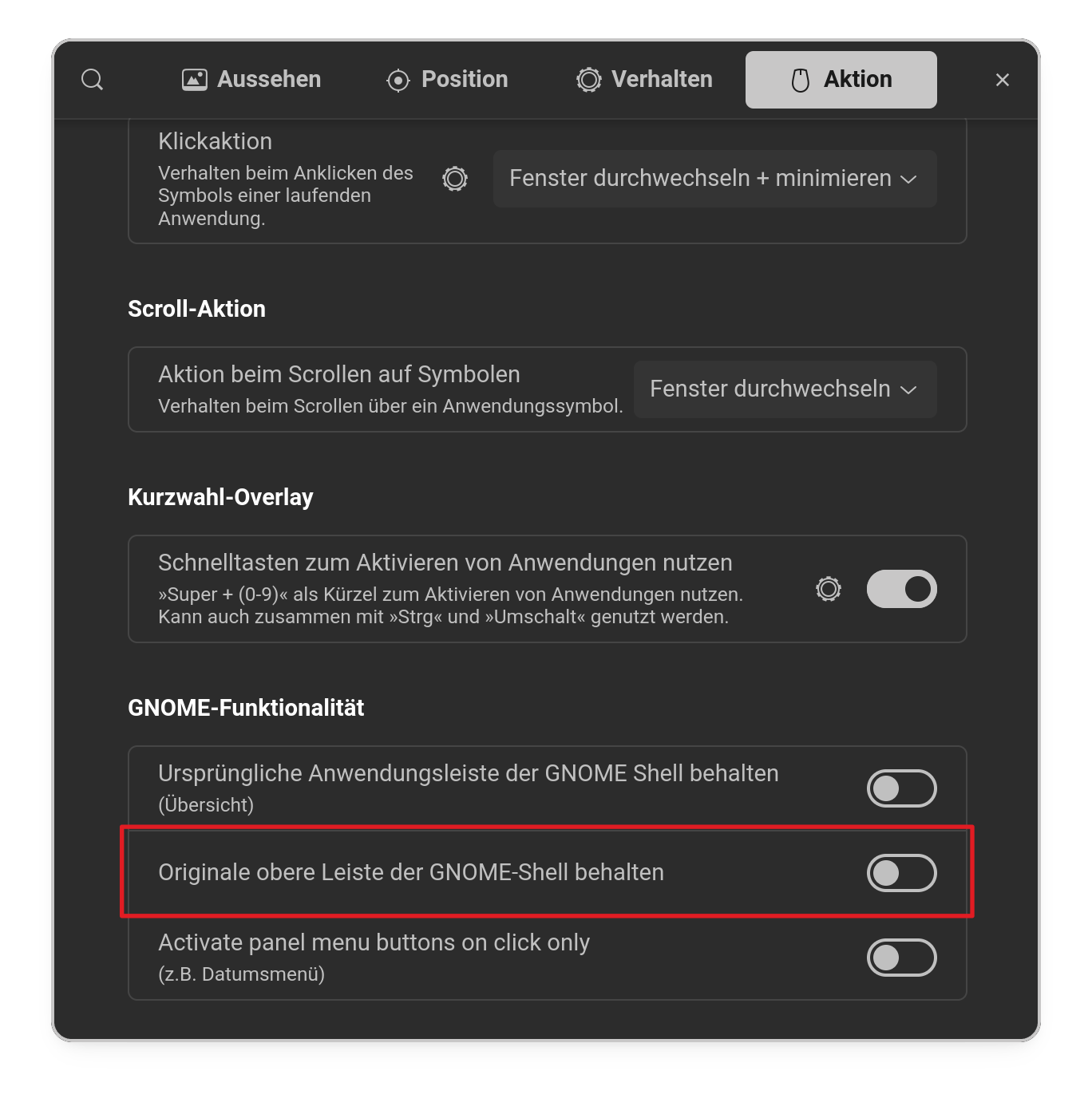
For the Theming: The Video shows actually the Usage of the mentioned Install Script. It is from 5:37 to 10:40.
So, these things are 2 different Ways. The Layout is a thing of Gnome Extensions and Setup and the Theme is a different one. That is only for the Look.
Try installing the GNOME Shell extension required by Orchis. The theme can apply to apps/taskbar without the shell extension, which is why the top bar may not change. Also, make sure the extension is enabled in GNOME Extensions and that you’re using a compatible Orchis version for Zorin OS 18.