Hello, everyone
I’m relatively new to Linux and would like to take this opportunity to briefly introduce myself. I’m 62 years old and live in Switzerland. I don’t have much experience with Linux yet. However, a few small Raspberry Pi projects have sparked my interest in Linux, so I decided to give it a try. That’s why I installed Zorin OS on my main system (Microsoft Surface Laptop Studio, 1st gen.) at the end of February.
Using the instructions from this forum, I was able to successfully install the Linux Surface kernel, and most of the hardware worked as well. However, I haven’t been able to get the NVIDIA GPU to work on kernel 6.19.8-surface-3.
Since installing kernel 7.0.0-28, the NVIDIA GPU has suddenly been working perfectly, but the touchscreen has stopped working. However, I was able to find a solution. Even the Surface Slim Pen 2 works, and it appears that the pressure levels are being rendered correctly, as a quick test with Krita showed. I now have a fully functional system running kernel 7.0.0-28-generic.
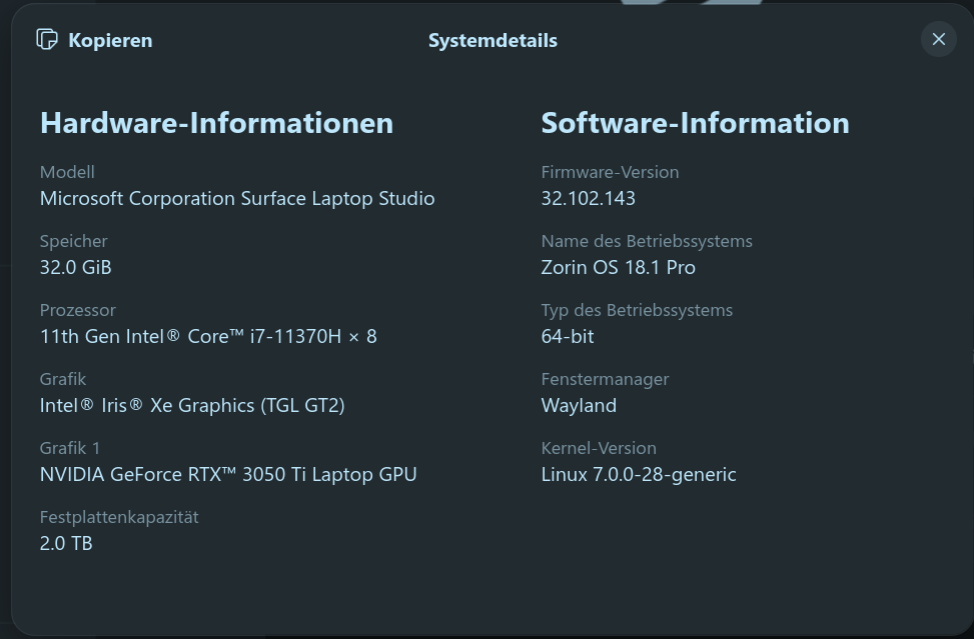
I don't know if anything has been posted about this yet. I couldn't find anything using the search function. In any case, here are the steps for enabling the touchscreen (with a little help from Gemini). Maybe it'll be helpful to someone.
1. Preparation (Dependencies)
sudo apt update
sudo apt install git dkms build-essential linux-headers-$(uname -r)
2. Download and install the Touch driver (ithc)
Since direct GitHub links sometimes seem to be blocked in the terminal, the URL is constructed using environment variables:
-
Clone the driver repository securely
PART1="https://github.com" && PART2="/quo/ithc-linux" && git clone $PART1$PART2.git -
Change to the folder and start the DKMS installation
cd ithc-linux
sudo make dkms-install
3. Enable Autostart & Poll Mode (to work around the power-saving bug)
To ensure the module loads at boot time and the hardware does not enter deep sleep mode, two configuration files are created:
-
Add automatic module startup
echo “ithc” | sudo tee /etc/modules-load.d/ithc.conf -
Force active polling mode
echo “options ithc poll” | sudo tee /etc/modprobe.d/ithc-poll.conf
4. Add the Microsoft Surface package source (for the Touch Tool)
-
Import the security key for the repository
wget -qO - https://githubusercontent.com | sudo dd of=/etc/apt/trusted.gpg.d/linux-surface.gpg -
Add the repository to the package sources
echo “deb [arch=amd64] https://surfacelinux.com release main” | sudo tee /etc/apt/sources.list.d/linux-surface.list
5. Install the touchscreen detection tool (iptsd)
sudo apt update
sudo apt install iptsd
6. Load the driver and start the service manually
-
Enable the new ithc module in the kernel
sudo modprobe ithc -
Reload the new hardware rules
sudo udevadm control --reload-rules
sudo udevadm trigger -
Start the systemd touch service immediately
sudo iptsd-systemd start