Migrating to a new computer

I've finally bitten the bullet, and after review all of the suggestions from this thread I've opted for a Lenovo T16 Gen 4 AMD with no OS, I'll just install Zorin 18 pro on it myself.

I went for the Lenovo as they seem to be about the most reliable out there. I was sorely tempted by the Starlabs Starfighter, but the slightly vague delivery schedule and unproven reliability put me off. The Lenovo was also available at a very good price so I ended up spending a lot less then I'd budgeted for, not often that happens!

Anyway, this will be the first time I've migrated a linux install to a new computer and was wondering if there's anything that could make my life easier?

I think around things like how to catalogue/automate transferring over the various apps, extensions, tools etc that are variously installed from apt repositories, flatpak as well as direct.

With Windows I always spent an insane amount of time getting everything set up and configured, and lost probably around a week of work time in doing so. If I'm able to cut that time down at all it would be a massive win.

Old laptop is currently on Zorin 17 pro, but I'm minded to update that to 18 pro when the updater comes available. My thinking is that if I'm trying to match what I currently have installed it's going to be easier if they're all at the same version.

With all that said, I'm also conscious it would be good to have a clean slate, so I'd like to be selective about what goes over. I'm not even sure if copying my user directory verbatim is a good idea at this stage, given that there's probably a lot of stuff in there that's not needed.

Any advice about sensible steps to go through, automation or cataloguing what I currently have installed would be very gratefully received!

Well, I think first You should think about what from Your whole Stuff, You will even take with You. I mean Your Data of Course. but do You still need all of the Stuff You have installed? Simply make a List.

Maybe You will be surprised that you need less than You thought. Then simply save Your Data on an external Drive and then make a fresh Install on Your new Machine. What you should think about: Depending on Your Hardware specs and how new the stuff is, You might need a newer Kernel. So, it would be good before the Installation to run Zorin in Live Mode on Your new Machine and check if it works.

2 Likes

Yep, that's part of it - knowing what I want to keep.

That's what I meant by cataloguing, is there a way to list of all of my user-installed apps and packages? I can then go through the list, and hopefully script some of it.

Aravisian has made a guide:

Appimages and snaps are not included there, also not plugins. I'm not sure about programs that you separately downloaded as tarballs and .debs.

You can list your snap packages with snap list

1 Like

Thanks, I just tried install y-ppa-manager but getting the error:

 y-ppa-manager : Depends: launchpad-getkeys (>= 0.3.2) but it is not installable
                 Recommends: gksu but it is not installable or
                 kdesudo but it is not installable

I've listed all my flatpaks & snaps and gone through them. Have just done all the apt packages too, but I'm less confident on them as that list was looooooooooong (unsurprisingly)

Good point about AppImages.

I need to have a think about tarballs & debs, I think there's a lot of them. Something dpkg perhaps, I'll look into that.

Make a spreadsheet, copy whatever info you get into rows, or txext file, have a catalog.

Install Zorin, get the same info, and compare text file one to text file two, the differences is what you need.

There would. For Flatpaks type in the Terminal flatpak list and for Snaps snap list

For APT Packages try apt list | grep installed
That will show all installed APT Packages.

When I first jotted down those steps, we were on Zorin OS 12.

I probably need to update that guide.

1 Like

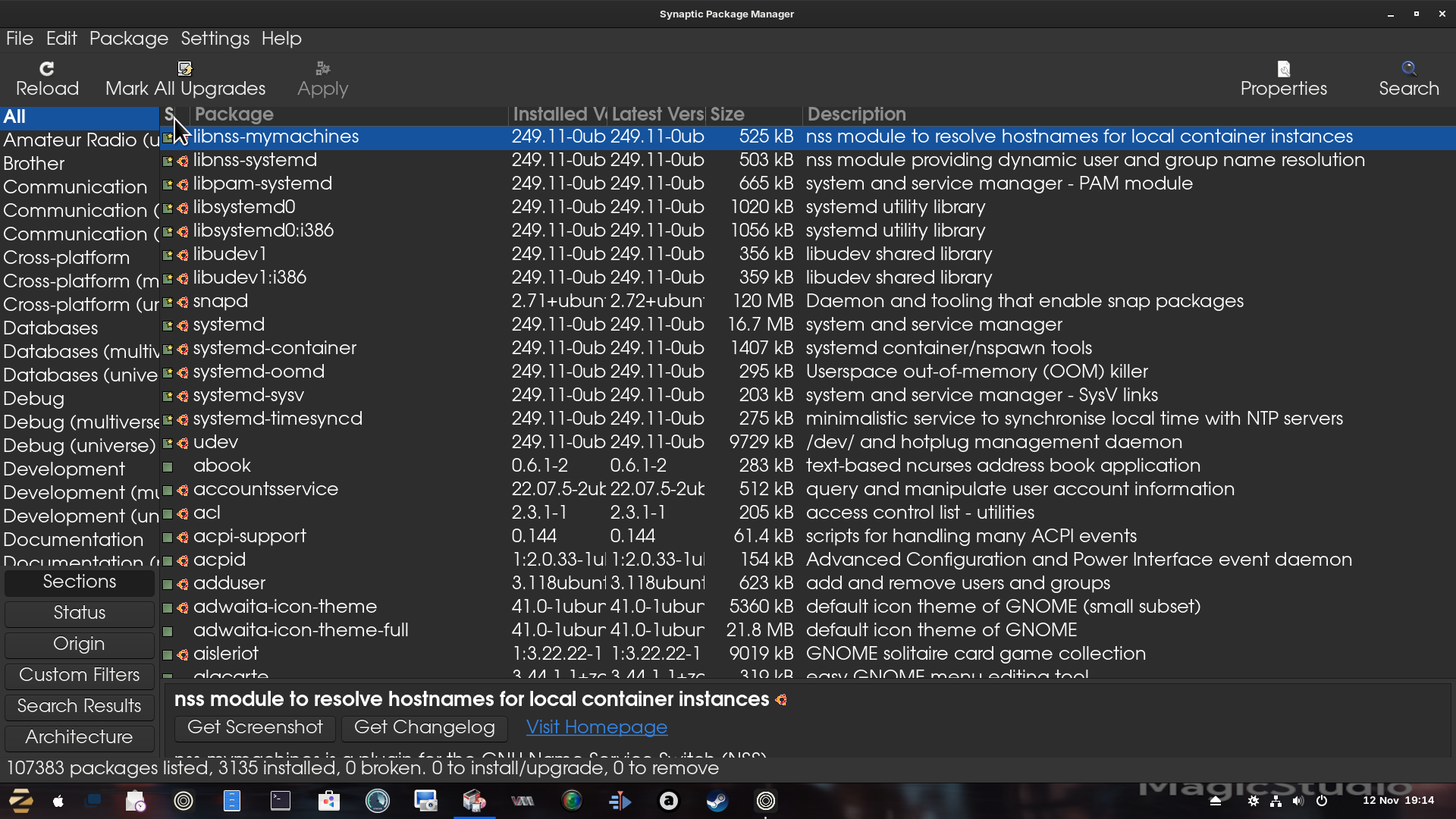
One other way to check what you have installed, if not already present, is to install Synaptic Package Manager. Once installed, Launch it then click on the column headed 's' - click on this and all your installed software moves to the top of the screen.

Before:

After:

Using Brave Search engine via Mojeek:

"To extract a list of applications installed on a Linux system, several methods can be used depending on the package manager and the type of applications.

For systems using apt (such as Ubuntu and Debian), the apt list --installed command provides a list of all installed packages, including both GUI and non-GUI applications.

This command is more reliable than apt list alone, which shows both installed and available packages.

Alternatively, the dpkg --get-selections command lists all installed packages, which can be saved to a file for later use.

This method is useful for backing up or restoring installed software."

also:

" To extract the output of apt list --installed into a text file, use the following command:

apt list --installed > installed_packages.txt

This command will create a file named installed_packages.txt in your current directory, containing a list of all installed packages along with their versions and repository information.

The output includes details such as the package name, version, and the repositories from which they were installed. This method is suitable for Ubuntu 14.04 and newer versions."

and:

"To list applications specifically based on desktop entries (commonly used for GUI applications), you can use the find command to extract names from .desktop files located in /usr/share/applications and ~/.local/share/applications directories.

For example:

find /usr/share/applications ~/.local/share/applications -maxdepth 1 -type f -exec basename {} .desktop \; | sort

This command removes the .desktop extension from file names to reveal the application names.

For Flatpak applications, the flatpak list --app --columns=application command lists all installed Flatpak applications."

Thanks for the synaptics package manager tip, I do have it but don't find it an especially easy piece of software to use.

Once you learn it it becomes second nature, and fully integrates apps with the system which does not require separate update sources like flatpak, snap and App Images.

1 Like