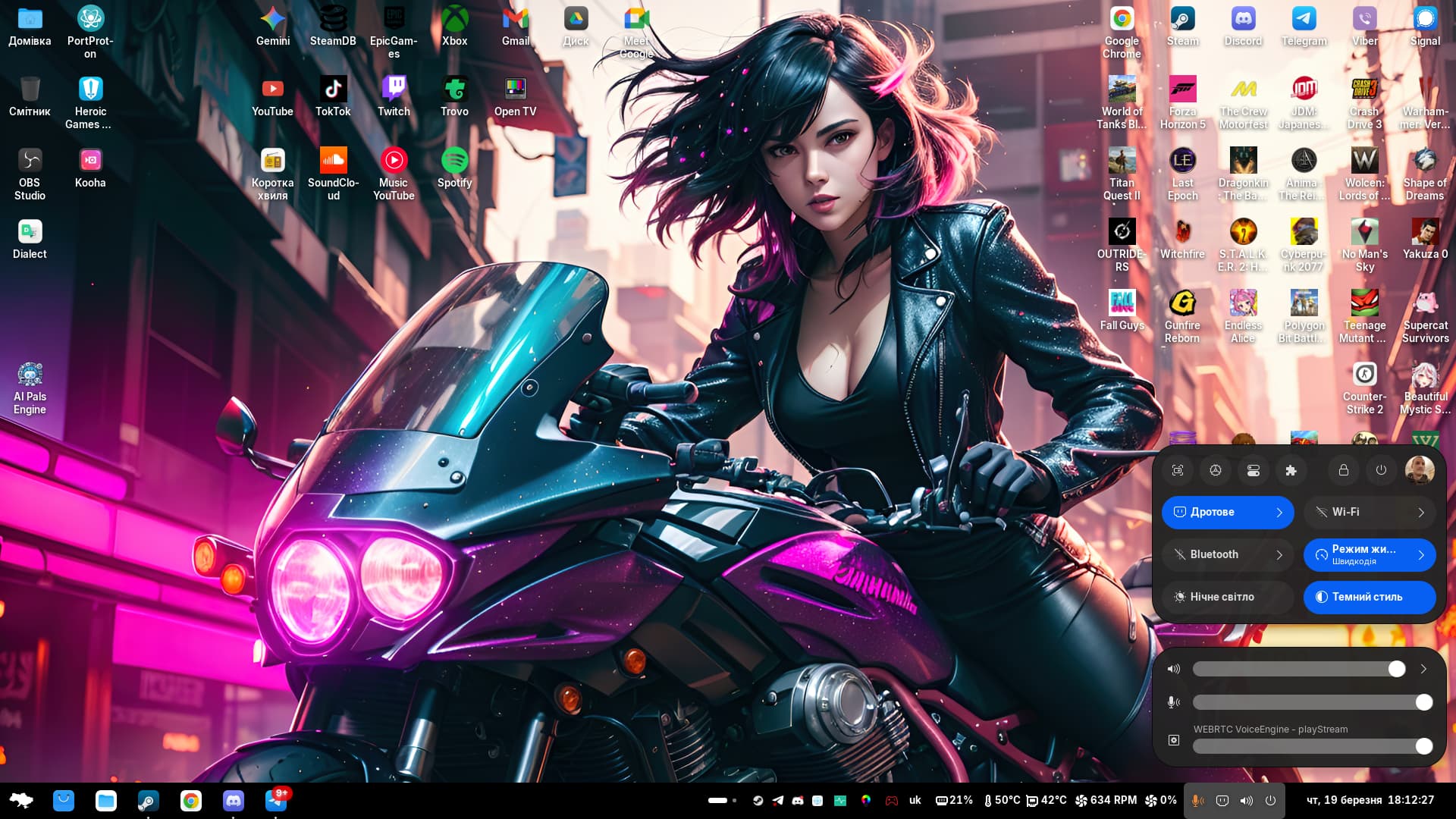
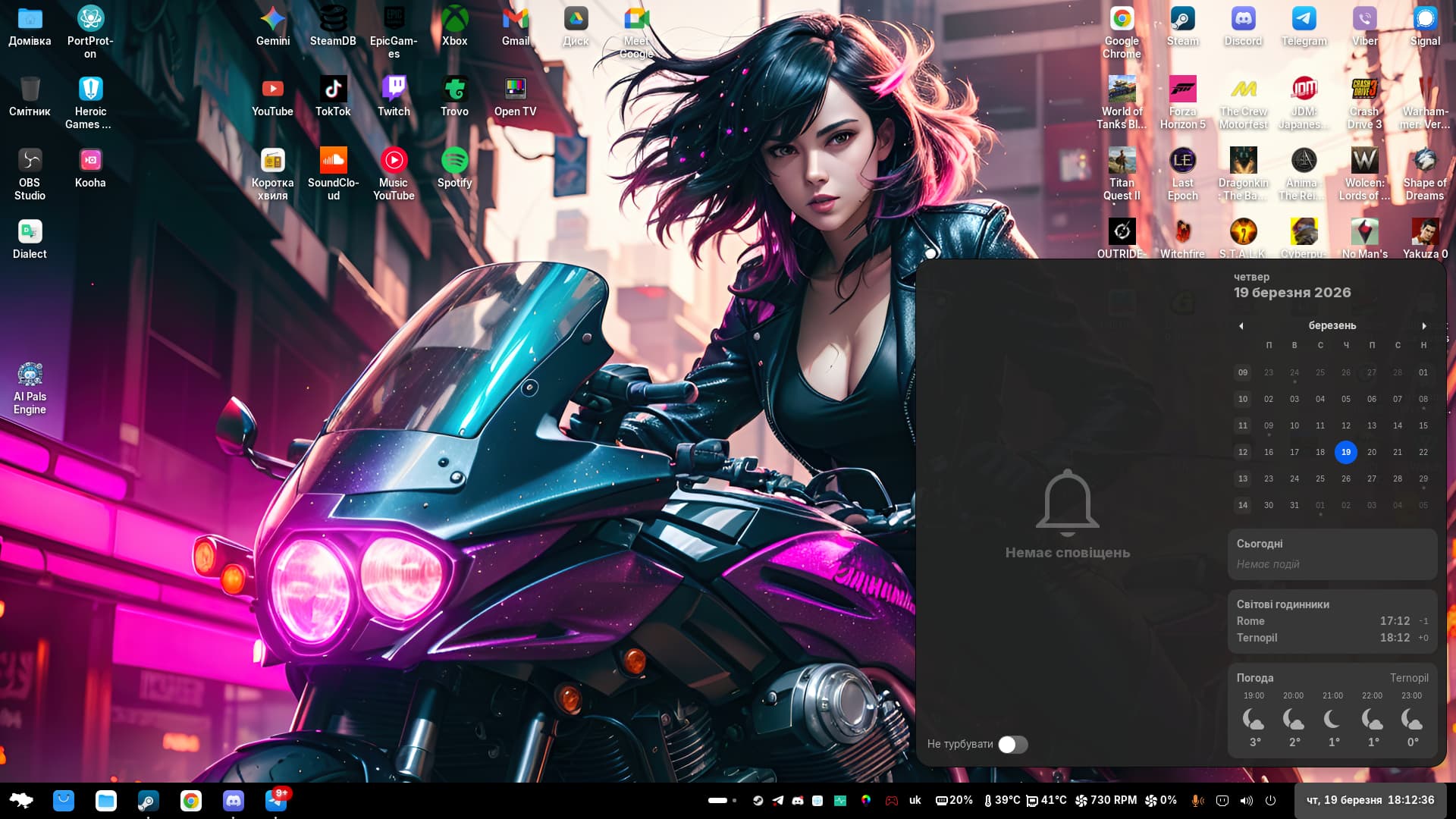
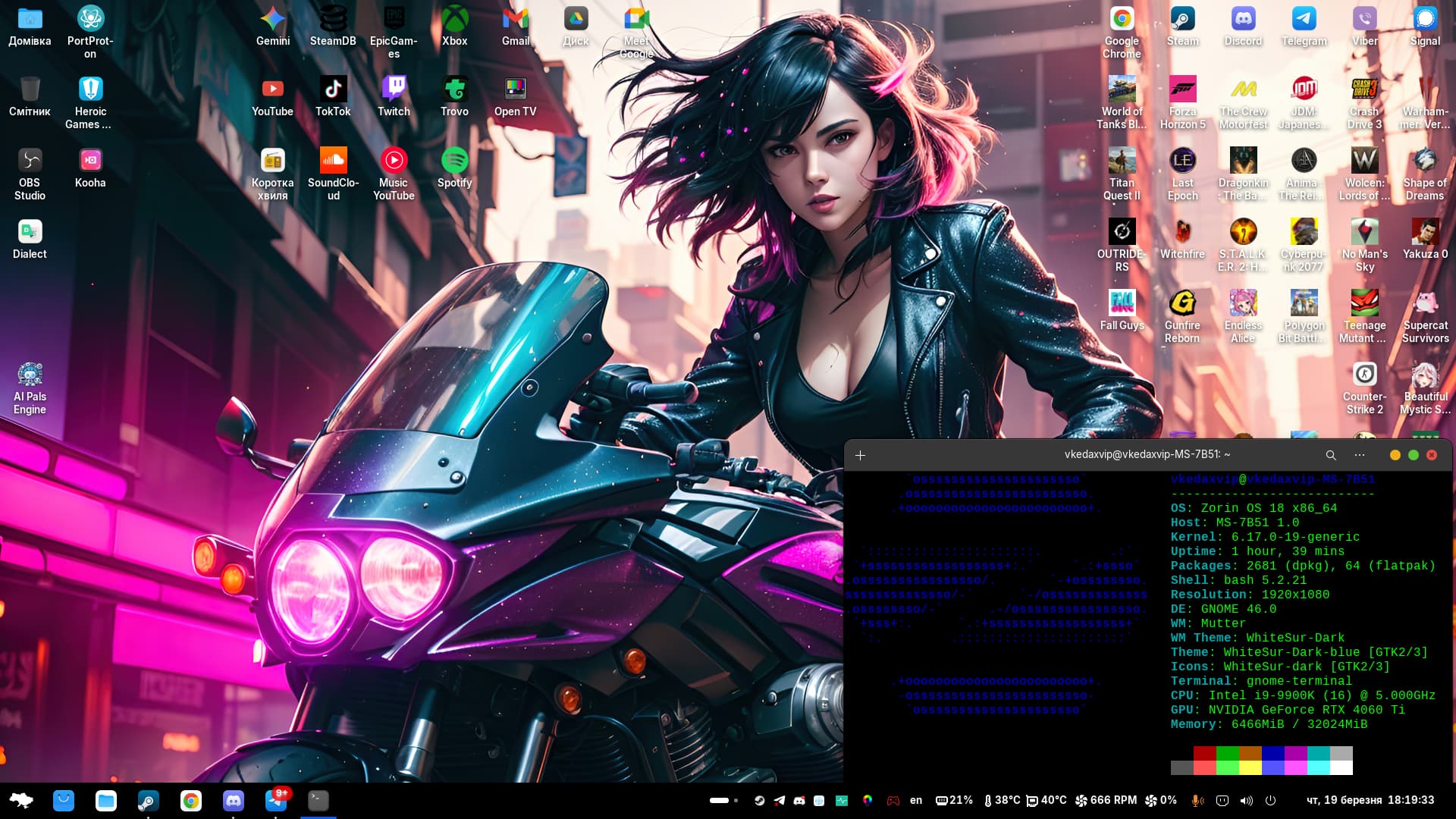
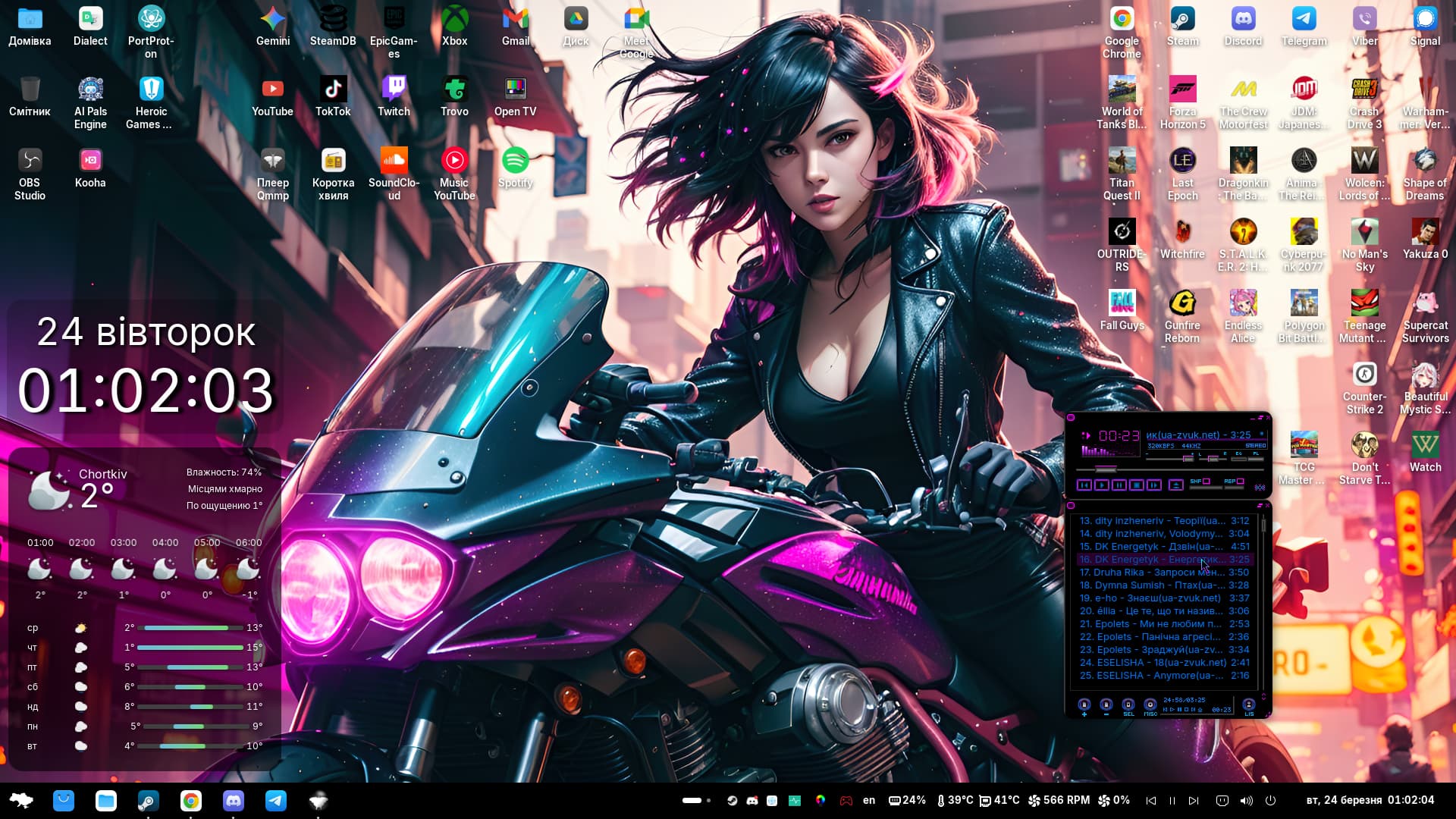
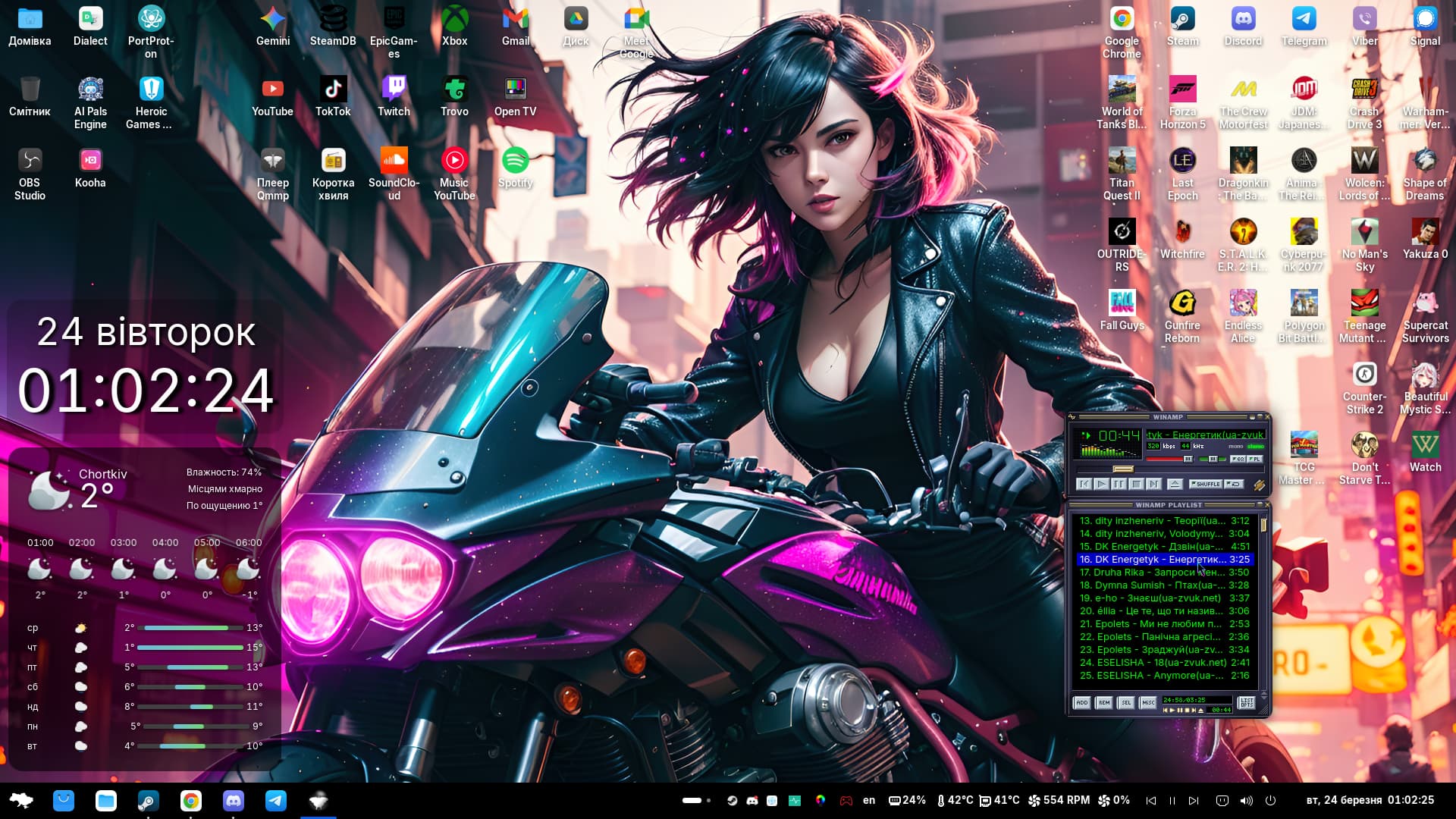
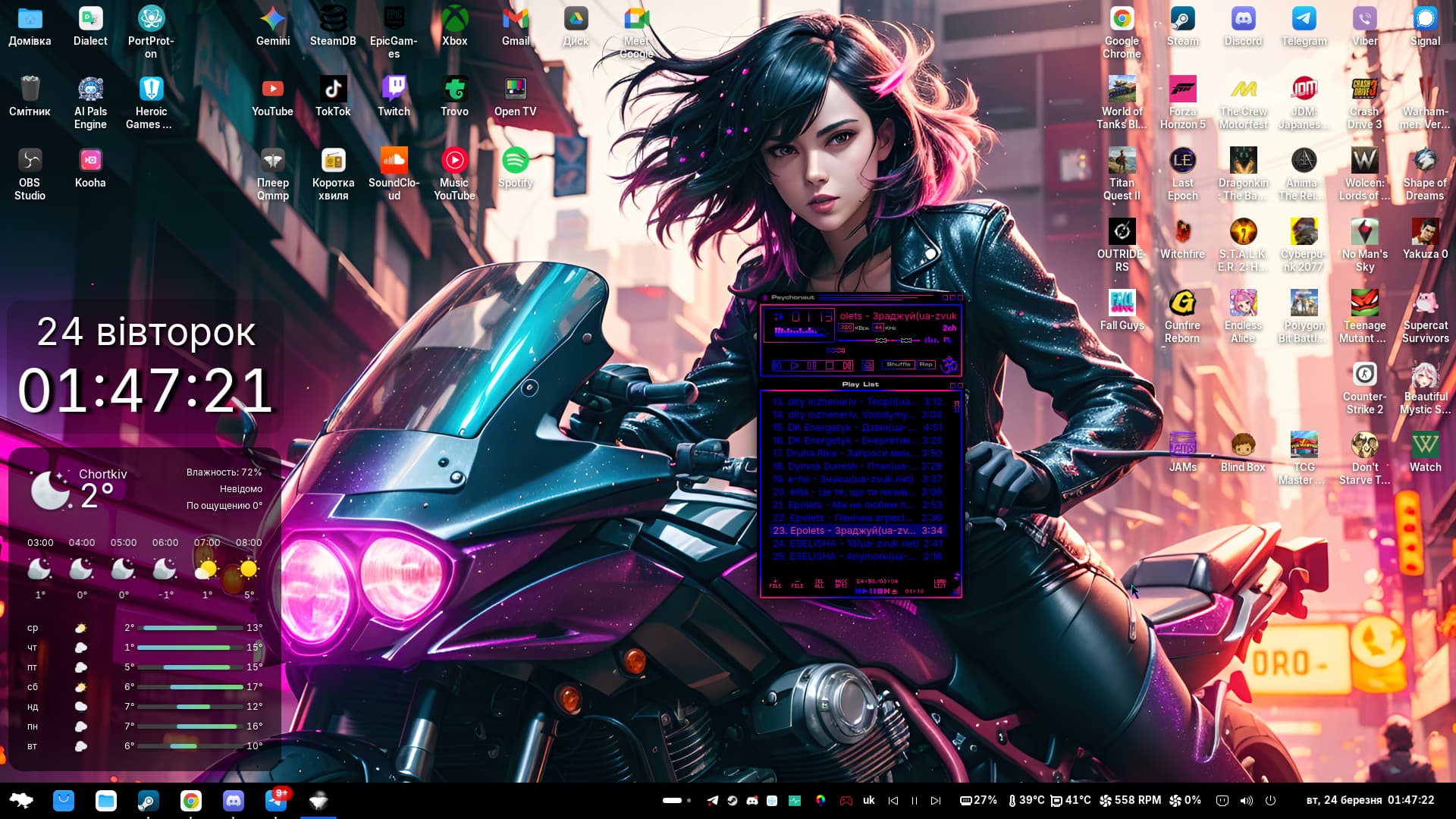
Hello everyone, share your settings for ZorinOS18.
Unfortunately, you can't upload the relevant files here, so as not to write each step.
I'll just share my settings.
This is not all the settings but let it be, I doubt you need anything more.
If you don't understand the terminal or commands better - DON'T TOUCH ANYTHING!
I'll start with the network and sleep mode:
sudo nano /etc/NetworkManager/conf.d/default-wifi-powersave-on.conf
wifi.powersave = 2
Ctrl+O,Enter,Ctrl+X
Replacing language switching buttons:
gsettings set org.gnome.desktop.wm.keybindings switch-input-source "['Shift_L']"
gsettings set org.gnome.desktop.wm.keybindings switch-input-source-backward "['Alt_L']"
Reducing the appetite of nVidia video cards, because it is not possible to configure it in any other way!
Activate Persistence Mode: This will make the NVIDIA driver work more stably and not "reset" power-saving states:
sudo nvidia-smi -pm 1
Checking video card limits:
nvidia-smi -q -d POWER | grep "Power Limit"
The command is valid only until reboot:
sudo nvidia-smi -pl 100
PS:100=100 watts.
To "freeze" the 100W limit permanently in Linux:
1: Create a service file
Open a terminal and enter the command to create a new configuration file:
sudo nano /etc/systemd/system/nvidia-power-limit.service
Paste this text into the file:
[Unit]
Description=Set NVIDIA Power Limit and Persistence Mode
After=display-manager.service
[Service]
Type=oneshot
ExecStart=/usr/bin/nvidia-smi -pm 1
ExecStart=/usr/bin/nvidia-smi -pl 100
RemainAfterExit=yes
[Install]
WantedBy=multi-user.target
Ctrl+O,Enter,Ctrl+X
Update the list of services:
sudo systemctl daemon-reload
Enable autorun:
sudo systemctl enable nvidia-power-limit.service
Run it now to check:
sudo systemctl start nvidia-power-limit.service
After restarting your PC, simply type:
nvidia-smi -q -d POWER | grep "Power Limit"
PS: I don't know what video cards and power supplies you have and what temperatures you consider normal - it's all up to you!
auto-update Discord or third-party apps:
nano ~/.bashrc
Scroll to the very end and add the line:
alias up-discord='wget "https://discord.com/api/download?platform=linux&format=deb" -O /tmp/discord.deb && sudo apt install /tmp/discord.deb -y'
Ctrl+O,Enter,Ctrl+X
Update settings:
source ~/.bashrc
PS: Now, when Discord asks for an update, you can simply type: "up-discord" in the terminal.
Next, we configure settings.json
The SKIP_HOST_UPDATE line (in settings.json)
This is NOT an update.
This is a "login permission".
It's only needed so that Discord doesn't show you that annoying "Update Failed" window that blocks your work. It just removes the obstacle.
in terminal:
nano ~/.config/discord/settings.json
You need to add a comma after the last point and add a line. It should look like this:
{
"IS_MAXIMIZED": false,
"IS_MINIMIZED": false,
"SKIP_HOST_UPDATE": true
}
maybe it will be like mine for you..
"asyncVideoInputDeviceInit": false,
"SKIP_HOST_UPDATE": true
}
Ctrl + O,Enter,Ctrl + X
If you want the system to run updates itself every time you turn it on and you don't have to manually enter up-discord at all, do this:
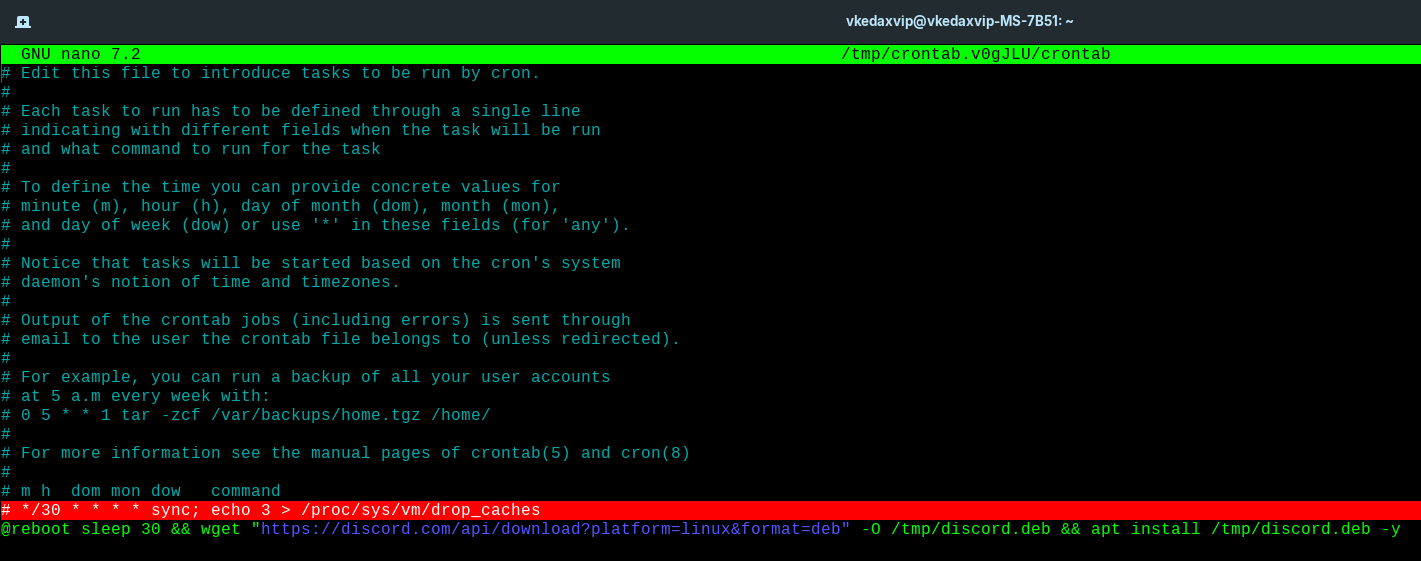
sudo crontab -e
if it's your first time, choose 1 (nano).
Insert at the very end:
@reboot sleep 30 && wget "https://discord.com/api/download?platform=linux&format=deb" -O /tmp/discord.deb && apt install /tmp/discord.deb -y
Ctrl + O,Enter,Ctrl + X
How it will work together:
When you turn on your PC: The system will wait 30 seconds (for the internet to appear) and silently install the latest version of Discord.
You launch Discord: Thanks to the changes to the settings.json file that you already made in the screenshot, the program will open instantly, without waiting for any loading windows.
What if you haven't turned off your computer for a long time?
If your PC has been running for several days in a row and you notice that Discord is asking for an update, just use your new command in the terminal: up-discord.
(Crontab) Every time you turn on your PC, it downloads the latest .deb file and installs it.
Run permission (SKIP_HOST_UPDATE)
This is a "workaround" in the settings of Discord itself.
Even if the "worker" (crontab) has not yet finished loading (for example, due to slow internet), Discord will not block you from logging in.
The program opens instantly, and the update is quietly downloaded in the background.
This is your "up-discord" command.
If you don't turn off your computer for weeks, you can give the command to update yourself with a single word.
Now about RAM:
sudo crontab -e
If this is your first time doing this, the system will ask you which editor to use. The simplest is nano (usually number 1).
Scroll to the bottom of the file using the keys on your keyboard and insert this line:
*/30 * * * * sync; echo 3 > /proc/sys/vm/drop_caches
Ctrl + O,Enter,Ctrl + X
this means that cleaning will occur every 30 minutes.
This command will now "dump" everything Linux considers non-urgent from memory every 30 minutes. If you experience a sudden stutter (freeze) for 1-2 seconds at exactly 00 or 30 minutes of every hour while playing a game, this is the script that is working.
PS: I'M NOT USING IT RIGHT NOW!
Install the utility:
sudo apt update && sudo apt install zram-config
How to activate zRAM right now:
sudo systemctl start zram-config
Post-activation verification:
swapon --show
How to see zRAM running in the terminal:
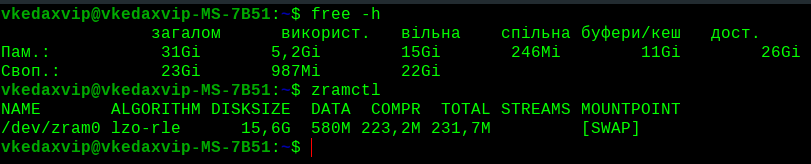
zramctl
IF PROBLEMS ARRIVE
They gave out the old config:
sudo apt purge zram-config
Install new:
sudo apt install zram-tools
Activate it:
sudo systemctl enable --now zramswap
Open the configuration file:
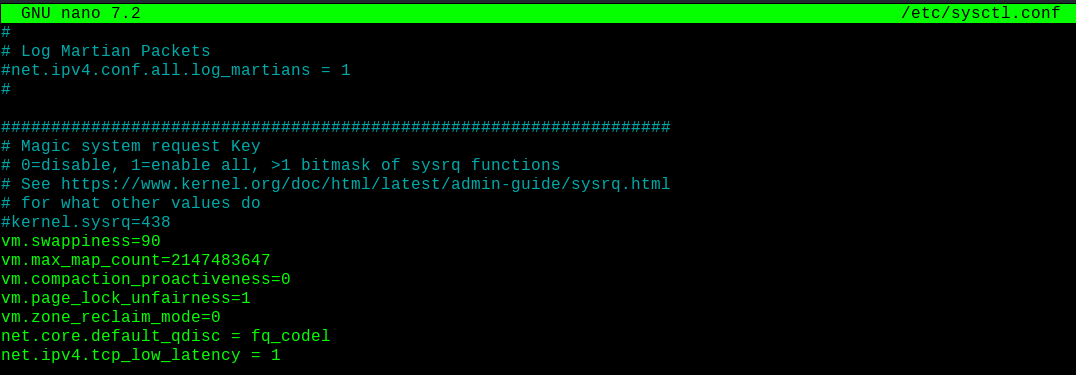
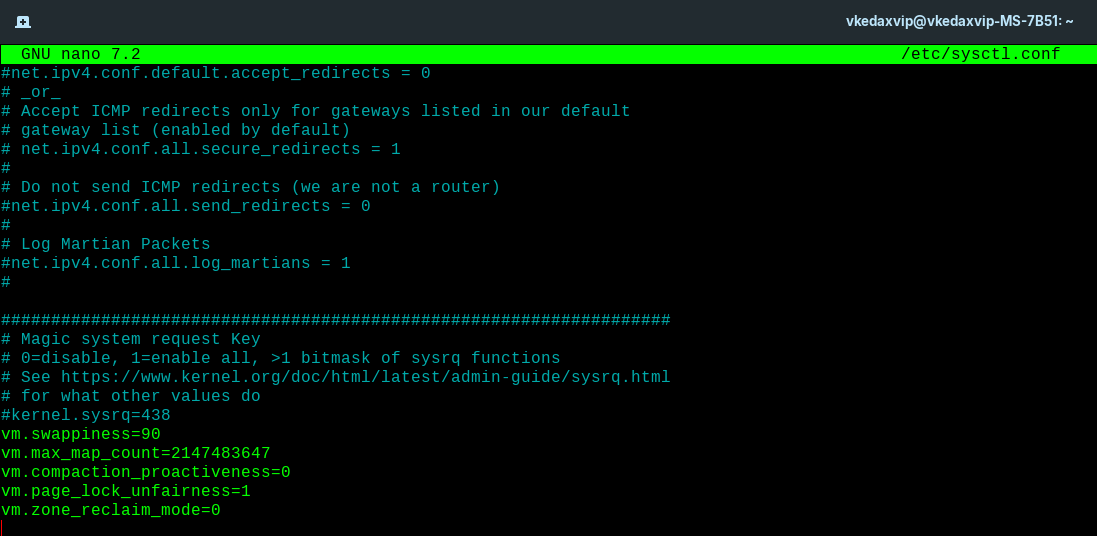
sudo nano /etc/sysctl.conf
Add a line to the very end:
vm.swappiness=90
vm.max_map_count=2147483647
vm.compaction_proactiveness=0
vm.page_lock_unfairness=1
vm.zone_reclaim_mode=0
Ctrl+O,Enter,Ctrl+X.
Apply immediately:
sudo sysctl -p
I also don't like the icon - I think everyone knows why, many people don't like this letter in the Zorin logo.
1.
cd /usr/share/gnome-shell/extensions/zorin-menu@zorinos.com
2.
sudo mv zorin-icon-symbolic.svg zorin-icon-symbolic.svg.bak
3.
sudo ln -s ~/Downloads/zorin-icon-symbolic.svg $PWD/zorin-icon-symbolic.svg
4.
exit
PS: you should have a ready-made logo in a folder named - /Downloads/zorin-icon-symbolic.svg
If you delete this icon from the folder, it will disappear!
To make the icon remain in the system after deletion, you need to...
1.
cd /usr/share/gnome-shell/extensions/zorin-menu@zorinos.com
2.
sudo mv zorin-icon-symbolic.svg zorin-icon-symbolic.svg.bak
3.
sudo cp ~/Downloads/zorin-icon-symbolic.svg zorin-icon-symbolic.svg
Alt+F2
enter 1 letter in the field that appears... r - English R.
and confirm by pressing the Enter button.
You can now safely delete the finished logo.
rm ~/Downloads/zorin-icon-symbolic.svg
restart:
reboot
It would be better if the developers added an alternative logo replacement, but for now, that's it.
Honestly, this logo for the CIS region is an article for you for a couple of years and verification by special services!
I think the system needs.
Add performance limits so that you can set a maximum limit for CPU/GPU usage and forget it.
For example, a 4GHz CPU on a permanent basis with its peak 5GHz - so that the processor cannot, for example, go above 4GHz.
a 120-150watt video card for example, or temperature limits, and temperature sensors that are missing for nvidia, cooler speed sensors and most importantly backlight control - by default, for people who encounter Linux for the first time, this will be very appropriate.
the situation with icons - they are displayed by default, for example with steam - and this requires adding the lines to each file:
StartupWMClass=steam_app_1111 -AppID.
They are all in the folder - /home/user2026/.local/share/applications
Steam screenshots - which clog up memory on the device.
/home/user2026
/.steam/root/userdata/835595066/760/remote
Please share your system settings but without third-party programs!
Thank you for your attention)