Joe,
Laying in bed this morning, I had an idea... a really good idea if we haven't tried it.
Zorin uses the Gnome desktop which in turn uses extensions to add/remove functionality and change the look and feel. It is a common experience in the Gnome community for extensions to sometimes not play nice with certain hardware, software, configurations.
Go to the Software store and install the Zorin-edition of the Extension Manager app.
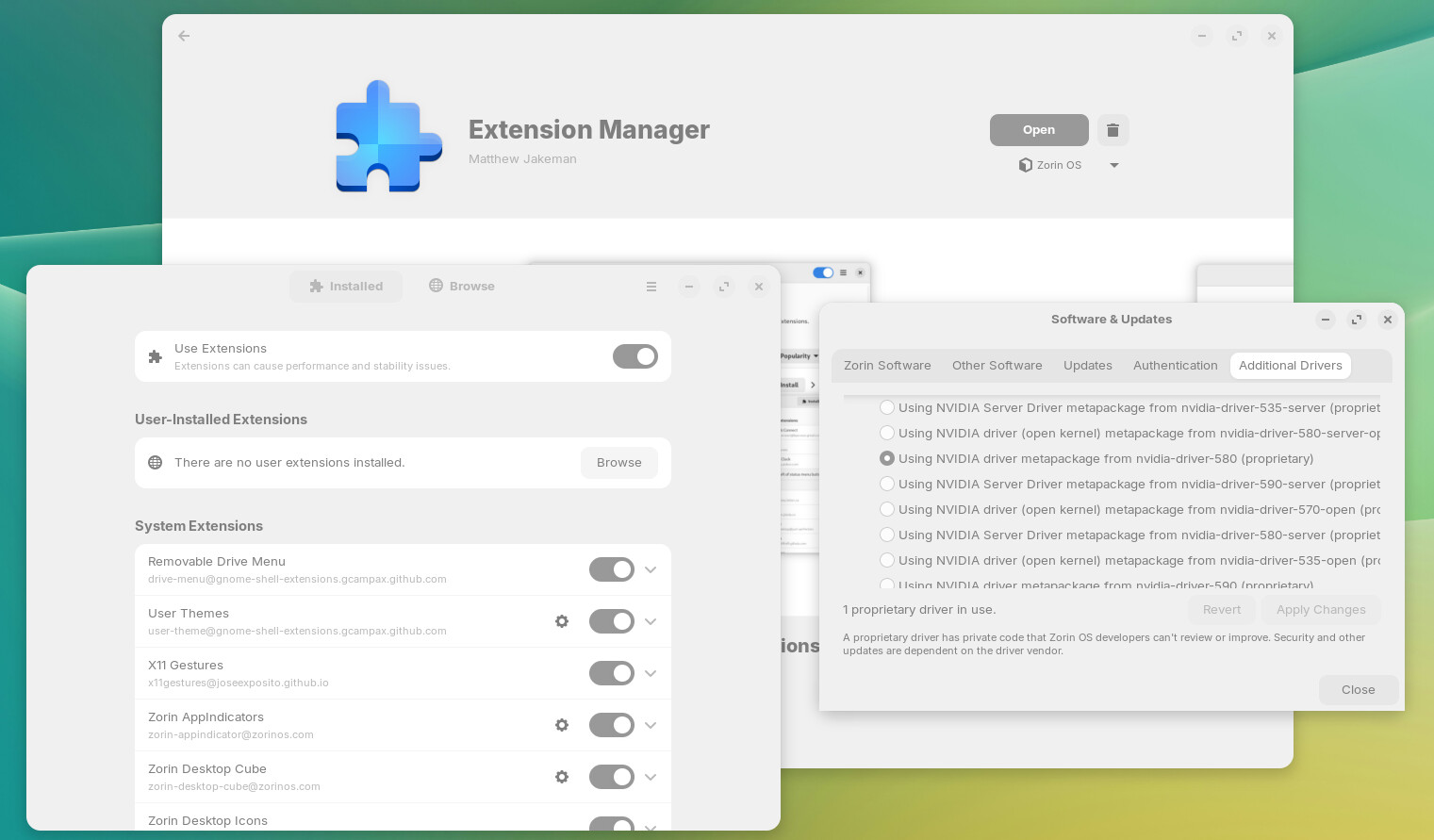
In it, you'll see all of the various extensions that are enabled to provide Zorin the ability to emulate different desktop experiences.
Try turning them all off and then switching over to the NVIDIA 580 driver to see if the stuttering reduces or goes away. In addition, if you have installed software that interacts with your NAS or if you have mapped storage to your NAS, try disabling that temporarily.
I would not be surprised if the stuttering results from the Gnome desktop freezing from a desktop extension conflicting with your NAS and/or video card.
Depending upon the graphics driver you are using, the negative effects such as stuttering become more obvious with each exception being thrown in the kernel. On a less aggressive GPU driver, the exception may go unnoticed until it eventually leaks enough system resources to cause a system hang/crash.
Should be easy enough to try.
- Install "Extension Manager" app
- Disable all Extensions
- Change NVIDIA driver back to originally recommended driver and reboot
- If still stuttering, remove NAS from the equation
- If stuttering goes away, start adding things back until stuttering returns.
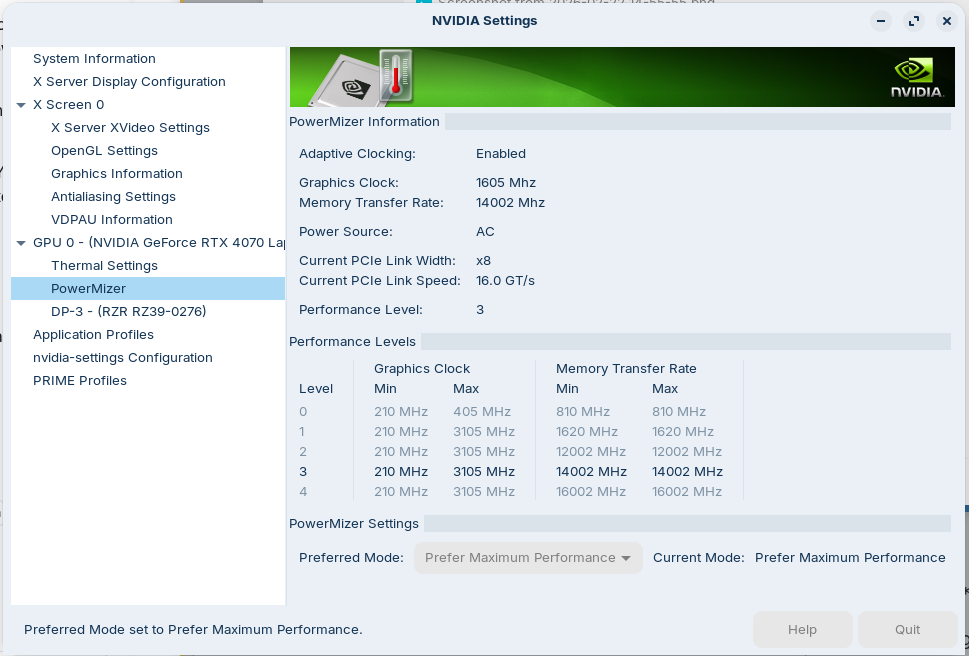
See the screenshot for the GPU driver that Zorin selected for my configuration, as well as all the various extensions that are used by the Gnome desktop.
To reset the extensions, you just choose a Zorin Appearance profile/appearance.
If the issue is a Gnome desktop extension, then the solution is to disable it until an update comes out or find an alternative extension that provides similar functionality.
Yes, I'm obsessive -- a bit. 
Also, I recommend logging in under a X11 session, not Wayland.
That being said, you can also try Wayland as well with extensions disabled.
Exceptions should show up in the kernel logs as well. Were logs ever checked?
Micro-Stutters possibly due to refresh intervals of mounted remote file systems?
The following is AI Generated Research on troubleshooting problematic Gnome extensions. Notice one of the observations is:
"Some extensions cause regular micro-freezes at fixed intervals (e.g., every 4–5 seconds)"
GNOME Extensions Causing Desktop Freezes
GNOME extensions are a common culprit for desktop freezes and performance issues. Here's how to diagnose and fix them:
Identifying the Problem Extension
- Disable all extensions, then re-enable them one by one to isolate the problematic one[3]
- Monitor
gnome-shell memory/CPU usage — it can spike dramatically (e.g., 300%+ memory utilization) when a bad extension is active[6]
- Some extensions cause regular micro-freezes at fixed intervals (e.g., every 4–5 seconds)[2]
Quick Fixes
Restart GNOME Shell without logging out (X11 only):
pkill -HUP gnome-shell
 On Wayland, this kills the entire session — save your work first.[1]
Disable all extensions via TTY (if the shell is frozen):
- Press
Ctrl+Alt+F2 to switch to a TTY
- Log in and run:
gsettings set org.gnome.shell enabled-extensions "[]"
Remove problematic extension folders manually:[1]
~/.local/share/gnome-shell/extensions/
/usr/share/gnome-shell/extensions/
Other Common Causes
- Memory leaks in gnome-shell (check with
htop or free -h)[5]
- Outdated extensions incompatible with your GNOME version — disable version validation temporarily:[1]
gsettings set org.gnome.shell disable-extension-version-validation true
- Screen tearing fixes like "Disable unredirect fullscreen" can ironically cause game freezes[3]
Prevention
- Keep extensions updated via
extensions.gnome.org/local
- Minimize the number of active extensions
- Prefer well-maintained extensions with recent update histories
*** End AI Research ***
Interesting that...
Note that the reference for the "micro-freezes" dates back to 2013/2014, but interestingly one of the comments in the thread traces the problem to the disk refresh interval of a mounted remote file system. Could this be similar to a NAS mounted volume?
" On my Arch laptop (Gnome 3.14), the Shell always freezes when I copy files from a remote GVFS mount, either using Nautilus or gvfs-copy. Disabling the applet restores proper behavior.
If I use a large value (say 30 seconds) as the Disk refresh time, freezes happen predictably every 30 seconds for a couple of seconds."
Src: Regular "micro-freezes" when extension is enabled in gnome-shell 3.6.3 · Issue #202 · paradoxxxzero/gnome-shell-system-monitor-applet · GitHub