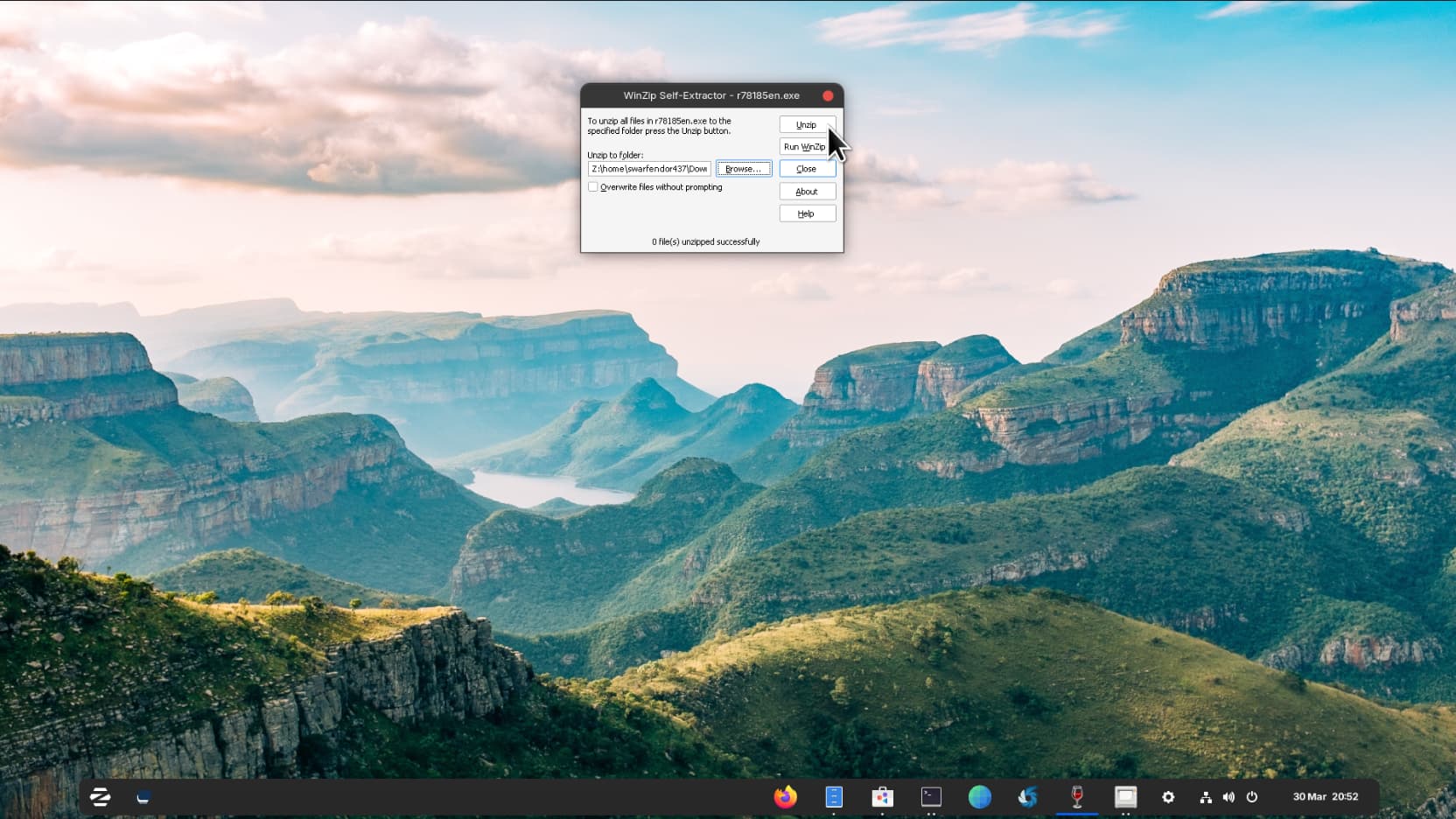
Well, turns out it is a bit more complicated than I thought! Can you believe it (yes I can!) Ricoh package the Linux driver in a Winzip .exe file! I had to right-click and use "install with Windows App Support". I then had to extract it, but not to wine's C:\ folder but to my /home folder which is under the Z drive:


Click OK, then on the Unzip button:
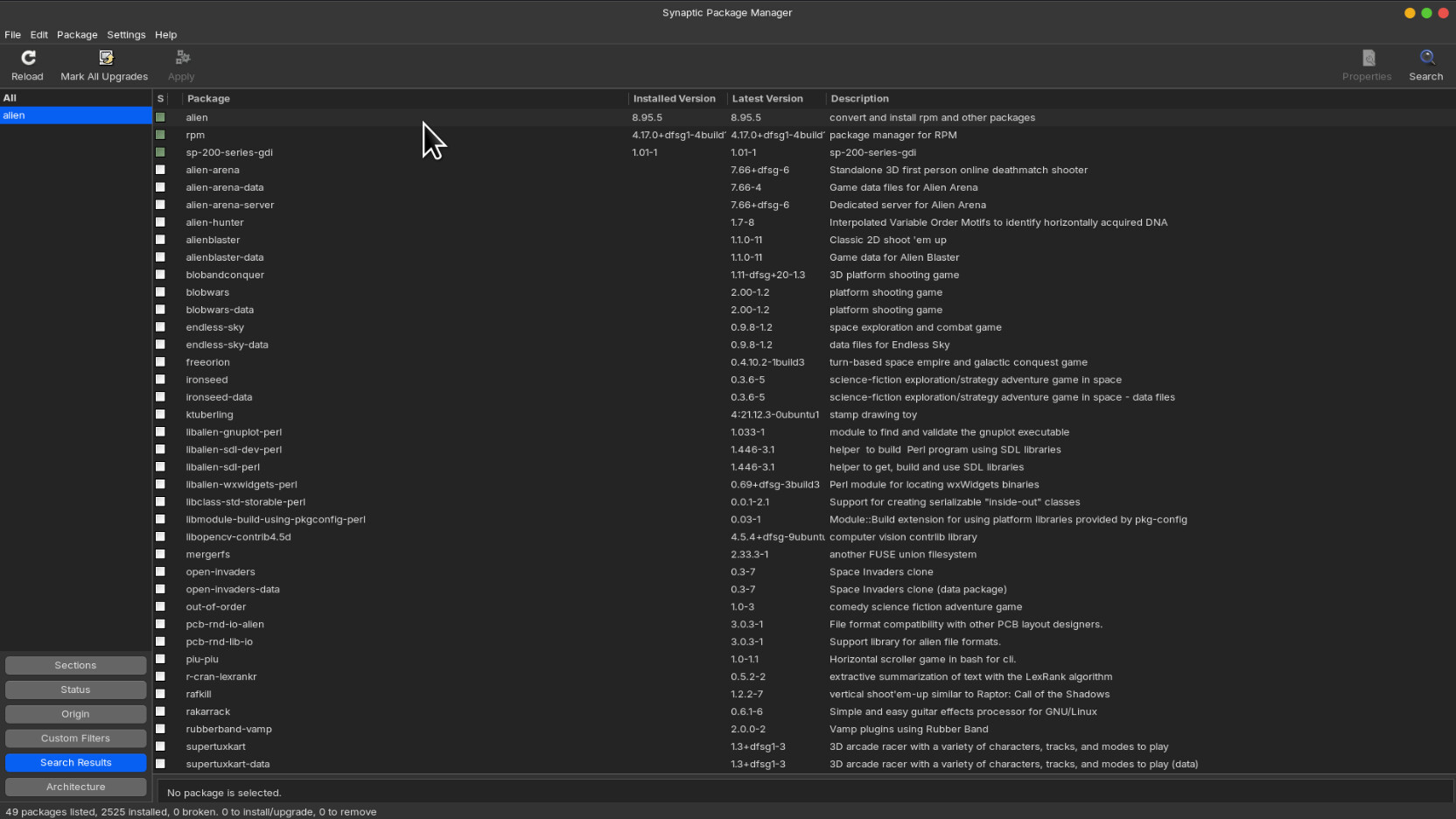
I then installed 'alien' via Synaptic Package Manager:
I then opened a terminal and first entered:
sudo apt-get update
then
sudo alien sp-200-series-gdi-1.01-0.x86_64.rpm
This then creates a .deb file:

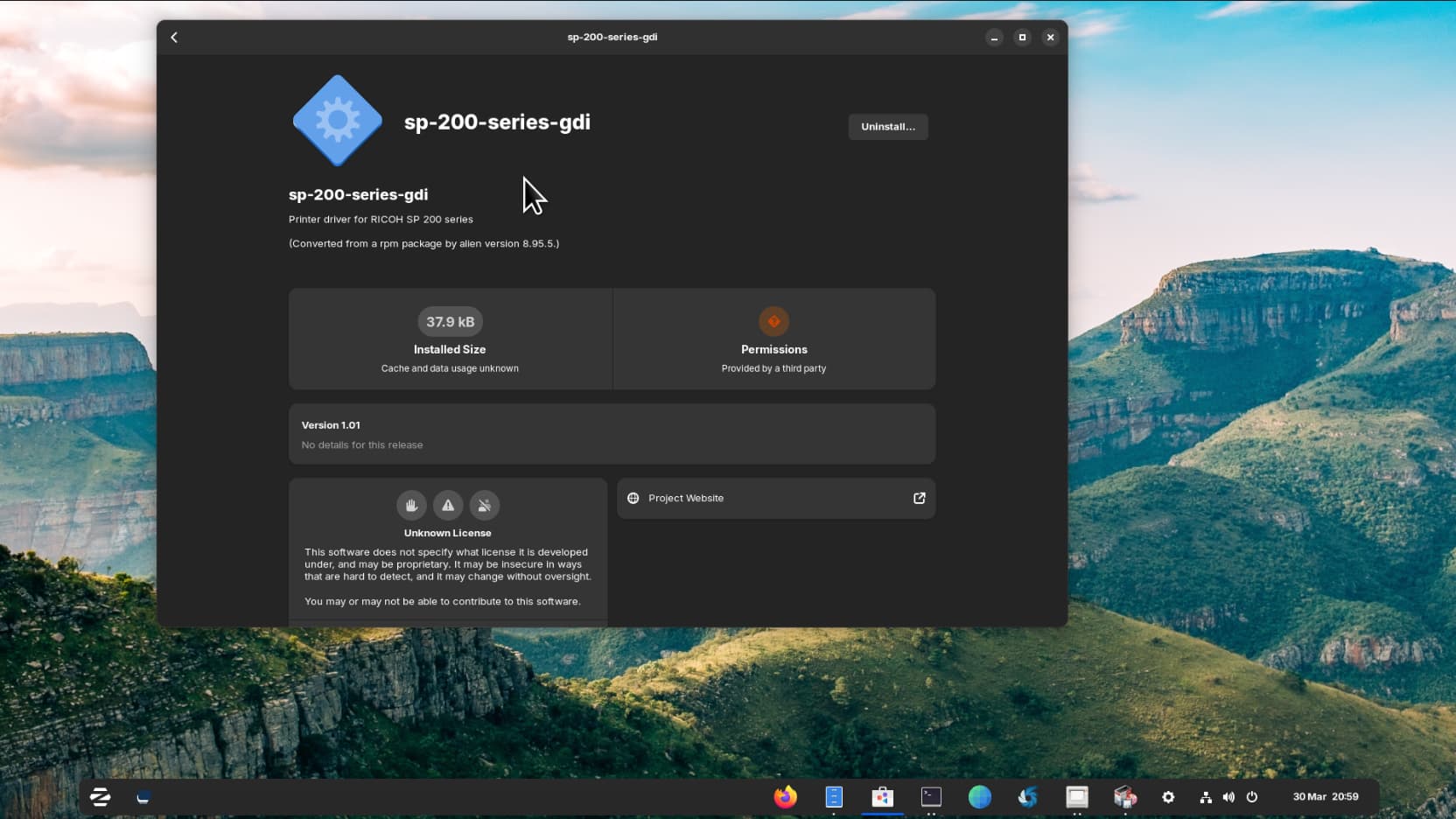
I then right-clicked the .deb file and chose 'Open With Install Linux Application', selected install (you get a warning but continue anyway to install it and it installs:
Then in a new terminal window enter:
sudo system-config-printer
Then click on 'Add' - as I don't own such a printer I chose a fake port of LPD/LPR Host or Printer and entered the IP of the router:

Then clicked on Forward button and scroll down to select 'Ricoh':

Clicked on forward again, and then chose SP220SNw:
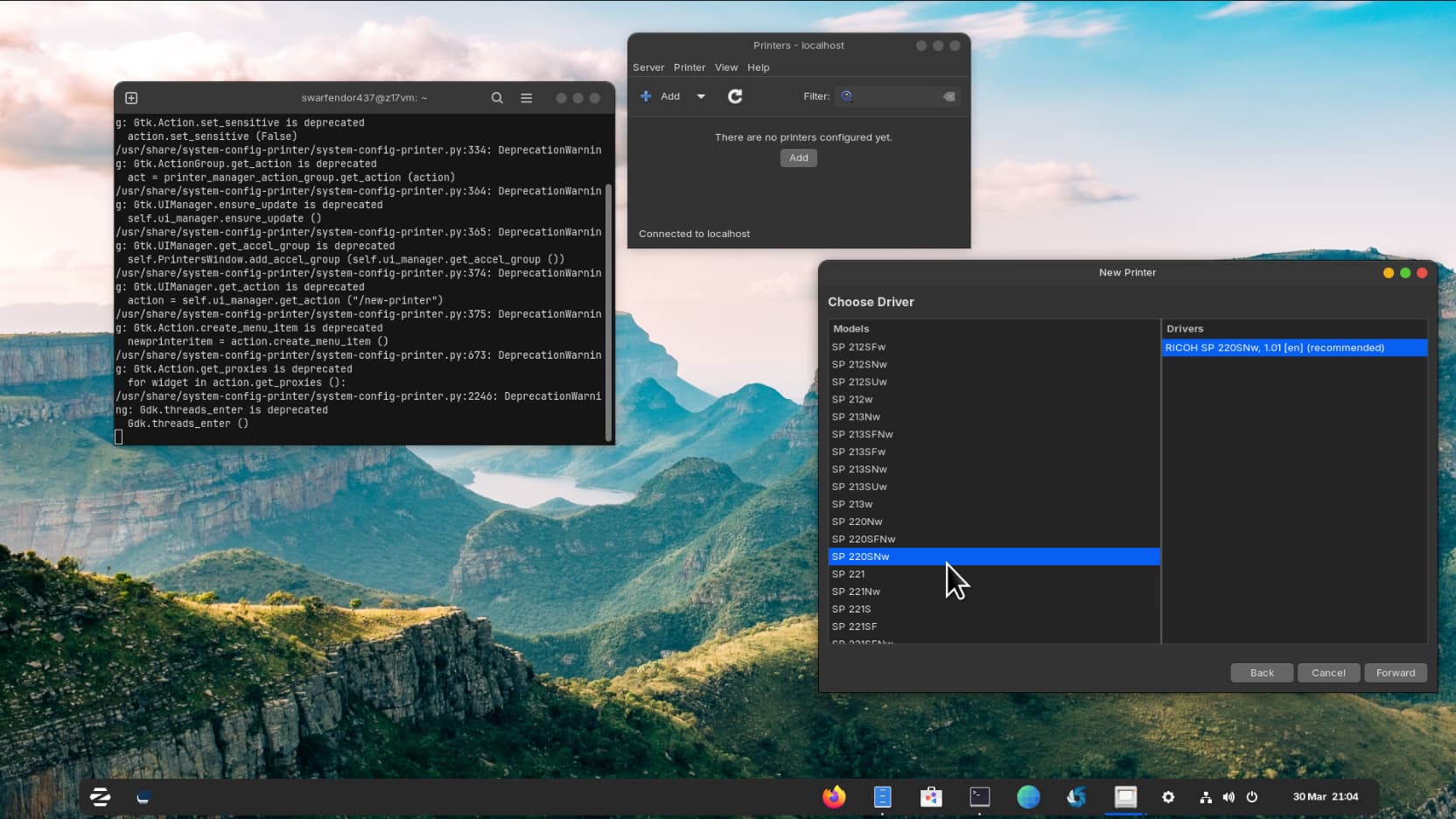
You then need to click on Forward and click on Apply:

You should get a chance to send a test print on completion.
You will need to follow the same procedure for the utility package for page setup, and also the scanner package, i.e., use alien to convert to .deb packages.