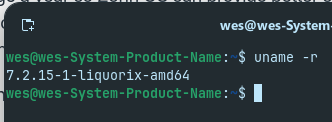
Hi everyone!
This forum has been helpful in the past when I had doubts while using Zorin OS for 2.5 years, hence I'm here as I'm in a bit of a pickle.
This is quite lengthy as I've done my best to describe the issue I'm facing right now to the best of my ability so we can come with a solution and help others who may have the same.
NEW LAPTOP TECH SPECS + KERNEL + DRIVER VERSION
Laptop Model: Lenovo Legion 5 15AHP11 (Gen 11, 2026)
CPU: AMD Ryzen 7 250 + Radeon 780M (iGPU)
Discrete GPU (dGPU): Nvidia GeForce RTX 5060
Windowing System: Wayland
Zorin OS Version: 18.1 CORE
Kernel: 7.0.0-42-generic
Nvidia Driver Version: 595-open (proprietary + tested; Additional Drivers from Software and Updates)
Nvidia Power Profile Mode: On-Demand/Dynamic Graphics
Firmware/BIOS Version: T2CN33WW
OLD LAPTOP TECH SPECS + KERNEL + DRIVER VERSION
Laptop Model: Lenovo ThinkPad E14 Gen 2 20TA003FAD
CPU: Intel i7 1165G7 + Intel Iris Xe Graphics (TGL GT2) (iGPU)
Discrete GPU (dGPU): Nvidia GeForce MX450
Windowing System: Wayland
Zorin OS Version: 18.1 CORE
Kernel: 7.0.0-42-generic
Nvidia Driver Version: 595 (proprietary; Additional Drivers from Software and Updates)
Nvidia Power Profile Mode: On-Demand
Firmware/BIOS Version: R1EET51W(1.51 )
HOW THE PROBLEM MANIFESTED
My usual routine is to power up my laptop, check for updates in the Software Store and Terminal, and execute the updates if any.
On my Legion 5, I first tried Zorin OS 18.1 via USB, it went well, and after a day I took the time to do the disk partitioning (I freshly installed Windows 11 to remove bloat and kept it as backup) and the complete Zorin OS installation was a success (.iso file wasn't corrupt as per the checks). After installation, I pulled in the latest updates from the Terminal that updated my kernel to 7.0.0-38-generic, and later picked Nvidia driver v595-open because v595 and v615-open didn't make my dGPU visible in system info and with the nvidia-smi command. I removed software packages that I didn't need from the Software Store.
Playing Warframe from Steam (Proton v8.0-5) has not been an issue since installation and applying any updates. One thing to note is that I didn't fully transfer my personal files to the new laptop because I've heard that branded gaming laptops can be a bit finicky so I went with the Legion 5 since Lenovo makes them work well with Linux and I do own a ThinkPad E14 Gen 2 and didn't face serious issues, just good working experience. I've also heard that when users with dual-boot setup update Windows 11, it messes with the GRUB bootloader, and that's another reason I didn't transfer my important files yet. I plan to accumulate the updates for 2-3 weeks and see what happens. Don't worry, I've disabled Secure Boot (UEFI) and Fast Startup (Control Panel) and left them as is to avoid problems.
One fateful day, I booted up the Legion 5, ran some updates from the Terminal this time having the kernel updated to 7.0.0-42-generic, restarted to apply the new kernel, did sudo apt autoremove command to remove the old 7.0.0-38-generic, restarted again, logged in, found out my windowing manager got switched to X11 so got back Wayland, and tried to lower the screen brightness with my F5 key only to see it not respond, even with the UI slider. That's how I knew I got this problem. As far as I know, I didn't get error messages when the kernel update happened. It all seemed normal to me.
TROUBLESHOOTING + OBSERVATIONS
Here's what I noted along the way regarding the screen brightness being bugged out on my Legion 5:
-
I tried doing 2-3 Restarts but with no success to regain control over screen brightness control
-
On X11, both iGPU and dGPU were recognised by the system (System Details in Settings) and screen brightness can be changed with the slider and Fn keys with no issues as long as I used v595-open Nvidia driver, but X11 felt laggy and made gaming rather slow and utilises 100% of my dGPU, and that doesn't happen on Wayland
-
I tried v615-open Nvidia drivers, but couldn't adjust the screen brightness, hence I'm sticking with the reliable v595-open driver
-
I did some searching and came across a user from Fedora Discussion who had a similar-ish issue but same brand of chipsets, i.e., AMD + Nvidia setup in their Legion 5. Link: [SOLVED] Brightness Control Not Working - Lenovo Legion 5 15ARH05 (Ryzen 4800H + GTX 1650) - Fedora Discussion
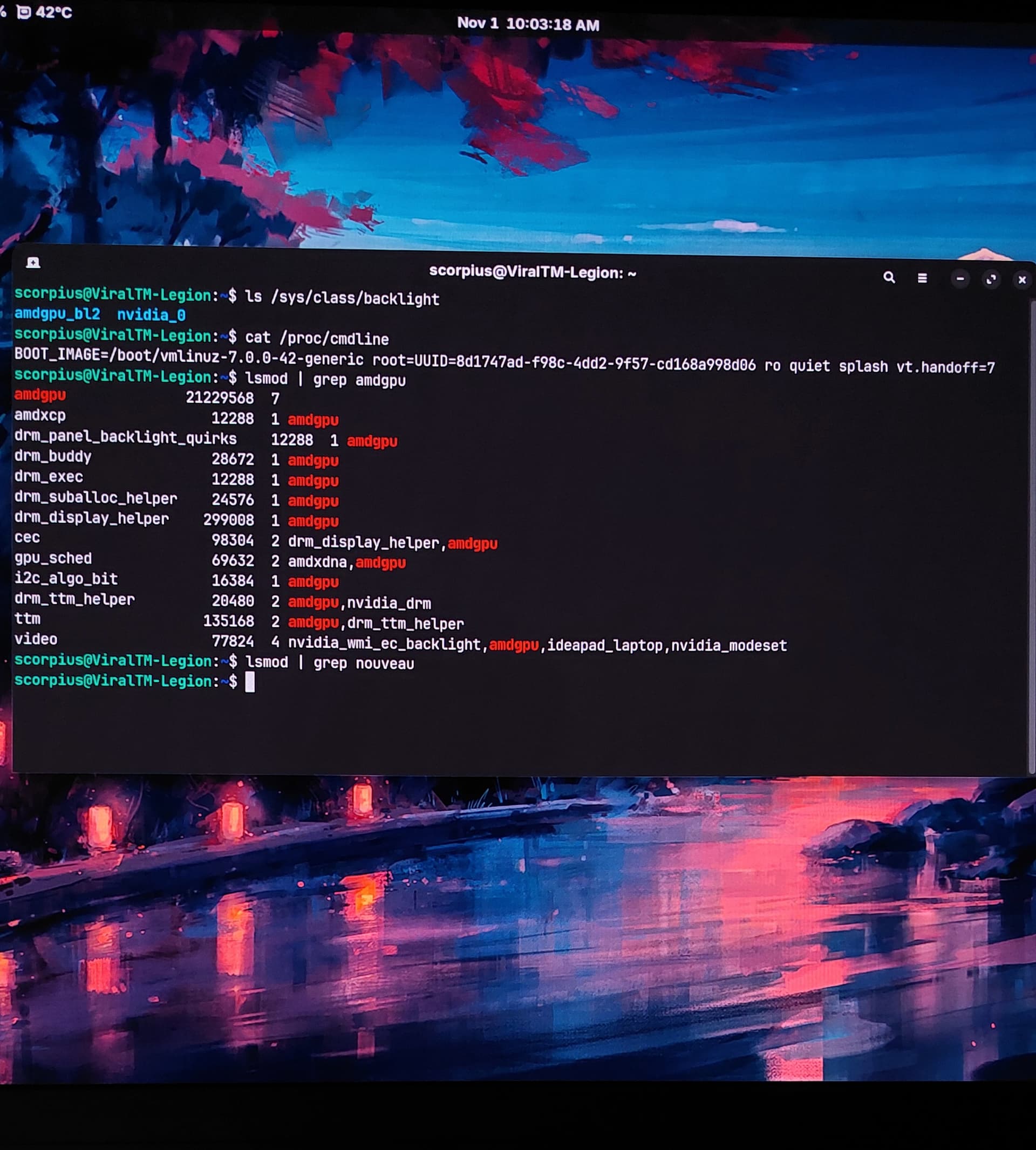
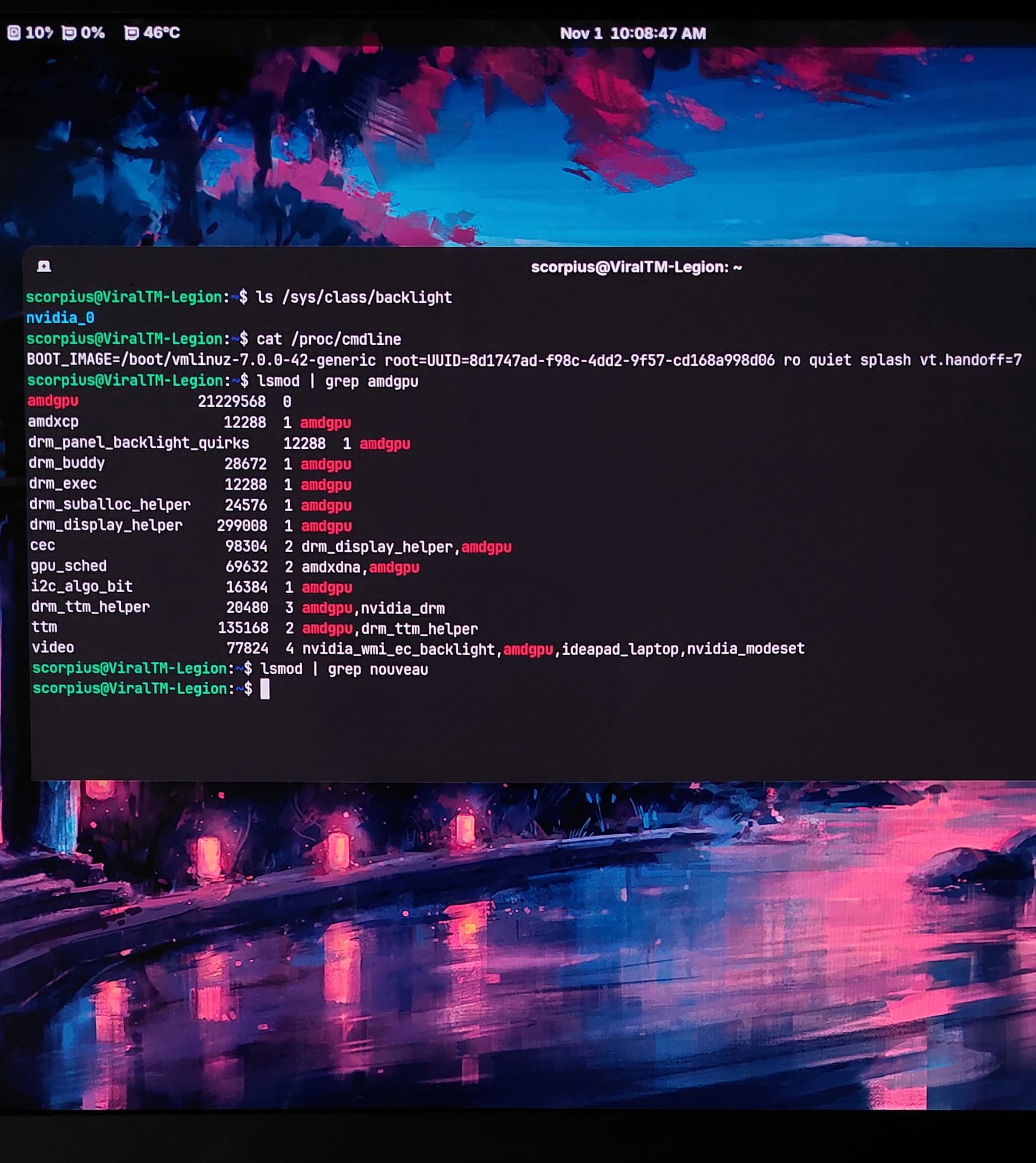
- I've used the 4 verification commands mentioned in the above link and here's what I got with Wayland + Kernel 7.0.0-42-generic but with different GPU modes:
- I've used the 4 verification commands mentioned in the above link and here's what I got with Wayland + Kernel 7.0.0-42-generic but with different GPU modes:
-
There was a 5th verification command
echo 128 | sudo tee /sys/class/backlight/amdgpu_bl0/brightnessthat I ran with the same setup because that's what I prefer to use, and the screen dimmed immediately, yet couldn't be adjusted with either Fn keys and UI slider -
In iGPU and dGPU only modes that I changed to via UEFI menu, the screen brightness levels can be changed, except the dGPU only had a max brightness that looked somewhat dimmer than the iGPU only and Dynamic Graphics modes, but they can be manipulated either with Fn keys or UI slider
-
Funnily, my ThinkPad didn't face such problems at all despite having the same kernel update, except it uses a slightly different Nvidia driver version and brand chipset combination (mentioned in above specs section of this post), and it uses intel for the backlight function

RECENT INTERESTING OBSERVATIONS
3rd Nov: I booted up and logged in to my Legion 5, Wayland and same 7.0.0-42-generic kernel and v595-open driver, the screen brightness was adjustable via Fn keys and UI slider. Weird, and that's the 2nd time I'm seeing this. After a restart, I lose control over the brightness adjustment as usual. Not sure what's causing this kind of behaviour.
4th Nov: When I get to the Log In screen after Restart or Log Out, specifically these after clicking on the Power Off button, adjust the brightness with Fn keys or UI slider from there, log in, and it remains stuck. Example: I Log Out, I move the slider to the middle for medium brightness (darn bright as it's OLED), log in and it stays at that set brightness. Also, when I attempt to adjust the brightness, the UI slider and the brightness bar that appears at the screen's bottom centre show it at less than a quarter mark when it's supposed to be in the middle. Same result as before.
FINAL THOUGHTS
The Fedora Discussion link given above provided 5 verification commands that I ran to see what's up in my Legion 5 in Dynamic Graphics mode, all came out normal except I couldn't raise the screen brightnes with Fn keys and UI slider after running the screen dimming echo command.
In 'Step 4: Add Kernel Parameter', I did see a similar command in other sites and forums in slightly different variations, but I didn't implement it as I don't want to mess with the GRUB config stuff until someone weighs in on it.
So yeah, I did my troubleshoot as much as my average-self can and found a possible potential solution to the problem, and I would like some guidance in this situation. Let me know if there's any doubts.
Thank you in advance!