I recently moved from Windows to Zorin OS, and I’m still fairly new to Linux. I’m currently experiencing some issues with a dual-monitor setup.
I have one monitor connected via HDMI and another via DisplayPort. Sometimes, after locking the screen for a while or shutting down the PC, the DisplayPort monitor is not recognized until I unplug it and plug it back in.
I’m almost certain this is related to the NVIDIA drivers I’m using. I’ve tested several different driver versions but haven’t been able to decide which one to stick with. Every time I switch drivers, the monitor starts working again without needing to unplug it.
I’m running an NVIDIA RTX 3060. Here are my system specs:
Zorin OS Edition: Zorin OS 18 Core
uname -a
Linux zorin-arz-dev 6.14.0-37-generic #37~24.04.1-Ubuntu SMP PREEMPT_DYNAMIC Thu Nov 20 10:25:38 UTC 2 x86_64 x86_64 x86_64 GNU/Linux
Are both Monitors connected to Your Graphics Card? Did You tried different Cables? Because You use an Nvidia Card: Does Your System run in Wayland or X11? You can check that with the Command echo $XDG_SESSION_TYPE
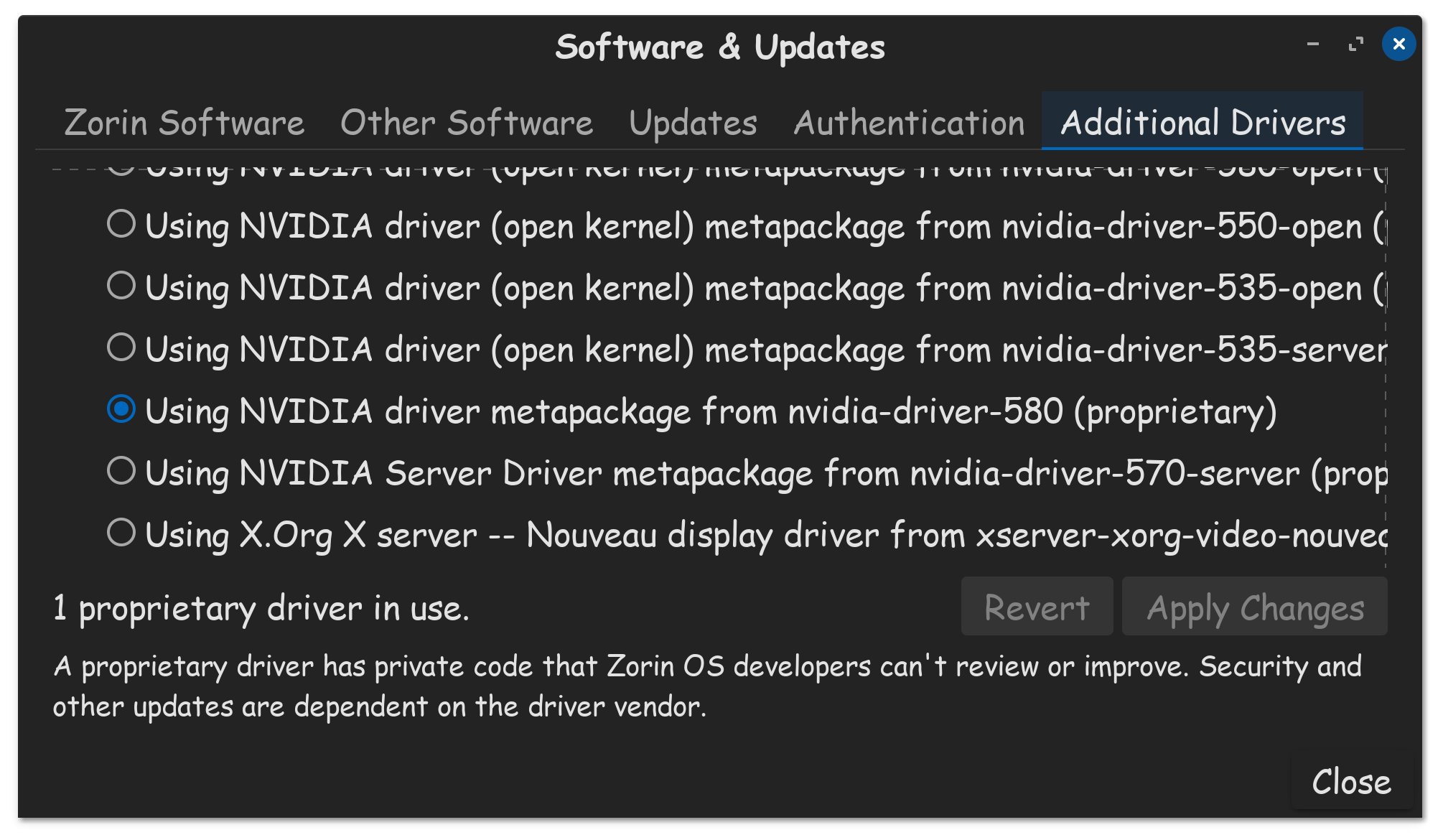
Is there a Reason why You use as Driver the server-open Driver? I would suggest to try the normal one.
Thanks for the help and insights. Answering your questions:
Have I tried different cables?
Not yet. I bought them recently and they work without any issues on Windows. I’m currently using UGREEN HDMI and DP cables, both 3 meters long.
Wayland or X11?
X11.
Is there a reason for using the server-open driver?
Not really. I’m not fully aware of the differences between the drivers. A forum recommended using the proprietary ones, so I picked what I thought was the most recent version.
I’ll give the driver you recommended a try. Thanks for the help.
I always run the straight proprietary driver, not server, not open kernel. I see that you are new to Linux, and you are doing your best, and that you are learning, this is good!
Thank you very much for your detailed answer. I’m trying to learn as much as I can, as I’m really fascinated by Linux.
Regarding your comments, I do have Secure Boot disabled, and following @zenzen’s recommendation, I’m now running the same driver as you.
However, this afternoon, after not using my PC for a while, the issue came back. The temporary solution is still to unplug and plug the cable again, but this is starting to become annoying.
I’m beginning to think it might be related to my monitor rather than Zorin, since this only happens when I’m away from the PC for several hours.
I also wanted to ask whether the Save to X Configuration File option might help with this issue.
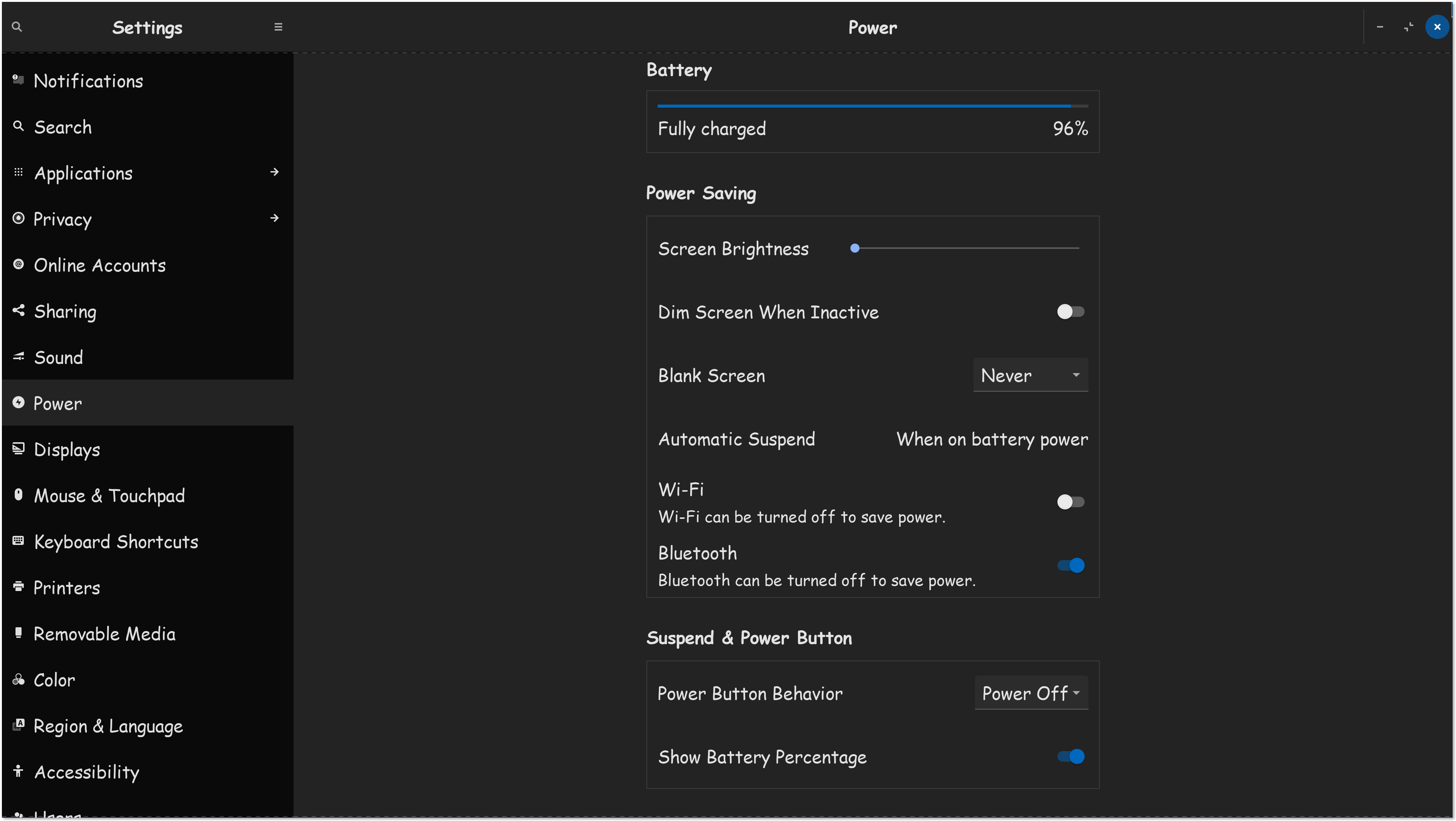
Now, thats starting to sound like power saving options are activating, their enabled by default on every system, and many have issues with them, like not coming back out of sleep.
Set Automatic Suspend to only on batter power, or toggle it off completely.
Probably best to turn off the power saving features for WIFI & Bluetooth.
And you probably are going to want your power button to actually act like a power button and power off.
Additionally, you get more features in Zorin OS 17 & 18, not found on OS 16, such as the power profile setting. Typically its set to balanced, your probably going to want full performance.
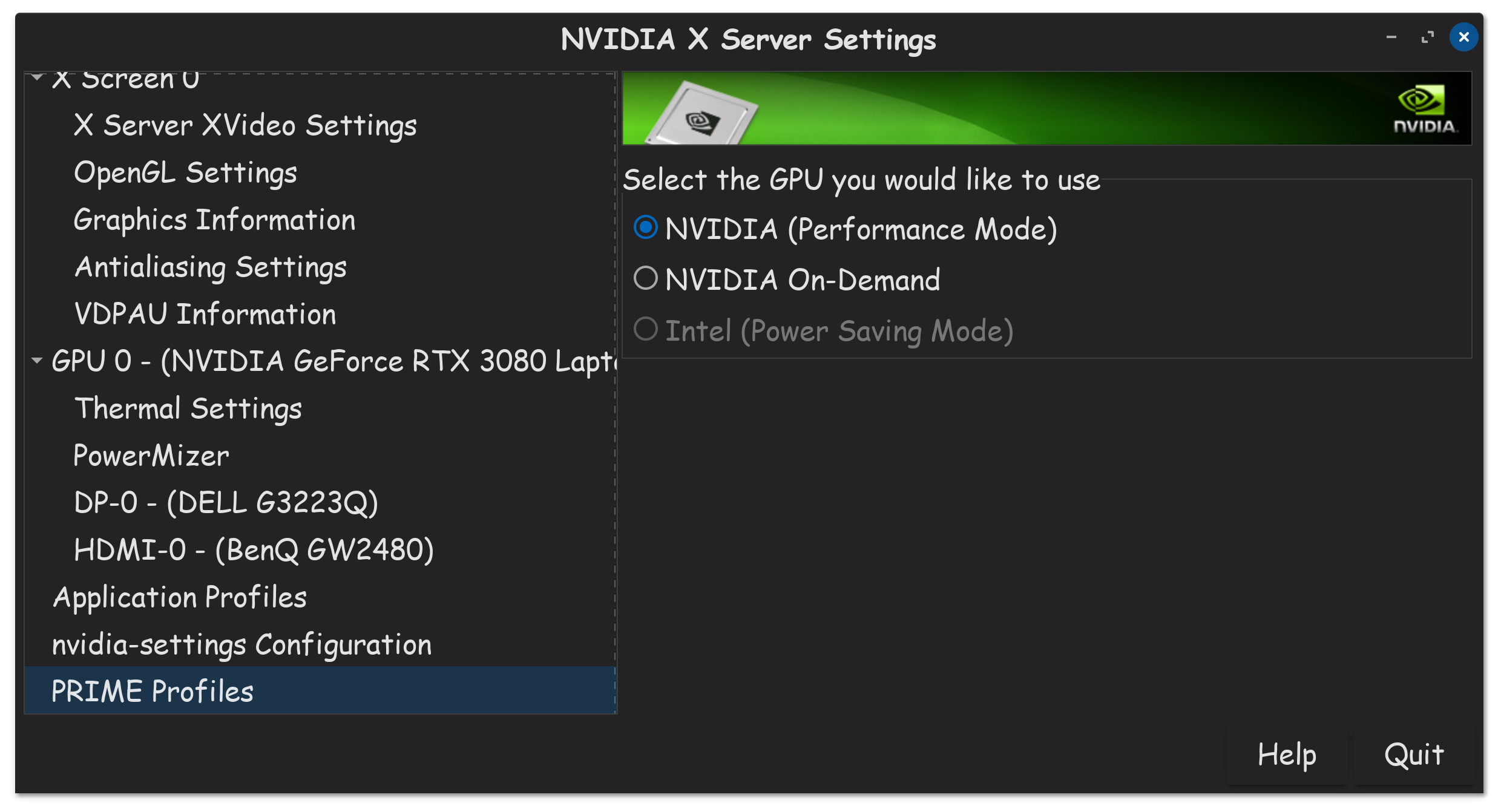
Having said that, since you have an Nvidia GPU, there is another power profile setting you can use, its in Nvidia X Server Settings, Prime Profiles tab.
Understood! Since I’m not on a laptop, I don’t have as many options as you, but I’ll do everything I can related to the matter. I’ll keep investigating and will update you if anything comes up.