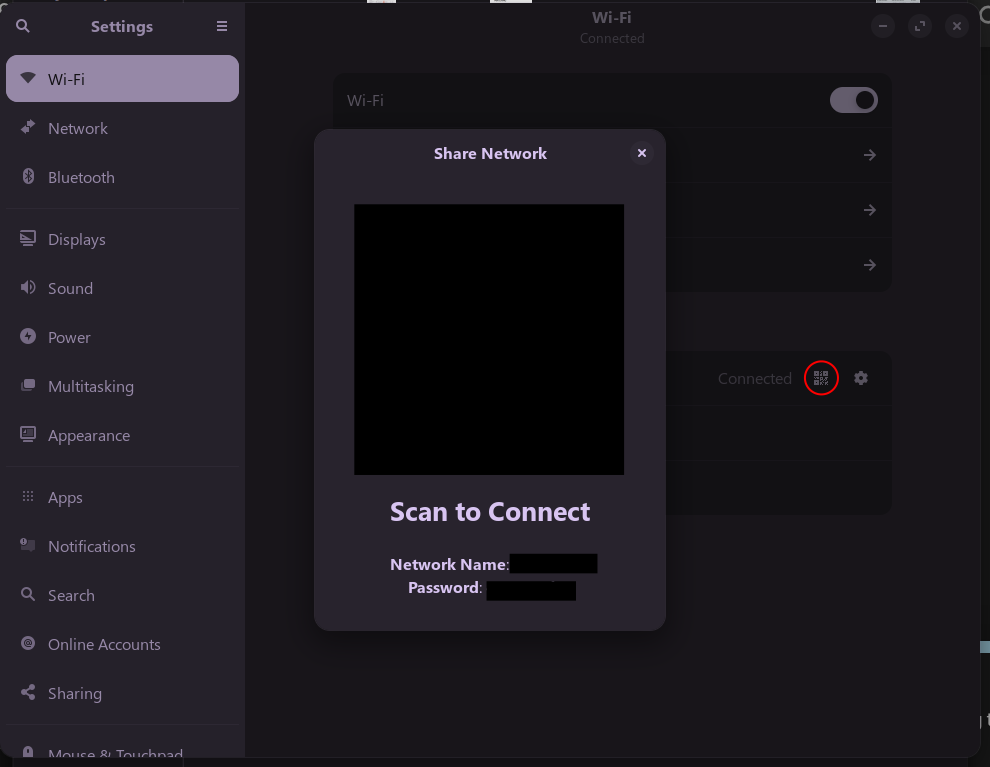
Long story short... I noticed while checking setting today that there is a "QR Code" in the network settings. Said QR code will allow anyone that scans it to connect to my network. This is by default, as I have NOT set it (at least not on purpose).
The questions I have is this: is there a way to put the zorin settings app behind a security wall... I would have just the network config behind a security wall, if that is possible.
Bottom line, I DO normally lock and/or log out when I leave a PC.... the same can't be said for everyone in my family. I want to minimize security concerns... Any help would be appreciated.
What the QR code does is not grant access, but is simply a visual encoding of credentials that are already stored on the system. The only way to see that QR code - is to already have full access to the system.
I did check to see if it can be disabled, but there is no user-side toggle for that.
I edited the file
/usr/share/polkit-1/actions/org.freedesktop.NetworkManager.policy
and set many actions there (you can read in the description what they are for) to auth_admin instead of yes by changing the lines from
<allow_active>yes</allow_active>
to <allow_active>auth_admin</allow_active>
Then I was no longer able to configure network settings as normal user and scan the qr code to connect. But I'm not sure if it is a good idea.
It would be better to create a polkit rule instead of editing the original file because it can be overwritten through updates.
" To set up networking without NetworkManager, you can use manual configuration via command-line tools. For wired connections, connect the computer directly to the router using an Ethernet cable and use sudo dhclient eth0 to obtain an IP address via DHCP. For wireless connections, you can manually connect using iwconfig and wpa_supplicant to authenticate with a WPA-secured network. This involves creating a configuration file for wpa_supplicant , bringing the interface up, and then using dhclient to acquire an IP address.
Alternatively, if NetworkManager is missing or corrupted, you can reinstall it by downloading the required .deb packages (e.g., network-manager and network-manager-gnome ) from a machine with internet access, copying them to the offline machine via USB, and installing them manually. This method avoids the need for an active internet connection during installation.
If you wish to completely remove NetworkManager and manage networking manually, you can purge it using sudo apt-get purge network-manager and configure interfaces using /etc/network/interfaces with ifup and ifdown commands. This approach is suitable for systems where minimal resource usage is desired, such as on a Raspberry Pi.
In summary, while the query is unclear in its intent, the available solutions focus on either manually configuring network access without NetworkManager or reinstalling it using offline package installation methods."
Long story short, as long as I log in, I can access this screen. The Red circle, when clicked, opens the "Share network" window shown in the middle.
The rather large square hides a QR code that lets anyone scan it to join my network. Below that, the two smaller rectangles hide (in plain text) my SSID and password.
Now, most of the people in my household are not as security-conscious as I am. They may leave the computer logged on. It does lock in for about 60 seconds, but still, if someone were here who might or might not have nefarious plans, I don't want them to have that access.
So other than autolocking at 15 or 30 seconds (which annoys the hell outta me), I'd rather find a way to secure said window.
So here's what I'm thinking... and sorry, I am migrating from Windows, so there is going to probably be a lot of incompatible ideas or maybe just overthinking..., but please bear with me.
Is there a way to protect this behind a privileged password (like what happens when installing a program)?
Is there a way to set up a login that doesn't have access to Settings? I know this was easily done via the policy editor and/or by setting Admin vs. Standard user in Windows. Is there a similar capability here that could allow someone to use the computer and the internet, but limit their access to system setup items that could compromise the system and/or my network?
Is there a way to turn off this feature EXCEPT if logged in with an Admin account?
I tested it with the Zorin 18 live session and there normal user accounts (which have no administrator rights) are not able to click on the qr code to share the network. A password prompt appears and only when you enter the root password you see the qr code and the network password and can connect to the wlan (in live session It still works because there is no root password set, but on bare-metal install it shouldn't).
So did you test to login into an account of your children or other people of your household to see if they are able to share the network as you?
If they can, check if in their accounts is enabled the administrator and turn it off.
Another option which works I showed you above but I think you shouldn't need it for normal user accounts.
Here is the documentation about polkit how to create rules if you don't want to edit the original file (which is easier but not the recommended method as the file can be overwritten by updates).
I continued to search for a solution to hide WLAN and Network settings in the settings for other users and display them only for members of root group (gnome-control-center) by changing the permissions to the desktop files for Wi-Fi and the network for other users to "none," but this only worked for the Network not for WLAN.
When I removed the permissions for WLAN the app "settings" no longer opened.
Those were the files where I tried to change the permissions:
I will be sure to try this later when I get home... I haven't even tried other accounts..
Truthfully, the one in most worried about is songwriters else's computer. So maybe I'll make their login standard and create an admin account that ivory I have access to, that should work (at least it does in my head).
Oh, my goodness... It looks like I was drunk there... sorry.. was replying on my phone and.. well...
"Stupid autocorrect, I am getting tired of your shirt," and all that.
I meant to say:
I will be sure to try this later when I get home... I haven't even tried other accounts..
Truthfully, the one I'm most worried about is someone else's computer (as they are not as security-conscious as I am). So maybe I'll make their login standard and create an admin account that ivory I have access to, that should work (at least it does in my head).