On Zorin 18.1:
I am a windows refugee and trying to create short-cut to commonly used folder in a NAS. I tried the DISK application to mount them as drives at start-up, but the DISK application does not show the NAS drive, only the pc's hard drive and the usb-drive that is attached.
The I tried making a .Desktop executable with the following content:
"Allow launching" is on, and the Properties-executable is also on.
When the file is clicked, or Open from the context menu nothing happens.
The IP and the share-name (including casing) is correct.
Any hints on any method to get this done will be appreciated.
I am completely new and the instructions given require editing a file (/etc/fstab) which I can't even access via the file manager. Even if I did I am very leery of destroying a second computer by messing its boot process. That's how I gave up Mint, bought a new pc and started on Zorin. The other laptop one is now a doorstop. It's not just me; see for example: https://www.reddit.com/r/linuxquestions/comments/tsckws/how_to_modify_etcfstab/
To access a folder within thousands on a NAS I have to drill down for 10-20 seconds each time. I have been held up for a day and a half on this. Why is creating a simple link to a folder so complicated? Is there any other way?
there is none I know, if you follow the tutorial I sent with terminal you will be able to make it work, all the command ate pretty clear
1.. sudo apt install cifs-utils
2. sudo mkdir /mnt/nas
3. sudo nano /etc/fstab
add this at the end of fstab //192.168.1.79/Public /mnt/nas cifs username=myusername,password=mypassword 0 0
save with CTRL+O
4. sudo mount -a
sudo apt install cifs-utils
sudo mkdir /mnt/nas
sudo nano /etc/fstab
add this at the end of fstab //192.168.1.79/Z_/Datafiles_Main /mnt/nas cifs username=rahzan,password=6321 0 0
save with CTRL+O then Ctrl+X to exit
sudo mount -a
systemctl daemon-reload
And the folder is now seen in the File manager. I went in and added a second folder with the same template as the first to the fstab file then the next two commands to mount and reload. The second folder is then also visible. However, on reboot I don't see the second folder! I entered the sudo mount -a
but I get the errors presumably on each of the two folders: ernesto@Bluey:~$ sudo mount -a mount error(13): Permission denied Refer to the mount.cifs(8) manual page (e.g. man mount.cifs) and kernel log messages (dmesg) mount error(13): Permission denied Refer to the mount.cifs(8) manual page (e.g. man mount.cifs) and kernel log messages (dmesg)
I'm afraid I don't know where to start with these errors.
As well, could this be the error that prevent the mount on reboot?
One last thing is (the mount error notwithstanding) if I enter: systemctl daemon-reload
I can see both NAS folders
I will appreciate any hints to make this work on every reboot.
You said it; I didn't think and entered it line by line.
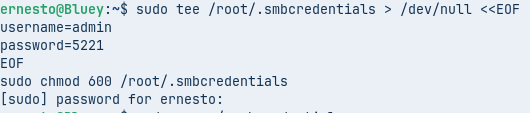
This time I pasted-in the lines as a block:
hit enter, then asked for the password and it gave no errors.
My mistake.
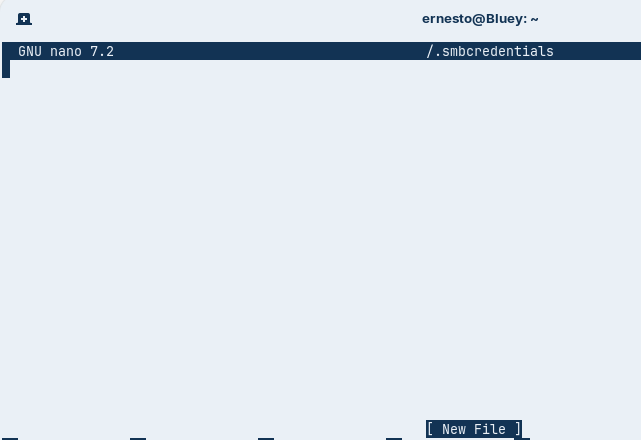
The credentials are now visible in Nano editor.
I restarted the pc so now I wonder what I should see thast confirms the mount is working. I open the File manager and I do not see Z2 anywhere in there:
But I do see Z_ every time even before this thread started; I cannot remember how it got there!
However it is possible to reach Z2 by going through "+Other locations" and clicking on the credentials window. I then created a short-cut to Z2, but it probably won't stick after a reboot. Is this the correct behavior?
they are mounted in the same directory, so yes this is the correct behavior, and for the shortcut it should stay. If you prefer 2 mounts point we can change that like this
sudo mkdir /mnt/Z_
sudo mkdir /mnt/Z2
sudo nano /etc/fstab
change fstab lines we added by this
Much obliged.
One last question in case I will do this again on a new unit.
How do I copy and paste the "block" that created the credentials file?
I am not sure what it copied from the screen here that was worked as
Is it simply copy (Ctrl-C) all the lines with regular (enter) key at the end of each line in a text, then paste (Ctrl-V) the whole string in the Terminal?
the credential file is already created you don't need to make it again and if you want to copy the block go the the little squares on the right it will copy it, and after just paste in terminal with the right click mouse an paste
Thanks. I did use those little squares to copy. However, I since I don't know if that icon did something special to copy, I am asking for the next computer setup when easy access to this thread may not exist, where I will have to use the string from my notes.