Many users migrating from Windows to Zorin OS 18 run into a frustrating issue: they can’t easily access their OneDrive files from the file manager. If you rely on OneDrive for work, school, or syncing across devices, this can be a real blocker.
Good news! Thanks to a feature built into GNOME 46 (which Zorin OS 18 uses), you can now mount your OneDrive account directly in Nautilus—no extra apps, no sketchy scripts, and no paid plans required.
I tested this myself on Zorin OS 18 and it works flawlessly. Here’s a simplified guide:
How to Enable OneDrive Access in Nautilus (Zorin OS 18)
Open the “Settings” app and go to Online Accounts.
Ignore all the fields in the dialog that appears. Just click “Sign In”.
Your browser will open. Log in with your Microsoft account (the one linked to your OneDrive files).
Confirm that you’re signing in to GNOME and allow the browser to open the authentication link.
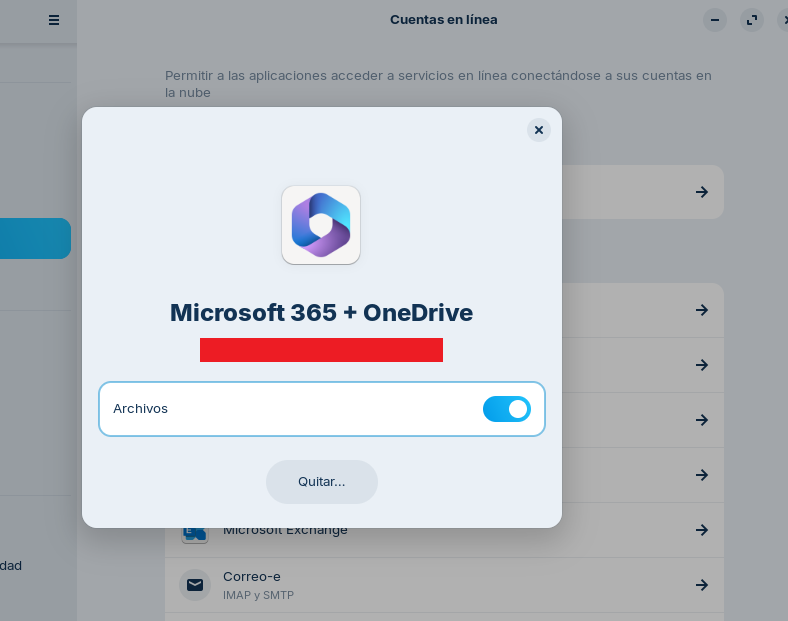
Back in the Settings window, toggle the “Files” switch to ON.
Open Nautilus. You’ll now see your OneDrive account listed in the sidebar like a regular folder.
You can now browse, open, copy, and move files directly from Nautilus—just like local files!
Things to Keep in Mind:
There’s no offline sync (files aren’t stored locally).
Image thumbnails won’t load automatically (this is normal for remote mounts).
If you have a slow connection or lots of files, loading might take a bit.
Why This Matters For users coming from Windows, direct OneDrive access is essential. This solution makes the transition to Zorin OS much smoother and more user-friendly.
If you’re migrating and use OneDrive, give this a try! And if you’d like to automate the mount process or share this with others, drop a comment. We can build a script or collaborative guide to help more people benefit from it.
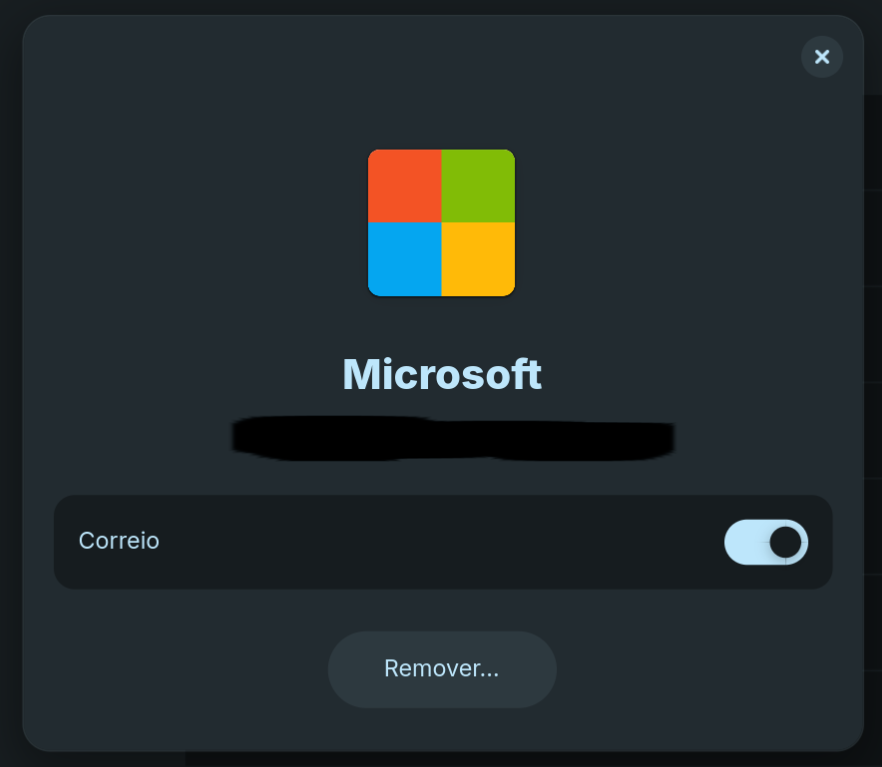
Hi stivenpy. Thanks for your advice. But i'm trying to sync my OneDrive and the only option that appears under Microsoft Online Account is "mail". Do you wonder why?
Edit: I have tried to remove "logon without password" and "two factor authentication" from my MS Account, then to reconfigure on Nautilus. Nothing has changed.
@richardson It looks like you added a normal Microsoft account, not the Microsoft 365 + Onedrive account. They are different options in Online Accounts.
I installed onedrive using the commands in this online article:
In a nutshell:
" First, update your package list by running sudo apt update . Then, install the OneDrive client using the command sudo apt install onedrive . After installation, link your OneDrive account by running the onedrive command"
That created an odd looking folder in Files that's obviously linked to my onedrive.live.com account. Within that folder are two other folders, Bundles & Shared with me. So far I been able to verify that files saved to the Bundle folder ( haven't tried Shared.. yet) sync to onedrive.live.com. Both seem to sync both ways, if done correctly! There's a bit of a convoluted learning curve but I'll keep playing with it. Please let me know if any questions, thoughts or comments.
The post I wrote is for people who don't have an MS365 subscription, but rather a personal Microsoft account (the free account). In my particular case, I synchronize Word, Excel, PowerPoint documents, databases, and images. I don't need to install anything additional; the built-in function in Zorin OS 18 is more than enough to cover my daily needs.
Hi everyone,
I’m experiencing an issue with OneDrive on Zorin OS 18 and I’m hoping someone can clarify whether there’s a solution or a workaround.
I followed the guide posted here on the forum to connect OneDrive through Online Accounts → Microsoft 365, and my business account was successfully mounted in Nautilus. It works perfectly.
The problem is that I also need to connect my personal OneDrive account (Microsoft Personal), but I can’t get it to show up in Nautilus.
The login completes successfully, but no OneDrive entry appears in the file manager.
It seems that “Microsoft Personal” in GNOME Online Accounts only enables mail and calendar, but does not support OneDrive, unlike Microsoft 365 accounts.
Has anyone been able to connect personal OneDrive on Zorin OS 18 without using third-party software?
Or is this simply a limitation of GNOME 46 / GOA?
If it can’t be done through Online Accounts, what solutions do you recommend to access personal OneDrive files (even read-only) alongside a business account?
You can access your online accounts with an application like Insync. I was looking forward to using the Gnome integration when I installed 18, but it is lacking in a lot of functionality, so I would hardly consider it a solution. I'll probably continue to use Insync until the Gnome integration improves. I admit that I'm not holding my breath. I'm still waiting for Zorin Connect to get real, but alas, it's just as bad in 18 (Yes, that's the topic for another thread.)
In fact, I just broke down and installed Insync on my fresh 18 installation as it's important to me at least to have a cloud copy, local coy and a local back up of everything. Can't get a local copy w/ the 'native' Gnome feature.
Whenever I try to select Micrsoft 365 + OneDrive, and click the sign in button, I get the "Sign in with your browser" screen. Clicking Sign in on that screen just makes the window go away, doesn't open a browser tab, give me an error message, nothing. I've tried with both Brave and Chrome as "default" browsers so I'm not sure if it is trying to use a specific browser.
I have tried both my personal O365 and my work O365 account with the same results.
I tried the same thing some months ago but since my account wasn't paid 365 account I couldn't access to some keys such as tenant id etc.
So I used rclone mount. But this has the same problem, you can only access online. Later I switched to rclone bisync and then I started to use Google Drive since it gives 15 gb for free (also offline access from mobile app) instead of OneDrive's 5 gb (offline access from mobile is also paid feature)
This is the step for offline access:
If you want auto sync, you can add the file to startup applications.
I just tested, if the tutorial I had done last year still works, and in effect still works until today 29/03/2
Tried with a free microsoft account without subscription to microsoft 365 with 5 GB free of onedrive
I have bought and just installed Zorin 18 Pro. I tested Ubuntu 25.10’s Online Accounts with Microsoft 365 + OneDrive, and it worked fine. I want to do the same in Zorin.
The problem is that when I click “Sign in to Microsoft 365 in the browser,” nothing happens. No browser opens like it did in Ubuntu. I have set Brave as the default browser, installed all updates, and restarted the PC.
What can I do to get this working? Thanks in advance.
Have you tried lowering the shields? Once at the site, click the Brave Lion icon in the address bar.
Toggle the switch to Down (Grey) for this site. This often solves the redirect loop immediately.
But here is a better long-term answer in terms of security:
Once you are connected to Onedrive, click on the lion icon again and go to advanced controls. change the setting to "cross-site cookies blocked.
(Or you could keep the shields up, but and manually add an exception.)
Thank you for your reply. I tried your suggestion, but it didn’t make any difference. The browser doesn’t open to take me to the login screen. I even installed firefox, satt it as the default browser but that dont do anything either.
 Good news! Thanks to a feature built into GNOME 46 (which Zorin OS 18 uses), you can now mount your OneDrive account directly in Nautilus—no extra apps, no sketchy scripts, and no paid plans required.
 How to Enable OneDrive Access in Nautilus (Zorin OS 18)
 You can now browse, open, copy, and move files directly from Nautilus—just like local files!
 Things to Keep in Mind:
 Why This Matters For users coming from Windows, direct OneDrive access is essential. This solution makes the transition to Zorin OS much smoother and more user-friendly.
 If you’re migrating and use OneDrive, give this a try! And if you’d like to automate the mount process or share this with others, drop a comment. We can build a script or collaborative guide to help more people benefit from it.