[Solution] Headset Mic Not Detected / Working: A Driver-Based Solution (Realtek ALC255 & Others)
I am using Zorin OS 18, and when I plugged in my 3.5mm headset, even though I could hear audio, my headphone's microphone was absolutely not detected by the system. Like any standard Zorin user, I first looked into threads on the Zorin Forum and classic solutions on the internet. The commonly suggested fixes were:
- Installing PulseAudio Volume Control (pavucontrol) and checking the settings.
- Going into AlsaMixer and unmuting the microphone.
However, none of these solutions fixed my specific problem. Because the issue I (and many other users) faced wasn't about the volume being muted; it was a driver-related issue where the microphone wasn't detected at the hardware level at all. There was no microphone there to "unmute."
Note 1: Actually, I had solved this problem before by trying the codes from Zorin OS's official hardware help page and tweaking something. But after formatting my PC and upgrading to the new Zorin OS 18, I couldn't get the driver code from that guide to work at all. Having solved it again this time, I decided not to be lazy and make a guide. I used AI to edit my own writing so that the grammar and writing style would fit a guide format. But I personally verified the information I am sharing, so you can rest easy.
Note 2: This method will most likely work for other driver types as well (mine is Realtek ALC255). In fact, it might not just be for microphone issues; it could potentially solve other audio problems where the suggested fix is to force the sound driver to a specific model.
The Root of the Problem and the "Comma" Secret
After researching again, I came across this solution by a user named Pedro Siqueira on this AskUbuntu page. He stated that he solved the problem by combining two different driver codes for the Realtek ALC255 chip on his Acer computer:
options snd-hda-intel model=alc255-acer,dell-headset-multi
When I tried this, my microphone worked, but I noticed something very interesting: The thing that actually fixed the system wasn't the combination of the two drivers; the thing that fixed it was the comma ( , ) between them. (By the way, my laptop is a local brand called Casper, so don't worry if you can't find a driver with your exact manufacturer's name on it. Using a driver designed for another brand works perfectly fine.)
Here is the AI's guess as to why this happens: (You can skip this part if you not interested.)
Most modern computers have two different sound cards detected by the system (Card 0 and Card 1). The first one (Card 0) is usually the graphics card's (HDMI/DP) audio output, and the second part after the comma ( , ) is our actual sound chip where we plug in the headset. It assumes that the driver code we write tries to apply itself to the graphics card's audio output, while it doesn't apply to our actual audio driver, leaving the default driver that comes with Zorin to continue running. I'm not an expert on this subject, so I'll leave the interpretation of the cause to you, but there is definitely a bug there.
Step-by-Step Solution Guide
Step 1: Find Out Your Audio Chip (Codec) Name and the Right Driver
First, you need to know the exact name of your audio chip. There are two simple ways to find this out:
-
Method 1 (Terminal Command): Open the terminal and run the following command:
cat /proc/asound/card*/codec* | grep Codec
Look at the output to find your chip's name (for example,Codec: Realtek ALC255). -
Method 2 (AlsaMixer): Type
alsamixerin the terminal and hit Enter. PressF6than select and press "HDA INTEL PCH"one. Look at the top left corner of the screen where it says "Chip:" (e.g., Chip: Realtek ALC255). You can pressEscto exit this screen.
Once you know your chip's name (like ALC255), go to the Kernel.org Official HD Audio Models page mentioned in the same Ubuntu forum, and use Ctrl+F to search for your computer's audio chip (e.g., ALC255, ALC298, etc.). Select the most suitable model for your brand (for example: alc255-acer, alc255-asus, or alc255-dell1, etc.).
(By the way, my laptop is from a local brand called Casper. As long as the audio chip is the same, using a driver named after another manufacturer like Acer or Dell isn't a problem at all.)
If you want, you can also use the "dell-headset-multi" code found in Zorin's own article, but since I only have a single jack input, having a non-existent extra microphone show up in the interface bothered me. That's why I chose the alc255-acer one for my case.
Step 2: Apply the Code to the System
Open the Terminal.
sudo nano /etc/modprobe.d/alsa-base.conf
At the bottom of the file in the terminal, write the driver model you found in the following format and save it.
options snd-hda-intel model=,alc255-acer
Step 3: Completely Shut Down the System
After applying the settings, doing a sudo reboot from the terminal or restarting the computer from the menu can sometimes cause the kernel not to read the new setting.
To ensure the changes are definitively applied to the hardware:
- Completely Shut Down your computer the normal way.
- After the computer is completely shut down, press the power button to manually turn it back on yourself.
When your computer boots up, plug in your headset. A selection screen like the one in the picture will appear if your driver fixed the problem
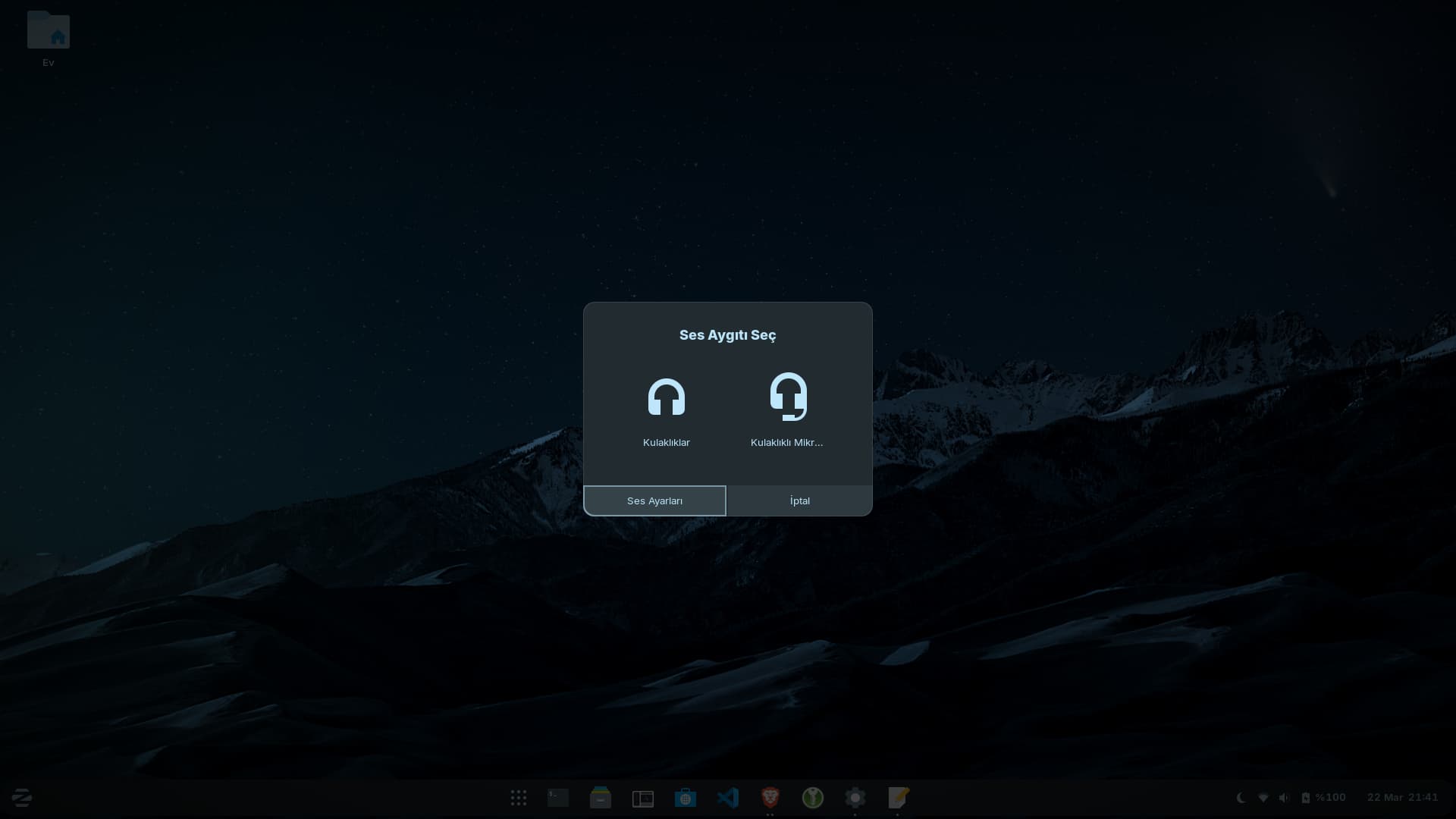
(*Depending on the driver you chose, there might also be an extra microphone-only icon.)