Hi everyone. How can I make a shortcut to switch for a specific workspace? The default shortcut settings only allow me to set up to workspace 4 and I don't really get how to make a custom shortcut. Thank you in advance.
I'll have to take a closer look how to add a custom shortcut for more than 4 workspaces.
You could also use the gnome extension "Workspace Indicator" to switch between the workspaces. It is preinstalled in Zorin.
Install extension manager and then go to tab installed and enable "Workspace indicator". You'll get a smal icon tray in your panel which shows you the workspace and there you can select the workspace you want to go to.
Edit: I'm on Zorin 17, I'm not sure if it is the same for Zorin 18.
You can use terminal commands (select the workspace number you want to set and in the [ ] enter the custom key combination, e.g.
gsettings set org.gnome.desktop.wm.keybindings switch-to-workspace-6 "['<Super><Alt>6']"
or install dconf editor
sudo apt install dconf-editor
In dconf editor go to
/org/gnome/desktop/wm/keybindings
There you have the possibility to add custom values for 12 workspaces.
Click on a workspace that you want to change, e.g.
switch-to-workspace-6,
disable use default value and set a custom value, then click on apply.
I tried it with
['<Super><Alt>6']
and it worked. It is a bit tricky to find out how to enter the commands for the keys. Set all longer words in < >, e.g. <Alt>, <Control>, <Shift> or <Super>. Ensure that there are no conflicts with already existing shortcuts.
1 Like
It is a shame that the old Cairo-Dock no longer works. With that it provided a shortcut with mini-screens that represented the different workspaces.
Does anyone know what command to enter if you want to create a custom keyboard shortcut for switching to workspace 6, for example, in the normal keyboard settings? I haven't yet figured out how to modify the gsettings command to enter the key sequence using the keys on the keyboard. That would be much easier than figuring out the command sequence for the bracket.
Edit: With xdotool it works to set custom shortcuts for switching workspaces, but xdotool is for Xorg only, not for Wayland. You can install xdotool with
sudo apt install xdotool
The workspaces begin with number 0 in xdotool, so if you want to go to workspace 6, you must enter 'xdotool set_desktop 5', for workspace 5 'xdotool set_desktop 4' ...
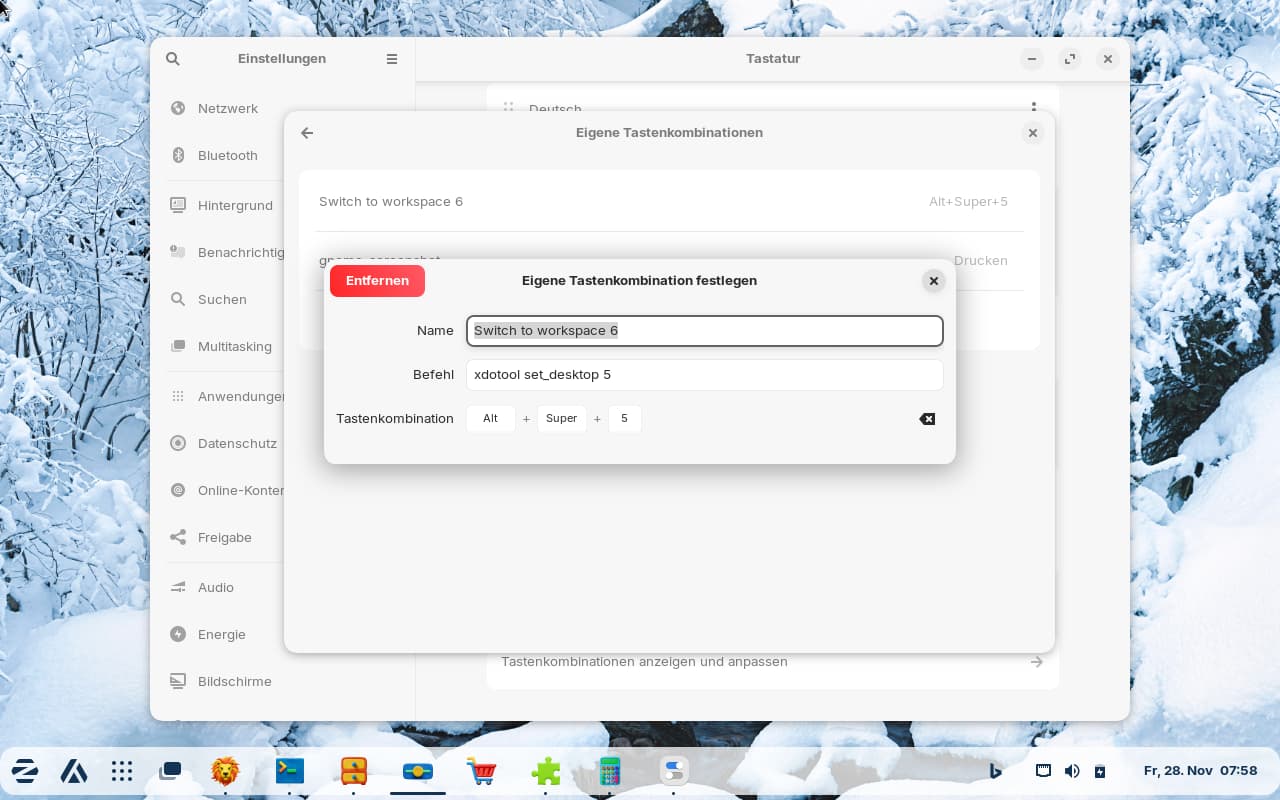
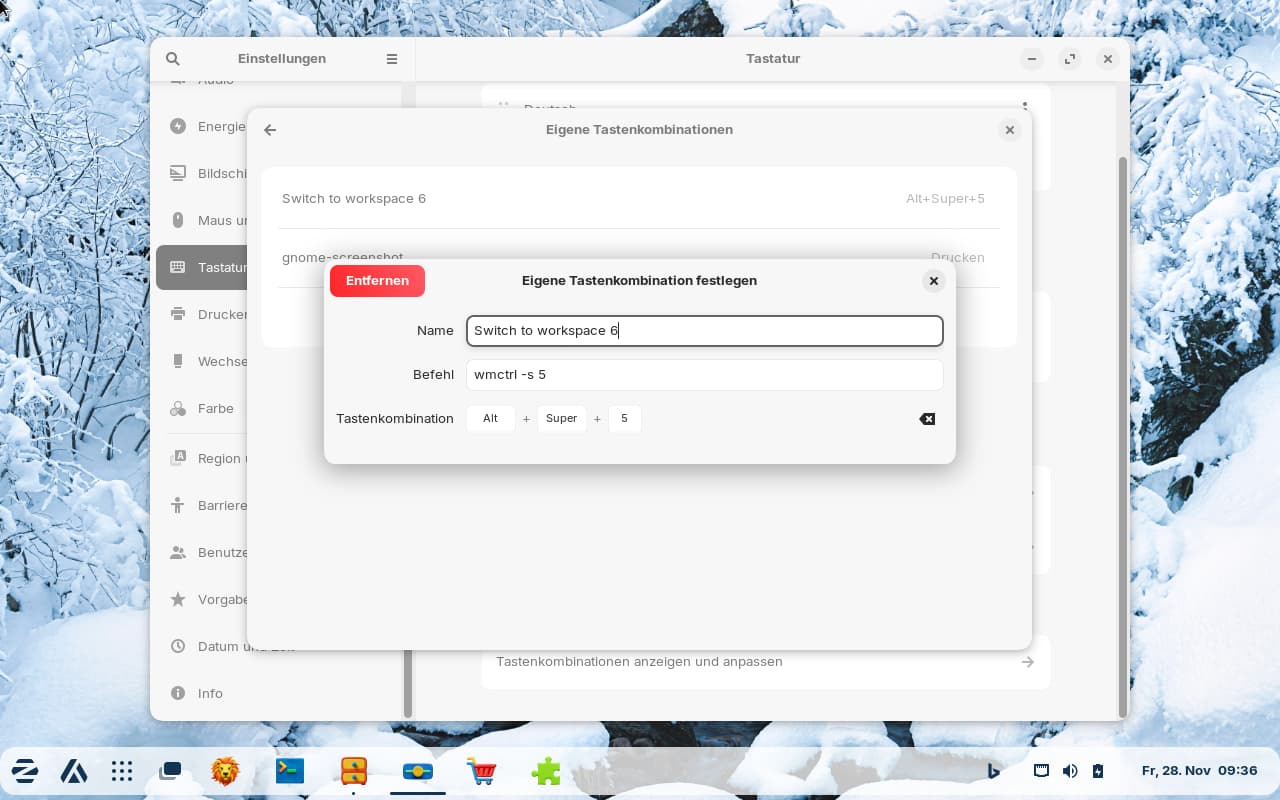
Or alternatively you can use wmctrl. Install it before with
sudo apt install wmctrl
The workspaces also begin with number 0. I'm not sure if it works with Wayland.
This topic was automatically closed 90 days after the last reply. New replies are no longer allowed.