Speeding up Steam shader processing

This isn't news, per se, but I've never seen it mentioned here, and the improvement to my overall experience has been significant. I was used to starting a game and having Steam pop a box about Vulkan shader processing more often than not, and going about it slowly. Now, if I leave Steam open most of the time, I seldom see that box, and when I do, it goes much faster.

When Steam does its shader pre-caching before running a game (that little box that says pre-caching vulkan shaders and has a skip option), it only uses one thread for some reason. Even fairly old CPUs will likely support more than this. There's an undocumented feature that allows you to increase the number of threads used, which can significantly speed up that wait when launching a game. Instructions below are taken from this Reddit post for the sake of people who don't wish to visit Reddit. I've made only minimal edits for clarity/to take advantage of this forum's formatting.

1. Navigate to ~/.steam/steam (This should be a symlink to wherever your Steam install is located). If the folder has a steam.sh then it is the correct folder.
2. Make a file called steam_dev.cfg
3. In that file put: unShaderBackgroundProcessingThreads x
4. Replace X with the number of threads to use. (See below.)
5. Save the file and restart Steam if it was running.

For X, modern processors generally support two threads a core. If you're using a 4 core processor, you could have 8 simultaneous threads. if you're using an 8 core, 16, etc. You don't want to use that number for X though, or Steam may hog your CPU enough to make your system sluggish. The original poster recommends your max threads, minus 4 to 6. I'm using 10 out of 16 threads, personally.

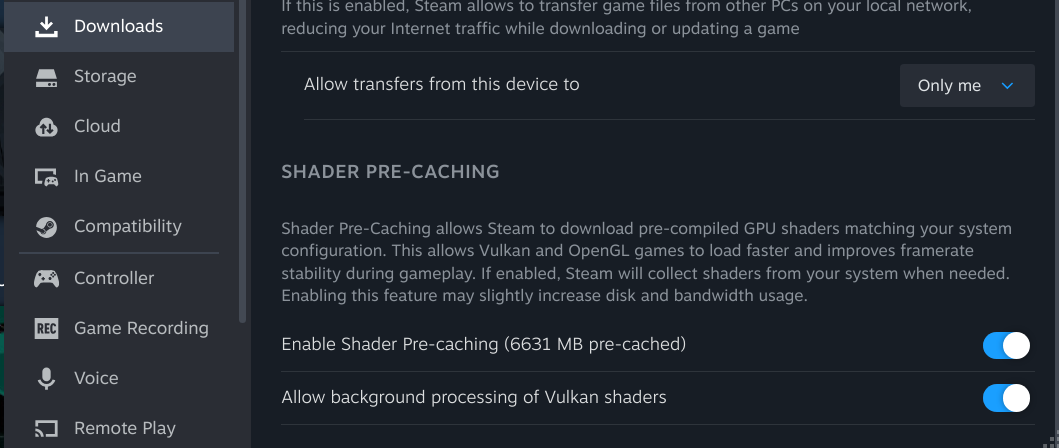
As the Reddit thread notes, despite the name of the setting, it does work for foreground processing as well as background. One thing the thread doesn't warn about is that if you keep Steam open and a game updates, Steam may start working on these in the background, if you have background shader processing turned on. If you're doing CPU intensive work, you may want to close Steam or turn off background shader processing to keep Steam from monopolizing your CPU. The option is under Downloads in Steam's settings:
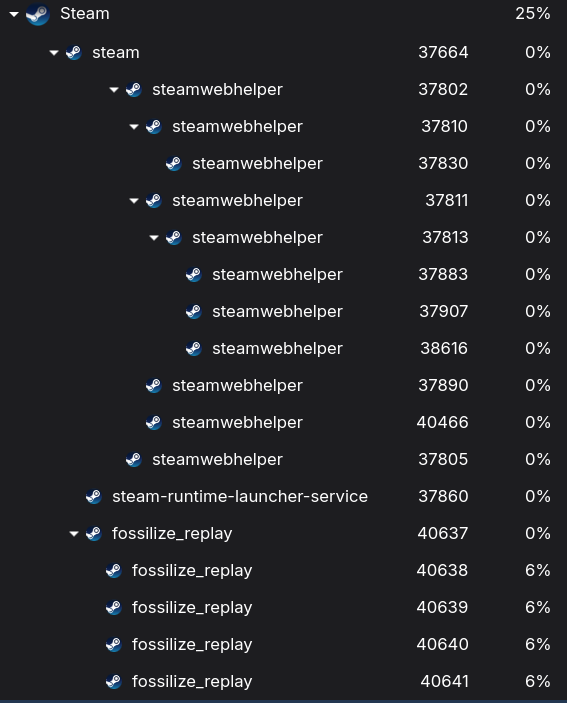
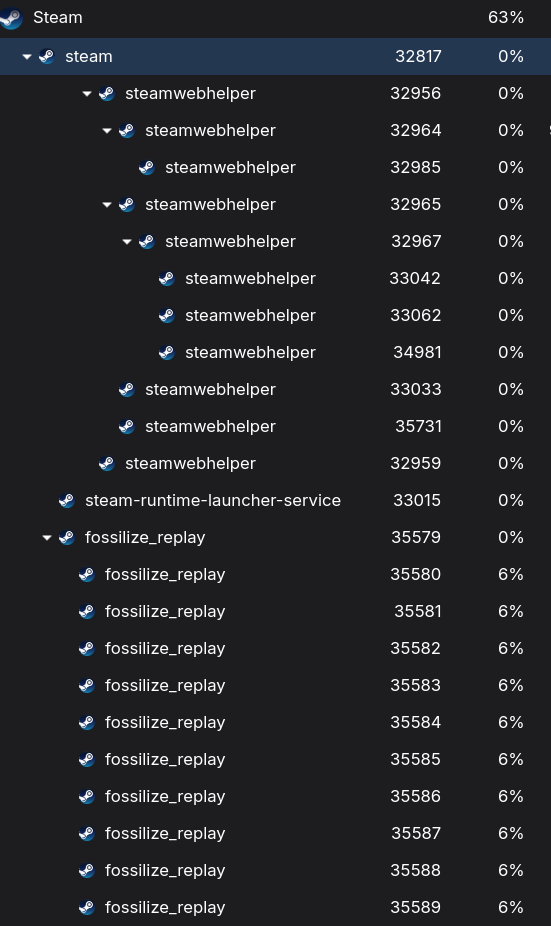
Finally, if you make use of this and see Steam spike your CPU when you're not using it, you can confirm that it's shader processing by looking at Steam's subprocesses--if you see a bunch of fossilize_replay, that's this.

3 Likes

I turned shader pre-processing off because of how darn slow it is for me. I’ll have to try this when I get home.

I hardly ever see the popups anymore even without the change because I'm so busy lately haha. I go to turn on the computer in the hopes I might get a few minutes here and there, turns out about 10 hours later I might get a chance. By that point, steam has done a bunch in the background, so it works for me.

But let me tell you, if I had enough time to turn on them game immediately? I would've loved to have had this change.

Interesting. In my testing Steam does not need this file to use multiple threads for pre-caching. At least on my system. Works just fine without this file.

Well, "fine" might not be the word. It's slow as heck but my venerable GTX 1080 might be showing its age just a little.

The thread from which I took the information is months old, and effectively a repost of an even older thread. It's possible Steam has changed things. Anecdotally, my CPU fans never ramped up with Steam in the background and no game playing until I did this. Now, they do, and when I check CPU usage, Steam is pushing around 60 percent when working on shaders.

I'm not sure your GPU is relevant to this part, aged or not. It's the CPU it spikes.

1 Like

I agree with Locklear93, pre-caching is not done on the GPU level, its a CPU process. The reason why pre-caching takes so long, is its processing up to gigabytes of information. In my experience however, if you don't let Steam pre-cash, in game performance suffers greatly.

Now, I will admit, the faster the CPU, the more cores & threads you have, (Much like in production rendering workloads) the faster is will be. I agree however, Steam should be leveraging more of the CPU threads, when you have a performance machine, like I have.


1 Like

Not knowing anything about it, I assumed the shaders were being cached directly to my GPU, since the pre-caching happened every time I launched the games I was testing.

Which turns out to be a long-standing bug.

Some have reported that disabling pre-caching, deleting cached shaders and rebooting Steam cleared things up for them. I’ll have to try that when I get home.

1 Like

Interesting. I wasn't aware of the bug, but I was getting that constant pre-caching box. (I mentioned it in my original post.) It went away the vast majority of the time after I undertook what I posted here, which is a big part of why I considered the information credible.

So, I spent a little time to look into this more thoroughly. I don't like the idea that I've given bad information, and if I have, I want to correct it. Tl;dr: It turns out in my testing that the file definitely makes a difference.

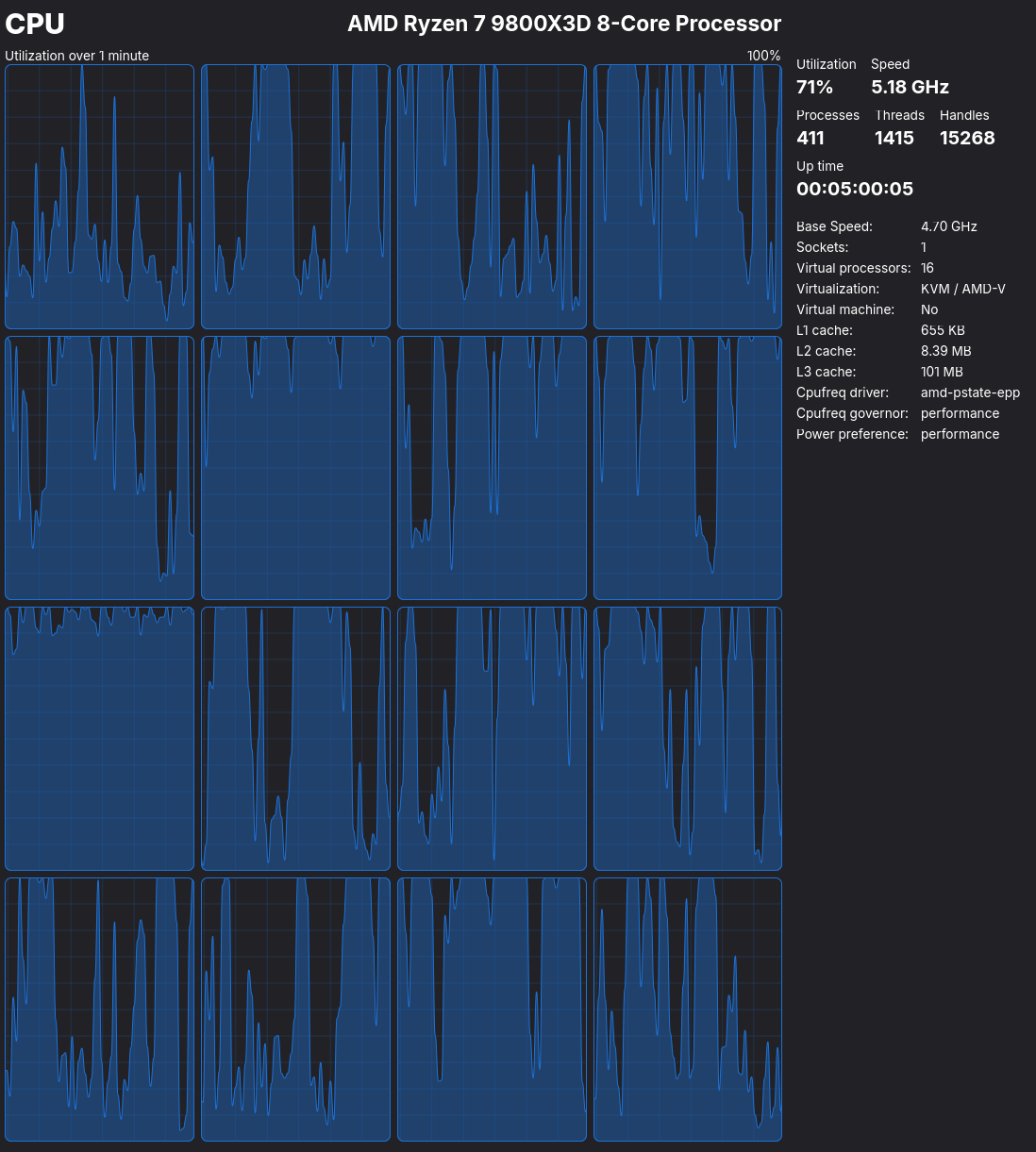
Testing was performed by downloading Persona 5 Royal from Steam, with background caching options set exactly as they are in my screenshot in the original post. Processes were monitored with Mission Control because it's convenient and because it provides a nice per-logical processor CPU activity display. After testing with the file in place, Persona 5 Royal was uninstalled, Steam was shut down completely, the file was removed from ~/.steam/steam, Steam was restarted, and Persona 5 Royal was installed again. The difference was dramatic:

With steam_dev.cfg


As you can see, CPU utilization was up relatively high, split in small amounts across 10 processes, which is the number I chose in my steam_dev.cfg

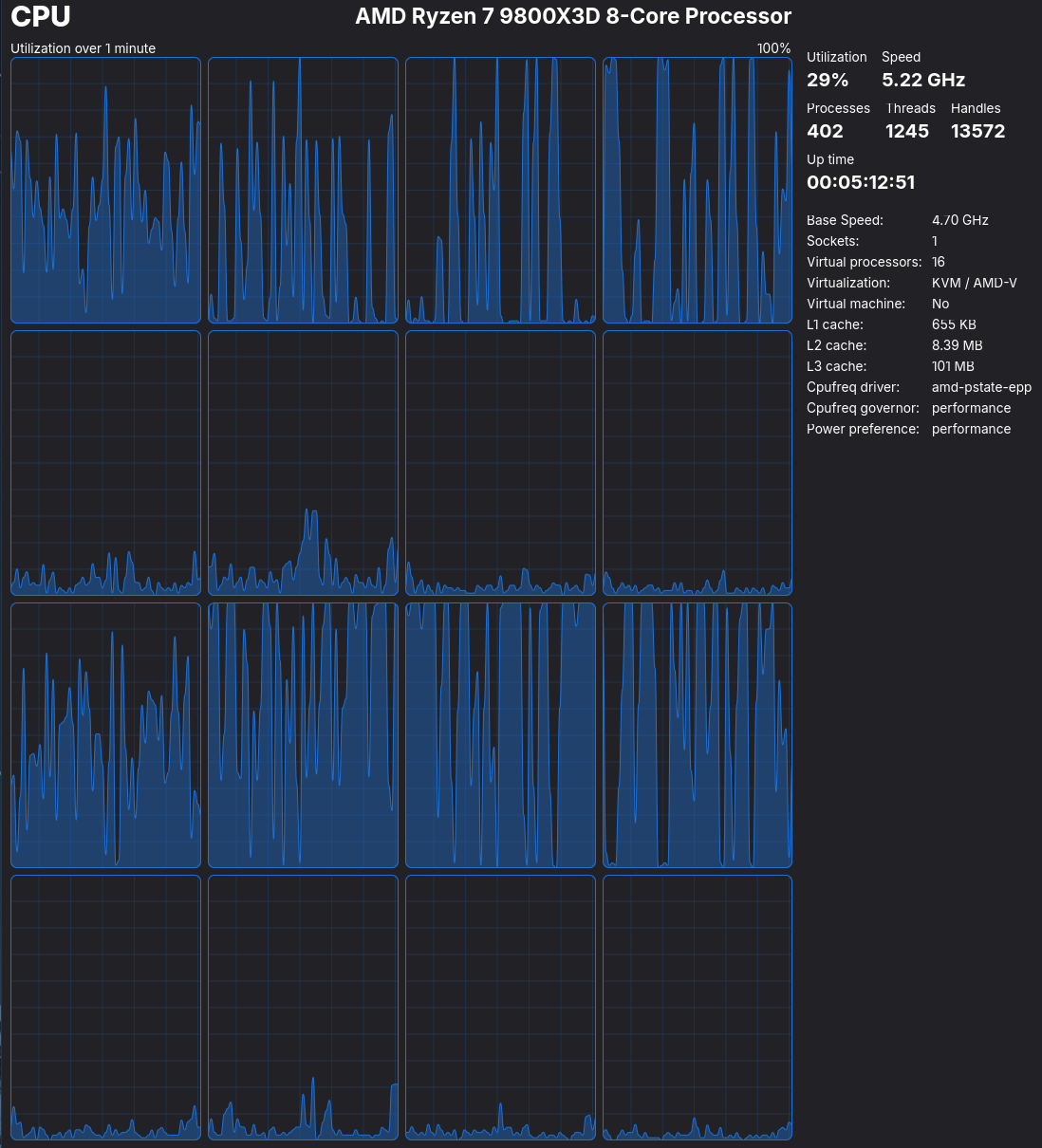
Without steam_dev.cfg


Without the file, there are four processes, and activity on eight "virtual processors" (remember above about two per physical core). This is different from the one core claimed in the original post from which I took my information to be sure--I've got four cores being used without the file, not one.

What we have here is confirmation that the file will increase how much of your CPU is put to work on the shaders after a game is installed or updated and that the number set in the file will control the number of fossilize_reply processes. What I don't fully understand is how process count relates to core count, as it seems that with ten set, all 16 logical processors are active, when I'd only expect ten to be.

To avoid making assertions about things I don't fully understand, testing indicates that if you have the cores to spare, using steam_dev.cfg as described will put that extra power to use, getting the shaders handled more quickly. (I don't have notes on time above but I waited out the fossilize_replay processes until they closed when using more cores and got impatient and quit when not using them took considerably longer.)

This testing could be improved if I were willing to spend the time by using a larger sample of games, various values for unShaderBackgroundProcessingThreads, a more advanced tool than Mission Control (capable of showing which processes are assigned to which core), and retesting on my other computer which is 16 core (32 logical processors), but... I don' wanna. I've satisfied myself that the use of the file as described is effective and not a placebo effect, and for my purposes that's plenty.

1 Like

My CPU utilization is almost 100% across all 20 threads of my Intel CPU when I pre-cache, without the file. But it's obviously working for you and I've seen recent Reddit posts saying this fix works for them. Wonder if it might be an Intel vs. AMD thing or a firmware issue?

(After disabling pre-caching, deleting my Steam cache, restarting Steam and re-enabling pre-caching, the shaders no longer load with every game start. I did also opt into the Steam beta to help fix another bug I have been experiencing, so that might have also fixed it. My initial testing revealed very little difference between pre-caching and not but I only tried two games. When I tried Total War: Warhammer 3 it made a huge difference. So I got something from this thread regardless.)

1 Like

Is your CPU of similar age to the GTX 1080? If I had a background process randomly start pushing my CPU to a full 100% by default, I'd be pretty annoyed, so it makes me wonder if it's hitting yours so hard because it's an older processor and the job is a strain on it regardless. Obviously if it's a newer processor and you're just running an old GPU because it gets the job done, that's not the case.

(...okay, now the forum censor is disallowing words a kid might not realize are inappropriate and they'd go look it up and learn something new...)

It's a 265KF.

After re-reading, I missed the distinction between foreground and background processing. Steam doesn't use that much of my CPU when background processing, though it still uses multiple threads. Only hits the CPU hard when launching a game with uncached shaders. For grins and giggles I added the steam_dev.cfg file with threads set to 14 and deleted my cache. It spiked my CPU usage hard. So this could be useful to speed up or throttle the background processing, even if Steam is already multi-threading.

(The 1080 hangs around because I just can't manage to have the funds, not have something better to spend them on, and have a willingness to get screwed on GPU pricing all at the same time.)

That description matches what I see a lot better, yeah. Most of the time when I'm not playing a game, my CPU's not used terribly strenuously, and when it is, I can always close Steam. I've found the shader cache pop up when I start a game appears EXTREMELY rarely since using the steam_dev.cfg file, and assume that's because the work was taken care of when I was just web browsing and Steam suddenly pushed my CPU. Good to hear that it's having a similar effect for you and isn't some weird discrepancy; thanks for checking!

1 Like

This topic was automatically closed 90 days after the last reply. New replies are no longer allowed.