Hi, I have Zorin Os 17core installed on the pc. It recognized the Epson Stylus sx400 printer I had, but the printer does not appear among the installed apps. This printer is installed via installation cd. How do I get my printer in my apps? If I have to configure it via terminal, what are the commands? Thanks in advance to everyone... Anna
Do any of these links help you:
which links to:
Although L220 Printer, the same process may apply to other models.
Does the installation CD have linux driver?
You can download linux driver for SX400 from Epson download center here:
1 Like
Hi, thank you for the prompt reply... I downloaded the drive file. How do I proceed with installation and configuration?
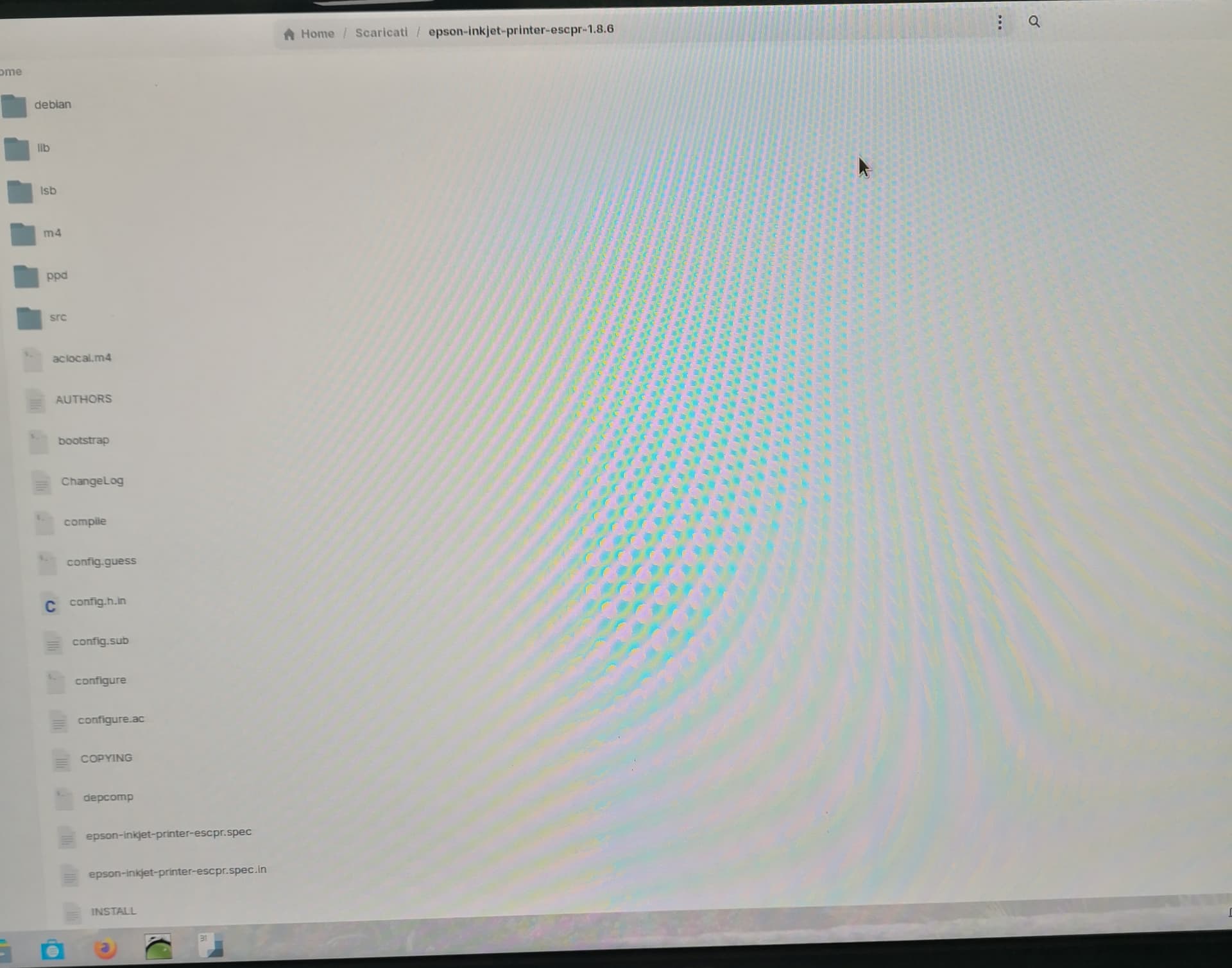
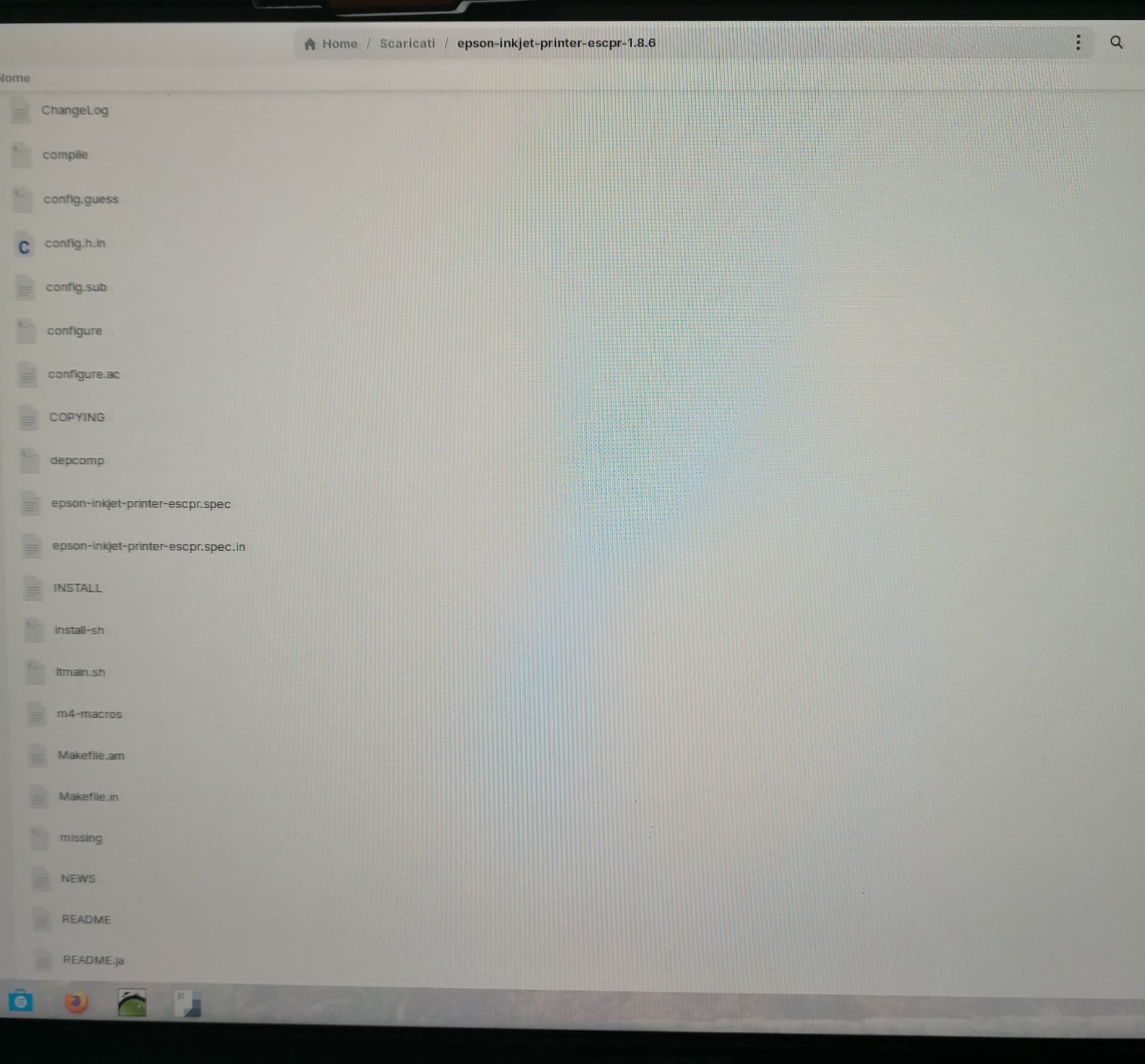
I cant read details on your screenshots.
Did you install the .deb file you downloaded.
Some alternatve methods of installing a .deb are in two posts here: Installing apps on Zorin which method is best? - #9 by zabadabadoo
Installing apps on Zorin which method is best? - #10 by cx051
Hello, I apologize for the annoyance, but I'm not very familiar with orin os(I had windows10)... I'll try to be as clear as possible...
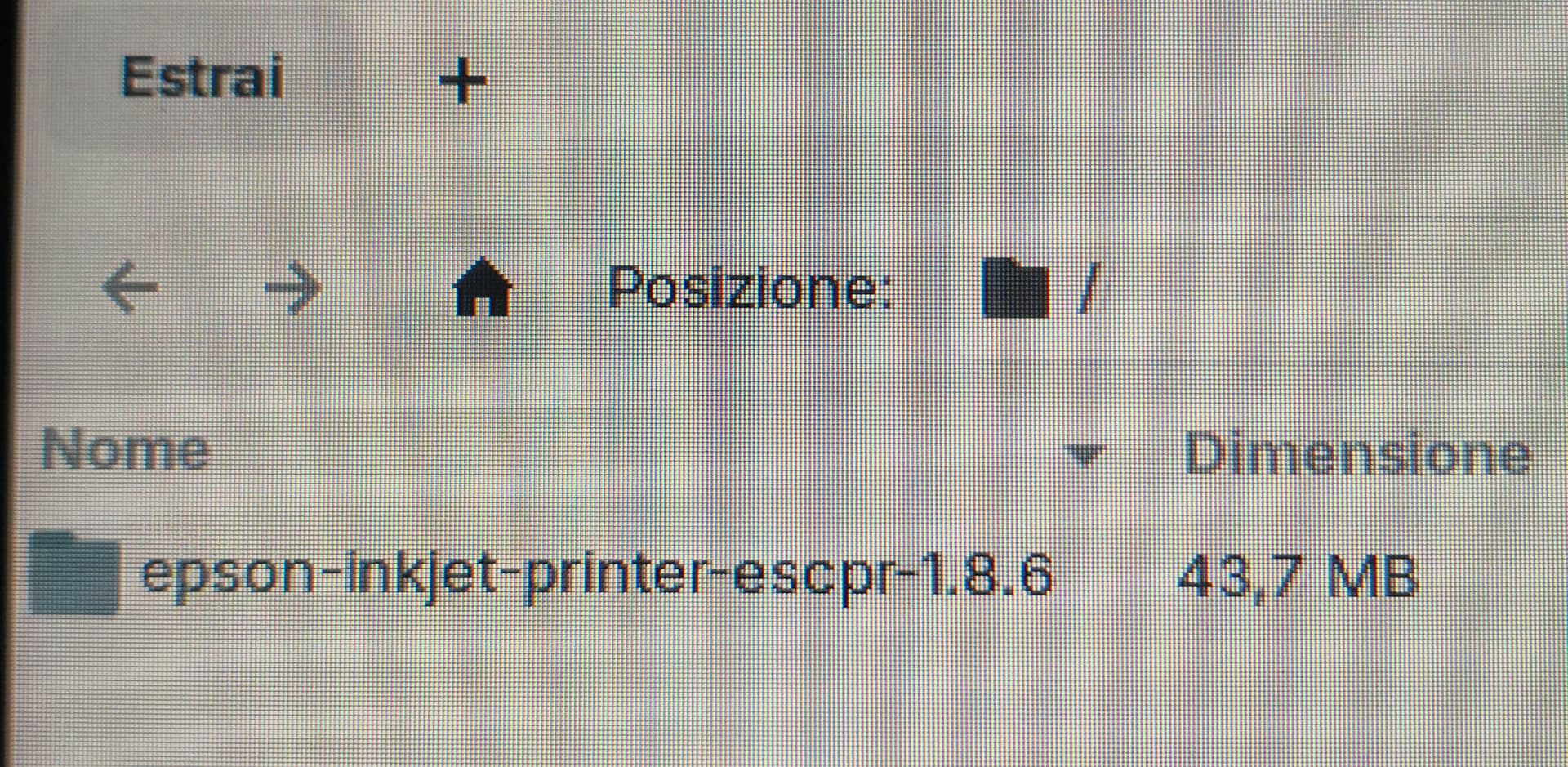
I opened the folder
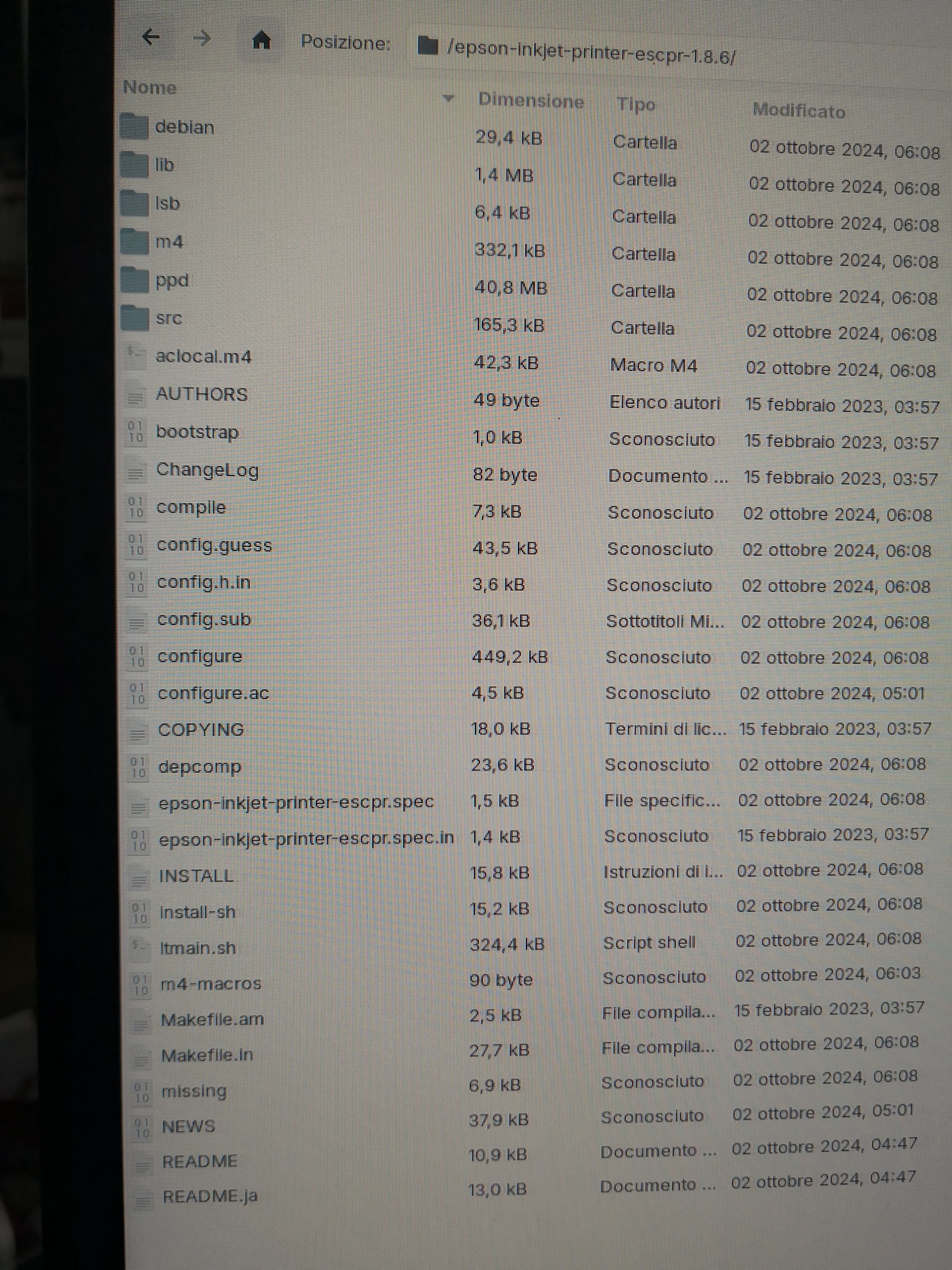
I extracted the files contained in the folder
I opened the terminal and this is the message I read
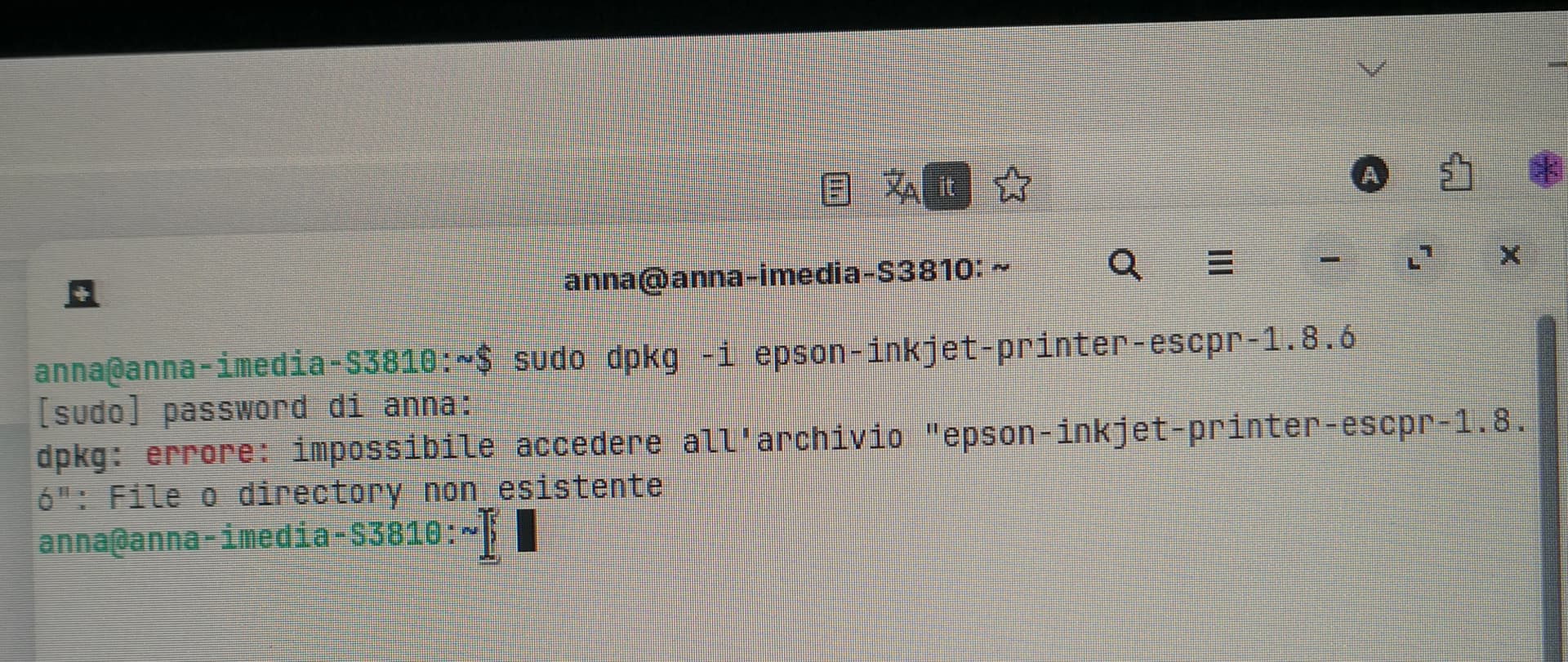
What does it mean? What should I do? Thank you so much for your patience and courtesy... Anna
Go to the parent folder where you saved the printer package. Right-click on the parent folder and select "Open terminal here". Then enter the command.
Hi, It looks like you have tried to install the archive. Go to the downloaded archive via File manager, right-click on it and select 'extract'. This should extract into a folder with the same name as the archive but all those subfolders in second screenshot should now be accessible. Open the folder named Deb. Inside there there should be an x86_64.deb package. Right click that and select install option.
Next open a terminal (type terminal in menu search bar then press Enter) and enter:
sudo system-config-printer
When the printers interface appears, select 'Add' and follow the screen prompt buttons. If attached locally it should show up on the first screen, select it and continue. Otherwise you may have to go to next screen to search for manufacturer, choose Epson, then continue, then scroll down until you see your printer model and select it and apply. Because you have installed the printer driver in the method I have described your printer model should show up in the list of Epson models.
1 Like
Hi I followed your directions.. I think I have arrived at the final result in which, after typing the command "config-system-printer" the printer appears marked with a green check.
Thank you for your help and patience...
3 Likes
This topic was automatically closed 90 days after the last reply. New replies are no longer allowed.