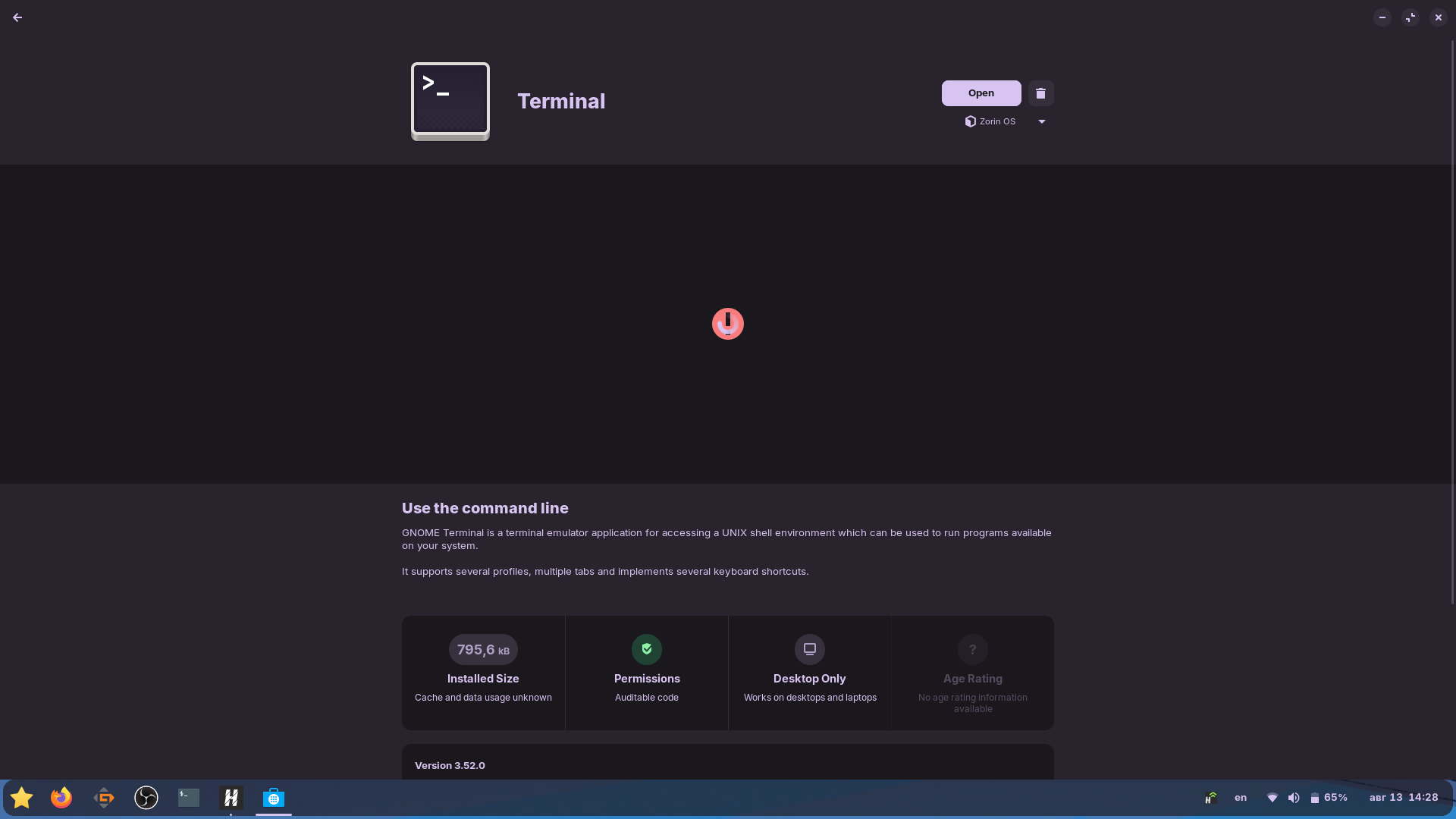
terminal doesn't open and when I look into app details this is what's in there, I don't know what's going on but it feels like uninstalling and reinstalling terminal is the only way out but it feels like too much of a risk
Have you made all updates and tried a reboot?
1 Like
And try the shortcut keys which are control+alt+t
Do You mean the Program Pictures that doesn't appear? Or the actual Terminal Program does not work? What happens when You click on the Shortcut in the Zorin Menu?
You could install a 2nd Terminal and use that to do it.
1 Like
I don't know how to reboot but I did update everything and terminal still won't open
1 Like
doesn't work
1 Like
how do I do that?
1 Like
Here are listed many terminal emulators. You could e.g. install kitty (search it in the software center and select the Zorin apt package).
Another option would be to use synaptic package manager and reinstall gnome-terminal with it. You find synaptic package manager in the software store.
It is a package manager for apt/deb packages.
Open it and search for gnome-terminal (click on the magnifying glass icon), right-click its name or icon, select "Mark for Reinstallation", and then click the "Apply" button on the top toolbar to execute the changes.
1 Like
To offer a fast Way:
Open Gnome Software and search for ''Ptyxis'' and install that. It is a Terminal, too:
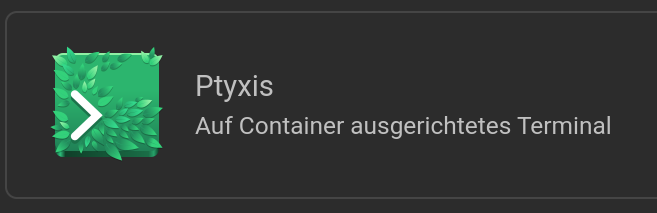
When it is installed, open it and type sudo apt reinstall gnome-terminal to reinstall the default Terminal.
Shouldn't that work, type in the Ptyxis Terminal gnome-terminal to trigger the opening of the Terminal. There, You should get Outputs. Post them here please. Maybe they can help to specify the Issue.
1 Like
@Ponce-De-Leon thats the one i have on ubuntu 26.04 with the control+alt+t set as shortcut works well
Wren, you must meet effort with effort to effectively troubleshoot.
There are a large number of vague unknowns here that inhibit resolution:
How you are launching terminal.
What actually happens when you try (Is there a popup, an error, silent failure where nothing happens?)
Have you installed other software or made any changes - possibly by following guides, etc?
The short of this is, failure to launch Gnome Terminal generally means a Serious and Critical system error that occurred during file copy at point of install. But, simple things like a changed user configuration can cause it, too.
Clear and detailed descriptions from you can make this much more productive.
From what I see in the O.P.:
It looks like Gnome Software shows the correct version is installed. What happens if you click the button marked "Open"?
I also see that the artwork for the Gnome Terminal is inexplicably missing.
I was launching terminal via its shortcut and when I try to nothing happens. if you mean other terminal-like software, no I haven't installed it. and when I clicked the "open" button in software, nothing happened.
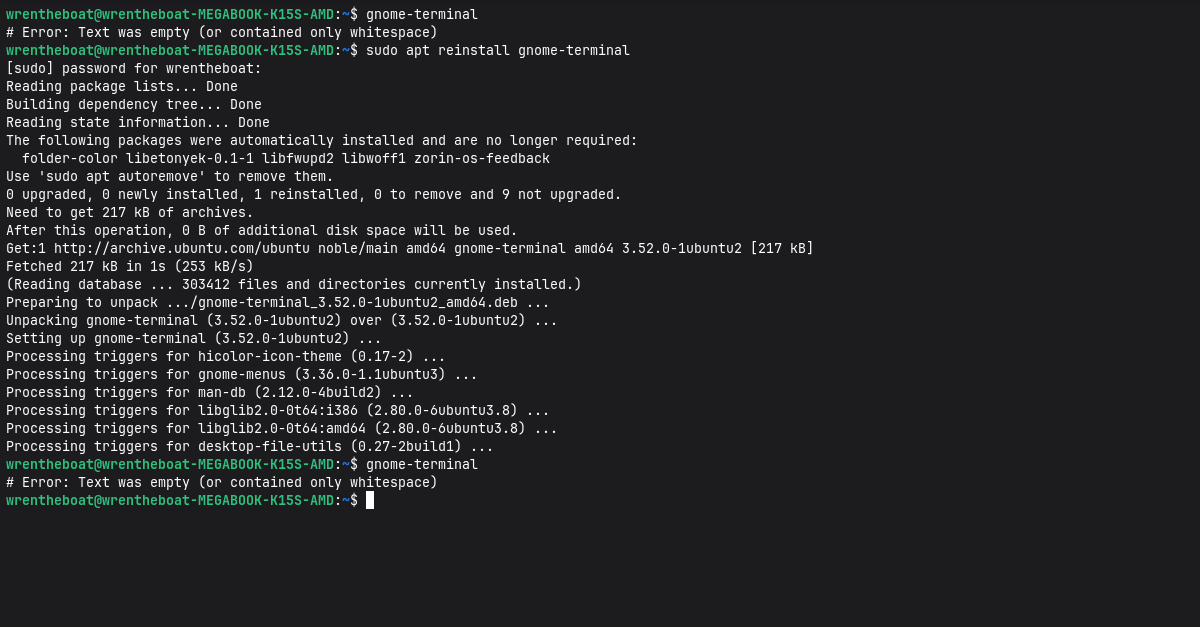
How about:
echo $SHELL
Your "no longer required packages" tells me that some portion of Gnome Desktop has been uninstalled, as well.
And an alias to redirect your call on gnome-terminal would possibly have that result.
grep -n "gtts|PROMPT_COMMAND|trap.*DEBUG" ~/.bashrc ~/.bash_aliases ~/.profile /etc/bash.bashrc 2>/dev/null
Did you install anything for Read Aloud function or for Text to Speak?
1 Like
no, as far as I remember the only gnome-related thing I ever installed was a firefox gnome extension.
I ran the echo $SHELL command and it responded with /bin/bash
1 Like
Well, /bin/bash is correct.
Can you install dconf-editor.
Then, launch it and navigate:
org > gnome > terminal > legacy then, right-click that legacy field and set: Reset recursively.
This should clear out any user configuration that is disrupting Gnome Terminal.
2 Likes
did you mean dconf-editor?
1 Like
Yes, it is a typo.
Hm, I also got the gnome terminal stop working in a test by enabling "use a custom command instead of my shell" in the preferences of gnome terminal at tab profile > command and leaving the command field empty. Then nothing happens when you try to launch gnome-terminal and the symptoms are as yours.
For me, it always is interesting to discover how a single accidental click, checking/unchecking a little box, can cause such serious damage. It's happened to me some times, too, and afterward I never knew where the setting was which I had changed.
As Aravisian told you, resetting the gnome-terminal preferences can help then.
Edit: Hm, it seems to be another setting in your case. When the custom command is enabled and no command is set, the error "Message recipient disconnected from message bus without replying" is shown. I'll try to find out what causes your error.
Ah, now I found it out.
When you enable "Run command as a login shell" and "Use a custom command instead of my shell" and leave the field empty for the command, then the terminal stops working and you get the error message "Text was empty (or contained only whitespace)".
So, in future, don't enable this both checkboxes to avoid problems or enter a correct command there.
What you can do alternatively to the installation of dconf-editor in such a case, is:
Run the command in another terminal emulator (as e.g. ptyxis or kitty)
dconf reset -f /org/gnome/terminal/legacy/
to reset all preferences of gnome-terminal,
or run instead
gnome-terminal --preferences
and uncheck the first two boxes at profile > command
2 Likes
I did it, should I reinstall terminal again or try to open it now?
1 Like
Try to open the terminal. If it doesn't work, logout and login again.
1 Like